What shoppers need to know in December
In the weeks before Christmas, the delivery question changes from “when will it arrive?” to “will it arrive in time?”. Gift buyers want a clear yes or no, and the cost of getting it wrong is higher than usual: a late present means a disappointed customer, a support message, and often a refund request.
- A clear last order date for delivery before Christmas.
- Dates that allow for peak season, when carriers are often slower.
- Your closure built in, so orders placed over the holidays show a realistic January date.
- An honest message after the deadline, so late shoppers aren't misled.
Recommended setup
| Feature | Example value | Purpose |
|---|---|---|
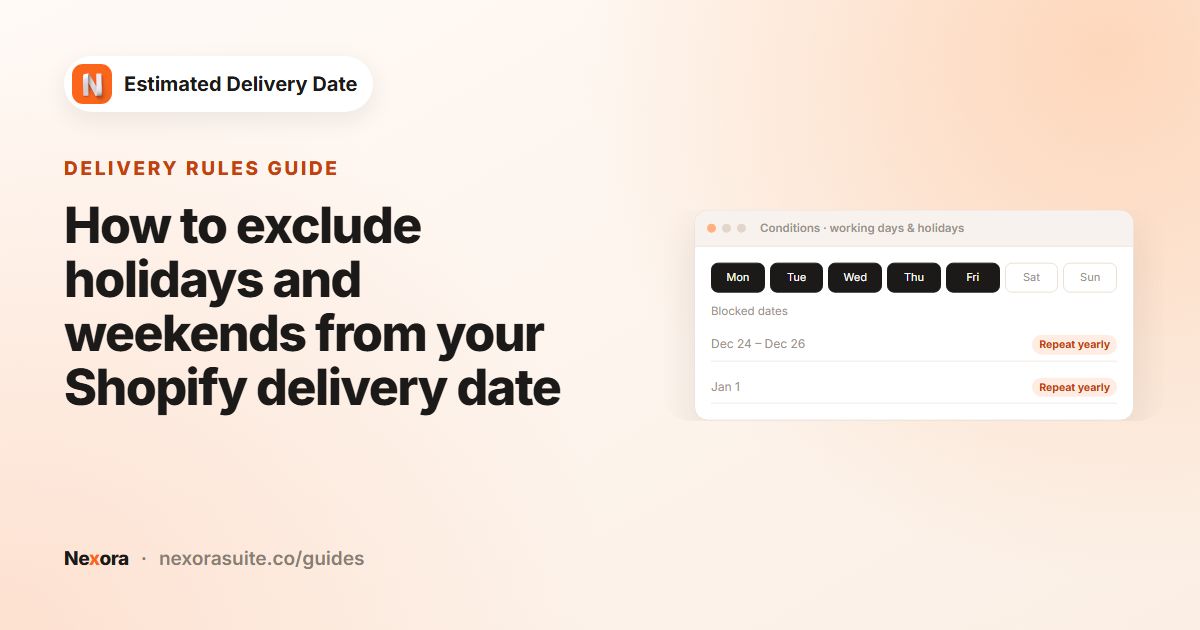
| Processing Blocked dates (holidays) | 24 Dec – 1 Jan, Repeat yearly | Your team's holiday closure |
| Transit Blocked dates (holidays) | 25 Dec – 26 Dec, Repeat yearly | Days the carrier doesn't deliver |
| Order Transit › Longest (days) | Raised for December, e.g. from 3 to 4 | Allows for slower peak-season delivery |
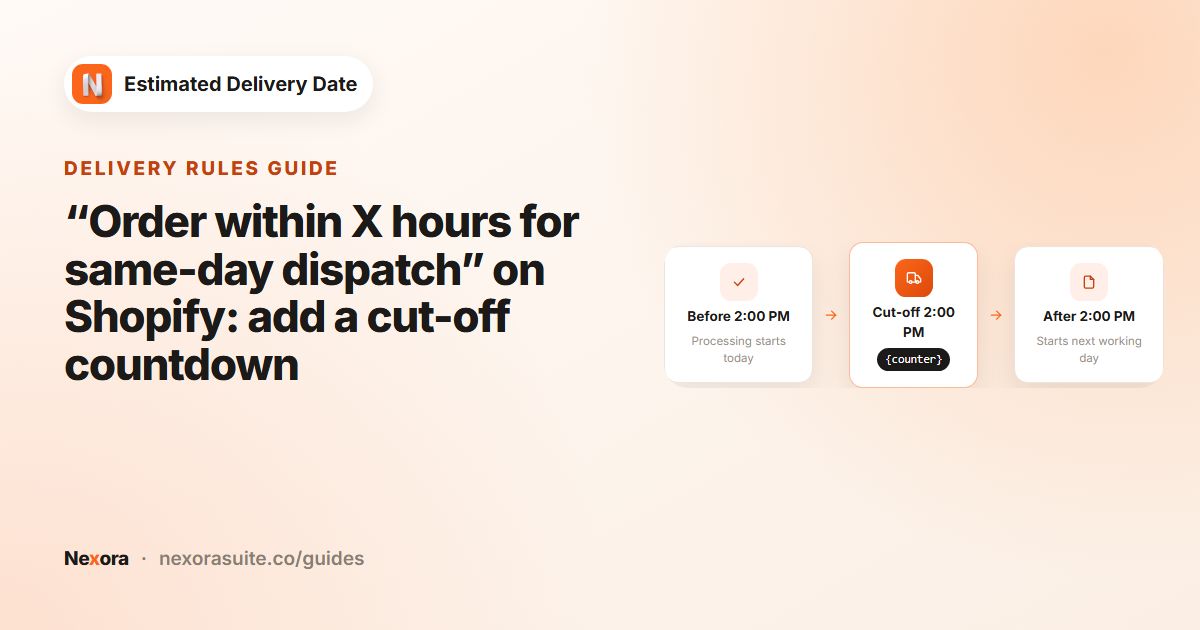
| Cutoff time | 12 : 00 PM | An earlier cut-off for busy packing days |
| Template text | Includes your Christmas deadline | States the deadline in words |
| Counter (countdown timer) colour | A festive accent colour | Draws attention to the daily cut-off |
The app doesn't calculate a “last order date” on its own. You work it out from your settings (the steps below show how), then write it into the message.
Steps
- Add your closure
Edit your widget. In Conditions › Order Processing › Blocked dates (holidays), click + Add blocked date, select the first and last day you're closed, switch on Repeat yearly and click Add.
- Add carrier holidays
Do the same in Order Transit for the days your carrier doesn't deliver.
- Adjust for peak season
Raise Order Transit › Longest (days) if your carrier warns of December delays, and consider an earlier Cutoff time.
- Find your last order date
Use the dates the widget shows: if an order placed on a given day has a Delivered range ending on or before 24 December, that day still makes it. Work back to the last such day and cut-off time.
- Write the seasonal message
In Content, edit Template text, for example “Christmas delivery: order by 16 Dec, 12 PM. Order within {counter} for delivery {delivery_from} – {delivery_to}”.
- Save
Click Save. Then set yourself a reminder to change the message when the deadline passes.
Example: finding the 2026 Christmas deadline
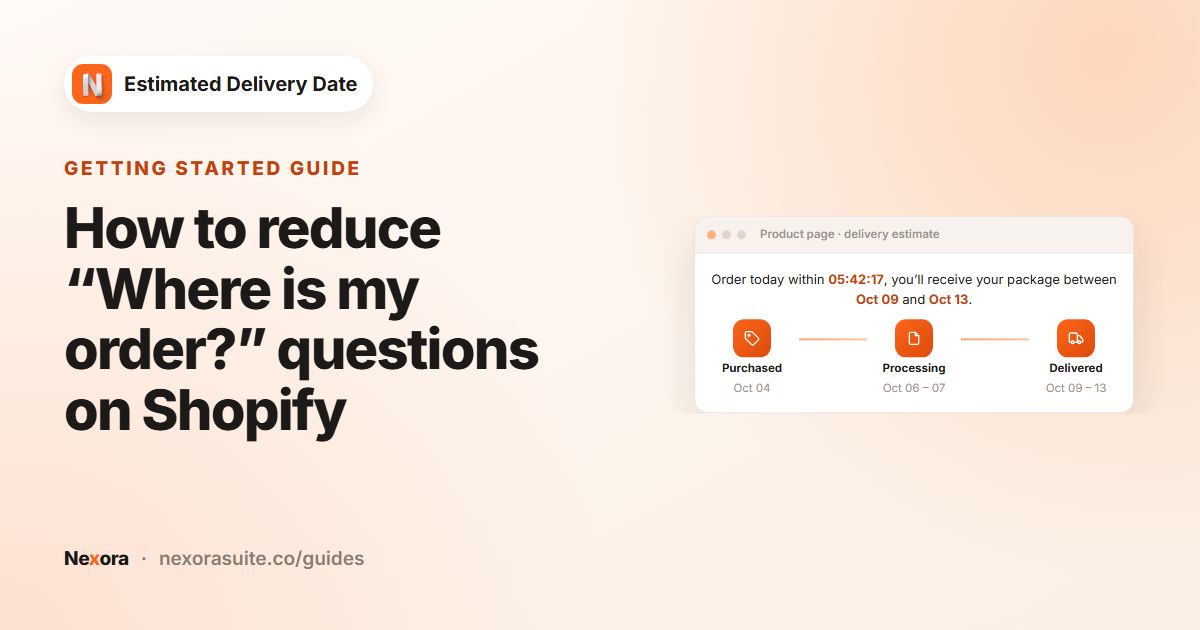
Settings: processing 1–2 days, Cutoff time 12 : 00 PM, transit 2–4 days, Monday to Friday for both, with the closures from the table above. Here is what shoppers see when visiting at 11:00 AM:
| Shopper visits | Delivered range | Before Christmas? |
|---|---|---|
| Mon 14 Dec | Dec 18-22 | Yes |
| Tue 15 Dec | Dec 21-23 | Yes |
| Wed 16 Dec | Dec 22-24 | Yes, just |
| Wed 16 Dec, 1:00 PM (after cut-off) | Dec 23-28 | Not guaranteed |
| Thu 17 Dec | Dec 23-28 | Not guaranteed |
So the deadline is Wednesday 16 December at 12:00 PM. Before then, the message states it. Afterwards, change Template text to something like “Ordering now? Estimated delivery {delivery_from} – {delivery_to}. Christmas delivery is no longer guaranteed.”
An order on Tuesday 22 December now shows Processing Dec 23 – Jan 04 and Delivered Jan 06-08, because the closure is skipped.
Option: a separate seasonal widget
Instead of editing your usual widget, you can prepare a “Christmas” widget in advance with the peak-season settings and message. When the season starts, untick the status checkbox on your standard widget to make it Inactive and tick it on the Christmas one, then swap back in January.
Don't leave two active widgets with the same Placement and Markets. Only one is shown on a product page, and you can't choose which.
Tips for the holiday season
- Check your carrier's published dates. Use them to set December transit days, and leave a day or two of margin.
- Messages don't change by themselves. The text is shown as written until you edit it, so plan the switch after your deadline.
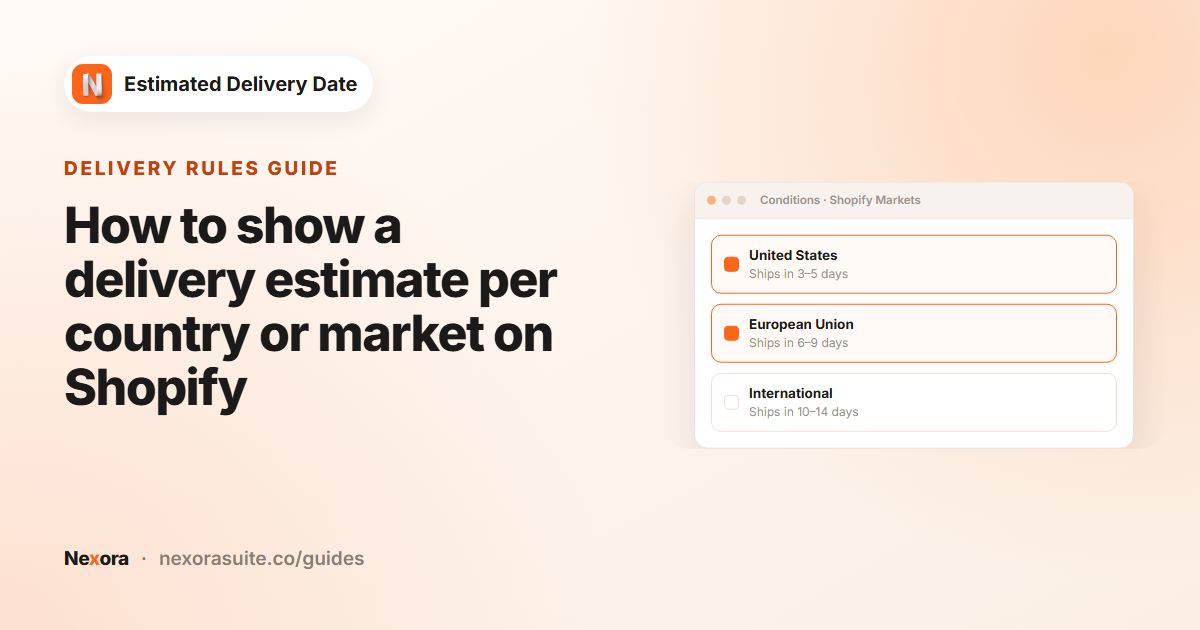
- International markets close earlier. If you use Specific markets widgets, work out a separate, earlier deadline for international shoppers.
- Time zones. Dates and the countdown follow the shopper's device clock and time zone.
- After New Year, lower transit days back to normal; the Repeat yearly closures stay in place for next year.
For general holiday and weekend rules, see excluding holidays and weekends.
Frequently asked questions
Does the app calculate my Christmas deadline automatically?
No. It calculates the delivery range for each day. You read off the last day whose range ends before Christmas and write that deadline into the message.
Will the message change after my deadline?
No. The message is shown as written until you edit it, so update Template text when the deadline passes.
How do I keep my Christmas closure for next year?
Switch on Repeat yearly when adding the blocked dates. They'll be labelled (Yearly).
Can I prepare a holiday widget in advance?
Yes. Create it, leave it Inactive, and switch it on when the season starts, making your standard widget Inactive at the same time.
What do shoppers see when ordering during my closure?
The dates skip the blocked days, so they see processing and delivery dates after you reopen.