What a delivery timeline shows
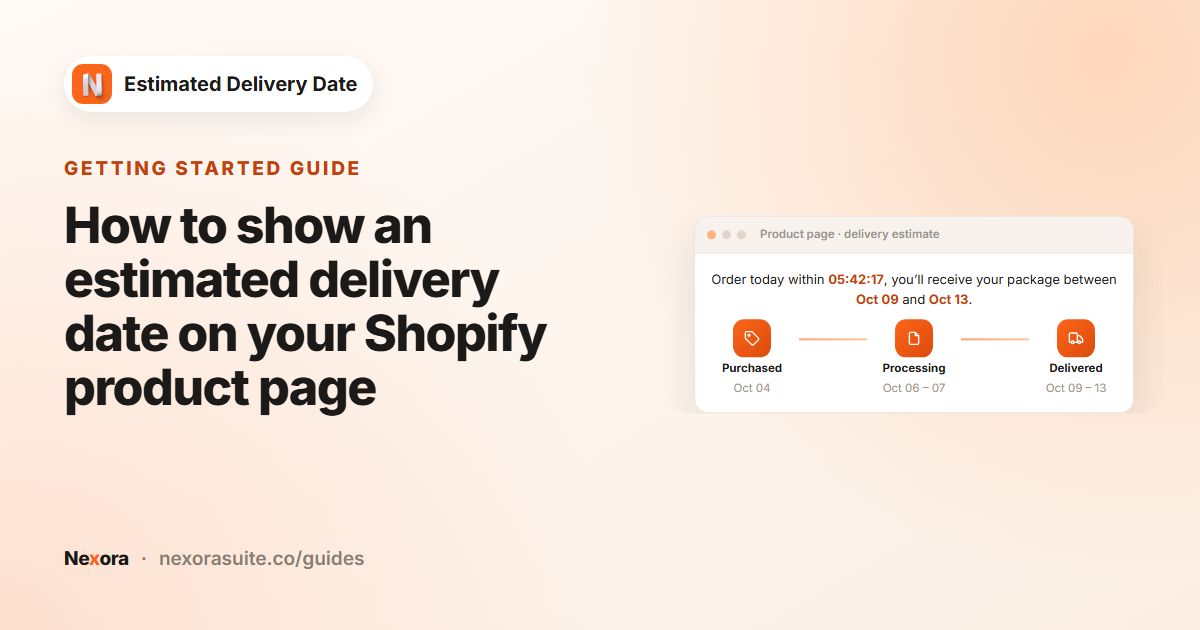
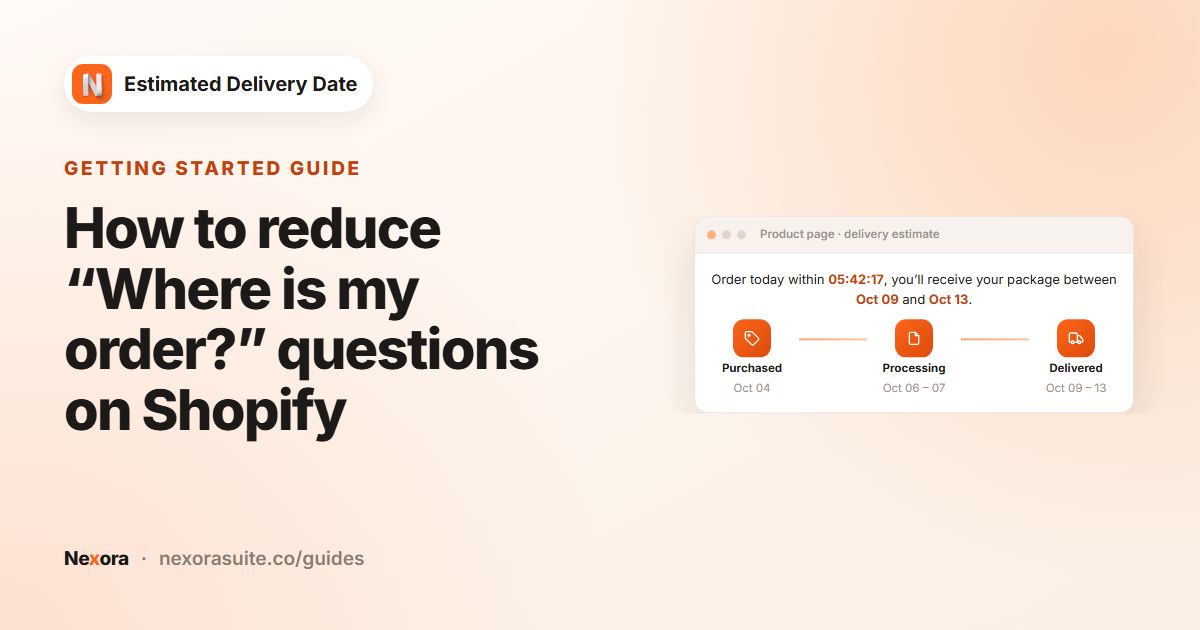
A single delivery date answers “when?”. A timeline also answers “why then?”: the shopper can see that the order is placed today, packed over the next day or two, and then delivered. That makes a longer lead time easier to accept, especially for made-to-order or personalised products.
- Purchased shows today's date.
- Processing shows your processing date range.
- Delivered shows the estimated delivery range.
Above the timeline sits a short message that can include a countdown and the delivery dates.
Your options on Shopify
Shopify themes don't include a delivery timeline for the product page. You could build one with a Custom Liquid block and your own HTML and CSS, but the dates would be fixed unless you also write the date logic. The app gives you the layout, the dates and the styling controls without code, and you can still add your own CSS.
Before you start styling, open a product page on your live theme and note its colours, corner style and font sizes. Matching the widget's Border radius to your buttons and its Typography sizes to your product text makes it look like part of the theme rather than an add-on. New widgets start with a warm orange style, so most stores change at least the colours.
Step by step: customise the steps and the look
- Open the Content tab
Edit your widget and open Content. Scroll to the Purchased, Processing and Delivered cards.
- Rename each step
Change Title to suit your store, for example “Ordered”, “Shipped” and “Arrives”.
- Choose icons
Under Default icons, pick one of five built-in icons per step. Purchased: bag, cart, card, receipt, gift. Processing: clipboard, box, gear, tag, refresh. Delivered: truck, check mark, home, map pin, star.
- Or upload your own
Under Custom icon (overrides default), click Select to upload an image. Use Change to swap it, or the delete icon to go back to the built-in set.
- Style it
Open Design and work through the cards: Background, Border, Spacing, Description, Icons & Progress line, shadows, Typography and Custom CSS.
- Save
Watch the Live Preview, then click Save to publish the changes.
Design settings at a glance
| Card | Main settings |
|---|---|
| Background | Background color, solid or gradient |
| Border | Border radius (0–32 px), Border width (0–8 px), Border color |
| Spacing | Vertical padding, Horizontal padding, Middle gap |
| Description | Margin bottom and Text alignment of the message |
| Icons & Progress line | Icon size (16–64 px), Icon padding, Icon stroke width |
| Icon stroke color | Override default color and a Color for built-in icons |
| Icon border | Show icon border, Border width, Icon background |
| Progress line | Progress line width, Progress line color (solid or gradient), Line gap from icon |
| Line shadow / Icon shadow | Enable shadow, Offset X, Offset Y, Blur, Shadow color |
| Line endpoints (dots) | Show endpoint dots, Dot size, Dot color |
| Typography | Size and colour for Description, Step title, Date label; colours for Counter (countdown timer) and Delivery date (in description) |
| Custom CSS | Your own CSS, applied to the storefront and the Live Preview |
Icon stroke colour and width only apply to the built-in icons. Uploaded icons are shown as they are, at the chosen Icon size.
Example: a minimal monochrome timeline
A fashion store wants the widget to blend into a black-and-white theme.
- Background color: white. Border width 1 px, Border color light grey, Border radius 4 px.
- Override default color on, icon Color black, Icon stroke width 1.5.
- Progress line color light grey, Progress line width 1, Show endpoint dots off, shadows off.
- Titles: “Ordered”, “Packed”, “With you”. Icons: bag, box, home.
- Counter (countdown timer) colour black, so the timer is bold but not loud.
For finer tweaks, Custom CSS can target .edd-widget (the timeline box), .edd-desc (the message), .edd-step (each step) and .edd-line (the progress lines).
Tips and common mistakes
- Timeline date style is fixed. Dates under each step always use a short style such as “May 13”, “May 13-18” or “May 30 – Jun 02”, with English month names. Date settings only change the dates in the message.
- Keep titles short. One or two words per step fit best on mobile.
- Upload simple icons. Square, transparent images look cleanest at small sizes.
- Scope your CSS. Target the widget's own selectors so you don't restyle other parts of the product page.
- Check on a phone. Reduce Icon size or Horizontal padding if the steps feel cramped.
Frequently asked questions
Can I change the step names?
Yes. Change Title in the Purchased, Processing or Delivered card of the Content tab.
How many built-in icons are there?
Fifteen, five for each step. You can also upload your own under Custom icon (overrides default).
Can I add a fourth step?
No. The timeline always has three steps: purchased, processing and delivered, which you can rename.
Can I change the date format under the steps?
No. Timeline dates use a fixed short style. Your Date format setting applies to the dates in the message.
Can I use a gradient?
Yes. Background color, Icon background and Progress line color accept solid colours or gradients.
Does the Live Preview show my changes immediately?
Yes. The Live Preview updates as you change settings, including a running countdown. Your store only changes after you click Save.