
Getting started
What does the app do?
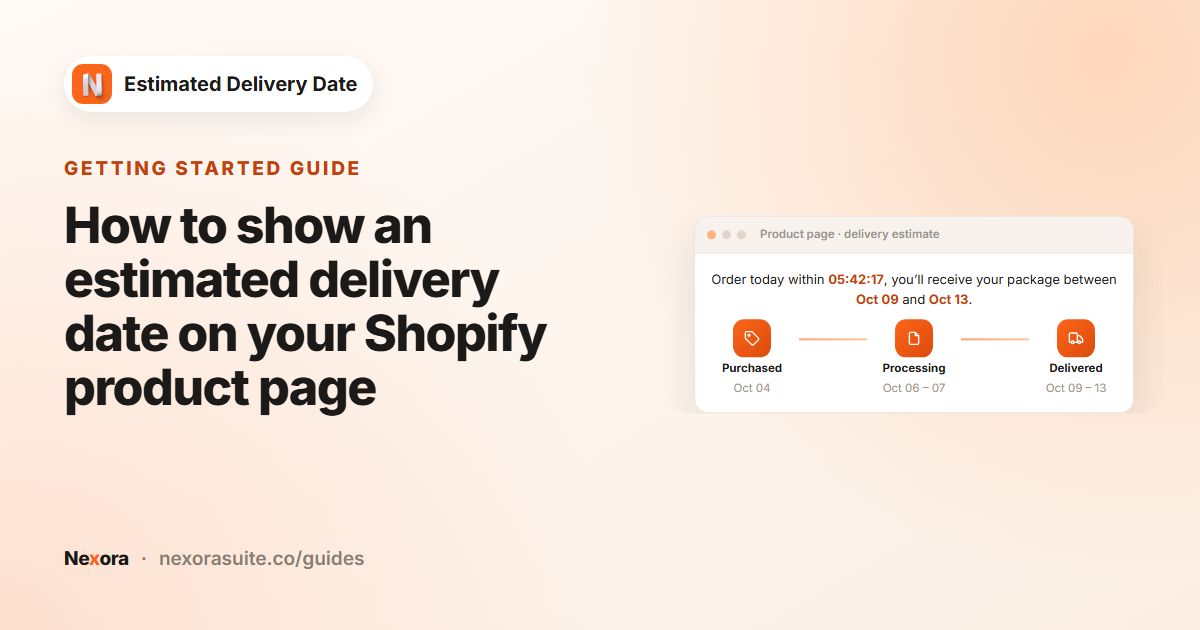
It shows an estimated delivery date range on your product pages, with an optional countdown to your order cut-off time and a three-step timeline (Purchased, Processing, Delivered).
How much does it cost?
The app is free, with unlimited widgets.
Where does the widget appear?
On product pages, wherever you place the EDD Widget app block in the theme editor. It does not appear in the cart, at checkout, on the order status page or in emails.
Do I need to turn on an app embed?
No. The app uses a theme app block only. Add EDD Widget to your product page in the theme editor and save.
How many widgets can I create?
As many as you like. Use different widgets for different collections, products or markets.
 Related guideHow to show an estimated delivery date on your Shopify product page→
Setup and dates
How is the delivery date calculated?
The app finds the processing start day (today if it's a working day and before your cut-off, otherwise the next working day), adds your processing days, then adds your transit days from the end of the longest processing time. Only working days count, and blocked dates are skipped.
Can I offer same-day processing?
Yes. Set Shortest (days) under Order Processing to 0. Orders before your Cutoff time on a working day then start, and can finish, processing that day.
Can processing and shipping have different working days?
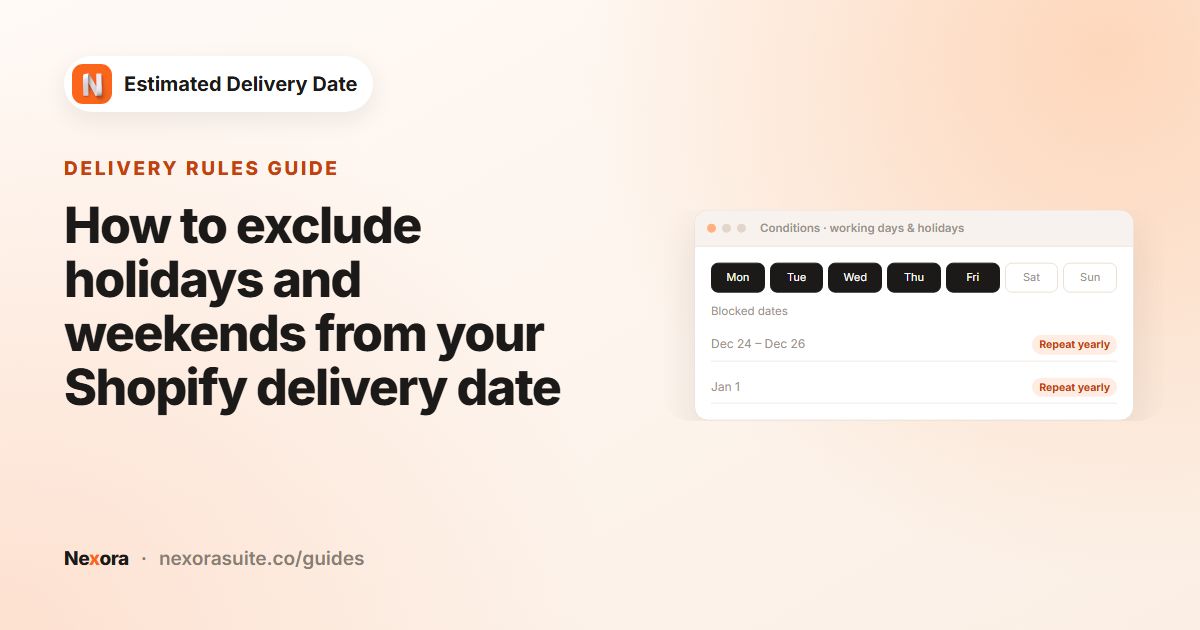
Yes. Order Processing and Order Transit each have their own Working days and Blocked dates (holidays), so you can, for example, process Monday to Friday while your carrier also delivers on Saturdays.
How do I add a holiday that happens every year?
Click + Add blocked date, choose the date or range, switch on Repeat yearly and click Add. It will be labelled (Yearly) in the list.
Which date formats are available?
DD/MM/YYYY, MM/DD/YYYY and YYYY/MM/DD with the year, or DD/MM and MM/DD without it, using any separator you type in Date separator. These apply to the dates in the message.
Why do the timeline dates look different from my chosen date format?
The timeline under each step always uses a short style such as "May 13" or "May 13-18" so it fits neatly. Your Date format setting controls the dates inside the message.
Can I show different estimates for different products?
Yes. Create a widget for Specific products or Specific collections with its own timings. Product widgets win over collection widgets, which win over All products widgets.
Can I show different estimates by country or region?
Yes, through Shopify Markets. In Conditions › Markets, choose Specific markets and select the markets for each widget.
 Related guideHow to exclude holidays and weekends from your Shopify delivery date→
Design and content
Can I change the step names?
Yes. In the Content tab, change the Title in the Purchased, Processing or Delivered card.
Can I use my own icons?
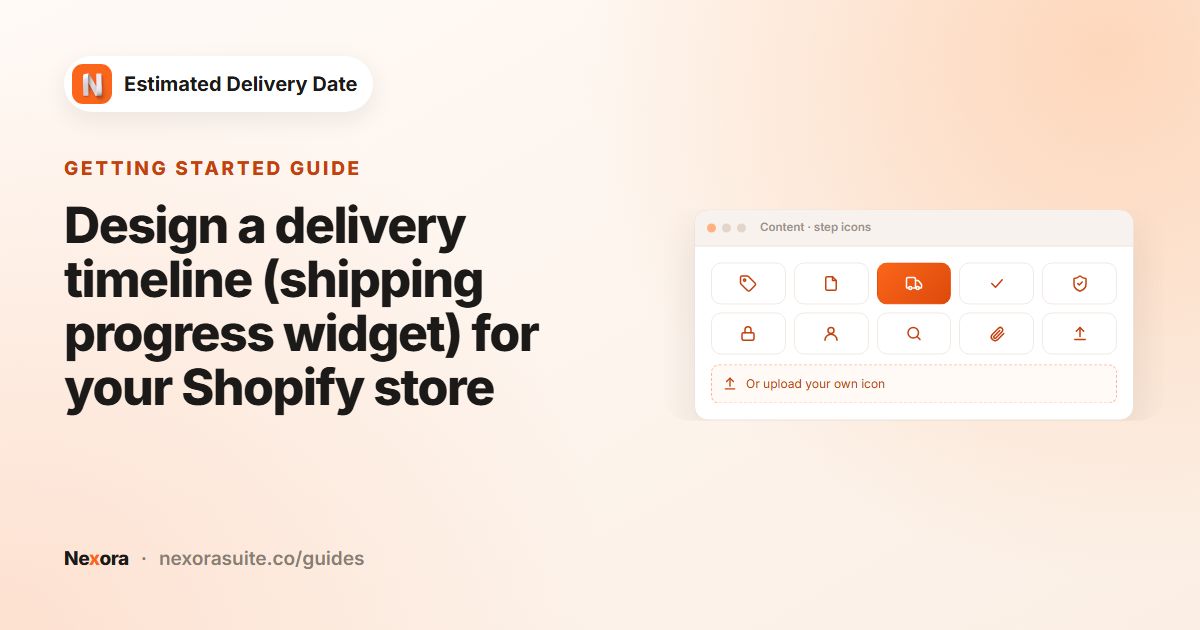
Yes. Each step has five built-in icons, or you can upload your own image under Custom icon (overrides default).
Can I hide the countdown?
Yes. Remove {counter} from Template text and the countdown won't be shown.
Can I add my own CSS?
Yes. Use the Custom CSS card in the Design tab. Target selectors such as .edd-widget, .edd-desc and .edd-step so other parts of your page aren't affected.
Is the widget translated into other languages?
You write the message and step titles yourself, so you can use any language. Month names in the timeline are shown in English.
 Related guideDesign a delivery timeline (shipping progress widget) for your Shopify store→
Storefront and theme
Which themes are supported?
Online Store 2.0 themes whose product section supports app blocks. Older (vintage) themes without app block support can't show the widget.
Can I show more than one widget on the same product page?
No. One widget is shown per product page. If several match, the most specific one is used (product, then collection, then all products).
Which time zone does the countdown use?
The shopper's own device clock and time zone. Shoppers in different time zones may see different countdowns and, close to midnight, different dates.
What happens after the cut-off time has passed?
The countdown starts counting to the cut-off time on the next calendar day, and the estimated dates move forward accordingly.
Troubleshooting
The widget doesn't appear on my product page. What should I check?
Make sure the EDD Widget block is added to the product template you're viewing and the theme is saved. Then check that the widget is Active, saved, and that its Placement and Markets match the product and the shopper's market.
I changed settings but my store didn't update.
Click Save in the save bar at the top of the editor. The Live Preview updates instantly, but the store only changes after saving. Then refresh the product page.
The message says "Order today" on a weekend.
The message text is shown as written on every day, while the dates themselves skip non-working days. Use neutral wording such as "Order within {counter} for delivery by {delivery_to}" if you prefer.
I see the text {counter} on my store instead of a timer.
This happens when {counter} is used more than once in Template text. Keep only one {counter} and save.
My markets don't load in the Conditions tab.
Try reopening the app so Shopify can refresh its permissions. If the list still doesn't load, contact us through live chat or at [email protected].
I can't save my widget.
Check that Shortest (days) is not larger than Longest (days) in both Order Processing and Order Transit. If it is, a "Can't be longer than longest" message appears under the field.