
How the app works
Nexora Countdown Timer lets you add countdown timers to your Shopify store. You can create as many timers as you like, and every feature is free.
Each timer is built in three tabs, Content, Design and Placement, with a live preview next to the form. A timer only appears on your storefront after you click Publish and the app embed is turned on in your theme.
- Home: the dashboard, with the Help center (theme editor shortcuts and live chat) and Your timers.
- Countdown timers: the full list of your timers, where you can create, edit, publish, duplicate and delete them.
- Analytics: impressions, clicks, conversions and influenced revenue for your timers.
- Document: a short help guide inside the app.
The app needs its app embed turned on in your theme before any timer can appear. See App embed, app blocks and code snippet below.
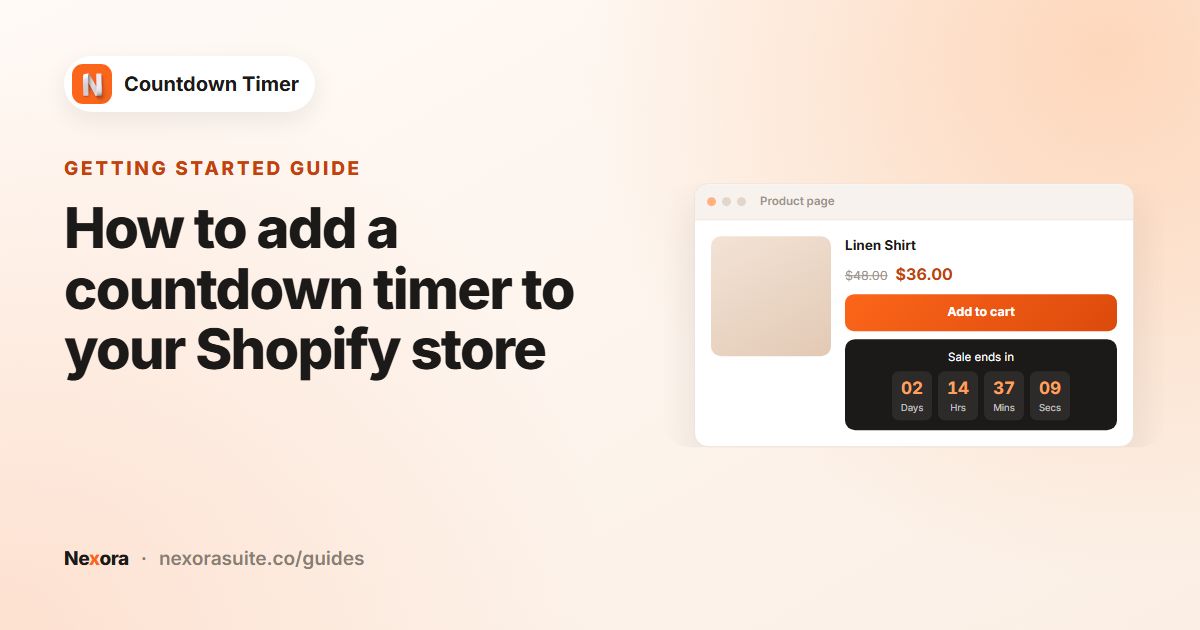 Related guideHow to add a countdown timer to your Shopify store→
Timer placements
When you click Create timer, the Choose timer type screen asks where the timer should go. Click Select this timer type on one of the four cards. You can't change the placement later, so if you need a different one, create a new timer.
| Placement | Where it appears | Timer types available |
|---|---|---|
| Product page | On product pages, just below the add to cart / Buy it now buttons. | Countdown to a date, Fixed minutes, Daily recurring timer |
| Top/bottom bar | A bar at the top or bottom of any page. It can be sticky, show a close icon and link to a page. | Countdown to a date, Fixed minutes, Daily recurring timer |
| Landing page | A card on the home page, collection pages, the password page, or any other page you choose with a theme block. | Countdown to a date, Fixed minutes, Daily recurring timer |
| Cart page | At the top of the cart page, with the time inside your own sentence via the {timer} placeholder. | Fixed minutes only |
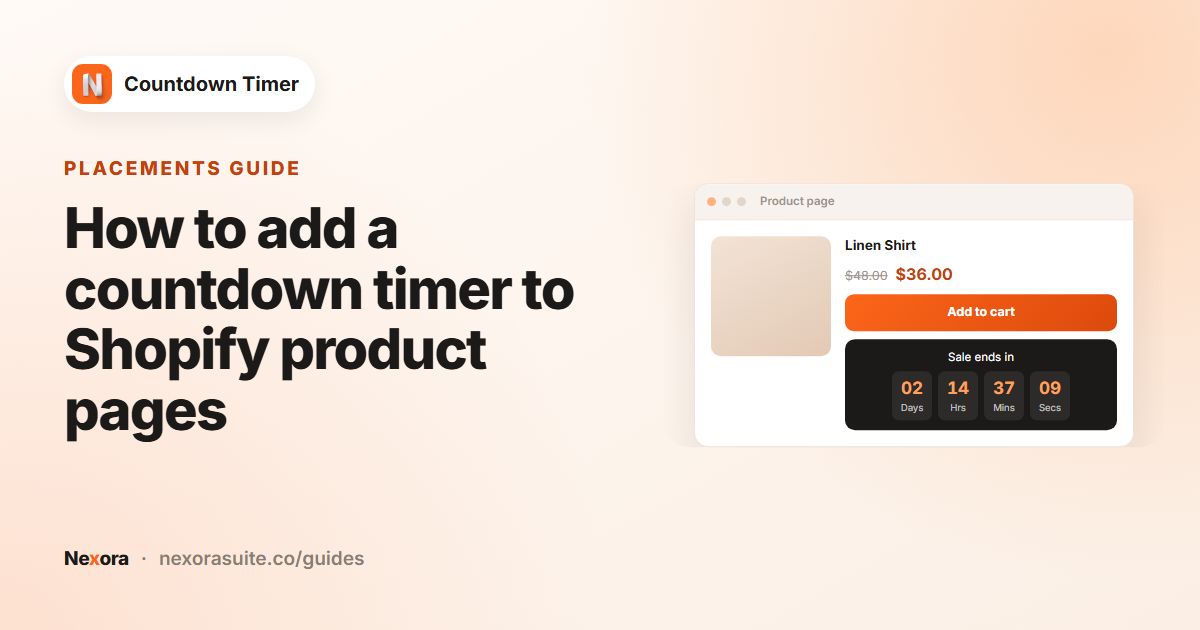 Related guideHow to add a countdown timer to Shopify product pages→
Content tab: name and text
The Countdown name & content section holds the text your shoppers see. Which fields appear depends on the placement.
| Setting | What it does |
|---|---|
| Countdown name | Only visible to you. For your own internal reference. |
| Title | The main heading of the timer. On a Cart page timer, put {timer} where the time should appear, for example Your cart is reserved for {timer}. A cart timer can't be published without {timer} in the title. |
| Subheading | A smaller line under the title (Product page, Top/bottom bar and Landing page). |
| Call to action | Top/bottom bar and Landing page only. Choose No call-to-action or Button. The bar also offers Make entire bar clickable. |
| Button text / Link URL | The button label and the page it opens. The link can be a full URL (https://…) or a path on your store such as /collections/sale. |
| Open link in a new tab | Opens the call-to-action link in a new browser tab. |
| Close icon | Top/bottom bar only. Shows a × so shoppers can close the bar. It stays closed for the rest of their browser session. |
| Timer labels | Shows the Days, Hrs, Mins and Secs labels under the digits. Edit them in Days label, Hrs label, Mins label and Secs label. If you leave a label empty, no label shows for that unit. |
| Hide Days when value is 00 | Hides the days unit when less than a day is left (Product page, Top/bottom bar and Landing page). |
Timer types and end-of-timer actions
The Timer section sets how the countdown runs (Timer Type) and what happens when it reaches zero (Once it ends).
Timer Type
| Timer Type | How it works | Settings |
|---|---|---|
| Countdown to a date | Counts down to a fixed end date and time. Everyone sees the same deadline. | Timer starts: Right now or Schedule to start later (with Start date, Hour, Minute, AM/PM). Then End date, Hour, Minute, AM/PM. A scheduled timer stays hidden until its start time, then appears without a page reload. |
| Fixed minutes | An evergreen timer: each shopper gets their own countdown of the set length, starting the first time they see it. | Minutes. The countdown is remembered in the shopper's browser, so reloading the page doesn't reset it. It restarts for everyone when you save changes to the timer. |
| Daily recurring timer | Shows every selected day during a time window and counts down to the end of that window. | Days of week (Mon to Sun), Start hour (1-12), Start minute, AM/PM, End hour (1-12), End minute, AM/PM. The timer appears and disappears on its own as windows open and close. |
Times are based on each shopper's own browser time zone. A daily window from 9:00 AM to 5:00 PM runs from 9 to 5 local time for every visitor.
Once it ends
| Option | Available for | What happens |
|---|---|---|
| Unpublish timer | Countdown to a date | The timer is hidden in the shopper's browser once it reaches zero. It stays Published in the app. |
| Hide the timer for the buyer | Fixed minutes, Daily recurring timer, Cart page | The timer disappears for that shopper. |
| Repeat the countdown | Fixed minutes, Cart page | A new countdown of the same length starts. |
| Show custom title | Countdown to a date, Fixed minutes, Daily recurring timer | The title changes to your Custom title (the subheading is removed). |
| Do nothing | Countdown to a date, Fixed minutes, Daily recurring timer | The timer stays visible at zero. |
| Delete all cart items | Cart page only | The shopper's cart is emptied and the page reloads. |
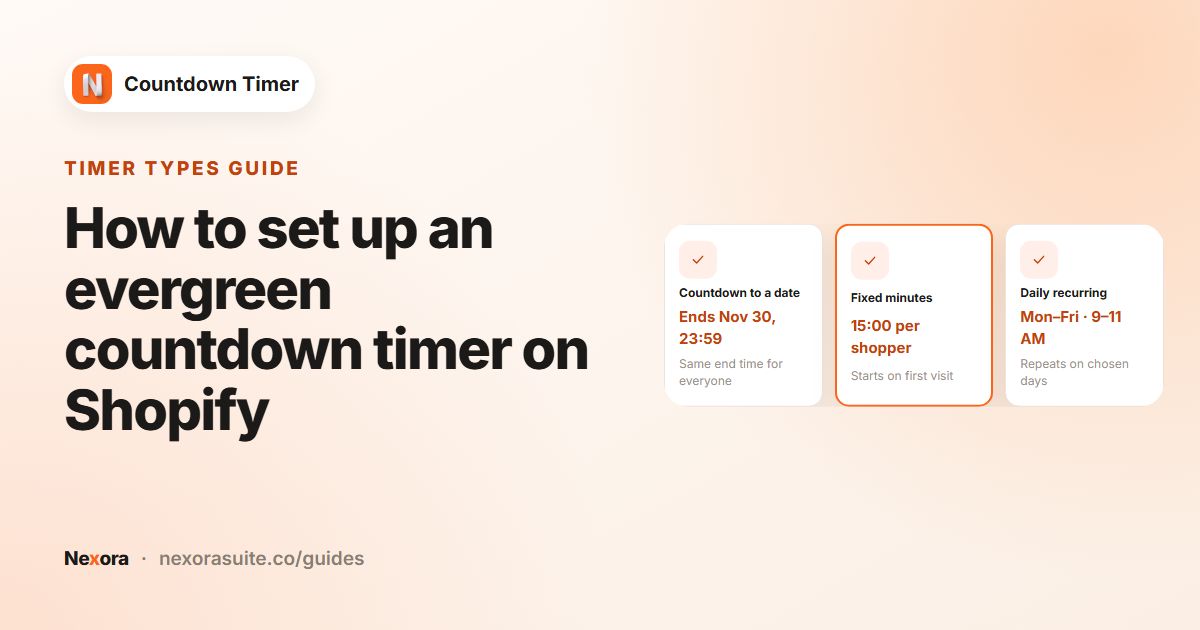 Related guideHow to set up an evergreen countdown timer on Shopify→
Translations
If your store sells in more than one language, the Translations section on the Content tab lets you translate a timer's text for each one.
- Click Add translations
Pick a Language. The list shows your store's languages that don't have a translation yet.
- Fill in the text
Each original text appears next to an empty field: Title, Subheading, Button text, Custom end title and the four labels. Click Add.
- Edit or delete later
Use the ··· menu on a language to choose Edit translation or Delete.
On the storefront, the timer uses the translation that matches the shopper's current language. Fields you leave empty fall back to the original text.
Design tab
The Design tab controls how the timer looks. The live preview updates as you change settings.
| Section | Settings |
|---|---|
| Positioning (Top/bottom bar only) | Placement: Top of the page or Bottom of the page. Sticky (always visible while scrolling) keeps the bar on screen and pushes page content so your header isn't covered. |
| Template | Layout: Standard, Balanced or Inline (not on Cart page). Style: Custom or one of 20 ready-made color templates, such as Dawn, Electric, Forest, Neon, Valentine, Frost, Minimal and Mint. |
| Card | Card background: Single color background, Gradient background (Gradient angle degree, Color 1, Color 2) or Image background (Select image / Upload image, plus a Color overlay). Also Border radius, Border size and Border color. |
| Timer style | Type: Plain, Grouped or Boxes. Grouped and Boxes add Corner radius and Background. Boxes adds Show colons between digits. |
| Spacing (Product, Landing, Cart) | Outside Top and Bottom margins, and Inside Top, Right, Bottom and Left padding. |
| Typography | Font: Use your theme fonts or Helvetica, Tahoma, Trebuchet MS, Times New Roman, Georgia, Garamond, Courier New or Verdana. Size and color for Title, Subheading, Timer and Legend (the labels). |
| Button (Bar and Landing) | Shown when the call to action is Button or the bar's close icon is on: Corner radius, button color, text size and text color, Padding top / bottom, Padding left / right, Close icon size and Close icon color. |
| Request customisations | Need a design the settings can't do? Click Contact support and our team will do its best to make the change for free. |
Choosing a template Style changes the colors but keeps your layout, timer style and corner radius. If you then change a color yourself, the style switches to Custom.
Theme fonts aren't shown in the preview. Publish the timer to see it with your theme font on the storefront.
Placement tab: where the timer shows
Use the first section of the Placement tab, Select products to display the timer, to choose the pages where the timer appears. The options depend on the placement.
| Placement | Options |
|---|---|
| Product page | All products (with an Exclude link for specific products), Specific products, All products in specific collections, All products with specific tags, Custom position |
| Top/bottom bar | Show on every page (with Exclude pages), Show on home page only, Show on all product pages (exclude products), Show on specific product pages, All products in specific collections, Show on all collection pages (exclude collections), Show on specific collection pages, Custom position |
| Landing page | All collection pages (includes the home page, with an Exclude link for collections), Specific collection pages, Password page, Custom position |
| Cart page | At the top of the cart, Custom position |
Excluding pages from a bar
With Show on every page, click Exclude to open the Exclude pages window. Tick any of Home, Collections, All product pages, Blogs, Blog posts, Cart, Search, 404, Specific URLs (type the addresses) or Pages that contain specific keywords in URL, then click Select.
Custom position
Custom position means the app won't place the timer automatically. You choose the exact spot with a theme block or the code snippet. See the next section.
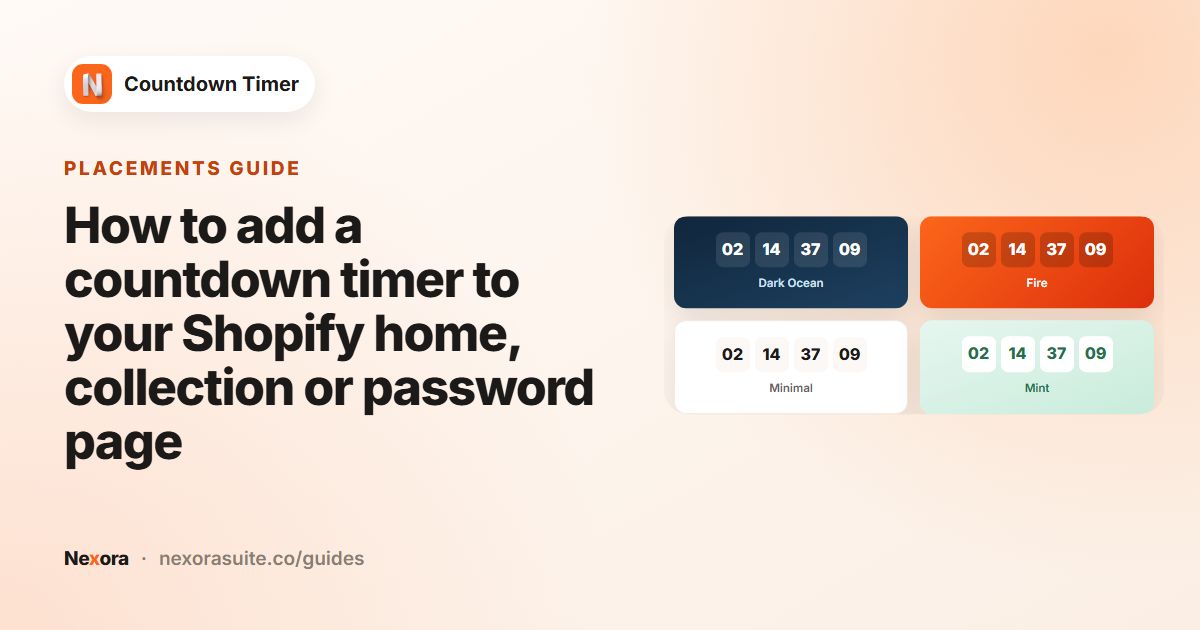 Related guideHow to add a countdown timer to your Shopify home, collection or password page→
App embed, app blocks and code snippet
App embed
The Countdown Timer app embed loads your timers on the storefront and places them automatically based on the Placement tab. On the dashboard, click Go to theme editor in Activate app embed, turn on Countdown Timer under App embeds, and click Save in the theme editor.
Theme app blocks
To choose an exact position in a template, add one of the four app blocks in the theme editor (Add block → Apps) and paste the timer's Timer ID into the block's Timer ID setting.
| Block | Use it for |
|---|---|
| Countdown Timer — Product | Product page timers, anywhere in the product template. The dashboard button Go to product page opens the product template with this block ready to add. |
| Countdown Timer — Bar | Top/bottom bar timers. A bar placed with a block shows at that spot in the page instead of sticking to the top or bottom of the screen. |
| Countdown Timer — Landing | Landing page timers on the home page, collection pages, the password page or other templates. |
| Countdown Timer — Cart | Cart page timers at a specific spot in the cart template. |
A block shows nothing until you paste a Timer ID into it. Copy the ID from the timer's header, the Timer ID card on the Placement tab, or Copy ID in the timer list.
Timer code snippet
When a saved timer uses Custom position, the Placement tab shows a Timer code snippet you can copy and paste anywhere in your theme code, for example <div class="countdown-timer-block" countdown-timer-id="YOUR-TIMER-ID"></div>. Keep the app embed turned on so the snippet can load the timer.
Geolocation targeting
The Geolocation targeting section on the Placement tab decides which visitors see the timer, based on the country they're browsing from.
- All world: every visitor sees the timer.
- Specific countries: click Select countries, search the list of 248 countries and regions, tick the ones you want and click Select. Remove a country by clicking the × on its tag.
The visitor's country is detected from their location when the page loads and remembered for the rest of their browser session.
 Related guideHow to show a countdown timer only to visitors from certain countries on Shopify→
Saving, publishing and managing timers
- Save: the Shopify save bar appears as soon as you change something. Click Save to keep your changes or Discard to undo them. If you try to leave with unsaved changes, the app asks you to confirm.
- Publish / Unpublish: the button at the top right of the timer form. The badge next to the name shows Published or Not published. Changes you save to a published timer go live on your storefront right away.
- Timer ID: shown under the timer name once you save or publish. Click the copy icon to copy it.
- Back / Continue: the buttons at the bottom of each tab take you through Content, Design and Placement in order.
In the timer list (Name, Type, Status, Created, Actions), click a row or Edit to open a timer, Delete to remove it, or the ••• menu for Publish/Unpublish, Duplicate and Copy ID. A duplicate is created as a draft named “(copy)”.
Before publishing, the app checks the basics: products, collections or tags are selected when the placement needs them, a Countdown to a date timer has an end date in the future, a Button call to action has text and a link, and a cart title contains {timer}.
 Related guideHow to run a flash sale countdown on Shopify (with a scheduled start)→
Analytics
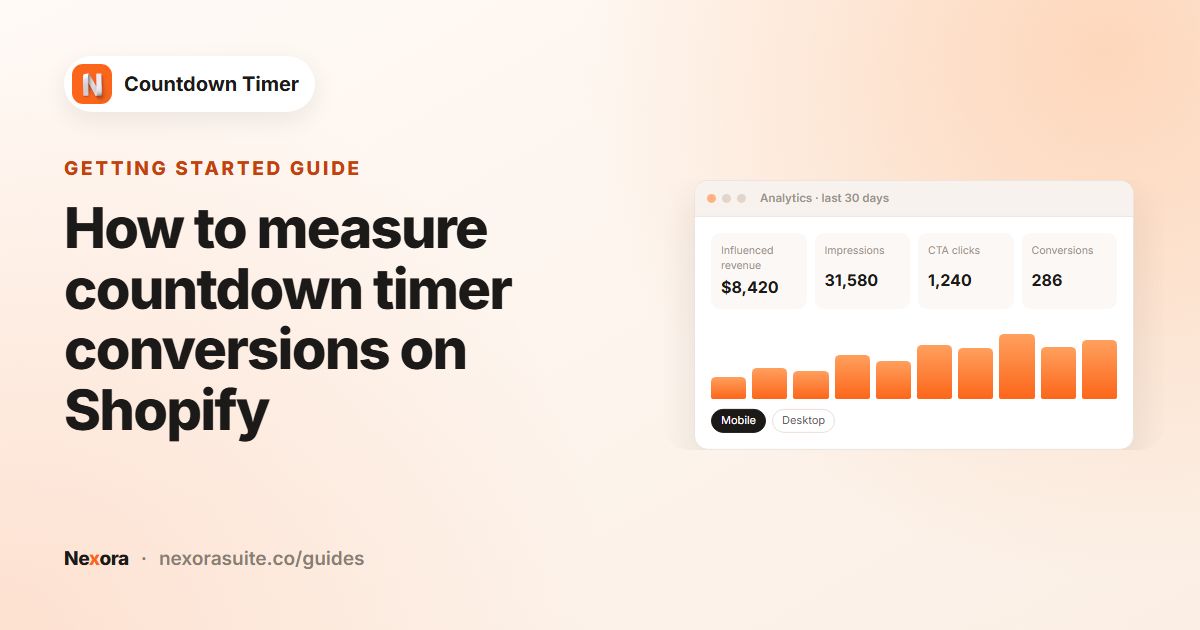
The Analytics page shows how your timers are doing. Pick a date range at the top right (Today, Yesterday, Last 7 days, Last 30 days, Last 90 days or Custom). The page opens on Last 30 days. Use the refresh button to load the latest data.
| Metric | Meaning |
|---|---|
| Influenced revenue | Revenue from paid orders placed within 24 hours of the buyer viewing a timer. Each order is credited to only one timer: the last one the buyer viewed. |
| Impressions | How many times a published timer was shown on your storefront, counted once per visitor session. |
| CTA clicks | Clicks on the timer's button, or on the whole bar when Make entire bar clickable is on. The CTR is shown below. |
| Conversions | Orders credited to a timer. The conversion rate (conversions ÷ impressions) is shown below. |
Below the totals you'll find a Revenue over time chart and a per-timer table (Timer, Type, Impressions, Clicks, Conversions, Revenue) that you can search by timer name and filter by type. Click a timer to see its daily revenue and a Device split between mobile and desktop.
Tracking respects Shopify's customer privacy settings: visitors who decline analytics in your cookie banner aren't tracked. Bots are filtered out, and refunds aren't subtracted from influenced revenue.
 Related guideHow to measure countdown timer conversions on Shopify→
Support
Click Chat with us on the dashboard to open live chat inside the app, or email us at [email protected]. We're happy to help with setup, theme placement or custom design changes, free of charge.