What an evergreen timer is
A regular countdown ends at the same moment for everyone. An evergreen timer is personal: each visitor's countdown starts when they first see it and runs for a set length, such as 30 minutes or 24 hours.
That suits offers that are tied to the visit rather than a calendar date, for example a first-visit welcome discount, a short-lived bundle offer, or a quote that's valid for a day.
Good and bad uses
| Good fit | Poor fit |
|---|---|
| A welcome code that really expires 24 hours after a first visit | A "sale ends soon" message on a price that never changes |
| A per-visitor bundle offer with a time limit set in your discount | Restarting the same "last chance" countdown on every visit |
| A cart reminder worded as a reminder | Claiming stock is reserved when it isn't |
Only use an evergreen timer for an offer that really is time-limited for that shopper. A timer that claims an offer is ending when it isn't can mislead customers and may break consumer protection rules in some countries.
Your options on Shopify
Shopify doesn't have a per-visitor timer. You can schedule a discount's start and end dates in Shopify (see discounts), but those dates are the same for everyone. A per-visitor countdown has to be stored in the shopper's browser, which is what a Fixed minutes timer does.
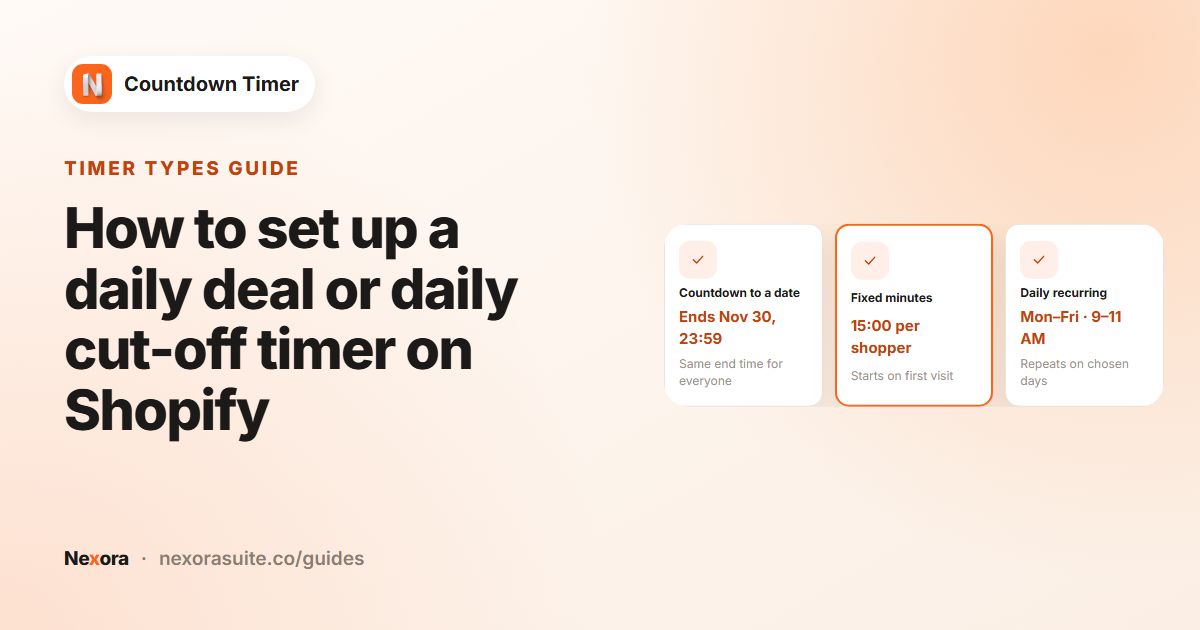
| Timer Type | Deadline is | Best for |
|---|---|---|
| Countdown to a date | The same for everyone | Sales and launches with a real end date |
| Fixed minutes | Personal, starts on first view | Per-visitor offers and cart timers |
| Daily recurring timer | The same window every chosen day | Daily cut-offs and daily deals |
Step by step
- Create a timer
Click Create timer and choose a placement: Product page, Top/bottom bar, Landing page or Cart page.
- Choose Fixed minutes
In the Timer section, set Timer Type to Fixed minutes (cart timers always use it).
- Set the length
Enter Minutes. For example, 30 for a short offer, or 1440 for 24 hours.
- Choose the end action
Under Once it ends, pick one of the options in the table below.
- Design, place and publish
Style it on Design, choose pages on Placement, then click Save and Publish.
End actions for Fixed minutes
| Once it ends | What the shopper sees |
|---|---|
| Hide the timer for the buyer | The timer disappears for them. The most honest choice for a one-time offer. |
| Repeat the countdown | A new countdown of the same length starts. Fine for reminders, but don't pair it with "last chance" wording. |
| Show custom title | The title changes to your Custom title, for example "This welcome offer has ended". |
| Do nothing | The timer stays visible at zero. |
How the countdown is remembered
- It's stored in the shopper's browser, so reloading or browsing to other pages doesn't reset it.
- A different browser or device starts a new countdown, and so does clearing browser data.
- When you save changes to the timer, everyone's countdown restarts, so new settings take effect right away.
Because saving restarts every shopper's countdown, finish your edits before a busy period rather than tweaking a live evergreen timer repeatedly.
Example lengths and end actions
| Offer | Minutes | Once it ends |
|---|---|---|
| Welcome code for new visitors | 1440 (24 hours) | Hide the timer for the buyer |
| Short product offer | 60 to 120 | Show custom title |
| Gentle reminder with no deadline claim | 30 | Repeat the countdown |
Example: a first-visit welcome offer
A skincare store offers new visitors 10% off with code WELCOME10 if they order within 24 hours.
- Top/bottom bar timer, Title "Welcome! Use WELCOME10 for 10% off. Offer ends in".
- Fixed minutes, Minutes 1440.
- Once it ends: Hide the timer for the buyer.
- Placement: Show on every page, excluding Cart.
- In Shopify, the
WELCOME10discount is limited to one use per customer.
The timer explains the offer; Shopify's discount settings enforce it. The timer itself doesn't stop someone using the code later, so set the discount rules to match what the timer says.
Example 2: a code that disappears from view
A tea store shows a welcome code on product pages for an hour, without claiming the discount itself expires.
- Product page timer on All products, Title "Welcome! Code HELLO15 disappears in".
- Fixed minutes, Minutes 60, with Hide Days when value is 00 ticked.
- Once it ends: Hide the timer for the buyer.
- In Shopify,
HELLO15is limited to one use per customer.
The wording only promises that the code disappears from view, which is exactly what happens: once the hour is up, the timer stays hidden for that shopper on later visits too, because the ended countdown is remembered in their browser. Nothing claims the code stops working, so there's no gap between what the timer says and what Shopify enforces.
Troubleshooting
| What you see | Why | What to do |
|---|---|---|
| The timer is stuck at 00:00:00 | Once it ends is Do nothing, or Show custom title with an empty Custom title | Choose another end action, or fill in Custom title |
| A shopper never sees the timer again | After it ends, Hide the timer for the buyer is remembered on later visits | Expected for one-time offers; use Repeat the countdown for reminders |
| The countdown started earlier than expected | It starts on the first page where the timer appears. A timer on every page starts on the first page viewed. | Limit the timer on the Placement tab to where the offer starts |
| Two timers show different times | Each timer keeps its own countdown. The same timer on several products shares one countdown per shopper. | Use one timer when you want one deadline per shopper |
With Show custom title, the digits stay at zero, the title changes to your Custom title and the subheading is removed.
Tips and common mistakes
- Testing looks wrong? Your own browser remembers your countdown. Use a private window to see it as a new visitor.
- Long countdowns: tick Hide Days when value is 00 so a timer under a day shows only hours, minutes and seconds (not available on cart timers).
- Match the discount. Make sure the real offer ends when the timer says, or the timer becomes misleading.
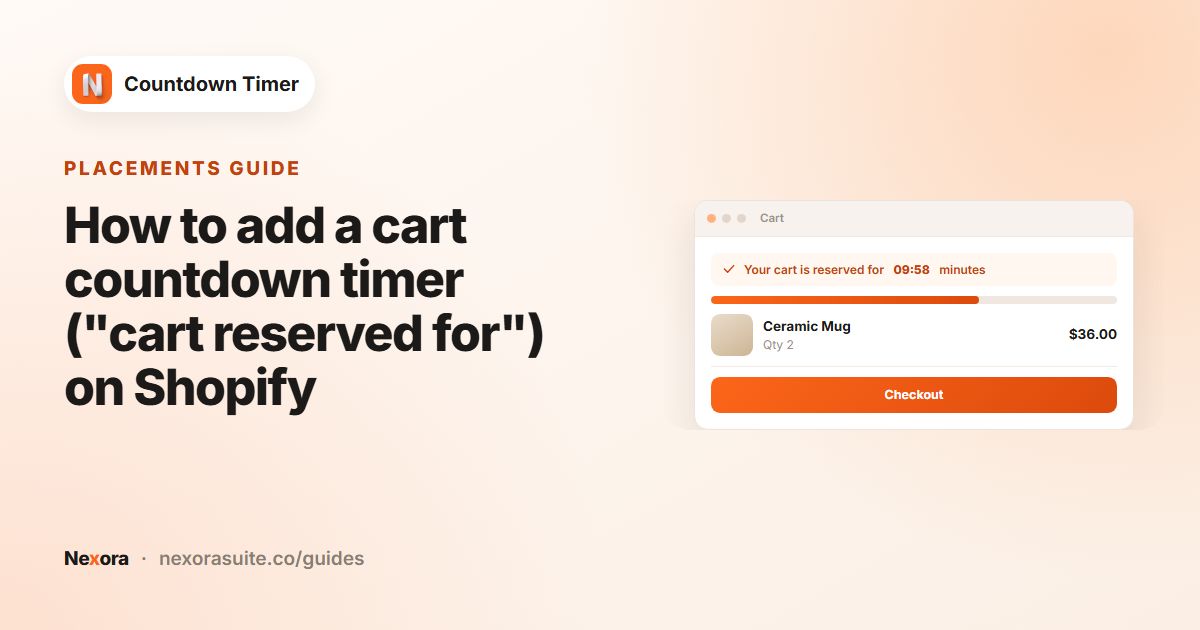
- Cart reminders: see the cart timer guide for a Fixed minutes timer inside a sentence.
Frequently asked questions
Does refreshing the page restart an evergreen timer?
No. The countdown is remembered in the shopper's browser, so reloading doesn't reset it.
When does an evergreen timer restart?
When the shopper uses a new browser or device or clears their browser data, when you save changes to the timer, or at zero if you chose Repeat the countdown.
What's the difference between Fixed minutes and Countdown to a date?
Countdown to a date ends at the same moment for everyone. Fixed minutes gives each shopper their own countdown, starting when they first see it.
Can I use an evergreen timer on the cart page?
Yes. Cart page timers always use Fixed minutes.
Does the timer apply a discount?
No. It only displays the countdown. Create the discount in Shopify and set its limits to match.
Does a shopper see the timer again after it ends?
With Hide the timer for the buyer, no: it stays hidden in that browser. Show custom title and Do nothing keep showing the ended timer, and Repeat the countdown starts a new one.
Do two Fixed minutes timers share one countdown?
No. Each timer has its own countdown. One timer shown on several pages or products shares a single countdown for each shopper.