What makes a flash sale countdown work
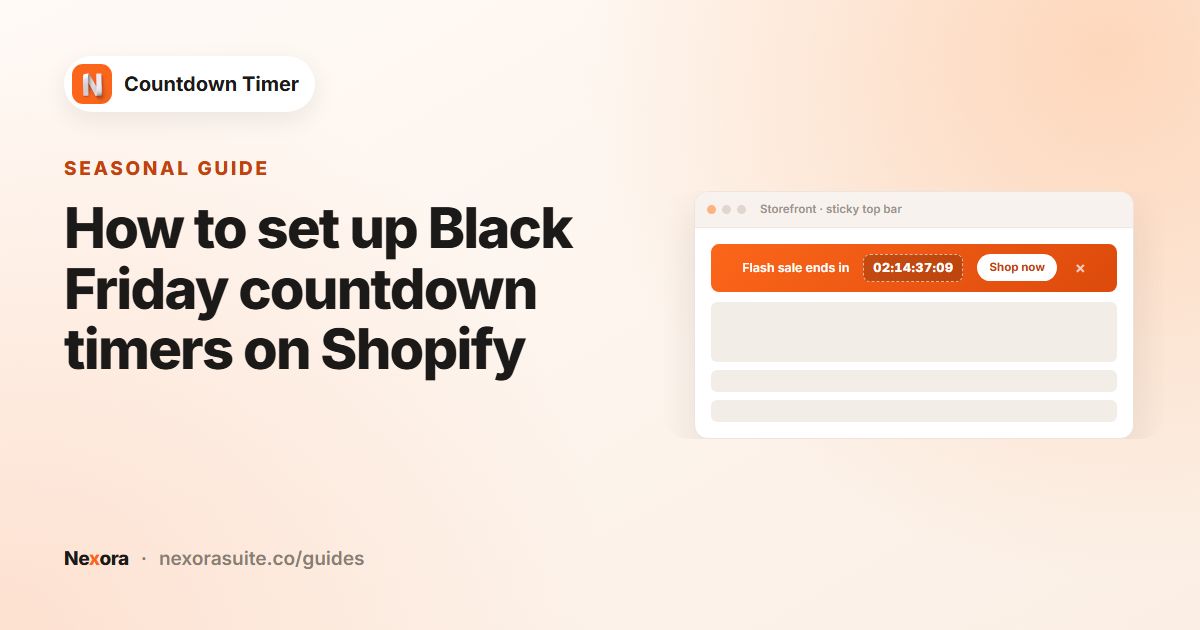
A flash sale is short, a few hours to a couple of days, with a clear start and end. The countdown's job is to tell every shopper the same thing: this sale ends at this moment. That's why a flash sale uses Countdown to a date, where everyone sees the same deadline.
Scheduling matters too. If the sale starts at 9 AM on Friday, you don't want to be at your laptop at 9 AM publishing timers. With Schedule to start later, you set it up days ahead and the timer appears on its own.
Your options on Shopify
Shopify lets you schedule the discount itself: when you create a discount you can set an active start date and an end date (see Shopify's discounts guide). What Shopify doesn't do is show shoppers that end date as a live countdown.
| Part of the sale | Where to set it up |
|---|---|
| The price reduction | Shopify Discounts, with a start and end date, or sale prices on products |
| The countdown shoppers see | A Countdown to a date timer with the same start and end |
| Where shoppers land | A sale collection, linked from the timer's button |
Use the same start and end times for the discount and the timer. If they differ, shoppers may see a countdown for a sale that isn't active yet, or a discount that keeps working after the timer said it ended.
Step by step
- Create the timer
Click Create timer. A Top/bottom bar reaches every page; a Product page timer sits next to the buy buttons. Many stores use both.
- Write the message
Enter a Title such as "Flash sale: 30% off ends in". On a bar or landing card, set Call to action to Button with Button text "Shop the sale" and a Link URL like
/collections/flash-sale. - Choose Countdown to a date
In the Timer section, set Timer Type to Countdown to a date.
- Schedule the start
Under Timer starts, choose Schedule to start later, then set Start date, Hour, Minute and AM/PM.
- Set the end
Set End date, Hour, Minute and AM/PM.
- Choose what happens at zero
Under Once it ends, choose Unpublish timer so it disappears, or Show custom title with something like "This sale has ended".
- Publish in advance
Choose pages on Placement, click Save, then Publish. The timer stays hidden until the start time.
Countdown to a date settings
| Setting | Options | Notes |
|---|---|---|
| Timer starts | Right now / Schedule to start later | Scheduled timers stay hidden until the start, then appear without a reload |
| Start date, Hour, Minute, AM/PM | Any future time | Only with Schedule to start later |
| End date, Hour, Minute, AM/PM | Must be in the future to publish | The moment the countdown reaches zero |
| Once it ends | Unpublish timer, Show custom title, Do nothing | Unpublish timer hides it in the shopper's browser; the timer stays Published in the app |
Times use each shopper's browser time zone. A sale ending at 11:59 PM ends at 11:59 PM local time for each visitor, so visitors in different time zones see it end at different real moments. If your discount ends at one fixed moment, mention your time zone in the subheading.
Example: a Friday 12-hour flash sale
A gadget store runs 30% off accessories from 9:00 AM to 9:00 PM on Friday.
- In Shopify, an automatic discount on the Accessories collection, active Friday 9 AM to 9 PM.
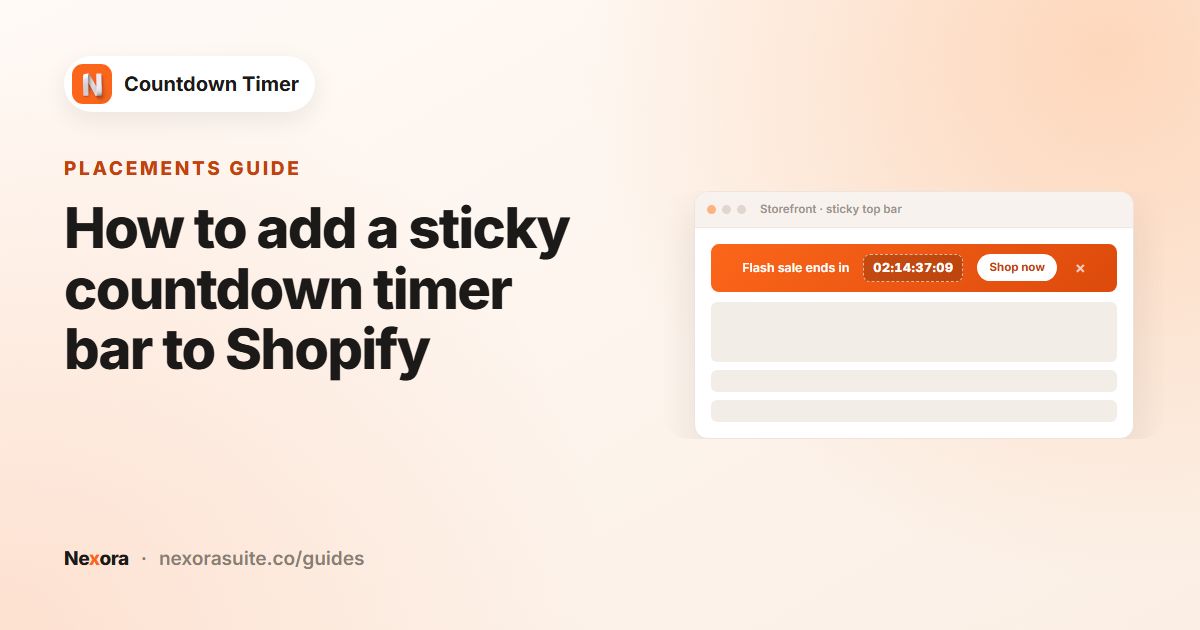
- Timer 1, Top/bottom bar: Title "Flash sale: 30% off accessories", Subheading "Ends in", Button "Shop now" →
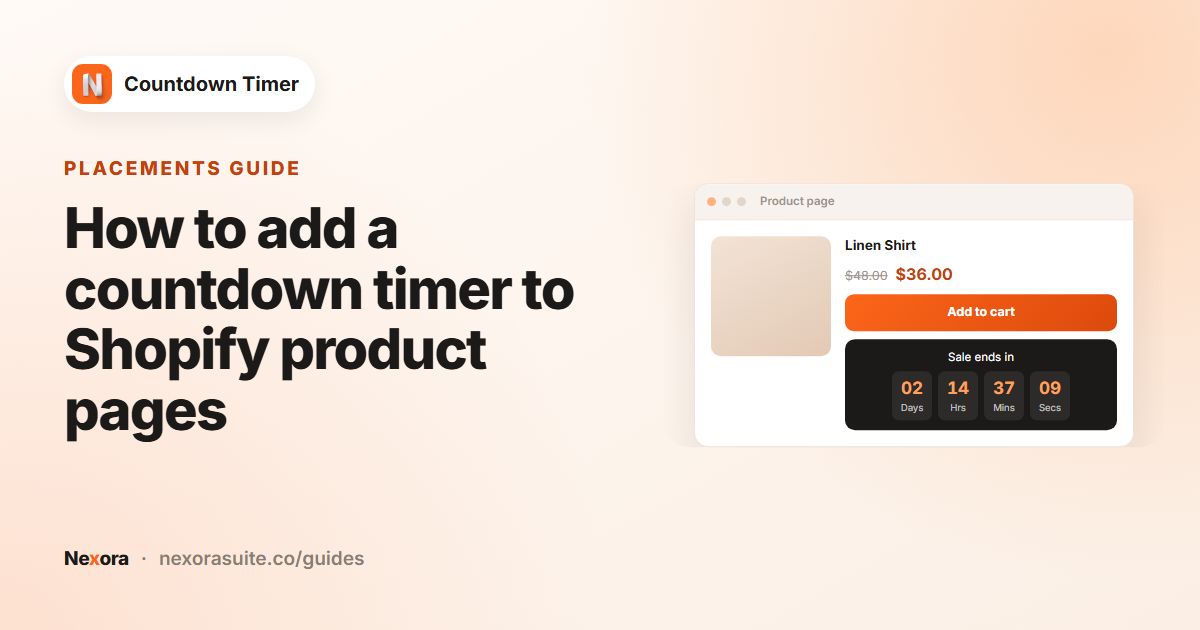
/collections/accessories. Schedule to start later Friday 9:00 AM, end Friday 9:00 PM, Unpublish timer. Top of the page, sticky, Show on every page. - Timer 2, Product page: same times, All products in specific collections → Accessories, Title "30% off ends in".
- Both published on Wednesday after a quick check in a private window.
Tips and common mistakes
- Can't publish? The end date must be in the future.
- Test before the start. While scheduled, the timer is hidden. Make a copy with Duplicate, set it to Right now, check it on the storefront, then delete the copy.
- Don't extend secretly. If you extend the sale, update the end date and say so ("Extended for 24 hours") rather than letting the timer reset quietly.
- After the sale, click Unpublish in the app to switch the timer off completely.
Frequently asked questions
Can I schedule a countdown timer to start later?
Yes. With Countdown to a date, choose Schedule to start later under Timer starts and set the start date and time. The timer appears on its own at that time.
Does the timer apply the discount?
No. Set up the discount in Shopify with the same start and end, and use the timer to show the deadline.
What does Unpublish timer do at the end?
It hides the timer in each shopper's browser once it reaches zero. The timer stays Published in the app until you click Unpublish.
Do shoppers need to reload the page when the sale starts?
No. A scheduled timer appears without a page reload when its start time arrives.
Which time zone is used?
Each shopper's browser time zone.