What a store needs from Black Friday timers
Black Friday and Cyber Monday (BFCM) are busy for everyone, including you. The goal isn't to add as many countdowns as possible. It's to make the dates obvious, send shoppers to the right products, and have everything run on its own while you handle orders and support.
- Before the sale: tell early visitors when it starts, so they come back.
- During the sale: one clear deadline on every page, and the same deadline next to the buy buttons.
- Between phases: switch from Black Friday to Cyber Monday messaging without manual edits at midnight.
- After the sale: timers disappear, and you can see which ones were used.
Keep the dates true. If the sale ends Monday, the timer should end Monday. Countdowns that reset or restart on a "sale" that never ends can mislead shoppers and may break consumer protection rules in some countries.
Recommended setup
| Timer | Placement | Timer type | Example values |
|---|---|---|---|
| Teaser | Landing page (home and collections) or Top/bottom bar | Countdown to a date, Right now | "Black Friday starts in", ends at sale start; Once it ends: Unpublish timer |
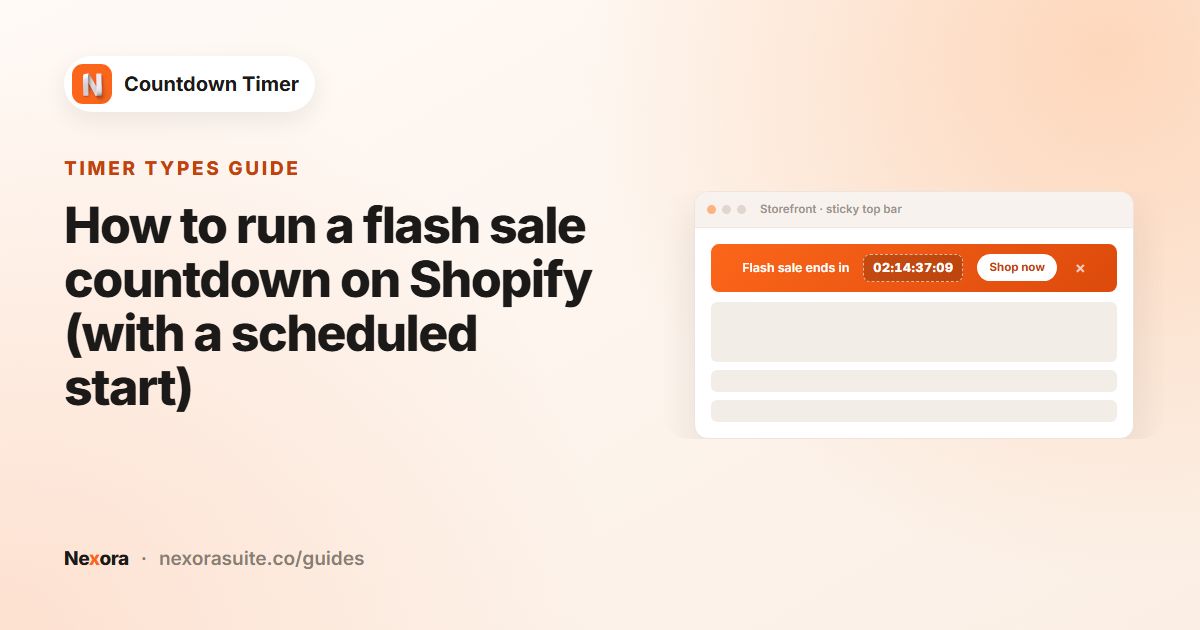
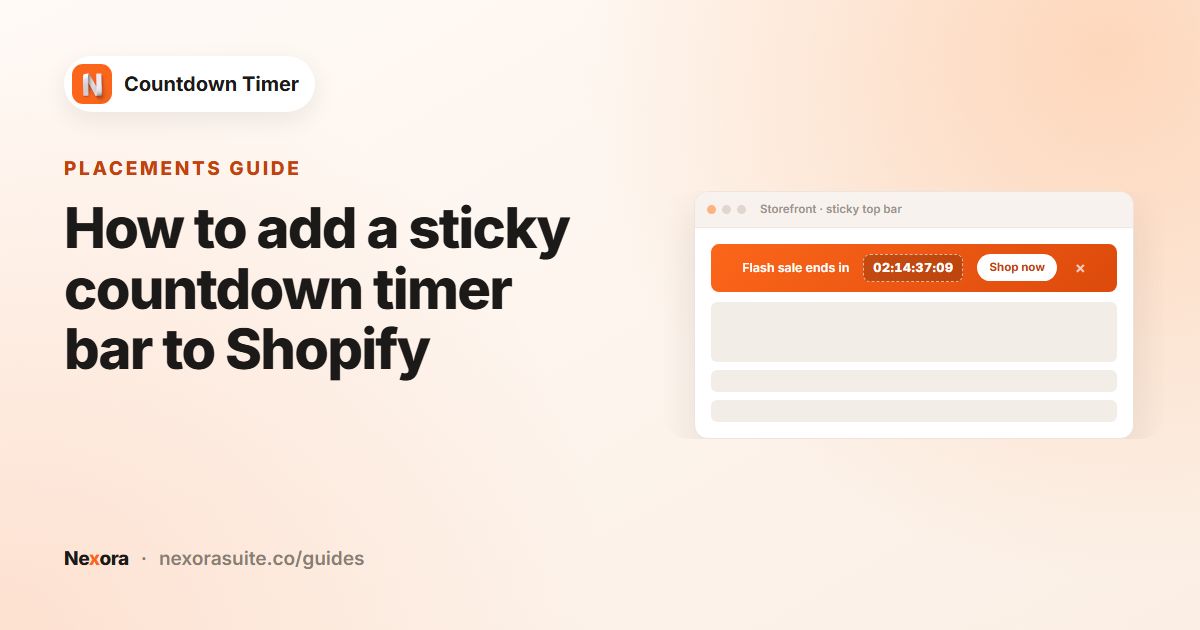
| Black Friday bar | Top/bottom bar, sticky, Show on every page | Countdown to a date, Schedule to start later | Starts Fri 12:00 AM, ends Sun 11:59 PM; Button → /collections/black-friday |
| Product timer | Product page, All products in specific collections | Countdown to a date, Schedule to start later | Same dates as the bar, sale collection only |
| Cyber Monday bar | Top/bottom bar, sticky | Countdown to a date, Schedule to start later | Starts Mon 12:00 AM, ends Mon 11:59 PM |
Set up the discounts in Shopify with the same dates (see Shopify's discounts guide). The timers display the deadline; the discounts apply the prices.
Steps, two weeks before
- Create the Black Friday bar
Click Create timer, choose Top/bottom bar. Title "Black Friday: up to 40% off", Subheading "Ends in". Call to action Button, Button text "Shop the sale", Link URL
/collections/black-friday. Tick Close icon. - Schedule it
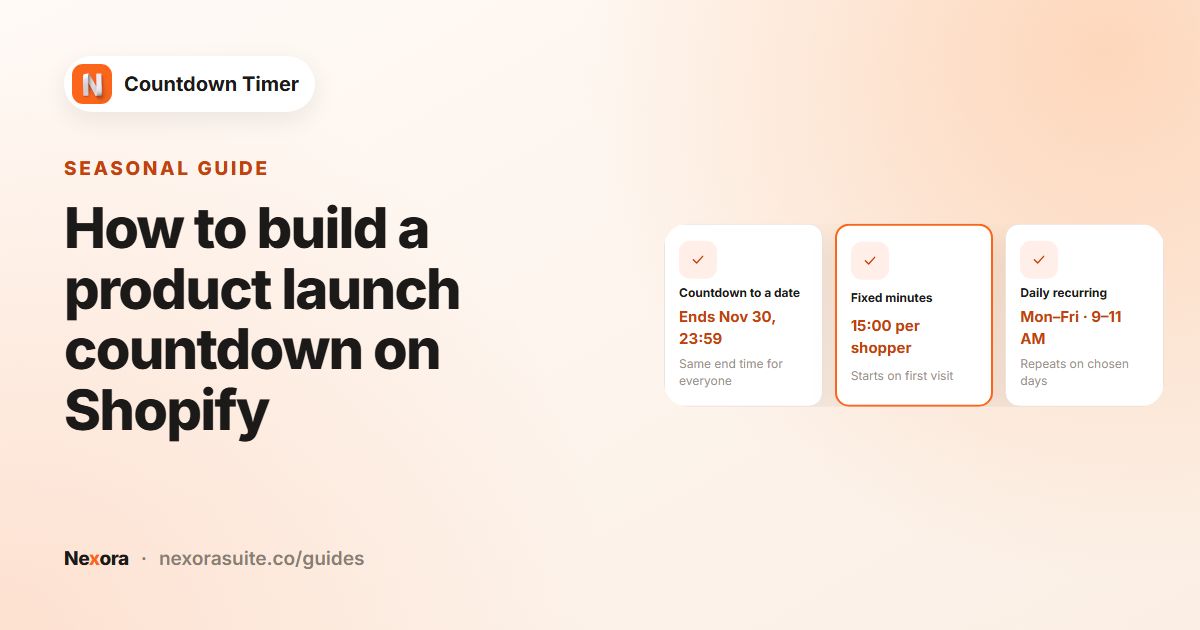
Countdown to a date, Schedule to start later, set the Start date and End date with Hour, Minute and AM/PM. Once it ends: Unpublish timer.
- Position and style
On Design, Top of the page and Sticky (always visible while scrolling). Choose a template Style.
- Duplicate for the other timers
In Countdown timers, use the ••• menu → Duplicate to make the Cyber Monday bar, then change its text and dates. Create the teaser and product page timers the same way.
- Exclude the cart if needed
If you also run a cart timer, use Exclude → Cart on the bars so shoppers see one countdown at a time.
- Publish everything early
Save and Publish each timer. Scheduled timers stay hidden until their start time and appear without a page reload.
- Test
Make a temporary Duplicate set to Right now to check the look on mobile and desktop, then delete it.
Example: a fashion store's BFCM plan
Here's how a mid-sized fashion store might schedule BFCM 2026 (Black Friday falls on 27 November 2026, Cyber Monday on 30 November).
| Dates | What shoppers see |
|---|---|
| Mon 23 Nov to Thu 26 Nov | Teaser card on the home page: "Black Friday starts in" |
| Fri 27 Nov to Sun 29 Nov | Sticky bar "Black Friday: up to 40% off, ends in" and product timers on the sale collection |
| Mon 30 Nov | Sticky bar "Cyber Monday: final day, ends in" |
| Tue 1 Dec | Nothing. All timers have ended and hidden themselves |
The product timer uses Timer style Boxes under the Buy it now button, and Hide Days when value is 00 so it shows hours and minutes on the last day.
Tips for BFCM
- Time zones: times use each shopper's browser time zone. If you sell internationally and your discount ends at one fixed moment, say which time zone in the subheading.
- Regional sales: limit a timer to the countries where the sale runs with Geolocation targeting → Specific countries. See targeting by country.
- Translations: add each store language under Translations before the sale.
- Avoid stacking: one bar plus one product timer is usually enough. Too many countdowns compete with each other.
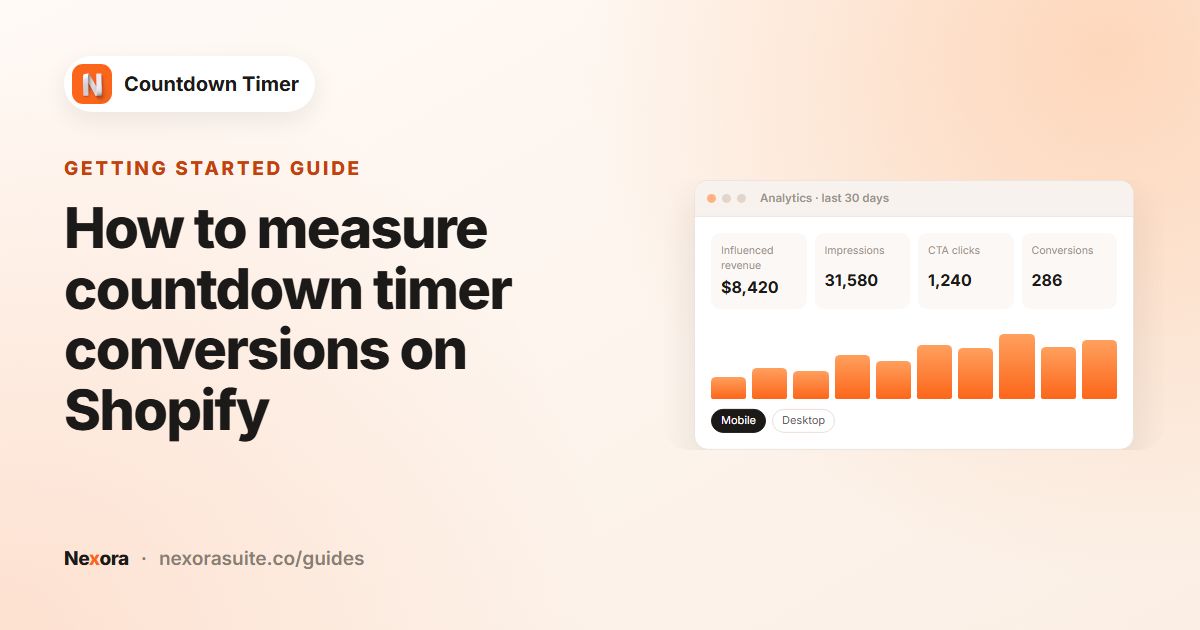
- Afterwards: click Unpublish on each timer, and review results on the Analytics page.
Need the timer to match a special BFCM design? Use Request customisations on the Design tab, ideally a couple of weeks before the sale.
Frequently asked questions
Can I set up Black Friday timers in advance?
Yes. Use Countdown to a date with Schedule to start later and publish early. Each timer stays hidden until its start time.
How do I switch from Black Friday to Cyber Monday?
Create a separate Cyber Monday timer (for example with Duplicate) scheduled to start when the Black Friday timer ends.
Does the timer apply my Black Friday discount?
No. Create the discounts in Shopify with matching dates; the timer shows the deadline.
Will timers disappear after the sale?
Yes, if you choose Unpublish timer under Once it ends. They stay Published in the app until you click Unpublish.
Is there a limit on how many timers I can run?
No. The app is free with unlimited timers.