Why target a timer by country
Not every offer applies everywhere. A free delivery deadline might only work for your home country, a public holiday sale only makes sense where the holiday is celebrated, and a dispatch cut-off is only accurate where your couriers deliver the next day.
Showing a countdown to shoppers who can't use the offer is at best confusing and at worst feels misleading. Country targeting keeps each timer in front of the people it's actually for.
Common reasons to target by country
- Shipping deadlines that only apply where you deliver next day.
- National holidays and events, such as a bank holiday weekend or a local shopping festival.
- Regional pricing or stock, where an offer only exists in some countries.
- Launch roll-outs, when a product goes live in one country before others.
The three ways to target a timer
Each timer has three independent layers of targeting. A shopper sees it only when all of them match.
| Layer | Where | Options |
|---|---|---|
| Placement | Chosen when you create the timer | Product page, Top/bottom bar, Landing page or Cart page |
| Pages and products | Placement tab → Select products to display the timer | For example All products, Specific products, collections, tags, Show on every page with Exclude, Password page |
| Country | Placement tab → Geolocation targeting | All world or Specific countries (248 countries and regions) |
Language works separately: with Translations, the same timer shows its text in the shopper's current store language. See Shopify's guide to selling in multiple languages for adding languages to your store.
Which setup fits your offer
| Your offer | Setup |
|---|---|
| Same offer and wording everywhere | One timer with All world |
| Offer only valid in some countries | One timer with Specific countries |
| Different deadline or message per region | One timer per region (use Duplicate), each with its own countries |
| Same offer, shoppers browse in different languages | One timer with Translations |
Step by step: target countries
- Open the timer
Create a timer or open an existing one from Countdown timers, then go to the Placement tab.
- Choose pages first
Under Select products to display the timer, pick the pages or products as usual.
- Switch to Specific countries
In Geolocation targeting, select Specific countries.
- Pick the countries
Click Select countries, type to search the list, tick each country or region, then click Select. The chosen countries appear as tags; click the × on a tag to remove one.
- Translate the text (optional)
On the Content tab, under Translations, click Add translations, pick a Language, fill in the fields and click Add.
- Save and publish
Click Save and Publish.
How the visitor's country is detected
- The country is detected from the visitor's location when the page loads.
- It's remembered for the rest of their browser session, so it isn't looked up again on every page.
- Location is based on the visitor's connection, so someone using a VPN or travelling may be treated as being in another country.
| Setting | Who sees the timer |
|---|---|
| All world | Every visitor |
| Specific countries | Only visitors detected in one of the selected countries or regions |
Timer times still use each shopper's browser time zone, not the country's. Targeting decides who sees a timer, not which clock it uses.
If the location can't be found
- Timers wait for the country check before they appear. If the check fails, is blocked (for example by a privacy extension) or takes longer than about 1.5 seconds, the app uses the country your storefront has set for that visitor instead, such as the one chosen in your theme's country selector.
- Choosing Specific countries without ticking any country works like All world: everyone sees the timer.
Example: one sale, two regional timers
A UK-based homeware store runs a bank holiday sale for UK shoppers and a separate free-shipping deadline for EU shoppers.
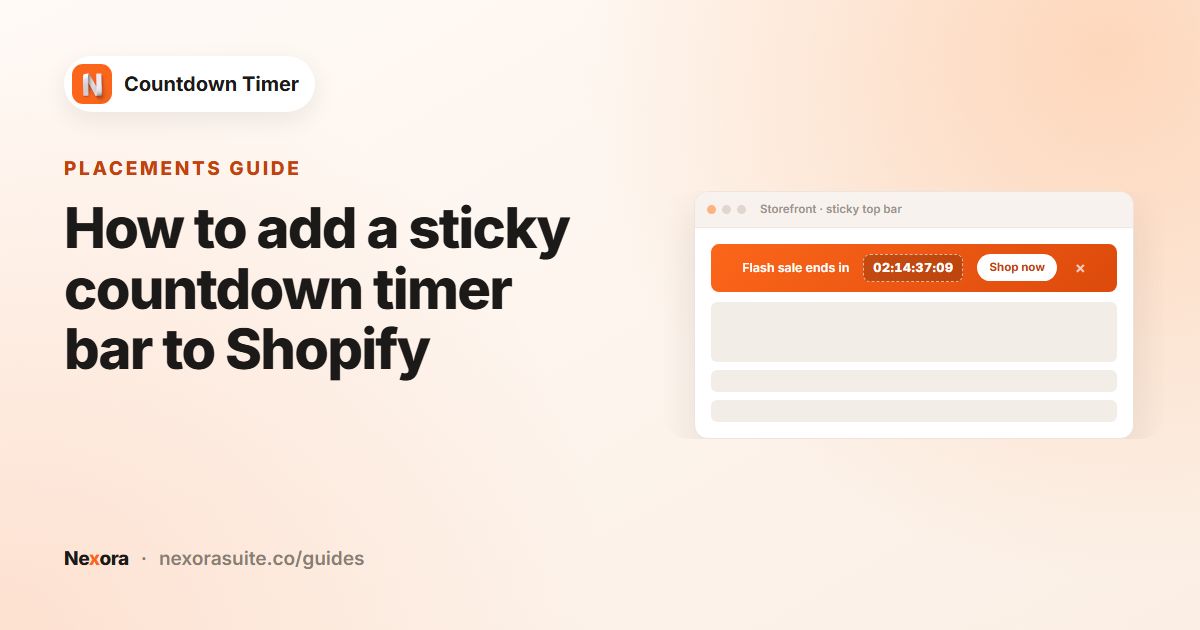
- Timer 1, Top/bottom bar: "Bank holiday sale ends in", Countdown to a date ending Monday 11:59 PM, Specific countries → United Kingdom.
- Timer 2, Top/bottom bar: "Free EU shipping on orders placed within", Countdown to a date ending Sunday 11:59 PM, Specific countries → France, Germany, Ireland, Netherlands, Spain. A French translation added under Translations.
- Both use the same template Style, so the bar looks the same; only the message changes by region.
Example 2: a next-day delivery cut-off in one time zone
A German coffee roaster ships weekday orders placed before 2 PM for next-working-day delivery, but only within Germany and Austria.
- Product page timer, Title "Next-day delivery if you order within".
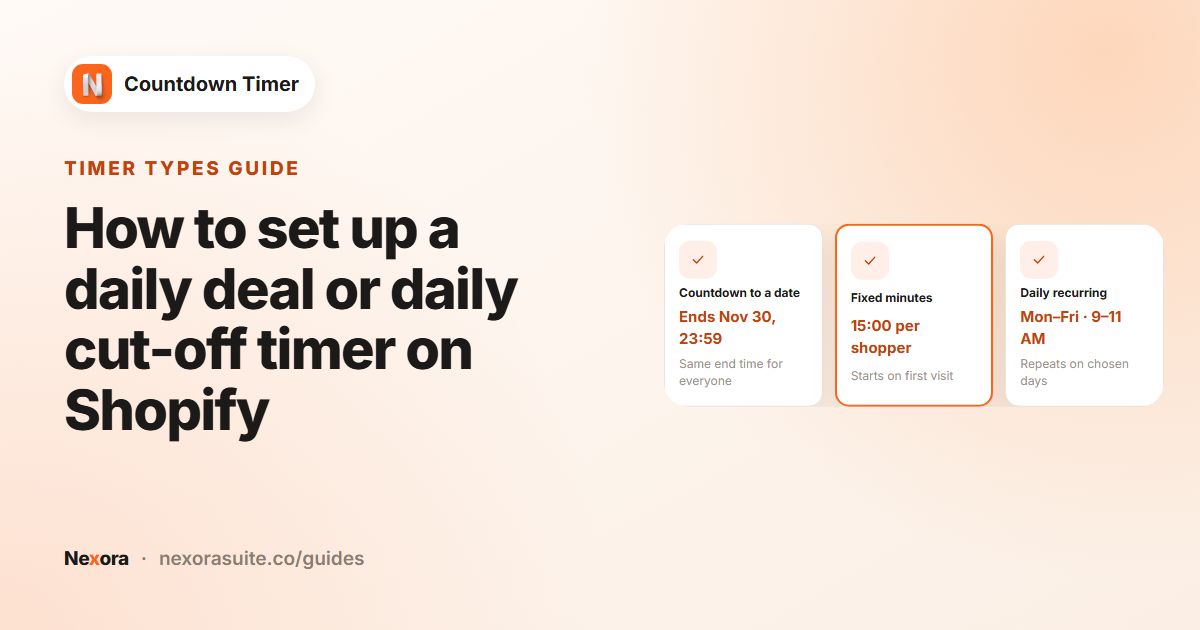
- Daily recurring timer with Mon to Fri ticked, starting 12:00 AM and ending 2:00 PM (End hour (1-12) 2, End minute 0, AM/PM PM).
- Once it ends: Hide the timer for the buyer, so nobody sees a cut-off that has already passed.
- Geolocation targeting: Specific countries → Germany, Austria, plus a German translation under Translations.
Both countries share one time zone, so for most shoppers their browser clock matches the warehouse clock and the 2 PM cut-off is right. If you targeted countries in several time zones, each shopper would count down to 2 PM in their own time, so keep cut-off timers to countries that share your time zone.
Troubleshooting country targeting
| What you see | Likely cause | What to try |
|---|---|---|
| Nobody sees the timer, even in a selected country | The timer isn't published, the Countdown Timer app embed is off, or the page doesn't match the Placement tab | Check Publish, turn the app embed on in the theme editor, and check the page is included |
| You switched a VPN on or off and nothing changed | The country is remembered for the browser session | Open the store in a new private window |
| Everyone sees the timer | All world is selected, or Specific countries has no countries ticked | Select Specific countries and tick at least one |
| A shopper says the bar disappeared | On a Top/bottom bar with Close icon on, a closed bar stays hidden for the rest of that browser session | Expected; turn off Close icon if the bar must stay visible |
| The deadline looks wrong for some visitors | Countdowns use each shopper's browser time zone | Target countries in your time zone, or name your time zone in the text |
Tips and common mistakes
- Testing from the wrong country? If your own country isn't selected, you won't see the timer. Add it temporarily, or check with someone in the target country.
- Timer missing for some customers? Remember the three layers: placement, pages and country must all match.
- Use Duplicate to create a regional copy of an existing timer, then change the countries and text.
- Don't forget the offer itself. Targeting only controls the timer. Limit the discount to the right customers in Shopify too.
Frequently asked questions
How many countries can I choose from?
248 countries and regions. Search the list in Select countries and tick as many as you need.
How does the app know where a visitor is?
It detects the country from the visitor's location when the page loads and remembers it for the rest of their browser session.
Can I show different text to different languages?
Yes. Add Translations for each store language. The timer shows the translation that matches the shopper's current language, and empty fields fall back to the original text.
Why can't I see my own timer?
If you use Specific countries and your country isn't on the list, the timer is hidden for you. Also check the timer is Published and the page matches the Placement tab.
Does country targeting change the time zone?
No. Countdown times always use each shopper's browser time zone.
What if the app can't detect a visitor's country?
It falls back to the country your storefront has set for that visitor, for example from your theme's country selector. If that country isn't selected, the timer stays hidden.
Can I leave Specific countries empty?
You can, but the timer then shows to everyone, just like All world.