What a daily recurring timer does
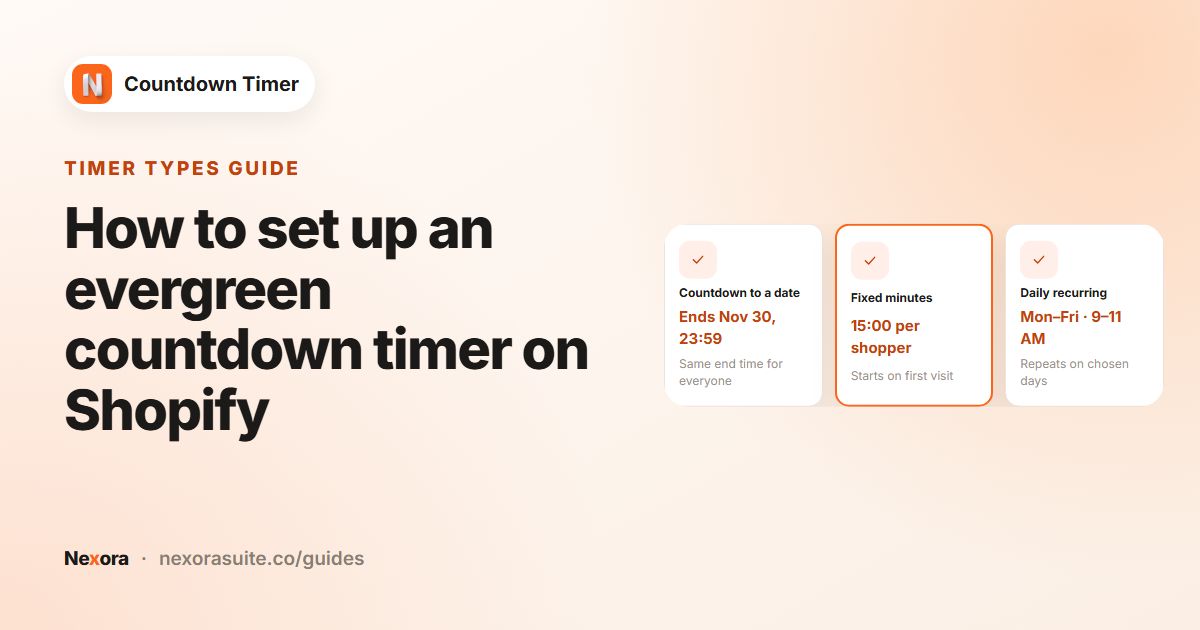
Some deadlines happen every day: an order cut-off for same-day dispatch, a lunchtime deal, a weekday happy hour. Setting a new timer for each one would be tedious. A daily recurring timer repeats on the days you choose and counts down to the end of each window.
- Shipping cut-offs: "Order within 2:14:05 for dispatch today", Monday to Friday.
- Daily deals: a "deal of the day" banner that runs from 9 AM to 9 PM.
- Happy hours: a weekend-only window, for example Saturday and Sunday from 6 PM to 9 PM.
Your options on Shopify
Shopify can't repeat a discount on a daily schedule by itself; each discount has one start and one end date (see discounts). Shopify also has shipping settings for delivery times, but they don't show a live cut-off countdown on product pages.
A Daily recurring timer handles the display side: it shows the right countdown each day. If the deal involves a price change, you still need to set that up in Shopify, for example with an automatic discount or a code you mention in the timer.
Step by step
- Create a timer
Click Create timer and choose Product page, Top/bottom bar or Landing page. (Cart timers use Fixed minutes only.)
- Write the text
For a cut-off, use a Title like "Order within the next" and a Subheading like "for same-day dispatch".
- Choose Daily recurring timer
In the Timer section, set Timer Type to Daily recurring timer.
- Pick the days
Under Days of week, click the days the timer should run, for example Mon to Fri.
- Set the window
Set Start hour (1-12), Start minute and AM/PM, then End hour (1-12), End minute and AM/PM.
- Choose the end action
Under Once it ends, choose Hide the timer for the buyer, Show custom title or Do nothing.
- Place and publish
Choose pages on the Placement tab, then click Save and Publish.
Settings and end actions
| Setting | What it does |
|---|---|
| Days of week | The days the window runs, Mon to Sun. |
| Start hour (1-12) / Start minute / AM/PM | When the timer appears each day. |
| End hour (1-12) / End minute / AM/PM | When the countdown reaches zero. |
| Hide the timer for the buyer | The timer disappears after the window and comes back when the next one opens. |
| Show custom title | After the window, the title changes to your Custom title, such as "Orders now ship tomorrow". |
| Do nothing | The timer stays visible at zero after the window. |
Windows follow each shopper's own browser time zone. A 2:00 PM cut-off is 2:00 PM local time for every visitor. If your warehouse works to one time zone and you sell abroad, say so in the subheading (for example "Order by 2 PM UK time") or use country targeting to show the timer only where it's accurate.
Example: same-day dispatch on weekdays
A UK coffee roaster dispatches orders placed before 2 PM on weekdays and mostly sells within the UK.
- Product page timer, Title "Order within", Subheading "for dispatch today".
- Daily recurring timer, Days of week Mon to Fri, from 12:00 AM to 2:00 PM.
- Once it ends: Hide the timer for the buyer, so there's no timer after 2 PM or at weekends.
- Hide Days when value is 00 ticked, since the window is always under a day.
- Placement: All products, using Exclude for gift subscriptions that ship on a schedule.
- Geolocation targeting: Specific countries → United Kingdom, so the local-time cut-off lines up with the roaster's.
Tips and common mistakes
- Not showing? Check today is one of the selected Days of week and the current time is inside the window.
- Holidays: the timer doesn't know about bank holidays. Unpublish it, or edit the days, when you won't dispatch.
- Keep the promise. If you show a dispatch cut-off, make sure your team can meet it every selected day.
- No reload needed. The timer appears and disappears on its own as windows open and close.
For a deal with a single end date rather than a daily repeat, use a flash sale countdown instead.
Frequently asked questions
Does a daily timer need to be restarted each day?
No. It runs on every selected day and appears and disappears on its own as each window opens and closes.
Which time zone does the daily window use?
Each shopper's own browser time zone. A 9 AM to 5 PM window runs from 9 to 5 local time for every visitor.
Can I run the timer only on weekends?
Yes. Select only Sat and Sun under Days of week.
Can I use a daily timer on the cart page?
No. Cart page timers use Fixed minutes only. Use a Product page, Top/bottom bar or Landing page timer instead.
What happens outside the window?
That depends on Once it ends: Hide the timer for the buyer hides it until the next window, Show custom title shows your message, and Do nothing leaves it at zero.