Why put the timer on the product page
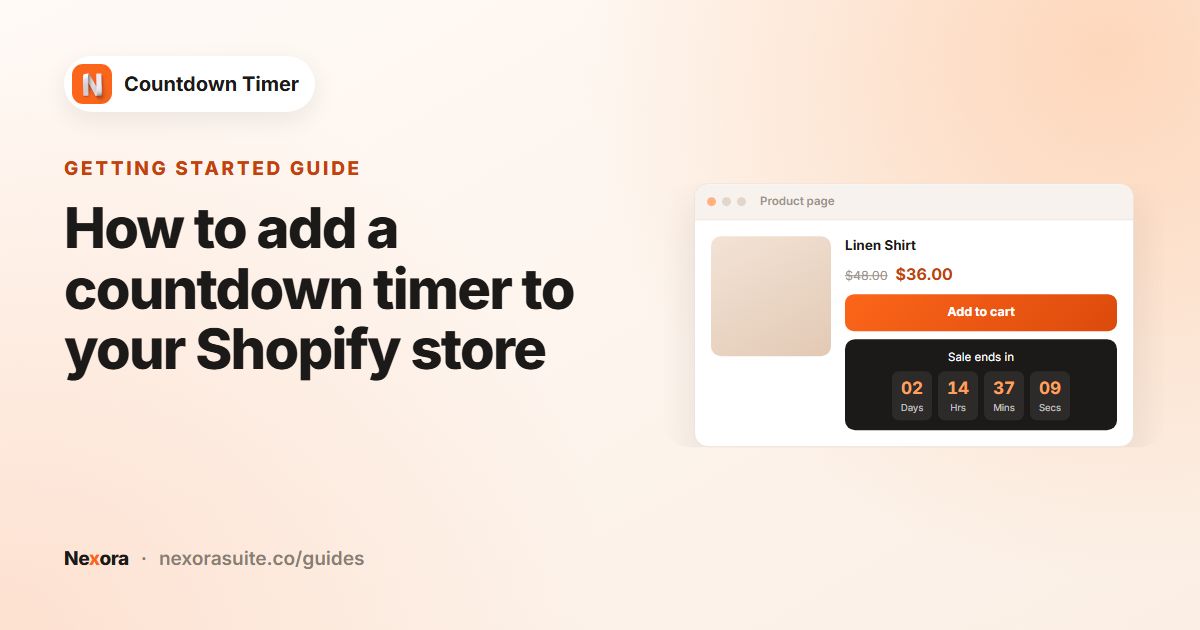
The product page is where a shopper decides. A timer right next to the buy buttons answers the question they're asking at that moment: how long does this price, this offer or this delivery date last?
Because it's tied to products, you can be precise. A timer for a clearance collection doesn't need to appear on full-price items, and a same-day dispatch timer can skip products that ship from a supplier.
Your options on Shopify
Shopify's free themes don't include a product page countdown block as standard. You can add custom liquid or a custom section, but a working countdown also needs JavaScript, time zone handling and logic to hide it afterwards.
| Option | Targeting | Effort |
|---|---|---|
| Custom code in the product template | Usually every product, unless the developer adds conditions | Developer time, plus upkeep after theme updates |
| Theme countdown block (some paid themes) | Varies by theme | Low, but limited to what the theme offers |
| Product page timer in Nexora Countdown Timer | All, specific, by collection or by tag, with exclusions | A few minutes, no code |
Step by step
- Create a Product page timer
Click Create timer, then Select this timer type on Product page.
- Write the text
Enter a Countdown name, a Title (for example "Offer ends in") and a Subheading (for example "20% off this item"). Edit Days label, Hrs label, Mins label and Secs label if you like, and tick Hide Days when value is 00 for short countdowns.
- Set the timer
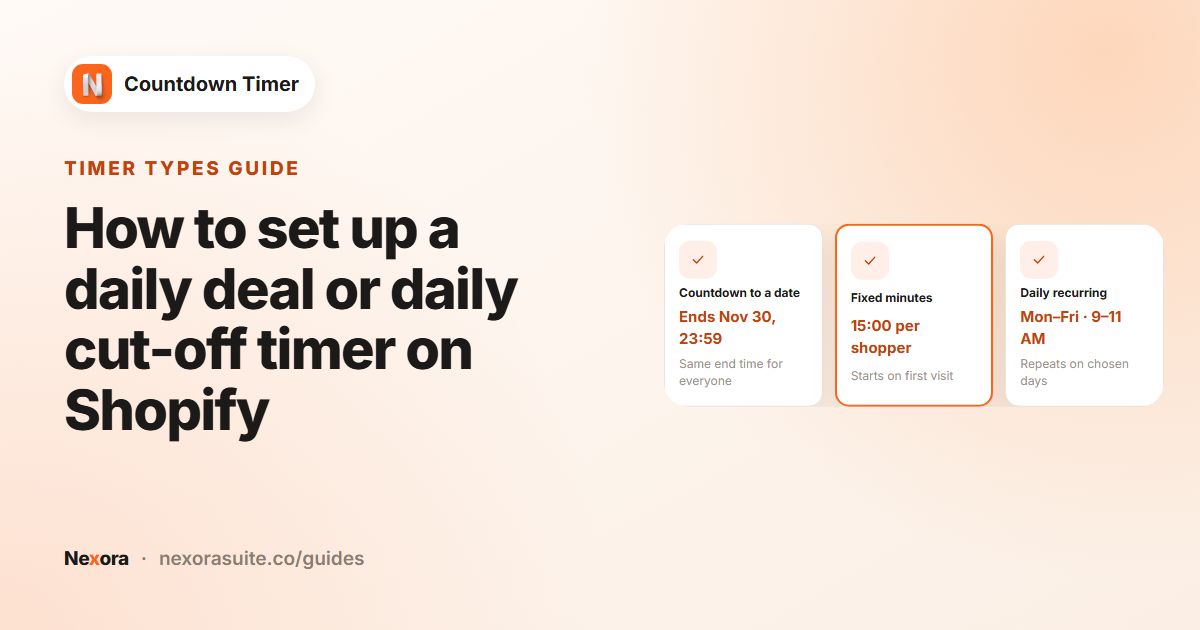
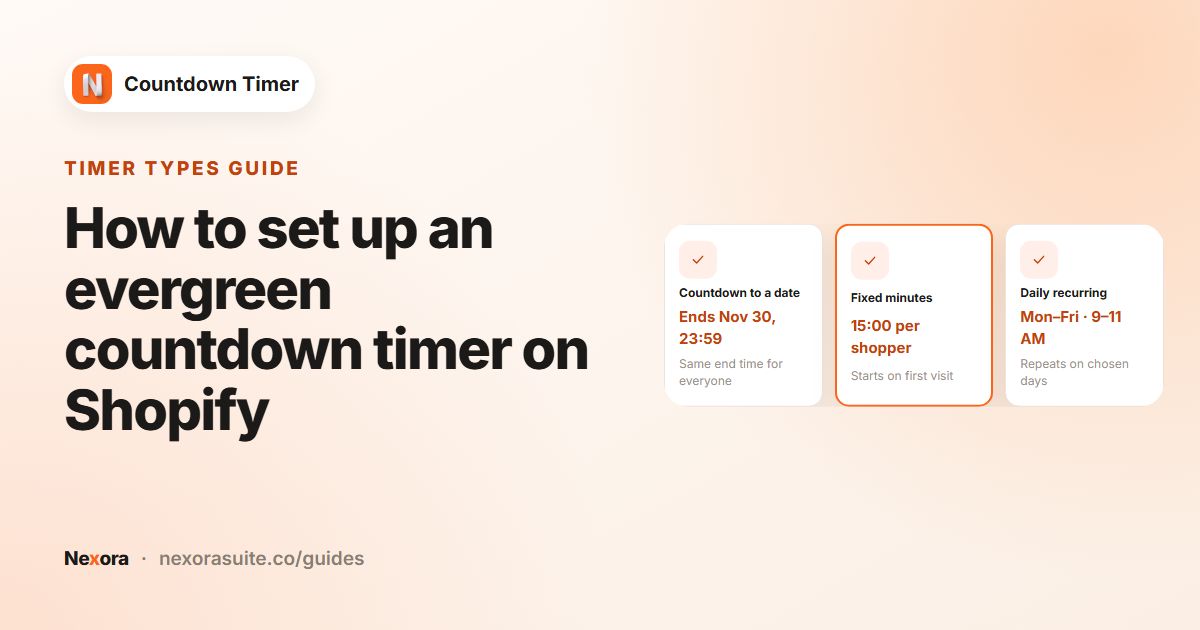
Choose Countdown to a date, Fixed minutes or Daily recurring timer, then the action under Once it ends.
- Design it
On the Design tab, pick a Layout (Standard, Balanced or Inline), a template Style, and a Timer style Type (Plain, Grouped or Boxes). Use Spacing to add room above or below so it sits neatly under the buttons.
- Choose the products
On the Placement tab, under Select products to display the timer, pick an option and select the products, collections or tags.
- Save and publish
Click Save, then Publish. Open one of the selected products to check the timer.
Product targeting options
| Option | Use it when |
|---|---|
| All products | Store-wide offers. Click Exclude to leave out specific products, such as gift cards. |
| Specific products | A handful of items, such as a deal of the week. |
| All products in specific collections | A sale collection or a brand. New products added to the collection get the timer too. |
| All products with specific tags | Items you already tag, for example clearance or same-day. |
| Custom position | You want the timer somewhere else in the product template, using the block or code snippet. |
Collections and tags are managed in Shopify. See Shopify's guide to collections if you want to group products for a timer.
Placing the timer somewhere else
By default the timer appears just below the add to cart / Buy it now buttons. To put it above the price or beside the description instead:
- Choose Custom position
On the timer's Placement tab, select Custom position and save.
- Copy the Timer ID
Click the copy icon under the timer name, or use Copy ID in the timer list.
- Add the block
On the dashboard, click Go to product page to open the product template. Add the Countdown Timer — Product block (Add block → Apps), drag it into place and paste the ID into Timer ID. Click Save in the theme editor.
Example: clearance items with a tag
A clothing store tags end-of-season items clearance and wants a deadline on just those products.
- Title "Clearance ends in", Subheading "Final prices, while stock lasts".
- Countdown to a date, Right now, ending on the last day of the month at 11:59 PM.
- Once it ends: Show custom title with Custom title "This clearance has ended", so late visitors aren't confused.
- Layout Balanced, Timer style Boxes with Show colons between digits.
- Placement: All products with specific tags →
clearance.
Tips and common mistakes
- One timer per job. Rather than one timer on all products with a vague message, create separate timers for different offers and target them precisely.
- Check mobile. The Inline layout is compact; Standard gives digits more room. Check both on your phone.
- Use theme fonts. Choose Use your theme fonts under Typography so the timer matches your store. The preview can't show theme fonts, so check on the storefront.
- Block is empty? It needs a Timer ID, and the timer must be Published.
If your theme's styles change how the timer looks, use Request customisations on the Design tab. Our team will do its best to adjust it for free.
Frequently asked questions
Where exactly does a product page timer appear?
Just below the add to cart / Buy it now buttons. Use Custom position and the Countdown Timer — Product block to place it elsewhere.
Can I show the timer on only some products?
Yes. Choose Specific products, All products in specific collections or All products with specific tags, or use All products with Exclude.
Does the timer show on collection page product cards?
No. A Product page timer shows on product pages. For collection pages, use a Landing page or Top/bottom bar timer.
Can different products show different timers?
Yes. Create a timer for each offer and target different products, collections or tags.
Does the timer change prices?
No. The timer only displays a countdown. Set up the discount itself in Shopify.