What a countdown timer does for a store
A countdown timer shows shoppers how long an offer, a delivery cut-off or a reserved cart lasts. It turns a vague "limited time" into a concrete deadline, which helps people who were already interested decide before they leave the page.
It works best when the deadline is real: a sale that actually ends, a shipping cut-off you actually keep, a launch that actually happens at that time. Used that way, a timer is simply useful information, not a pressure trick.
- Sale deadlines: "Summer sale ends in 2 days 04:12:30".
- Shipping cut-offs: "Order within 3 hrs for same-day dispatch".
- Launches: a countdown to the moment a new product goes live.
- Cart reminders: "Your cart is reserved for 14:59".
Your options on Shopify
Shopify doesn't include a countdown timer in the admin, and Shopify's free themes don't ship a countdown section as standard. Some paid themes include one, so check your theme editor first. Shopify can schedule a discount with a start and end date (see Shopify's discounts guide), but it won't display that deadline to shoppers on its own.
| Option | What you get | Trade-offs |
|---|---|---|
| Theme countdown section (some paid themes) | A section you add in the theme editor | Usually one fixed date, limited styling, lost if you change themes |
| Custom theme code | Anything a developer builds | Costs time or money, and needs maintenance after theme updates |
| A countdown timer app | Timers on product, bar, landing and cart pages, with scheduling and targeting | Another app to install; check it loads through an app embed |
Nexora Countdown Timer is completely free with unlimited timers, and it works through an app embed, so it doesn't edit your theme files.
Step by step: your first timer
- Install the app
Install Nexora Countdown Timer from the Shopify App Store.
- Turn on the app embed
On the app's Home page, click Go to theme editor in Activate app embed. Switch on Countdown Timer under App embeds and click Save in the theme editor. Without this, no timer can appear.
- Choose a placement
Click Create timer. On Choose timer type, click Select this timer type on Product page, Top/bottom bar, Landing page or Cart page. The placement can't be changed later.
- Write the content
On the Content tab, enter a Countdown name (only you see it), a Title such as "Sale ends in" and an optional Subheading.
- Set how it counts
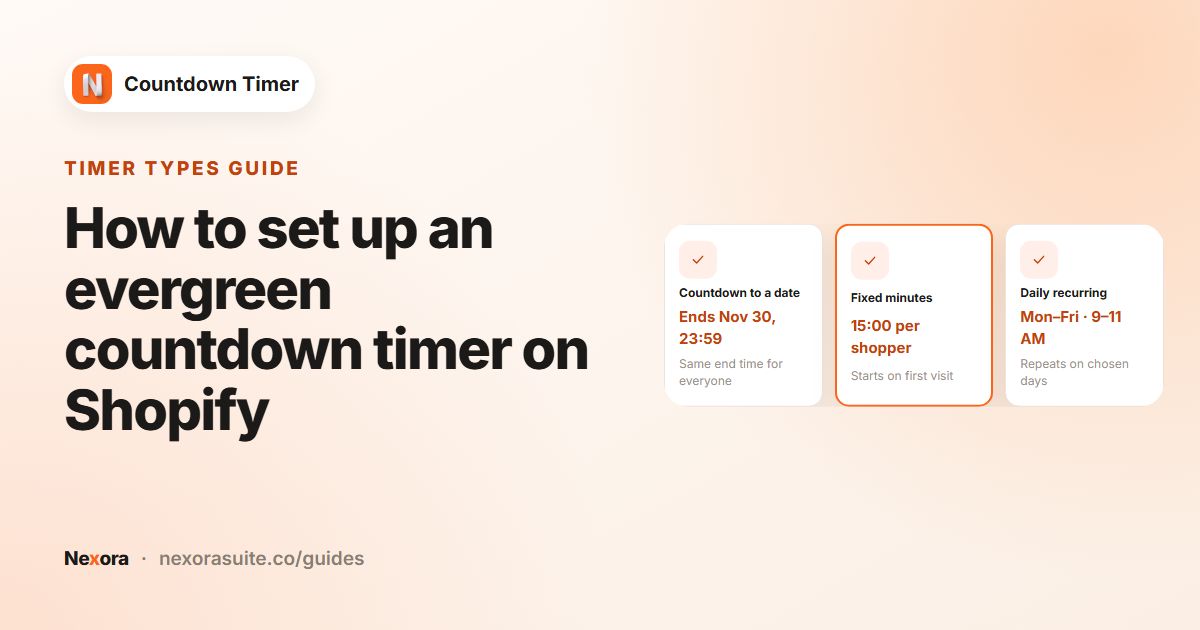
In the Timer section, pick a Timer Type: Countdown to a date, Fixed minutes or Daily recurring timer. Then choose what happens under Once it ends.
- Style it
Click Continue to Design. Pick a Layout and a template Style, then fine-tune Card, Timer style and Typography in the live preview.
- Choose where it shows
Click Continue to Placement and pick the pages or products. Leave Geolocation targeting on All world unless the offer is regional.
- Save and publish
Click Save in the save bar, then Publish at the top right. The badge changes to Published. Open a matching page on your storefront to check it.
Which placement and timer type to pick
| Placement | Where it appears | Timer types |
|---|---|---|
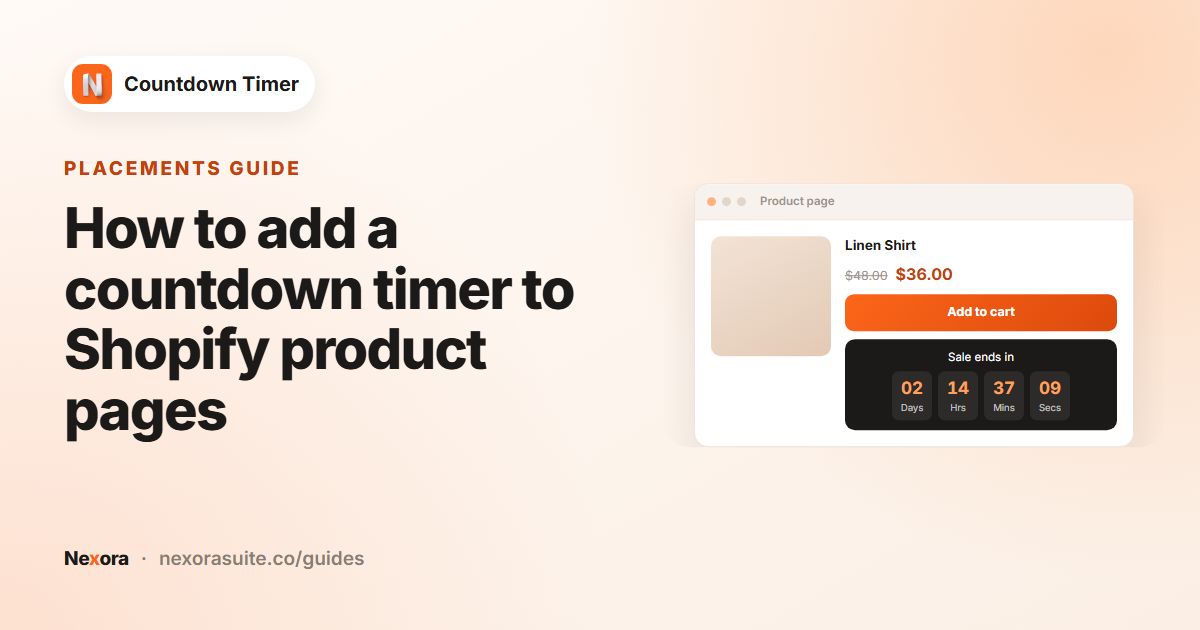
| Product page | Just below the add to cart / Buy it now buttons | Countdown to a date, Fixed minutes, Daily recurring timer |
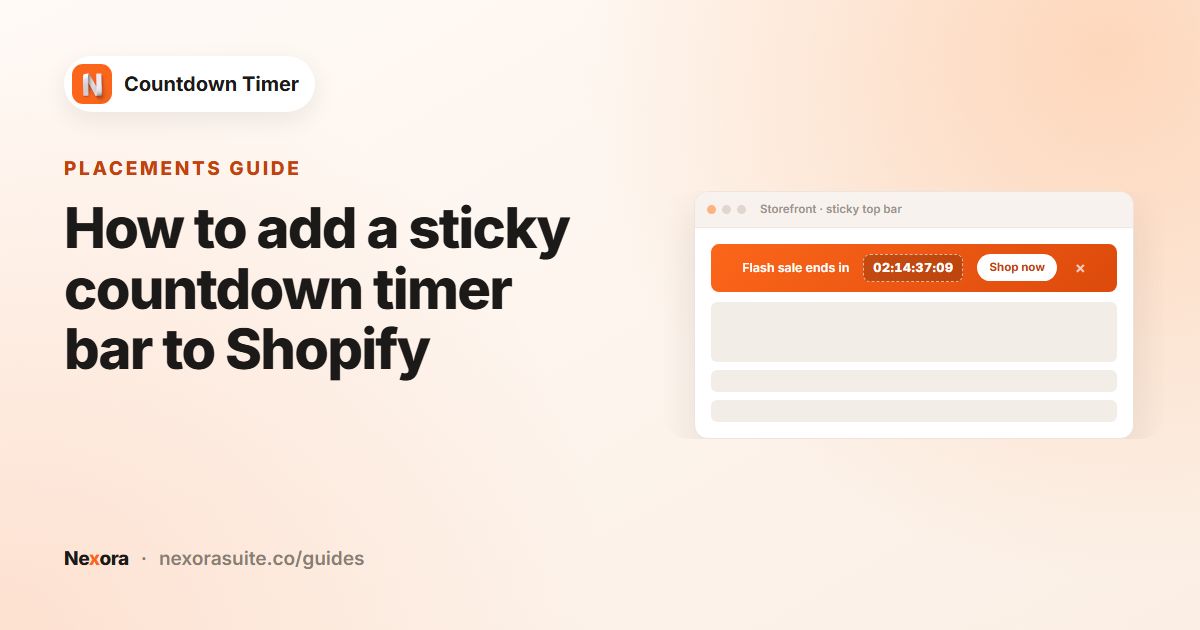
| Top/bottom bar | A bar at the top or bottom of pages, optionally sticky | Countdown to a date, Fixed minutes, Daily recurring timer |
| Landing page | A card on the home page, collection pages or the password page | Countdown to a date, Fixed minutes, Daily recurring timer |
| Cart page | At the top of the cart, inside your own sentence via {timer} | Fixed minutes only |
| Timer Type | Use it for |
|---|---|
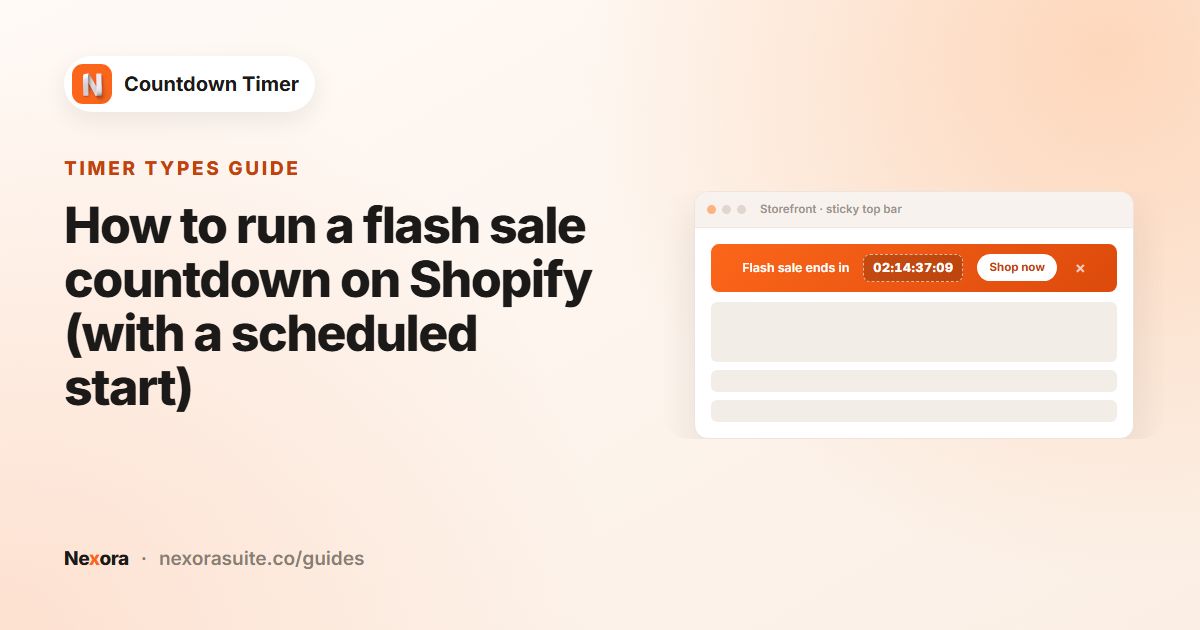
| Countdown to a date | A sale or launch with one end time for everyone. Can start now or be scheduled. |
| Fixed minutes | A personal countdown for each shopper, starting the first time they see it. |
| Daily recurring timer | Something that repeats on chosen days, such as a daily shipping cut-off. |
All times use each shopper's own browser time zone. An 8:00 PM end time means 8:00 PM local time for every visitor.
Example: a weekend sale timer
A homeware store runs a weekend sale ending Sunday at 11:59 PM. They want it on every product page and as a bar across the store.
- Timer 1, Product page: Title "Weekend sale ends in", Countdown to a date ending Sunday 11:59 PM, Once it ends: Unpublish timer, placement All products.
- Timer 2, Top/bottom bar: same end date, Call to action Button with "Shop the sale" linking to
/collections/sale, Top of the page and Sticky (always visible while scrolling). - Both use the same template Style so they look consistent.
Tips and common mistakes
- Timer not showing? Check, in order: the timer is Published, the Countdown Timer app embed is on in your live theme, the page matches the Placement tab, and the countdown hasn't ended or isn't scheduled for later.
- Want an exact spot? Choose Custom position, add one of the app blocks in the theme editor and paste the Timer ID into it. A block shows nothing until it has a Timer ID.
- Can't publish? The app tells you what's missing, for example an end date in the past or no products selected.
- Keep deadlines honest. If the sale ends, let the timer end too. Choose Unpublish timer rather than quietly moving the date.
For more detail on every screen, see the documentation and the tutorial.
Frequently asked questions
Do I need to edit theme code to add a countdown timer?
No. Turn on the Countdown Timer app embed and the app places timers for you. App blocks and the code snippet are optional, for when you want an exact position.
Is the app free?
Yes. Nexora Countdown Timer is completely free, with unlimited timers and all features included.
Can I change a timer's placement later?
No. The placement is fixed when you create the timer. Create a new timer, or Duplicate a similar one, if you need another placement.
Can I have more than one timer live at once?
Yes. You can publish several timers at the same time, for example a product page timer and a bar.
How do I get help with setup?
Click Chat with us on the dashboard for live chat, or email [email protected].