
Before you start
- Install Nexora Countdown Timer from the Shopify App Store.
- Know which theme is live. The dashboard buttons open your current (published) theme.
- Decide what the timer is for (a sale end date, a per-visitor offer, a daily cut-off or a cart timer). That tells you which placement and timer type to pick.
Getting started: your first timer
- Turn on the app embed
On the app's dashboard, click Go to theme editor in Activate app embed. Make sure Countdown Timer is switched on under App embeds, then click Save in the theme editor.
- Create a timer
Click Create timer, then Select this timer type on Product page.
- Write the content
On the Content tab, enter a Countdown name (only you see it), a Title such as “Sale ends in” and an optional Subheading.
- Set the countdown
In the Timer section, keep Countdown to a date, choose Right now, then set the End date, Hour, Minute and AM/PM. Under Once it ends, choose Unpublish timer so it disappears after the sale.
- Style it
Click Continue to Design. Pick a Layout and a template Style, then adjust Card, Timer style and Typography while you watch the live preview.
- Choose where it shows
Click Continue to Placement. Choose All products, or Specific products and click Select Products. Leave Geolocation targeting on All world.
- Save and publish
Click Save in the save bar, then Publish at the top right. The badge changes to Published.
- Check your storefront
Open one of the selected products in your store. The timer appears below the add to cart / Buy it now buttons. If it doesn't, see the Troubleshooting questions in the FAQ.
Want the timer somewhere else on the product page? Choose Custom position, click Go to product page on the dashboard, add the Countdown Timer — Product block where you want it, and paste the Timer ID into the block.
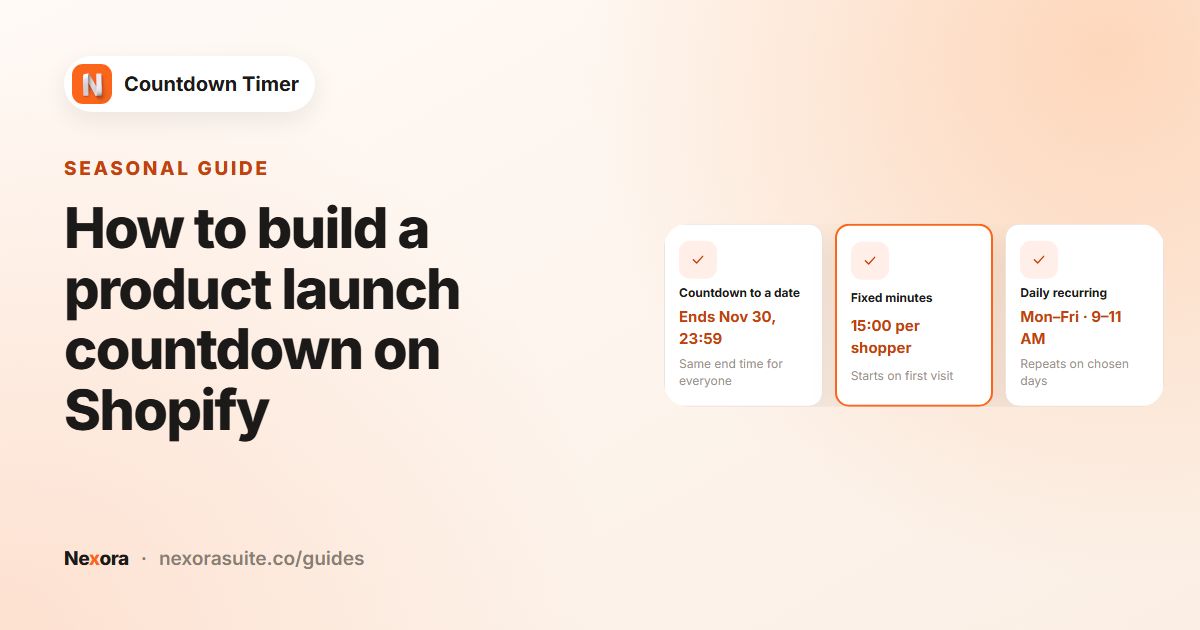 Related guideHow to build a product launch countdown on Shopify→
Recipe: a flash sale bar across the whole store
- Create a bar timer
Click Create timer and choose Top/bottom bar.
- Add the message and link
Enter a Title like “Flash sale ends in”. Set Call to action to Button, enter Button text (for example “Shop the sale”) and a Link URL such as
/collections/sale. Tick Close icon if shoppers should be able to dismiss the bar. - Set the deadline
Choose Countdown to a date. To launch it later, choose Schedule to start later and set the start date and time. Set the end date and time, and pick Unpublish timer under Once it ends.
- Position the bar
On the Design tab, choose Top of the page and tick Sticky (always visible while scrolling).
- Show it everywhere
On the Placement tab, choose Show on every page. Use Exclude to hide it on pages like Cart. Save and publish.
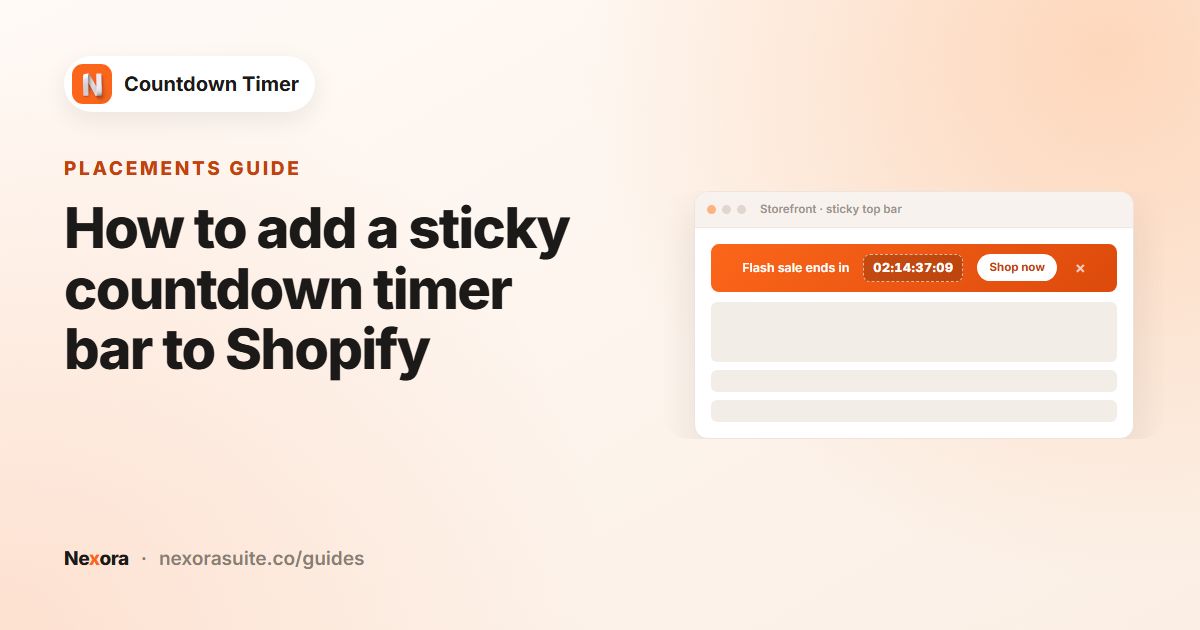 Related guideHow to add a sticky countdown timer bar to Shopify→
Recipe: a daily shipping cut-off
- Create a product page timer
Choose Product page and set a Title like “Order within the next” with a Subheading like “for same-day dispatch”.
- Set a daily window
Choose Daily recurring timer. Select Days of week Mon to Fri, set the start to 12:00 AM and the end to your cut-off, for example 2:00 PM.
- Hide it after the cut-off
Under Once it ends, choose Hide the timer for the buyer. The timer comes back on its own when the next window opens.
- Publish
Pick All products (or exclude items that don't ship same day), then save and publish.
Daily windows follow each shopper's own browser time zone, so a 2:00 PM cut-off means 2:00 PM local time for every visitor.
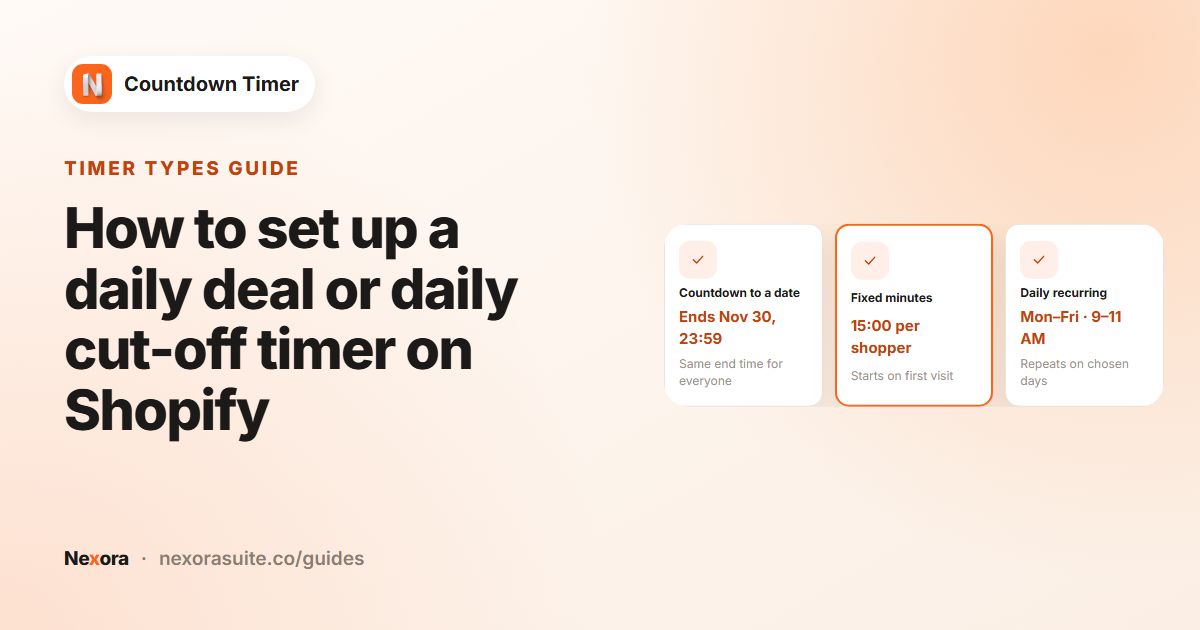 Related guideHow to set up a daily deal or daily cut-off timer on Shopify→
Recipe: a cart timer
- Create a cart timer
Choose Cart page. Cart timers always use Fixed minutes.
- Write the sentence
Enter a Title with the
{timer}placeholder, for exampleYour cart is reserved for {timer}, and set Minutes (for example 15). - Choose the end action
Under Once it ends, pick Repeat the countdown, Hide the timer for the buyer or Delete all cart items.
- Place and publish
Keep At the top of the cart on the Placement tab, then save and publish. Add an item to your cart and open the cart page to check it.
Delete all cart items really empties the shopper's cart when the timer ends. Use it only if that fits your store.
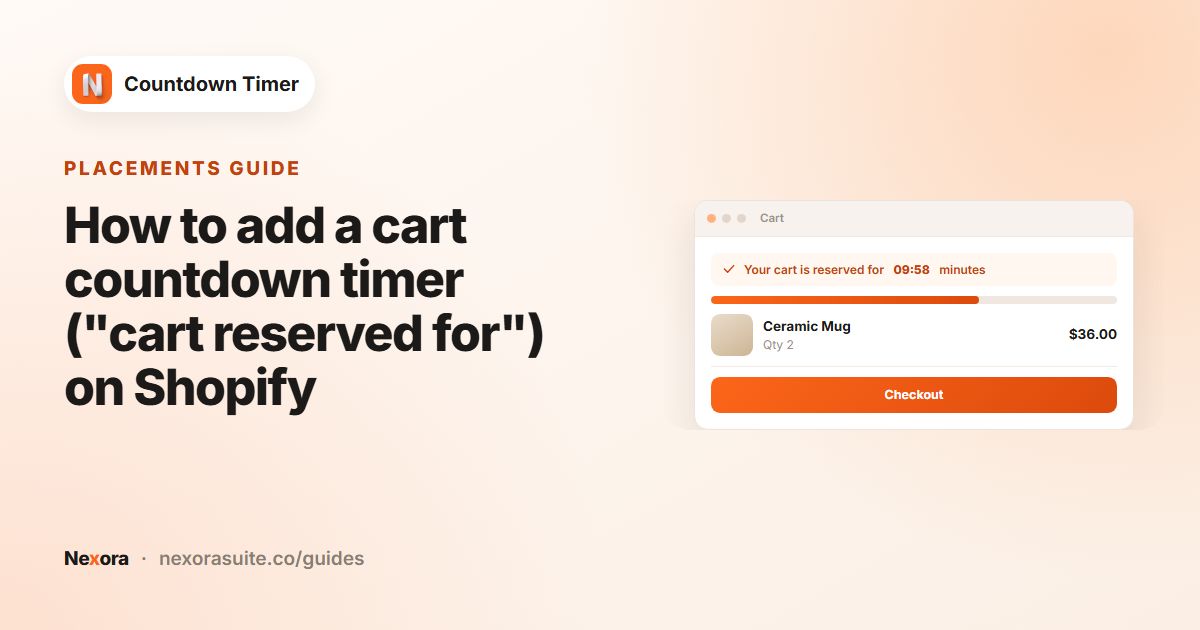 Related guideHow to add a cart countdown timer ("cart reserved for") on Shopify→