
Getting started
Is Nexora Countdown Timer free?
Yes. The app is completely free, with unlimited timers and all features included.
How many timers can I create?
As many as you like. You can also have several timers published at the same time.
Which timer type should I choose?
Use Countdown to a date for a deadline that's the same for everyone, like a sale end. Use Fixed minutes for a personal countdown per visitor. Use Daily recurring timer for something that repeats every day, like a shipping cut-off.
Can I change a timer's placement after creating it?
No. The placement (Product page, Top/bottom bar, Landing page or Cart page) is fixed when you create the timer. Create a new timer, or Duplicate a similar one, if you need a different placement.
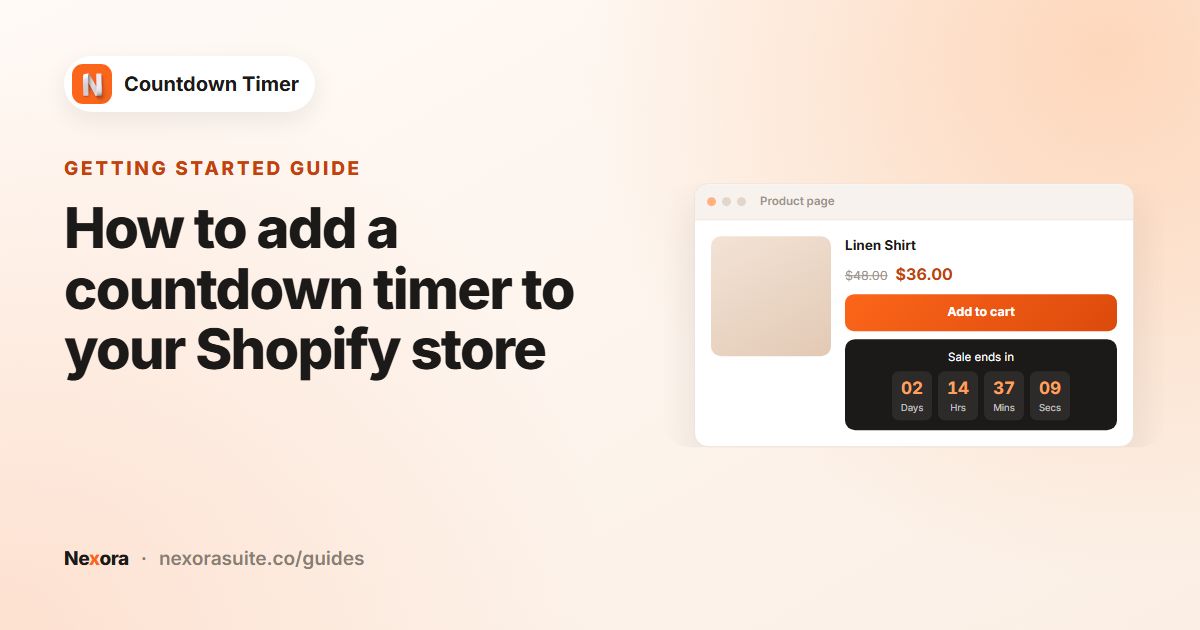 Related guideHow to add a countdown timer to your Shopify store→
Setup
Which time zone do timers use?
Timers use each shopper's own browser time zone. An end time of 8:00 PM ends at 8:00 PM local time for every visitor.
How does a Fixed minutes (evergreen) timer work?
Each shopper gets their own countdown, starting the first time they see the timer. It's remembered in their browser, so reloading the page doesn't reset it. When you save changes to the timer, everyone's countdown starts fresh.
Can I schedule a timer to start later?
Yes, for Countdown to a date. Under Timer starts, choose Schedule to start later and set the start date and time. The timer stays hidden until then and appears without the shopper reloading the page.
What does “Unpublish timer” do when the countdown ends?
It hides the timer for the shopper once it reaches zero. The timer itself stays Published in the app, so click Unpublish if you want to switch it off completely.
Can I translate my timer?
Yes. In Translations on the Content tab, click Add translations, pick one of your store's languages and fill in the text. Shoppers see the version for their current language.
Can I show a timer only in certain countries?
Yes. On the Placement tab, set Geolocation targeting to Specific countries and choose from 248 countries and regions.
Can I make the whole bar clickable?
Yes, for Top/bottom bar timers. Set Call to action to Make entire bar clickable and enter a Link URL. Landing page timers can use a Button instead.
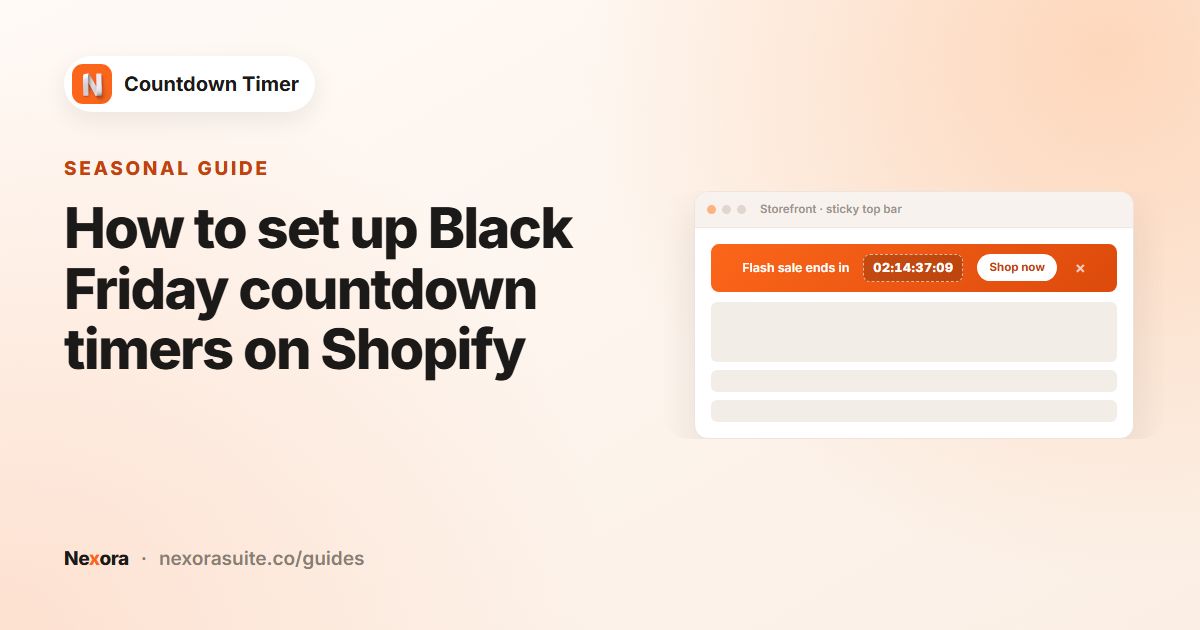 Related guideHow to set up Black Friday countdown timers on Shopify→
Storefront & theme
Do I need to edit my theme code?
No. Turn on the Countdown Timer app embed and the app places timers for you. To pick an exact spot, add one of the app blocks in the theme editor. The code snippet is optional.
Where does a Product page timer appear?
By default, just below the add to cart / Buy it now buttons. To move it, choose Custom position and add the Countdown Timer — Product block where you want it.
I added an app block but it's empty. Why?
The block needs a Timer ID. Copy the ID from the timer (the copy icon under its name, or Copy ID in the list), paste it into the block's Timer ID setting and save the theme. Also check the timer is Published.
Where does the cart timer appear?
With At the top of the cart, it appears above your cart contents on the cart page. For another spot, choose Custom position and use the Countdown Timer — Cart block.
Will a sticky bar cover my store header?
No. A sticky bar moves the page content so your header stays visible. A bar placed with a theme block or code snippet stays where you put it.
If a shopper closes the bar, will it come back?
It stays closed for the rest of that shopper's browser session.
Why doesn't the preview show my theme font?
Theme fonts can't be loaded in the app's preview. Publish the timer and check it on your storefront to see the real font.
Analytics
How is influenced revenue calculated?
It's revenue from paid orders placed within 24 hours of the buyer viewing a timer. Each order is credited to only the last timer the buyer viewed. Refunds aren't subtracted.
Are all visitors tracked?
No. Tracking follows Shopify's customer privacy settings, so visitors who decline analytics in your cookie banner aren't counted. Bots are filtered out too.
Why is my Analytics page empty?
Data appears only after a published timer has been shown to visitors, usually within a few minutes. Check that the date range covers that time, for example Last 30 days.
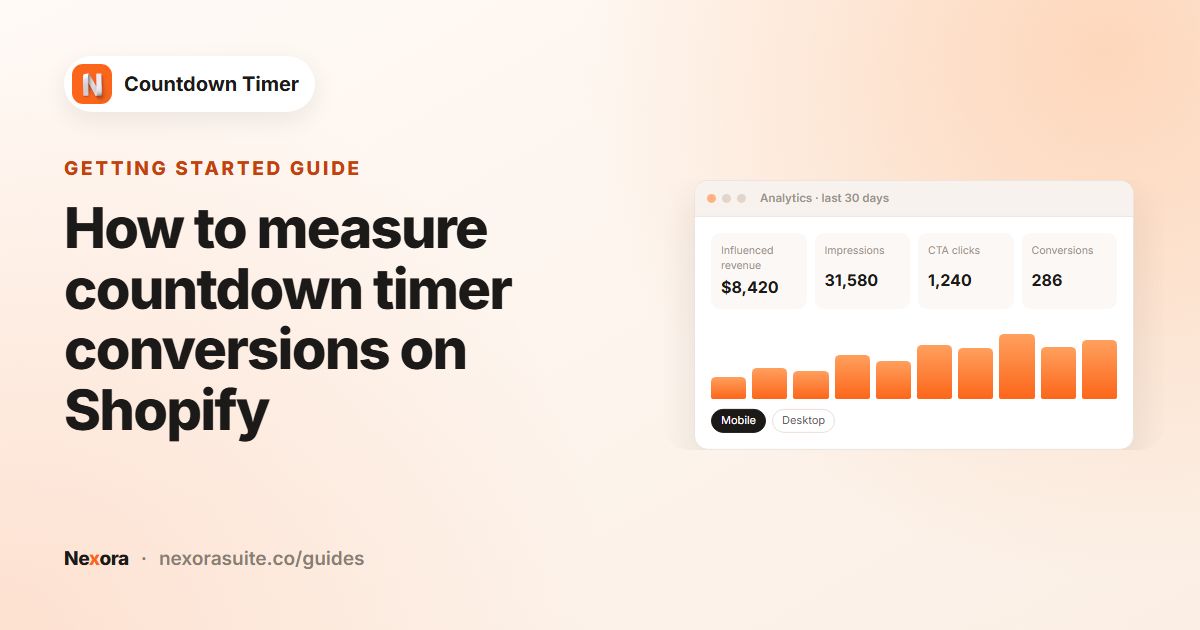 Related guideHow to measure countdown timer conversions on Shopify→
Troubleshooting
My timer doesn't show on the storefront. What should I check?
Check, in order: the timer is Published; the Countdown Timer app embed is on in your live theme; the page matches the Placement tab settings; the countdown hasn't ended or isn't scheduled for later; and your country is included if you use Specific countries.
Why can't I publish my timer?
The app shows what's missing. Common causes are no products, collections or tags selected, an end date in the past, a Button call to action without text or a link, or a cart title without {timer}.
My theme's styles change how the timer looks. What can I do?
Contact us through Request customisations on the Design tab or live chat. We'll do our best to adjust the design for your theme, free of charge.
How do I get help?
Click Chat with us on the dashboard for live chat, or email [email protected].