What a launch countdown should do
A launch has a different shape from a sale. Before launch there's nothing to buy yet, so the timer's job is to build anticipation and tell people when to come back. At launch, the message should switch from "coming soon" to "available now". After launch, there may be a short introductory offer with its own deadline.
| Phase | Shopper's question | Timer's answer |
|---|---|---|
| Before launch | When can I buy it? | "Launching in 3 days 04:20:11" |
| Launch moment | Is it out yet? | "Now available, shop the collection" |
| Launch week | Is there a reason to buy now? | "Launch price ends in" |
| Limited drop | Will it sell out? | A cart reminder, worded honestly |
Recommended setup
| Timer | Placement and pages | Timer settings |
|---|---|---|
| Teaser | Landing page: Password page if the store is closed, or Custom position on the home page with the Countdown Timer — Landing block | Countdown to a date, Right now, ends at launch; Once it ends: Show custom title |
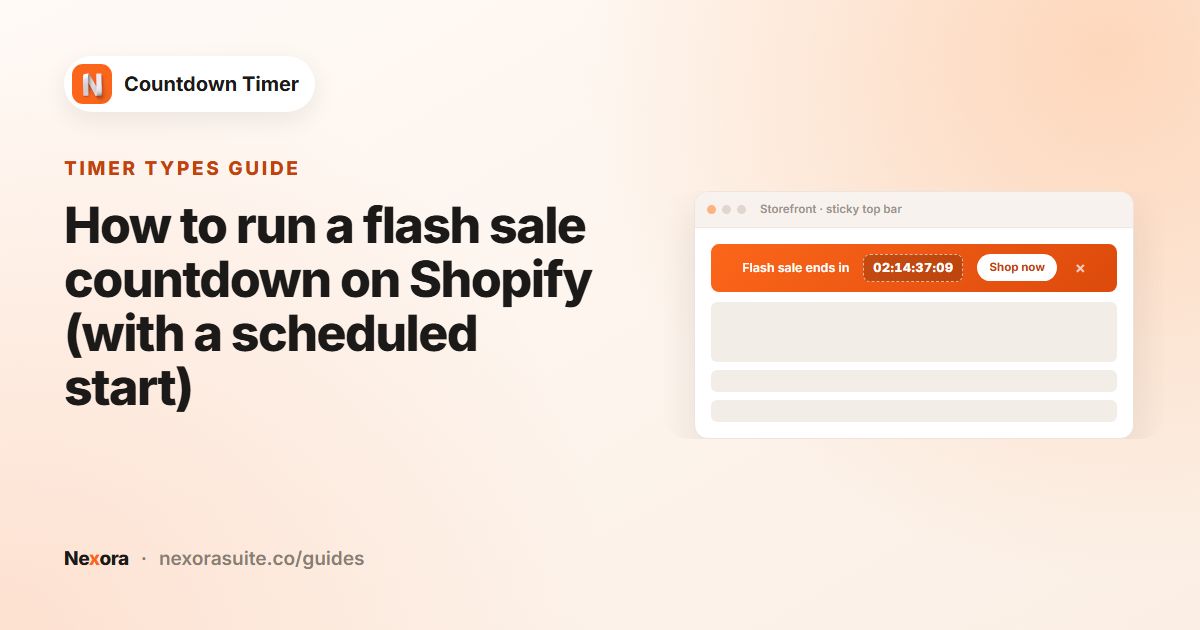
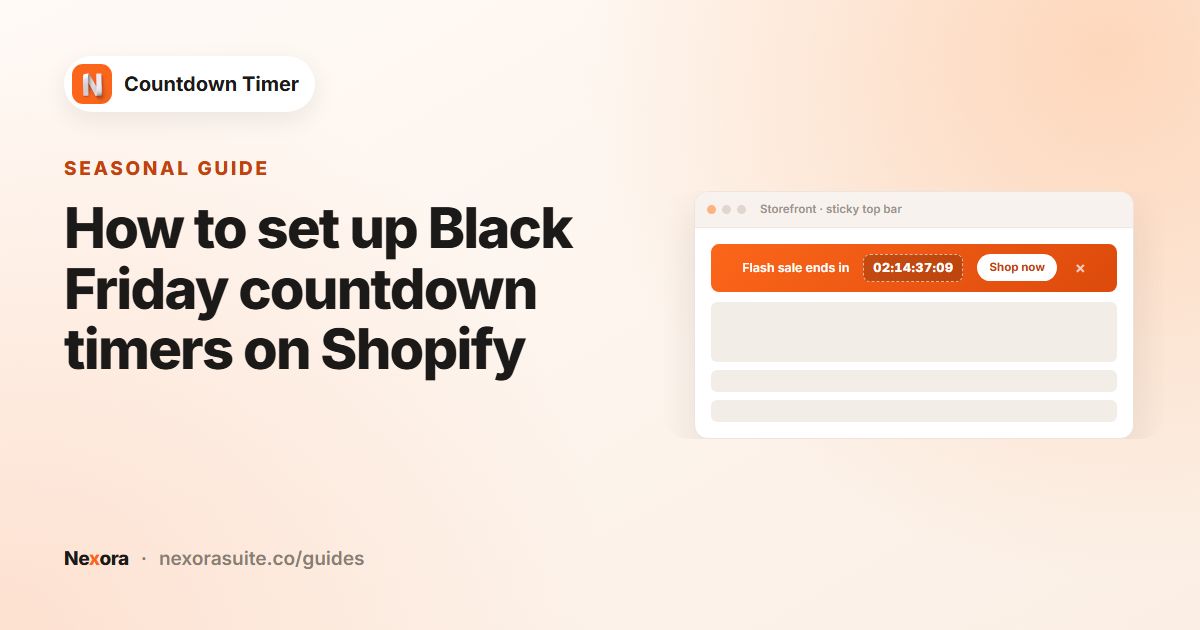
| Launch-week offer | Top/bottom bar, Show on every page | Countdown to a date, Schedule to start later at launch time, ends a week later; Unpublish timer |
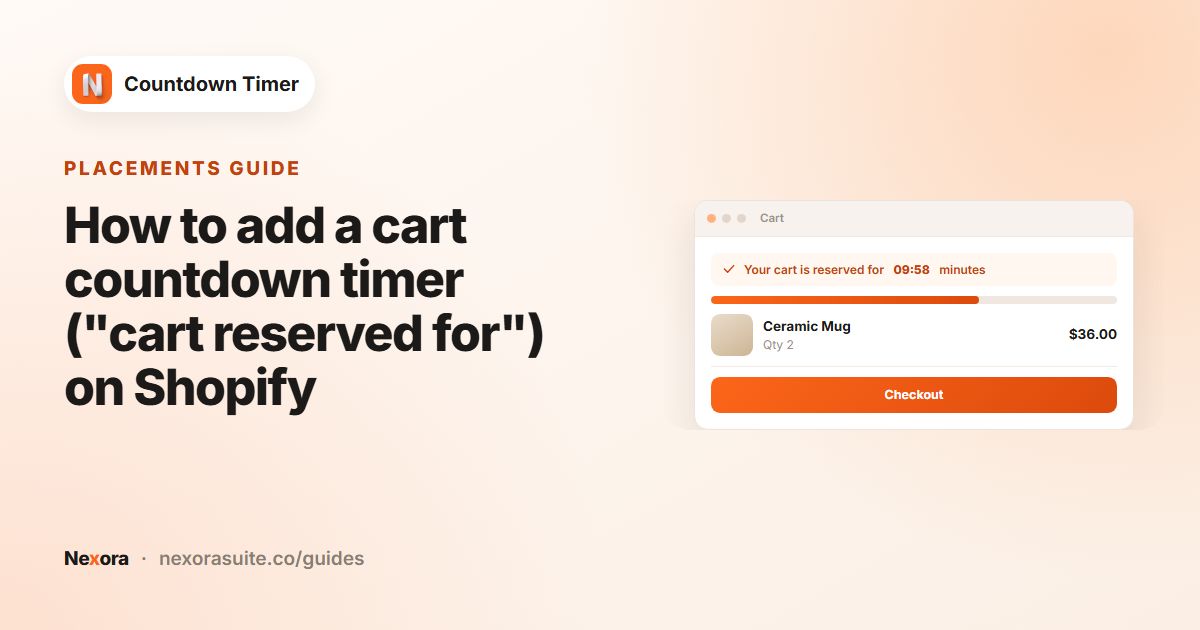
| Drop cart timer (optional) | Cart page, At the top of the cart | Fixed minutes, for example 10; Hide the timer for the buyer |
A timer doesn't lock or unlock a product. If the product is published before launch, shoppers may be able to buy it early. Keep it unpublished in Shopify until launch, or put the teaser on the home page or password page instead of the product page. See Shopify's help on managing products.
Steps
- Create the teaser
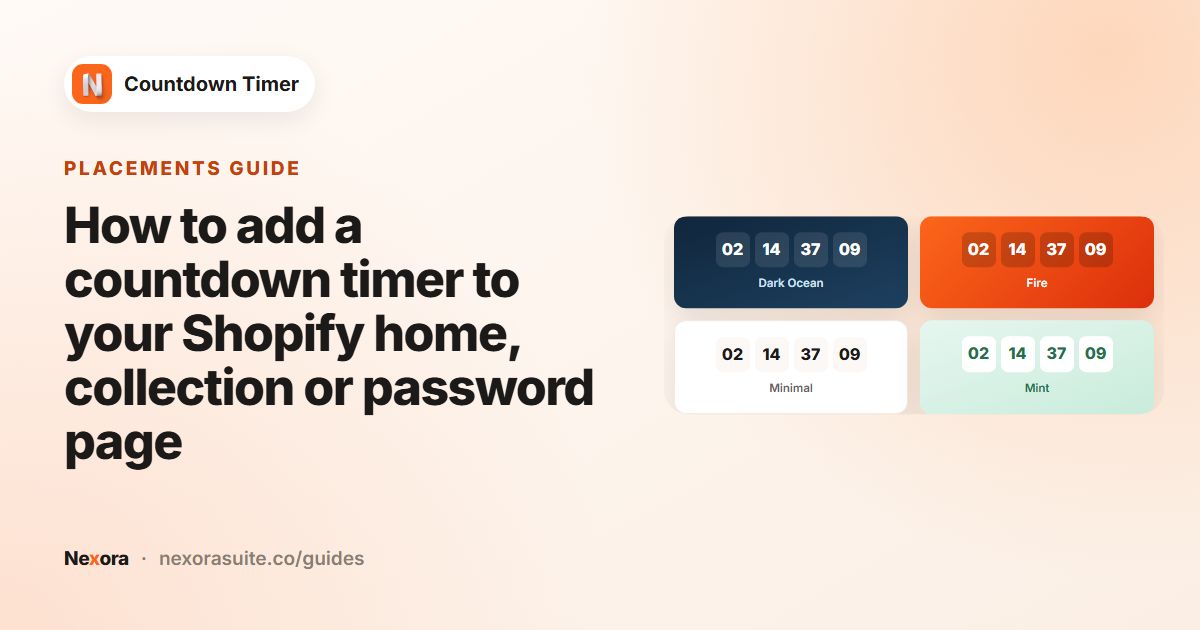
Click Create timer, choose Landing page. Title "Launching in", Subheading a one-line description of the product. Call to action: No call-to-action before launch, or a Button to a sign-up or waitlist page.
- Set the launch time
Countdown to a date, Right now, with End date, Hour, Minute and AM/PM at your launch time.
- Write the launch message
Under Once it ends, choose Show custom title and enter a Custom title such as "It's here. Now available". The subheading is removed when it switches.
- Style it for the brand
On Design, try Card → Image background with a product photo and a Color overlay, Timer style Grouped and Use your theme fonts.
- Place it
Choose Password page, or Custom position and add the Countdown Timer — Landing block on the home page with the Timer ID.
- Schedule the launch-week bar
Create a Top/bottom bar timer with Schedule to start later at the launch time and an end date a week later, with a Button linking to the new product.
- Publish
Save and Publish both timers ahead of time.
Example: a limited-edition sneaker drop
A footwear brand releases 200 pairs of a collaboration sneaker on Saturday at 10:00 AM, with launch pricing for one week.
- Teaser, home page via the Countdown Timer — Landing block under the hero banner: "Drop 07 lands in", ending Saturday 10:00 AM. Show custom title: "Drop 07 is live".
- Launch-week bar: "Launch price ends in", Schedule to start later Saturday 10:00 AM, ending the next Saturday 10:00 AM, Button "Shop Drop 07" →
/products/drop-07. - Cart timer:
Launch price held for {timer}. Stock isn't reserved until you check out., Minutes 10, Hide the timer for the buyer. - The product stays unpublished in Shopify until 10:00 AM Saturday, and is published by the team at launch.
Tips for launches
- One moment or local time? Times use each shopper's browser time zone, so 10:00 AM is 10:00 AM local time for everyone. If your drop opens at one global moment, state the time zone in the subheading, for example "Saturday 10 AM GMT".
- Launching in several countries? Add Translations for each store language and use Geolocation targeting if the launch is regional.
- Don't reset a missed launch. If the date slips, update the end date and the subheading so returning visitors understand.
- Cart wording: Shopify doesn't hold stock for items in a cart, so avoid promising a reservation you can't keep.
- Check results on Analytics to see how many visitors saw the teaser.
A simple launch checklist
- Teaser timer Published, with the launch time checked in a private window.
- Launch-week bar Published and scheduled with Schedule to start later.
- Product ready to publish in Shopify, and any launch discount scheduled with the same dates.
- Someone on the team assigned to publish the product (and remove the store password, if used) at launch time.
Frequently asked questions
Can the countdown say "Now available" when it ends?
Yes. Under Once it ends, choose Show custom title and enter your launch message as the Custom title.
Will the timer publish my product at launch?
No. The timer only changes what's displayed. Publish the product in Shopify at launch time.
Can I show a launch countdown on my password page?
Yes. Create a Landing page timer and choose Password page on the Placement tab.
Can I schedule the launch-week offer in advance?
Yes. Use Countdown to a date with Schedule to start later at the launch time. It stays hidden until then.
Should I use a cart timer for a drop?
Only if the offer really is time-limited, and word it honestly, since the timer doesn't reserve stock.