Why a countdown card on landing pages
Home and collection pages are where shoppers browse. A countdown card here works like a banner with a deadline: it announces the sale, says when it ends, and sends people to the right collection with a button.
The password page is a special case. If your store is closed before a launch, a countdown tells early visitors exactly when to come back, instead of a plain "opening soon".
Your options on Shopify
In the theme editor you can add image banners and rich text to the home page and edit the password page, but Shopify's free themes don't include a live countdown section as standard.
| Option | Live countdown | Where |
|---|---|---|
| Image banner or rich text section | No, static text only | Any template in the theme editor |
| Theme countdown section (some paid themes) | Yes | Depends on the theme |
| Landing page timer | Yes, any of the three timer types | Home, collection pages, password page, or any template via the block |
Step by step
- Create a Landing page timer
Click Create timer, then Select this timer type on Landing page.
- Write the content
Enter a Title and Subheading. Under Call to action, choose Button, then enter Button text and a Link URL such as
/collections/new. Or choose No call-to-action for a countdown only. - Set the timer
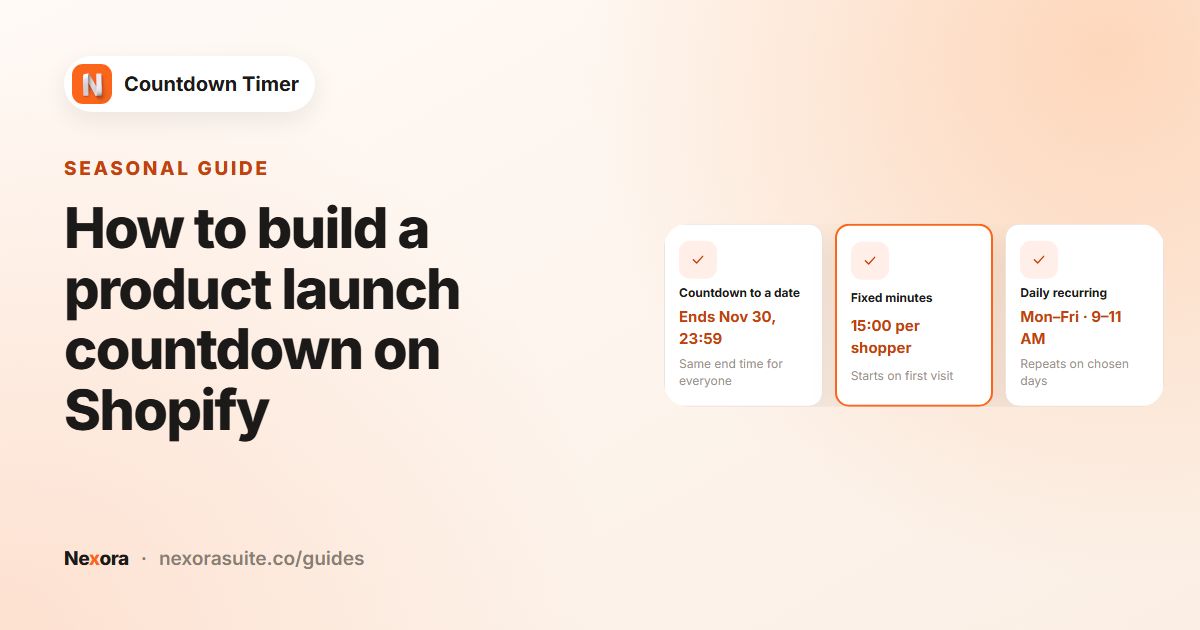
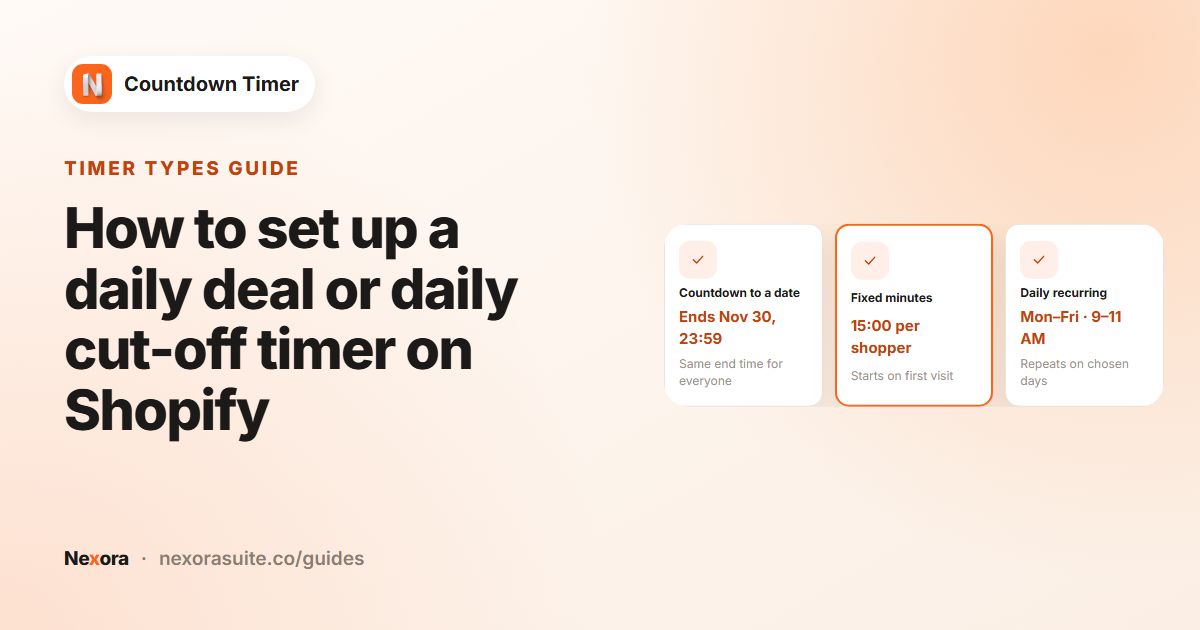
Pick Countdown to a date for a sale or launch, Daily recurring timer for a daily deal, or Fixed minutes for a personal offer. Choose the Once it ends action.
- Design the card
On the Design tab, choose a Layout and template Style. Under Card, try an Image background with a Color overlay so the digits stay readable.
- Choose pages
On the Placement tab, choose All collection pages, Specific collection pages, Password page or Custom position.
- Save and publish
Click Save and Publish, then visit the page to check it.
Landing page placement options
| Option | Where it shows |
|---|---|
| All collection pages | Every collection page and the home page. Click Exclude to leave out collections. |
| Specific collection pages | Only the collections you choose. |
| Password page | Your store's password page, shown while the store is locked. |
| Custom position | Wherever you add the Countdown Timer — Landing block or the code snippet, for example a single section of the home page or a regular page template. |
To put the card at a particular spot on the home page, such as under the hero banner, choose Custom position, open the home page in the theme editor, add the Countdown Timer — Landing block (Add block → Apps) and paste the Timer ID.
Automatic placement or Custom position?
| Automatic (All collection pages, Specific collection pages, Password page) | Custom position | |
|---|---|---|
| Where on the page | Placed by the app embed | Exactly where you add the block |
| Setup | Placement tab only | Placement tab, plus the Countdown Timer — Landing block and Timer ID in the theme editor |
| Best for | Store-wide sale cards | One spot, such as under the hero banner, or a regular page |
Example: a store opening countdown on the password page
A new candle brand keeps its store password-protected until launch day and wants visitors to know when it opens.
- Title "We open in", Subheading "Hand-poured candles, launching Friday at 10 AM".
- Call to action: No call-to-action, because the store can't be browsed yet.
- Countdown to a date, Right now, ending Friday 10:00 AM. Once it ends: Show custom title with "We're open! Enter the store".
- Card: Image background with a dark Color overlay; Timer style Grouped.
- Placement: Password page.
The timer can't remove your store password. Shoppers can only browse once you turn the password off in Shopify. Set a reminder to do that at launch time, or the custom title will appear while the store is still locked.
Example 2: a weekend sale card set up in advance
An outdoor gear store wants a weekend sale card on its home page and collection pages, prepared on Wednesday.
- Title "Weekend sale ends in", Subheading "Up to 30% off selected outdoor gear".
- Call to action: Button, Button text "Shop the sale", Link URL
/collections/weekend-sale. - Countdown to a date with Schedule to start later: Start date Friday 6:00 PM, End date Sunday 11:59 PM. Once it ends: Unpublish timer.
- Placement: All collection pages, with the gift card and clearance collections under Exclude.
With Schedule to start later, the card stays hidden until Friday at 6 PM and then appears by itself, without visitors reloading the page. The sale discount is scheduled separately in Shopify with the same dates, because the timer doesn't apply prices.
Troubleshooting
| What you see | Why | What to do |
|---|---|---|
| No card on the home page | Specific collection pages is selected, or the Countdown Timer app embed is off | Use All collection pages or Custom position, and turn the app embed on |
| The card is missing on one collection | That collection is listed under Exclude | Remove it from Exclude |
| A scheduled card hasn't appeared | With Schedule to start later, the card stays hidden until the start time | Check the Start date, Hour and AM/PM |
| A daily deal card vanishes in the afternoon | A Daily recurring timer only shows between its start and end time on the ticked days, then returns at the next start | Check the ticked days and the end time |
| The button goes nowhere | Only normal links are used; anything else is replaced with an empty link | Use a path like /collections/sale or a full https:// address |
Tips and common mistakes
- Times are local. The countdown uses each visitor's browser time zone, so "Friday 10:00 AM" means 10:00 AM wherever they are. For one global launch moment, mention your time zone in the subheading.
- Not on the home page? All collection pages includes the home page, but Specific collection pages doesn't. Use Custom position with the block for a home-only card.
- Image backgrounds: pick an image that still works when cropped on mobile, and use the overlay to keep contrast high.
- Block empty? Paste the Timer ID and make sure the timer is Published.
Which timer type for which landing card
| Goal | Timer Type |
|---|---|
| Sale or launch with a fixed end | Countdown to a date |
| A deal that runs at the same hours every day | Daily recurring timer |
| A personal welcome offer for each visitor | Fixed minutes |
Frequently asked questions
Does All collection pages include the home page?
Yes. All collection pages shows the card on collection pages and the home page. Use Exclude to leave out collections.
Can I add a countdown to my store's password page?
Yes. Create a Landing page timer and choose Password page on the Placement tab.
Can I add a button to the countdown card?
Yes. Set Call to action to Button and enter Button text and a Link URL.
Can I show the countdown on a regular page, like About us?
Yes. Choose Custom position and add the Countdown Timer — Landing block to that page's template, with the Timer ID pasted in.
Will the timer open my store when it ends?
No. It only changes the display. You need to remove the store password in Shopify yourself.
Can I set up the card before the sale starts?
Yes. Choose Schedule to start later under Timer starts. The card stays hidden until the start time, then appears without a page reload.
Why is my daily deal card hidden?
A Daily recurring timer shows only during its window on the days you ticked. Outside that window it is hidden until the next start.