
Overview and app navigation
Nexora Announcement Bar adds promotional bars to your storefront for discounts, free-shipping messages, seasonal campaigns or store notices. The app is completely free, with no plans or usage limits to manage.
The app menu in your Shopify admin has these pages:
| Page | What you do there |
|---|---|
| Dashboard (app home) | See analytics totals, turn on the app embed with Enable on theme, open live chat with Chat with us, and view a short list of Your announcement bars with Edit and Delete buttons. |
| Announcement bar | The full list of your bars. Create new ones with New announcement and manage existing ones. |
| Analytics | Impressions, clicks, dismissals and click-through rate for each bar over a date range you choose. |
| Document | Short help articles inside the app. |
Two things must be true before a bar shows on your store: the bar is Published, and the Announcement Bar app embed is turned on in your theme.
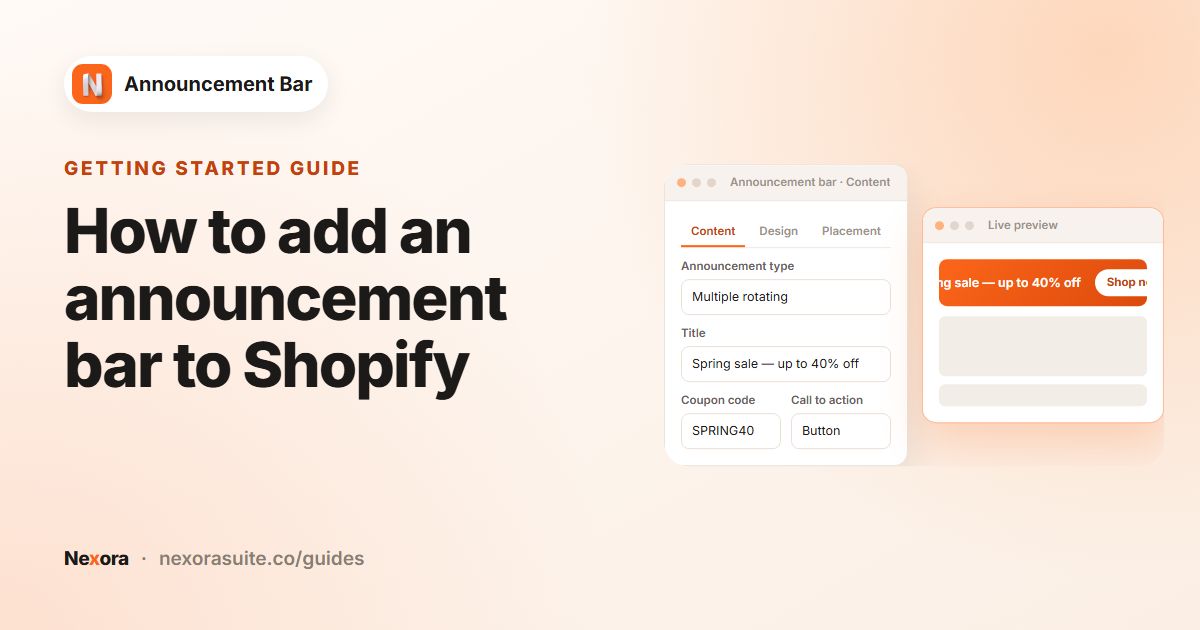 Related guideHow to add an announcement bar to Shopify→
Theme app embed and custom block
The app adds two items to your theme:
| Theme item | What it does |
|---|---|
| Announcement Bar (app embed) | Loads your published bars on every storefront page. It must be on for any bar to show, including bars placed with the custom block. |
| Announcement bar (custom) (app block) | A slot you can drop into a section of your theme. It shows one bar, picked by its Announcement ID. Use it with the Custom position placement option. |
- Open the dashboard
In the Help center card, find Activate app embed.
- Choose a theme
Click Enable on theme and pick the theme you want. The theme editor opens on the App embeds panel.
- Turn it on and save
Switch on Announcement Bar and click Save in the theme editor.
If you switch to a new theme later, turn the app embed on in that theme as well.
Managing your announcement bars
The Announcement bar page lists every bar with its Announcement name, Type, Placement, Status and Actions. Click a name to open the editor.
| Action | Where | What it does |
|---|---|---|
| New announcement | Top of the page | Opens the editor for a new bar. |
| Edit (pencil icon) | Row | Opens the bar in the editor. |
| Delete (trash icon) | Row | Asks you to confirm, then permanently deletes the bar. This can't be undone. |
| Copy ID | Row, three-dot menu | Copies the bar's ID, which you need for the custom theme block. |
| Publish / Pause | Row, three-dot menu | Publishes a bar that isn't live yet, or pauses an active one. |
| Duplicate | Row, three-dot menu | Makes an unpublished copy named "(copy)" with the same settings. |
| Bulk Publish, Pause, Delete | Select rows with the checkboxes | Applies the action to every selected bar. |
Statuses
| Status | Meaning |
|---|---|
| Not published | A draft. It never shows on the storefront until you publish it. |
| Scheduled | Published, but the start date set in Scheduling hasn't arrived yet. |
| Active | Live on the storefront, as long as the app embed is on and the placement rules match. |
| Expired | Published, but the end date has passed. It no longer shows. |
| Paused | You paused it. It stays hidden until you publish it again. |
Saving and publishing in the editor
When you change something in the editor, Shopify's save bar appears at the top of the admin with Save and Discard. Saving keeps your changes; a bar that is already live updates on the storefront. The button in the page header shows Publish for bars that aren't live, or Pause for active ones. The bar's current status badge sits next to its name.
Use Continue to Design, Continue to Placement and the matching Back to buttons under the settings to move between tabs. The Live preview on the right updates as you edit.
Announcement name and Title are required. If either is empty, the app shows an error and won't save.
Content tab: announcement types
The Announcement type card at the top of the Content tab offers three layouts:
| Type | How it looks | Content you can add |
|---|---|---|
| Simple announcement | A single static message. | Title, subheading, coupon code with a copy button, icon, call to action. |
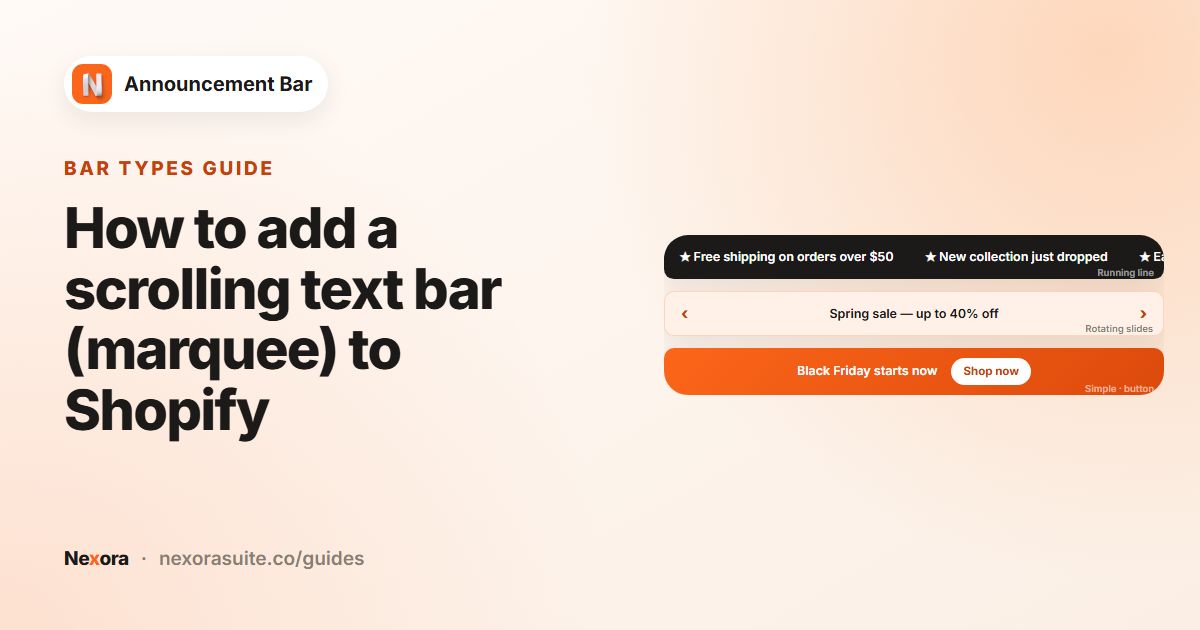
| Running line announcement | Text scrolling continuously across the bar, like a marquee. | Title and coupon code, shown together as plain scrolling text, plus a call to action. |
| Multiple rotating announcements | A carousel that cycles through up to 10 slides. | Each slide gets its own title, subheading, coupon code, icon and call to action. |
Running line bars show only the title and the coupon code, as plain text. They don't show a subheading, an icon or a copy button for the code. Choose Simple announcement or Multiple rotating announcements if you need those.
If you switch away from Multiple rotating announcements while you have more than one slide, the app asks you to confirm. Only the first slide is kept and the others are deleted.
Animation
Running line and rotating bars get an Animation card:
| Setting | Applies to | What it does |
|---|---|---|
| Animation speed | Running line | From 1 (slowest) to 10 (fastest). |
| Animation direction | Running line | Left or Right. |
| Display duration | Multiple rotating | How long each slide stays visible, from 1 to 15 seconds. |
| Transition direction | Multiple rotating | Horizontal (slides in from the side) or Vertical (slides in from below). |
Rotating bars pause while a visitor hovers over them, and start again when the pointer moves away. The gap between repeating titles in a running line is set with Title spacing on the Design tab.
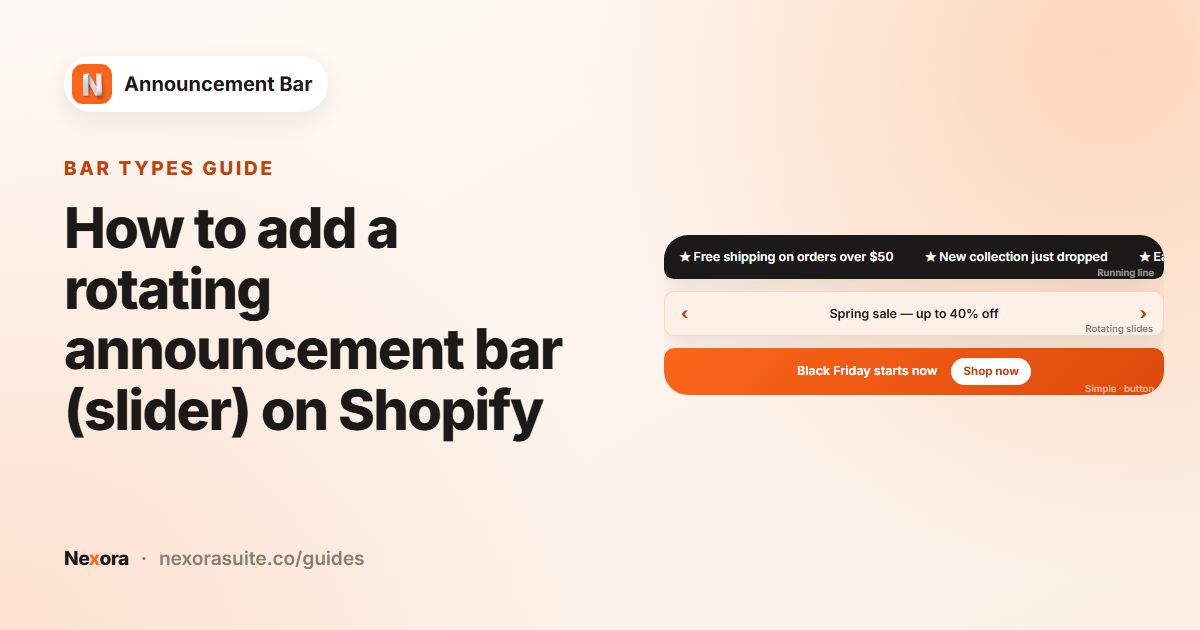 Related guideHow to add a rotating announcement bar (slider) on Shopify→
Content tab: text, coupon, icon and call to action
Announcement content
| Field | Details |
|---|---|
| Announcement name | For your reference only; shoppers never see it. Required, up to 100 characters. |
| Title | The main message. Required, up to 150 characters. |
| Subheading | A smaller second line. Simple and rotating bars only. |
| Coupon code | A discount code, up to 30 characters. On Simple and rotating bars it appears with a copy button, and shoppers see a "Copied to clipboard" message when they click it. The code must already exist in Shopify Discounts; the app only displays it. |
| Icon | Simple and rotating bars only. Click Select Icon to pick from 53 icons in 7 categories (Ecommerce, Marketing, Communication, Time, Status, Social, Payment), or Upload Icon to use your own SVG or PNG up to 2 MB. Remove an icon from its thumbnail. |
Slides (Multiple rotating)
Each slide has its own Announcement # card with Title, Subheading, Coupon code, Icon and Call to action. Use the ↑ and ↓ buttons to reorder slides, Collapse or Expand to tidy the list, and Delete to remove a slide (a bar always keeps at least one). Click + Add announcement to add more, up to 10 slides.
Call to action
| Option | What shoppers get |
|---|---|
| No call to action | Just the message. |
| Button | A button with your Button text (up to 30 characters) that opens the Link. |
| Make entire bar clickable | Clicking anywhere on the bar opens the Link. |
Links can be a store path such as /collections/sale or a full address starting with https://.
Close icon
Tick Show close icon (X) — visitors can dismiss the bar to let shoppers close the bar. For rotating bars this checkbox is in its own Close icon card. A dismissed bar stays hidden for that shopper's browser for 7 days, then comes back.
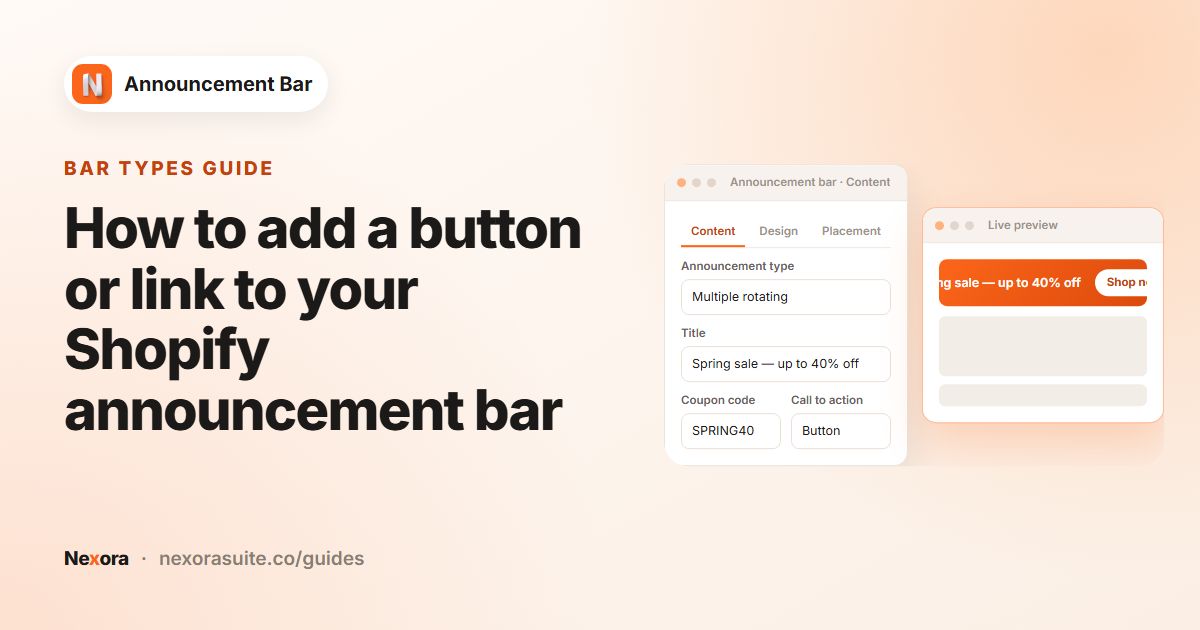 Related guideHow to add a button or link to your Shopify announcement bar→
Content tab: translations and scheduling
Translations
In the Translations card, click Add translation, pick a language under Select language, fill in the fields and click Confirm translations. The list shows only languages published in your store. Each translation you add can be changed with Edit or removed with Delete.
| Translatable field | Notes |
|---|---|
| Title | For rotating bars, you fill this in for each slide. |
| Subheading | Same as above. |
| Button text | Same as above. |
| Link | Leave it empty to use the default link. |
The bar uses the translation that matches the language the shopper is browsing in. Any field you leave empty falls back to your original text.
Coupon codes aren't translated. The same code shows in every language.
Scheduling
| Setting | Options |
|---|---|
| Starts | Right now, or Specific date with Date, Hour, Minute and AM/PM. |
| Ends | Never, or Specific date with the same fields. |
Dates and times use the time zone of the computer you're using when you set them. After you publish, a bar with a future start date shows as Scheduled. It becomes Active at the start time and Expired after the end time.
The app checks schedules every 5 minutes, so a bar can go live or come down a few minutes after the exact time. If you change the dates on a bar that is already published, the new dates take effect as soon as you save.
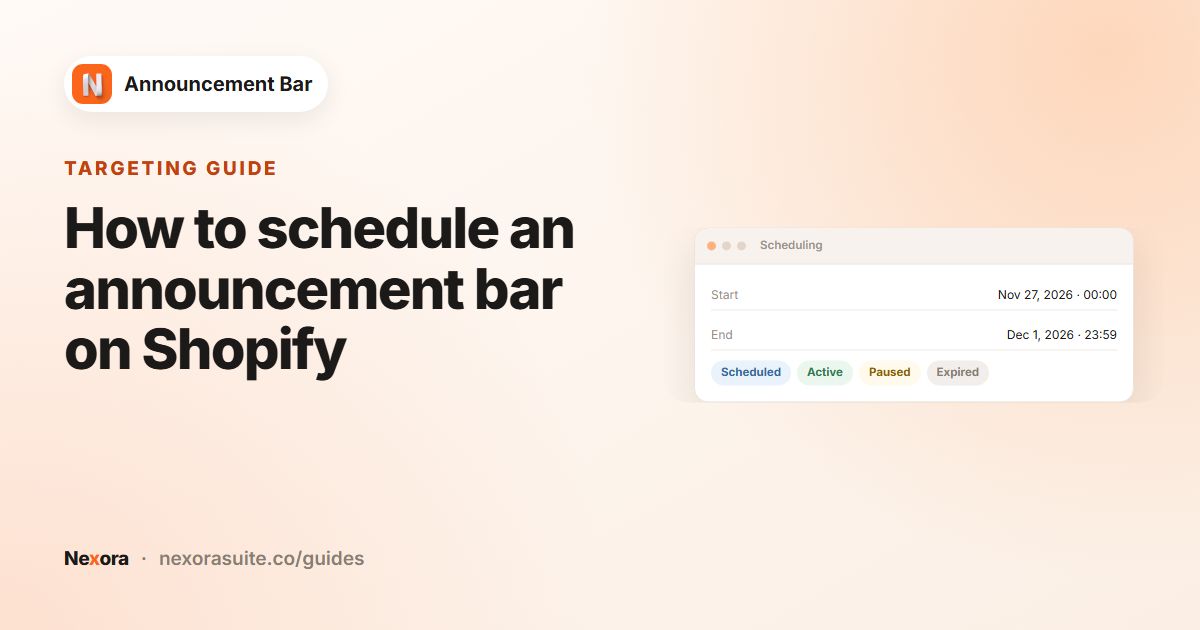 Related guideHow to schedule an announcement bar on Shopify→
Design tab: position, template and card
Positioning
| Setting | What it does |
|---|---|
| Position | Top page or Bottom page. |
| Sticky bar | Top bars only. The bar stays visible while shoppers scroll. |
If several bars are live in the same position, they stack in the order you created them. If any bar in the top stack is sticky, the whole top stack stays fixed while scrolling.
Template
Choose one of 20 ready-made colour schemes from the Template list: Dawn, Electric, Forest, Shades Of Grey, Vibrant, Neon, Vanilla, Love, Earth, Valentine, Bubble Gum, Black Yellow, Sophisticated, Fire, Frost, Sunny Evening, Red Moon, Dark Ocean, Minimal and Pastel. A template fills in the background, text, button, discount code, arrow and close icon colours. You can then change any of them. Custom leaves your current settings as they are.
Card
| Setting | What it does |
|---|---|
| Background type | Single color, Gradient (with Gradient angle from 0° to 360°, plus Start color and End color) or Background image. |
| Background image | Click Upload image and choose a JPG, PNG or WebP file up to 5 MB. Optionally tick Blur background and set a Background overlay color, which can be partly transparent, to keep text readable. |
| Corner radius (px) | Rounds the corners of the bar (0–50). |
| Border size and color | Border thickness in pixels and its colour. |
| Padding | Space inside the bar: Top, Bottom, Left, Right. |
| Title spacing | Running line only. The gap between repeating titles. |
For background images, upload your own image in the Upload tab of the image window.
Design tab: typography, discount code, button, icons and arrows
| Card | Settings |
|---|---|
| Typography | Font: Use your theme fonts, or Helvetica, Arial, Tahoma, Trebuchet MS, Times New Roman, Georgia, Garamond or Courier New. Title size and color and Subheading size and color, each with a B button to make the text bold. |
| Discount code | Outline color, Icon color (the copy icon), Code text size and color, and Corner radius (px). |
| Button | Appears when the call to action is Button. Button background, Button text size and color with bold, Corner radius (px), Padding (Top & bottom, Left & right) and Spacing from title. |
| Icons | Appears when you've added an icon or turned on the close icon. Icon size, Icon color or Use original icon color, icon Background color, Corner radius, and Close icon size and color. |
| Navigation arrows | Rotating bars with Horizontal transition only. Arrow Size and Color; Position: Sides (back on left, next on right), Both on the left or Both on the right; Alignment: Next to text or Against card edges. |
Theme fonts can't be shown in the in-app preview. Publish the bar and check it on your storefront to see them.
 Related guideHow to add a scrolling text bar (marquee) to Shopify→
Placement tab: pages and custom position
Use Select pages to display the bar to choose where the bar appears:
| Option | Where the bar shows |
|---|---|
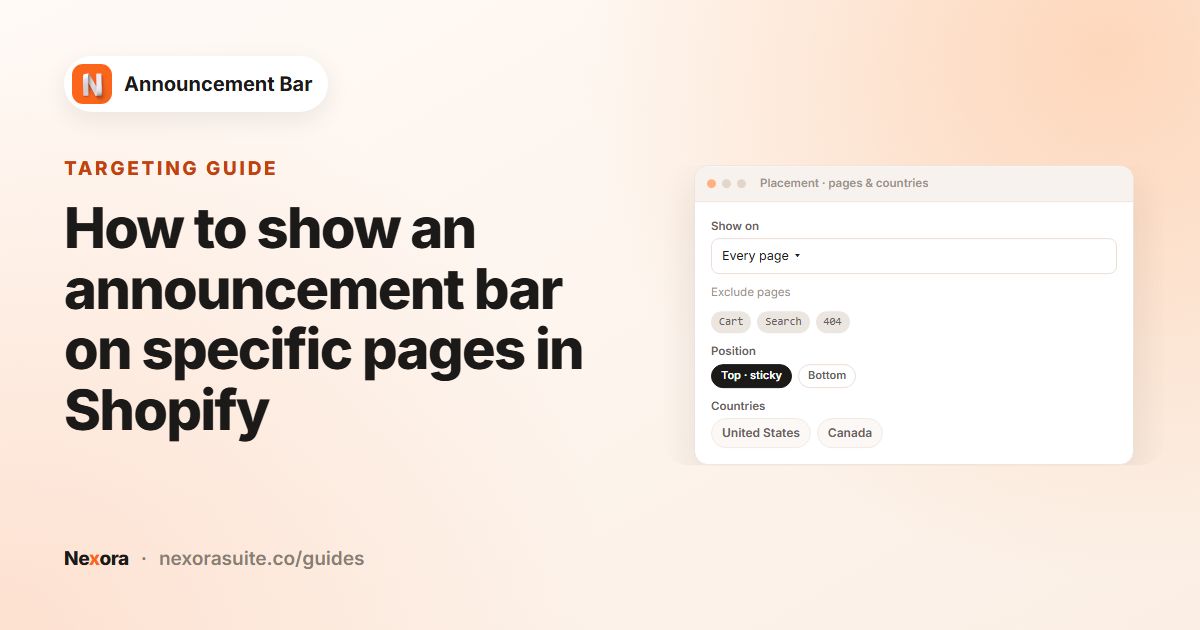
| Every page | Every page of your storefront, apart from any exclusions you set. |
| Home page only | Only the home page. |
| All product pages | Every product page. |
| All products in specific collections | Product pages for products in the collections you pick with Select Collections. |
| Specific product pages | Only the products you pick with Select Products. |
| All collection pages | The collections list and every collection page. |
| Specific collection pages | Only the collection pages you pick with Select Collections. |
| Custom position | Wherever you place the Announcement bar (custom) theme block. |
Excluding pages
With Every page selected, click Exclude specific pages to hide the bar on:
- Page types: Home, Collections, All product pages, Blogs, Blog posts, Cart, Search, 404.
- Specific URLs: one path per line, such as
/products/example. Pages whose address starts with that path are excluded. - Pages that contain specific keywords in URL: one keyword per line, such as
sale. Upper and lower case are treated the same.
Click Apply to keep your exclusions. The link shows how many page types you've selected.
Announcement ID and custom position
The Announcement ID card shows the bar's ID after you save or publish it. To place a bar inside your theme instead of at the top or bottom of the page:
- Choose Custom position
Select Custom position under Select pages to display the bar, then publish the bar.
- Add the block
Click Reposition with app block. The theme editor opens and adds the Announcement bar (custom) block to your header. You can move it to another section if you like.
- Paste the ID
Copy the ID from the Announcement ID card, or use Copy ID in the bar list. Paste it into the block's Announcement ID setting, then save the theme.
A Custom position bar shows only where its block is placed. It doesn't also appear at the top or bottom of the page. The Announcement Bar app embed still needs to be on.
 Related guideHow to show an announcement bar on specific pages in Shopify→
Placement tab: geolocation targeting
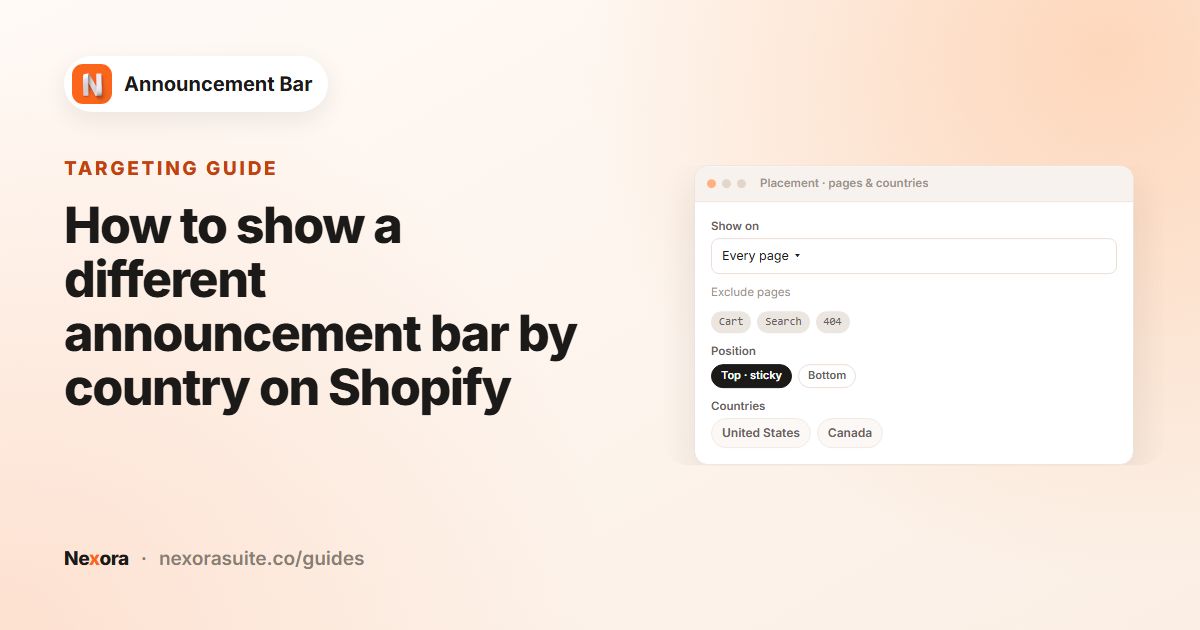
Geolocation targeting decides which countries see the bar:
| Option | What it does |
|---|---|
| All world | Shows the bar in every country that doesn't have a country-specific bar. |
| Specific countries | Click Select countries to open Country selection, search the list of 249 countries and click Select. Each chosen country appears as a tag that you can remove. |
The visitor's country is detected from their IP address when the page loads. No setup is needed, and it works whether or not you use Shopify Markets. If the lookup isn't available, the app uses the country selected on your storefront.
A country-specific bar replaces the All world bar in its countries. For example, if Bar A targets the United Kingdom and Bar B is All world, UK visitors see only Bar A. To show both in the UK, duplicate Bar B and set the copy to target the United Kingdom.
 Related guideHow to show a different announcement bar by country on Shopify→
Analytics
The dashboard and the Analytics page both show totals across all your bars. The Analytics page also has a Per announcement table that breaks the numbers down by bar.
| Metric | What it counts |
|---|---|
| Impressions | Times any bar was shown, counted once per bar per page view. |
| Clicks | Clicks on the call to action or the coupon copy button. |
| Dismissals | Clicks on the close icon. |
| CTR | Clicks divided by impressions. |
Click the date button to open Select date range. Pick a preset (Today, Yesterday, Last 7 days, Last 30 days, Last 90 days, Last 365 days, Last month, Last 12 months, Last year) or choose your own dates on the calendar, then click Apply. The default range is the last 30 days.
The overall totals include activity from bars you've since deleted, so they may be higher than the sum of the rows in the table.
Help and support
Click Chat with us on the dashboard to reach our team through live chat in the app. You can also email [email protected]. Short how-to articles are on the Document page in the app menu.