Why give your bar a link
An announcement without a next step leaves shoppers to find the sale or the policy on their own. A link turns the bar into a shortcut: from "Spring sale is live" straight to the sale collection, or from "Free returns" to the returns page.
There are two ways to do it, and they suit different messages:
| Option | How it looks | Best for |
|---|---|---|
| Button | Your message plus a visible button such as "Shop now" | Offers where you want a clear, obvious action |
| Make entire bar clickable | No button; the whole strip is a link | Short messages, slim bars and scrolling text |
| No call to action | Text only | Notices that don't need a page, such as "Orders ship next business day" |
Your options on Shopify
Many themes let you add a link to their built-in announcement bar in the theme editor, which usually makes the text clickable. A separate styled button is less common in theme bars. See Customizing themes for how to edit your theme's header sections.
With Nexora Announcement Bar you can choose between a styled button and a fully clickable bar per bar (or per slide in a rotating bar), and see how many shoppers click in Analytics.
Step by step: add a button
- Open the bar
In Announcement bar, click the bar's name or New announcement.
- Choose Button
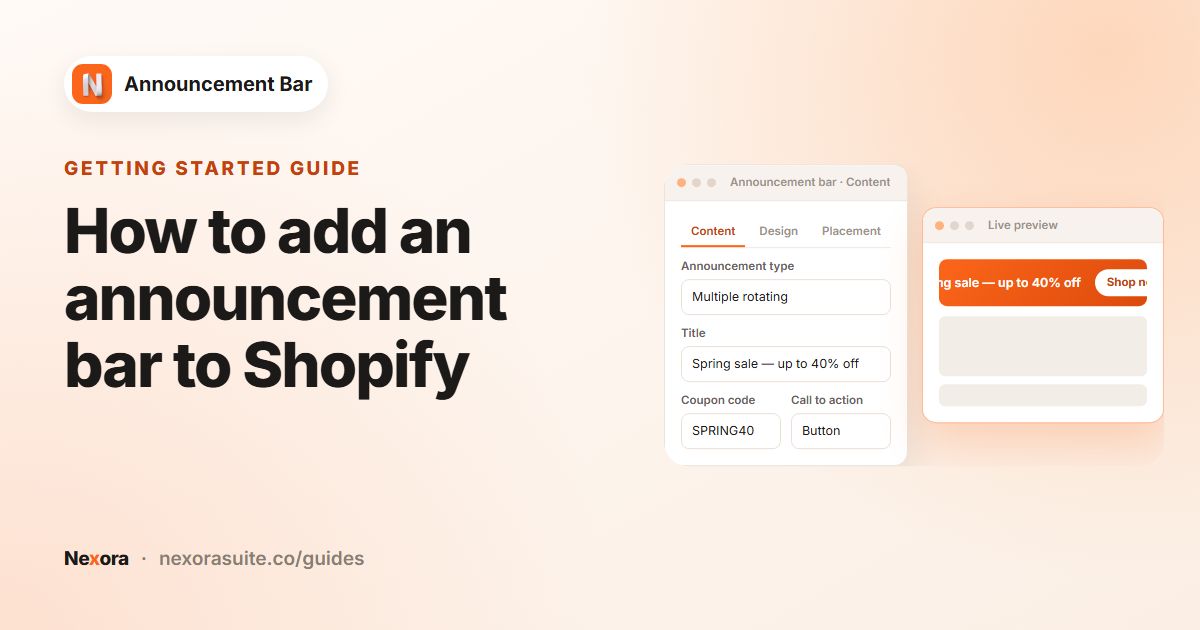
In the Call to action card, set Call to action to Button.
- Write the button text
Enter Button text, up to 30 characters. Short verbs work well: "Shop now", "See the sale", "Learn more".
- Add the link
Enter a Link. Use a store path such as
/collections/saleor/pages/returns, or a full address starting withhttps://. - Style the button
On Design, the Button card sets Button background, Button text size and color (with bold), Corner radius (px), Padding (Top & bottom, Left & right) and Spacing from title.
- Save
Click Save, or Publish if the bar isn't live yet.
To make the whole bar a link instead, choose Make entire bar clickable and enter only the Link. There's no button text to fill in.
Call to action settings by bar type
| Bar type | Call to action options | Where to set it |
|---|---|---|
| Simple announcement | No call to action, Button, Make entire bar clickable | Call to action card on the Content tab |
| Running line announcement | Same three options | Call to action card on the Content tab |
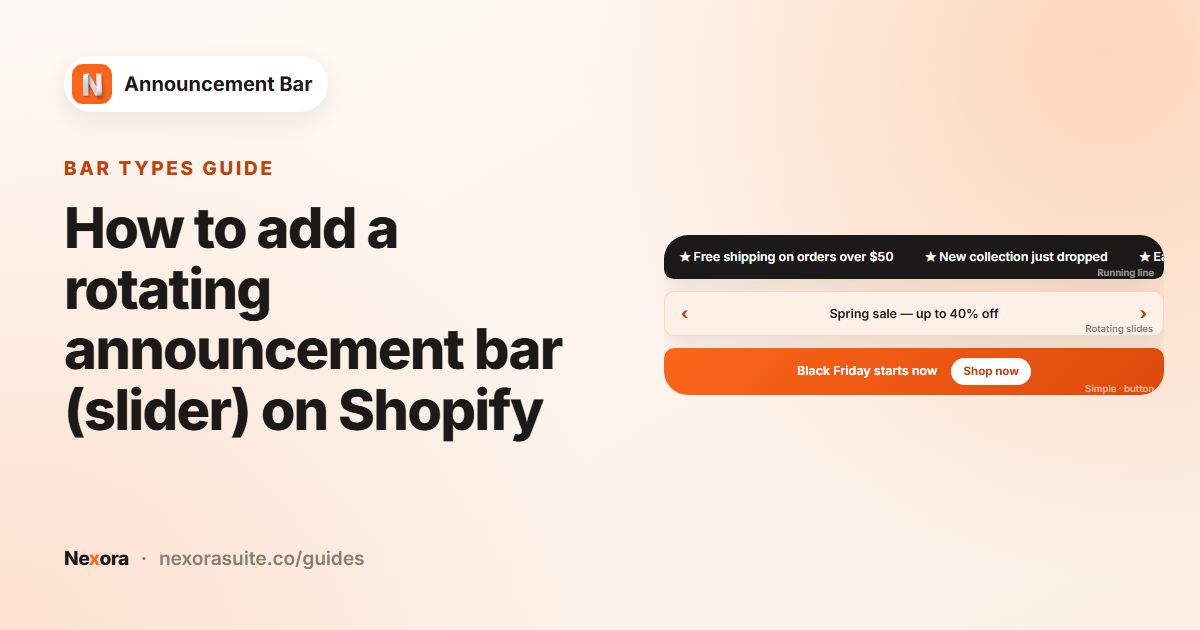
| Multiple rotating announcements | Same three options, chosen separately for each slide | Inside each Announcement # card |
In a rotating bar, each slide can point somewhere different: slide 1 to the sale, slide 2 to new arrivals, slide 3 to your shipping policy.
Example: a new collection launch
- Title: "The Autumn Collection is here"
- Call to action: Button, Button text "Explore", Link
/collections/autumn - Button card: Button background in a contrasting colour, text bold, Corner radius (px) 20 for a pill shape
- Spacing from title: a small gap so the button sits close to the message
- Placement: Every page except the autumn collection itself, using Specific URLs under Exclude specific pages with
/collections/autumn
Excluding the destination page means shoppers already on it aren't shown a button that sends them to the page they're on.
Writing button text that gets clicked
- Start with a verb: "Shop", "See", "Get", "Explore".
- Match the destination: "See the sale" should open the sale, not the home page.
- Keep it to two or three words, well inside the 30-character limit, so the button stays compact on small screens.
- Avoid vague labels such as "Click here", which say nothing about where the link goes.
More link ideas
A link doesn't have to point to a collection. Besides store paths and https:// addresses, Link accepts mailto: and tel: links, so a button can start an email or a phone call.
| Message | Call to action | Link |
|---|---|---|
| "Questions about sizing? Talk to us" | Button, "Call us" | tel:+15551234567 |
| "Wholesale enquiries welcome" | Button, "Email us" | mailto:[email protected] |
| "Free returns within 30 days" | Make entire bar clickable | /policies/refund-policy |
| "15% off with SPRING15" | Button, "Shop the sale", plus Coupon code SPRING15 | /collections/spring |
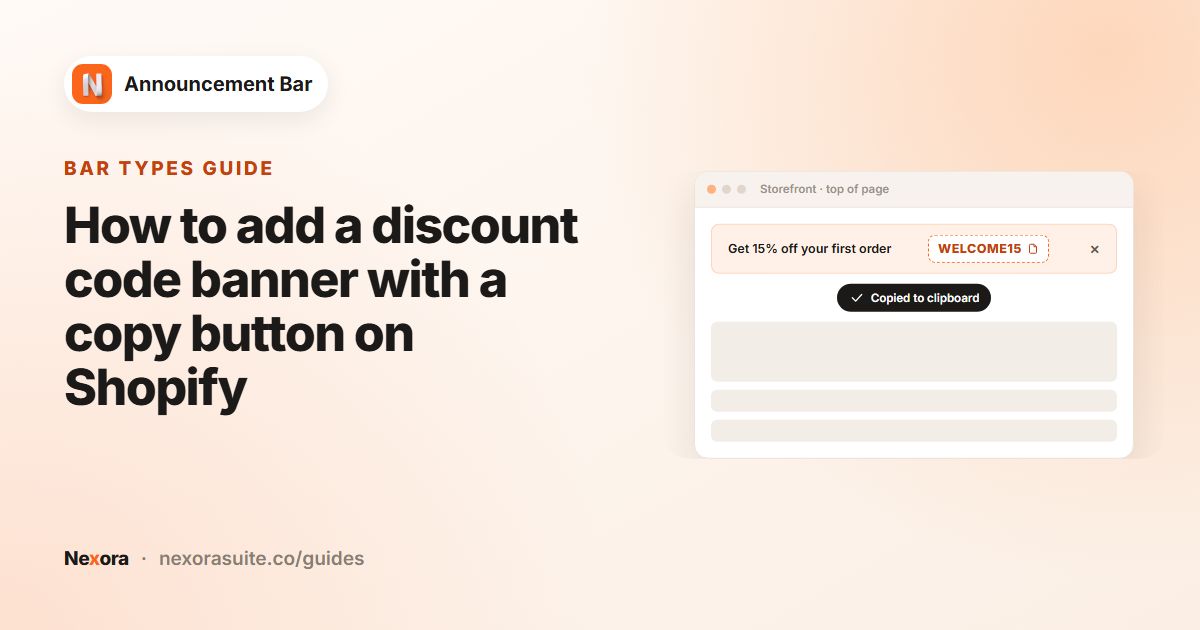
In the last row, the copy button next to the code and the Shop the sale button are separate actions. Copying the code doesn't open the link, and each one counts as a click in Analytics.
If the button or link doesn't work
- The button says "Shop now!": Button text is empty, so the bar falls back to that wording. Enter your own text and save.
- Nothing happens on click: the Link field is empty. The button still shows, but it has nowhere to go. A bar set to Make entire bar clickable with no link isn't clickable at all.
- The link was cleared: only store paths,
http://andhttps://addresses,mailto:andtel:links are allowed. Anything else, such as ajavascript:link, is removed for safety. - Clicking the code or the X didn't follow the link: that's intended. On a clickable bar, the coupon copy button and the close icon do their own job; clicks anywhere else on the bar open the link.
- Rotating bar opens the wrong page: on a clickable rotating bar, the arrows only change slides, and a click on the bar uses the link of the slide that is showing at that moment.
Links open in the same browser tab. A link to another website takes shoppers away from your store, so use external links only when they're worth it.
Tips and common mistakes
- Test the link after publishing. A typo in the path leads to a 404 page.
- Make the button stand out: a button the same colour as the bar is easy to miss. Pick a contrasting Button background.
- Translate the button: when you add a translation, you can change Button text and, if needed, the Link for that language. Leave Link empty to keep the default.
- Measure it: Clicks in Analytics counts clicks on the button or the clickable bar, plus coupon copies. CTR is clicks divided by impressions.
- Close icon and clickable bars: the close icon still works on a clickable bar, so shoppers can dismiss it without following the link.
Frequently asked questions
Can I make the whole announcement bar clickable?
Yes. Under Call to action, choose Make entire bar clickable and enter a Link.
How long can the button text be?
Up to 30 characters.
Can I link to another website?
Yes. Enter a full address starting with https:// in Link. For pages on your own store, a path like /collections/sale is enough.
Can a scrolling bar have a button?
Yes. Running line announcement bars support Button and Make entire bar clickable.
Can each rotating slide have a different link?
Yes. Every slide in a Multiple rotating announcements bar has its own Call to action.
Does the link open in a new tab?
No. Button and clickable-bar links open in the same tab.
Can the button call or email us?
Yes. Enter a tel: or mailto: link in Link, for example tel:+15551234567 or mailto:[email protected].