Why put a copyable code in the bar
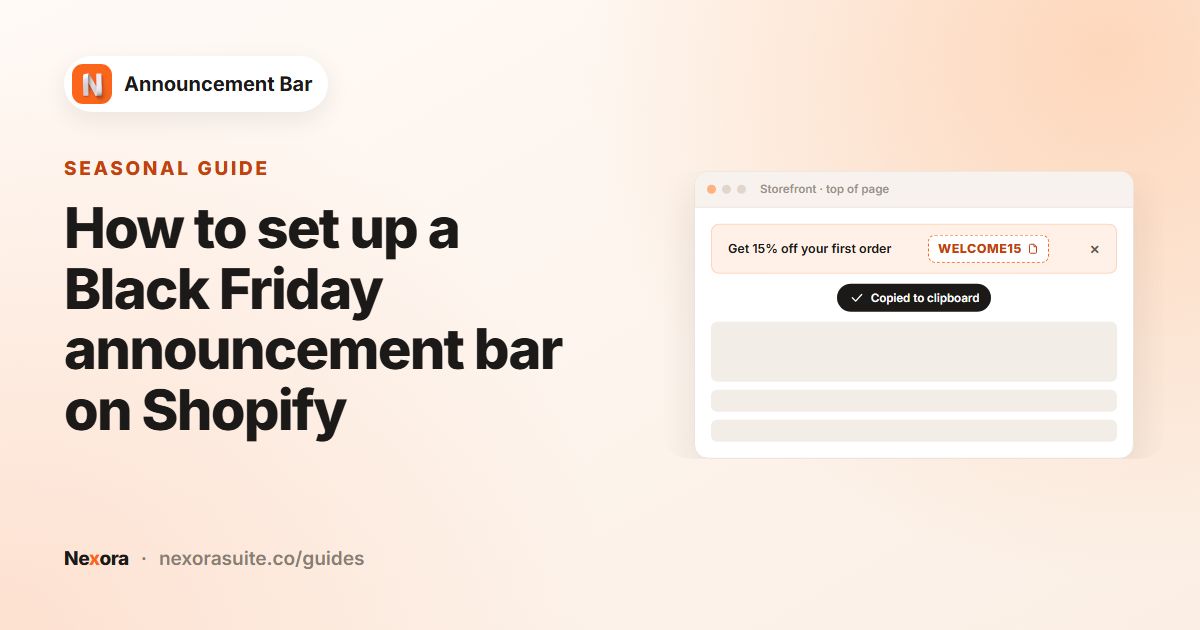
Discount codes are easy to lose. A shopper reads the code in an email or a social post, opens your store, and by checkout has forgotten it. Showing the code at the top of every page, with a button that copies it, removes that step: one click and the code is ready to paste at checkout.
- Welcome offers such as
WELCOME10for first-time visitors. - Sitewide sales where the discount needs a code.
- Influencer or partner codes during a campaign.
- Free shipping codes for a limited time.
A bar works best for codes you're happy for every visitor to see. If a code is meant only for email subscribers or one partner's audience, showing it to everyone on the store makes it public. In that case, either accept that it will be widely used, or keep that code out of the bar and promote a general one instead.
Step one: create the code in Shopify
The announcement bar displays the code; it does not create it. Create the discount first in your Shopify admin under Discounts, choosing the type (amount off products, amount off order, buy X get Y or free shipping), the value, any minimum requirements and the active dates. Shopify explains each type in its discounts guide.
Type the code into the bar exactly as you created it in Discounts. If the code has an end date, give the bar the same end date under Scheduling so shoppers aren't shown a code that no longer works.
If you use an automatic discount instead of a code, there's nothing to copy. Use a normal text bar to announce it.
Step two: add the code to a bar
- Create a bar
Go to Announcement bar, click New announcement and choose Simple announcement.
- Write the offer
Set Title to the offer, such as "Get 15% off your first order", and Subheading to any condition, such as "Minimum spend $40".
- Add the code
Type the code into Coupon code (up to 30 characters), for example
HELLO15. The Live preview shows it with a copy button. - Add a link (optional)
Under Call to action, a Button such as "Shop now" linking to
/collections/allgives shoppers somewhere to use the code. - Style the code
On Design, the Discount code card sets Outline color, Icon color for the copy icon, Code text size and color and Corner radius (px).
- Publish
Choose pages on Placement, set dates under Scheduling if needed, and click Publish.
Which bar types show a copy button
| Bar type | How the code appears |
|---|---|
| Simple announcement | Code in an outlined box with a copy button |
| Multiple rotating announcements | Each slide can have its own code, each with a copy button |
| Running line announcement | Code scrolls as plain text with the title. No copy button. |
If one-click copying matters, use a Simple or rotating bar. A running line bar is fine if you just want the code visible.
Example: a welcome code with tracking
- Discount in Shopify: code
WELCOME10, 10% off, one use per customer. - Title: "New here? Take 10% off your first order"
- Coupon code:
WELCOME10 - Icon: a gift icon from Ecommerce
- Design: Top page, the Vanilla template, the code outline set to your brand colour with Outline color
- Placement: Every page, with Cart excluded under Exclude specific pages if you prefer
In Analytics, each copy of the code counts as a Click for that bar, along with any button clicks. Comparing Clicks with the number of orders that used the code in Shopify gives you a rough idea of how many copies turn into purchases.
Tips and common mistakes
- Typos: a code that doesn't match Discounts frustrates shoppers at checkout. Copy it from the bar yourself and test it.
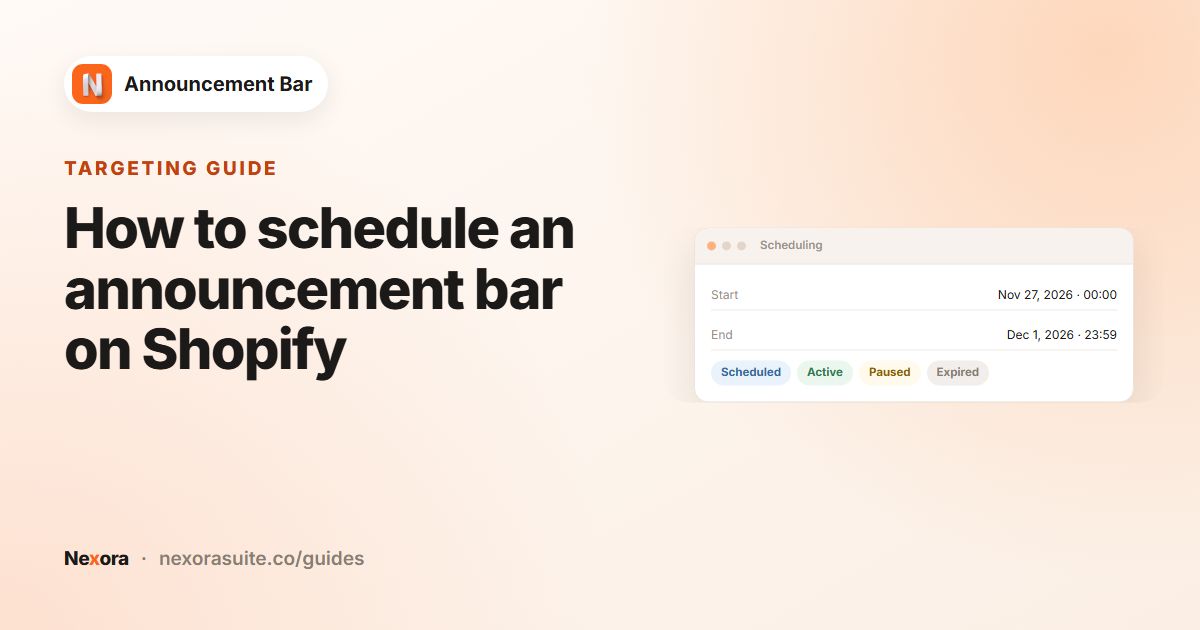
- Expired codes: use Ends under Scheduling to remove the bar when the discount ends. The app checks schedules every 5 minutes.
- Translations: coupon codes aren't translated, so the same code shows in every language. Translate the Title around it instead.
- Different codes by country: create a bar per country with Specific countries under Geolocation targeting.
- Keep codes short and readable: avoid easily confused characters such as
Oand0. - Say what the code does: "10% off" or "free shipping" in the Title tells shoppers why they'd copy it. A code on its own is easy to ignore.
Running more than one code at once? Put each in its own slide of a rotating bar so shoppers see one offer at a time, each with its own copy button.
Frequently asked questions
Does the app create the discount code?
No. Create it in Shopify Discounts first, then type the same code into Coupon code.
What do shoppers see when they copy the code?
A short "Copied to clipboard" message. The code is then ready to paste at checkout.
Why doesn't my scrolling bar have a copy button?
Running line bars show the code as plain text only. Use a Simple or rotating bar for the copy button.
Can I show a different code on each slide?
Yes. In a Multiple rotating announcements bar, each slide has its own Coupon code.
Are coupon copies tracked?
Yes. Clicks on the copy button count as Clicks in Analytics.