What your bar needs to do over Black Friday
Black Friday through Cyber Monday is short, busy and full of competing offers. Shoppers arrive from emails, ads and social posts, often on their phones, and want to know three things quickly: what the deal is, whether they need a code, and when it ends. The announcement bar is the one place every visitor sees, on every page.
- Before the sale: tell returning visitors when it starts, so they come back.
- During the sale: state the offer plainly and make any code easy to copy.
- Near the end: let shoppers know it's the last day.
- After the sale: come down on time, so no one sees an offer that has ended.
Because the timing changes several times over a few days, plan the bars as a set and schedule them ahead, rather than editing one bar by hand late at night.
Recommended setup
| Bar | Type | Example dates | Key settings |
|---|---|---|---|
| 1. Teaser | Simple announcement | Monday to Thursday before Black Friday | Title "Black Friday starts Friday at 12 AM", Button to a sign-up or new arrivals page |
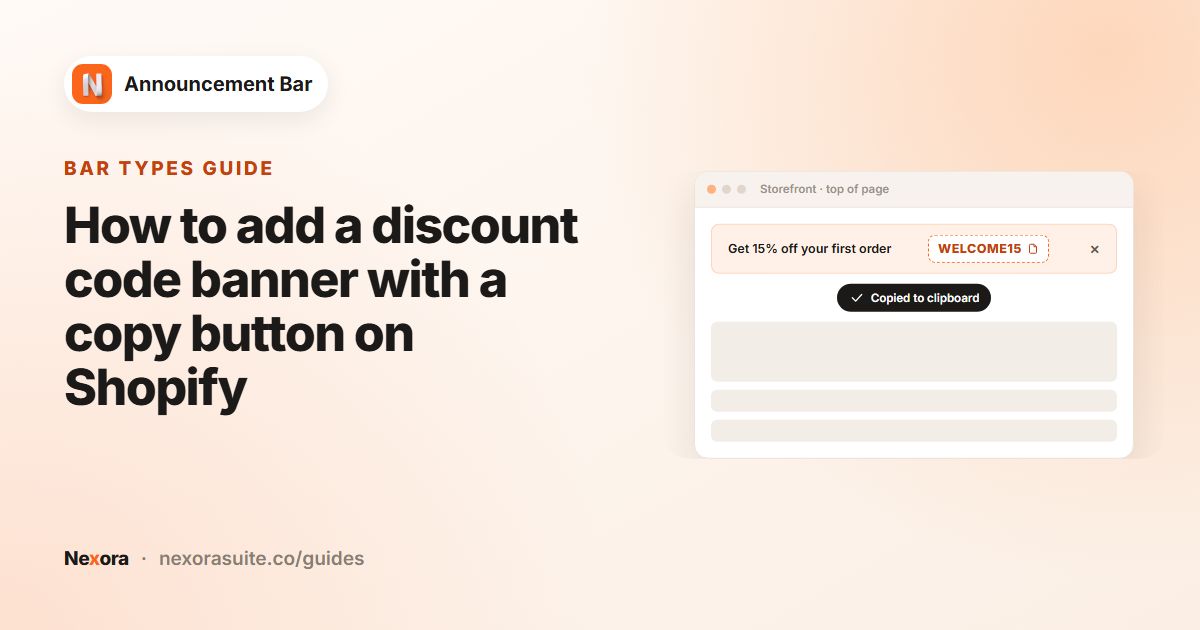
| 2. Main sale | Simple announcement with Coupon code, or Multiple rotating announcements | Friday 12 AM to Sunday 11:59 PM | Code with copy button, Sticky bar, a bold template |
| 3. Cyber Monday | Simple announcement | Monday 12 AM to 11:59 PM | "Cyber Monday: last day for 30% off" |
Create the discounts in Shopify Discounts first, with active dates that match the bars. The app displays your codes; it doesn't create or apply them. Shopify's discounts guide covers codes and automatic discounts.
Step by step
- Create the discount
In Shopify Discounts, create the code, for example
BLACKFRIDAY30, and set its active dates. - Build the main bar first
In Announcement bar, click New announcement. Set Title to "Black Friday: 30% off everything" and Coupon code to
BLACKFRIDAY30. Add Button "Shop the sale" with Link/collections/sale. - Style it once
On Design, choose Top page, tick Sticky bar and pick a high-contrast template such as Black Yellow. Style the code in the Discount code card. Or set Background image and upload your own campaign artwork, with Background overlay color to keep text readable.
- Schedule it
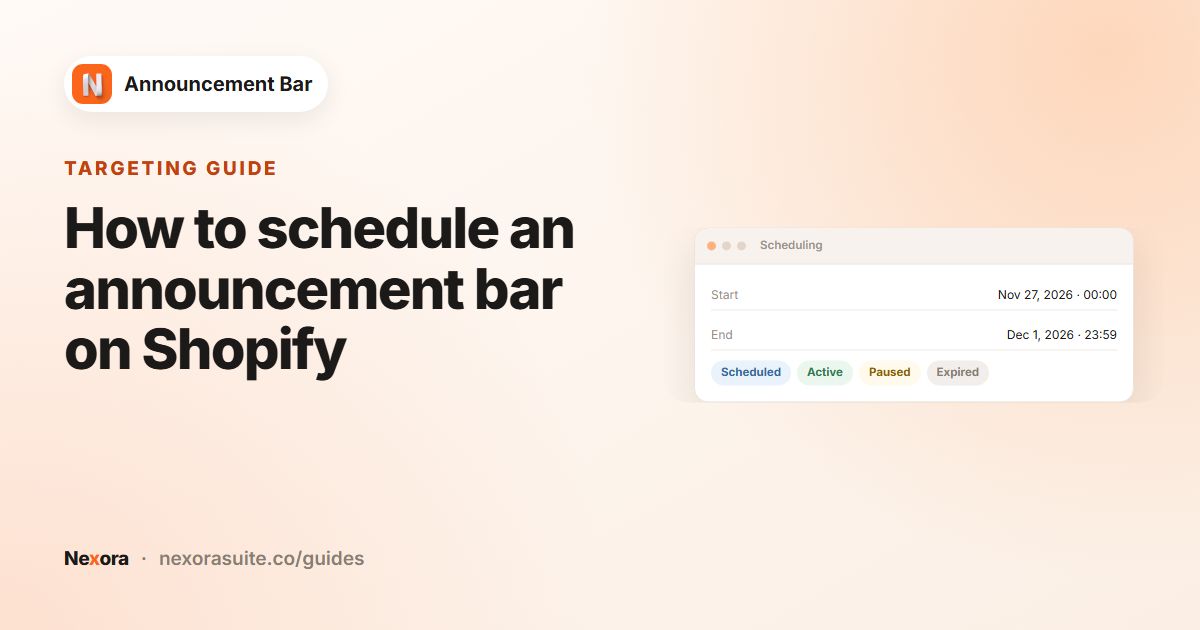
In Scheduling, set Starts and Ends to Specific date with the sale times.
- Duplicate for the other bars
In the bar list, use Duplicate to copy the main bar for the teaser and Cyber Monday bars. Change each copy's text, code and dates. Copies keep the design, so the campaign looks consistent.
- Publish everything in advance
Publish all three. Bars with future dates show as Scheduled and switch on and off by themselves, within about 5 minutes of the times you set.
Example: a rotating main bar with three offers
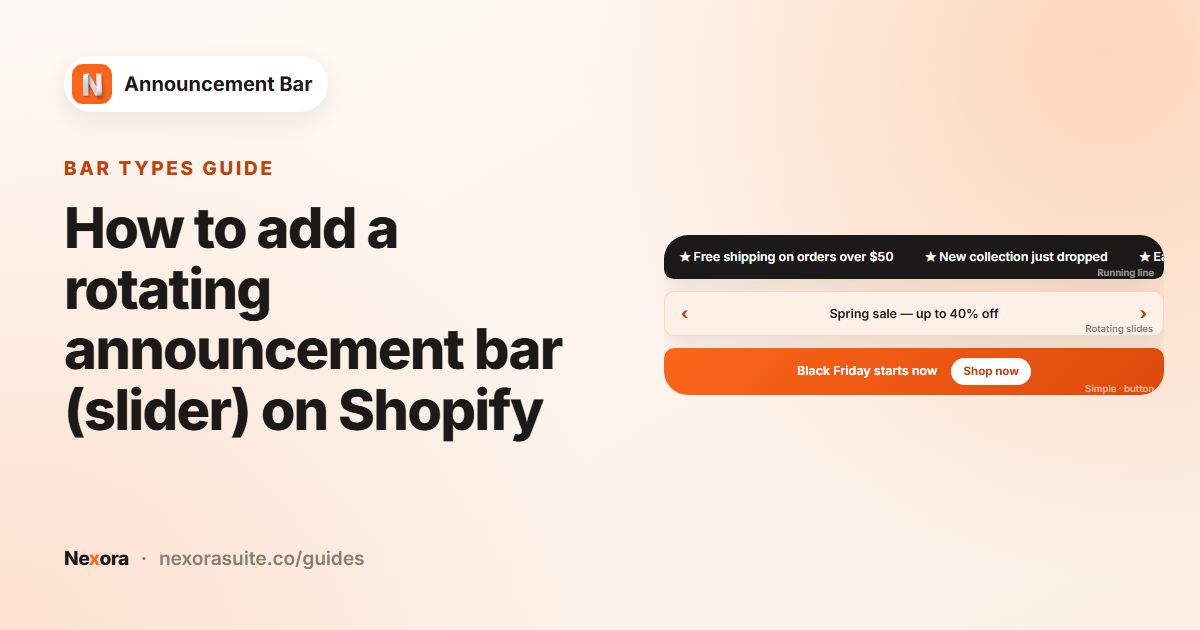
If you have more than one offer, a single rotating bar keeps them in one strip instead of stacking several bars at the top of a phone screen.
| Slide | Title | Extras |
|---|---|---|
| 1 | "Black Friday: 30% off everything" | Coupon code BLACKFRIDAY30 with copy button |
| 2 | "Free shipping on all orders this weekend" | Truck icon, Make entire bar clickable to /policies/shipping-policy |
| 3 | "Gift sets from $25" | Button "Shop gifts" to /collections/gift-sets |
Set Display duration to about 5 seconds and Transition direction to Horizontal so shoppers can use the arrows. The bar pauses when a shopper hovers over it. If you sell in several languages, add a translation for each slide; the code stays the same in every language.
Selling in countries without Black Friday
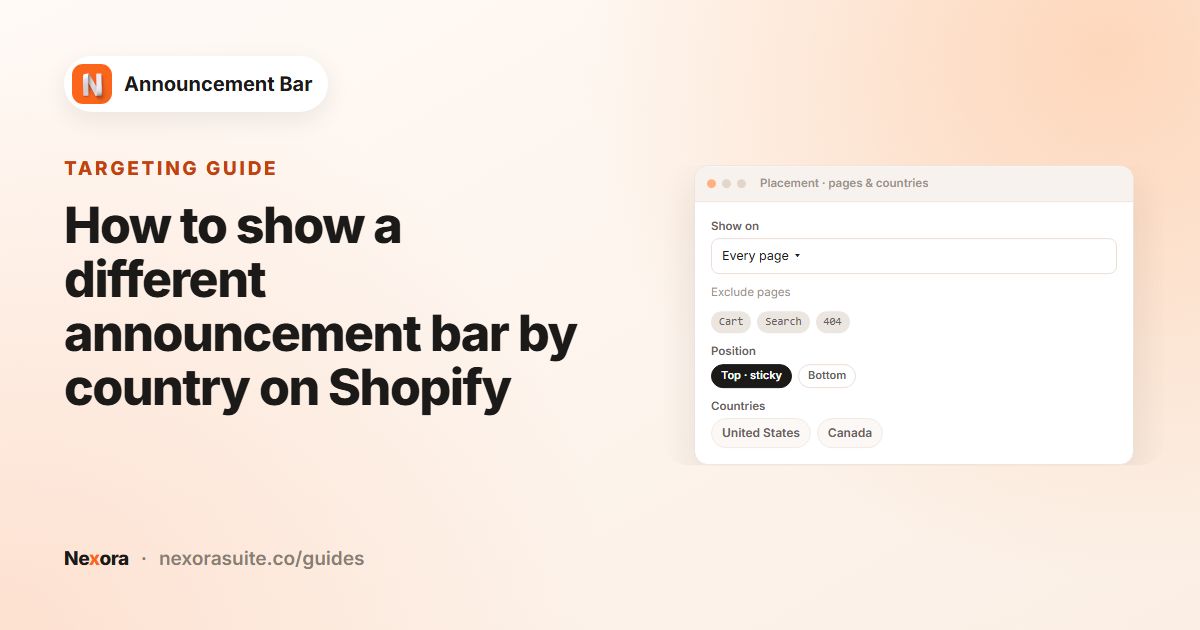
Black Friday is widely recognised, but not everywhere, and your offer may not apply in every country you ship to. Under Geolocation targeting, set the sale bars to Specific countries where the offer applies and keep a general bar on All world for everyone else. Remember that a country-specific bar replaces the All world bar in its countries.
Tips
- Leave a buffer at the end: schedules are checked every 5 minutes, so end the bar a few minutes before the discount if it matters that no one sees it afterwards.
- Check overlaps: if the teaser's end and the sale's start overlap, both show and stack for that time. Line the times up.
- Keep it readable on phones: one short line beats a long one. Put conditions such as exclusions on the linked page.
- Exclude where it distracts: with Every page, use Exclude specific pages to hide the bar on Cart if you want a clean cart page.
- Review after the weekend: in Analytics, choose a custom date range for the sale days and compare Clicks, Dismissals and CTR for each bar in the Per announcement table. Use what you learn next year.
Frequently asked questions
Can I set up my Black Friday bars in advance?
Yes. Give each bar Starts and Ends dates under Scheduling and publish it. It shows as Scheduled until its start time.
Does the app apply the Black Friday discount?
No. Create the discount in Shopify Discounts. The bar displays the code and lets shoppers copy it.
How do I show several Black Friday offers in one bar?
Use Multiple rotating announcements with one slide per offer, up to 10 slides.
Can I use my own Black Friday artwork as the background?
Yes. In the Card settings, choose Background image and upload a JPG, PNG or WebP up to 5 MB.
Will the bar come down on time?
Yes, within about 5 minutes of the end time you set, because the app checks schedules every 5 minutes.