Why show different messages by country
If you sell internationally, one message rarely fits everyone. Free shipping might apply in your home country only, delivery times differ by region, and a holiday sale in one country means nothing in another. Country targeting lets each visitor see the message that's true for them.
- "Free UK delivery over £40" for the United Kingdom, "We ship worldwide" for everyone else.
- "Duties and taxes included" for countries where that applies.
- A local holiday sale shown only in the country that celebrates it.
- "Delivery to Australia takes 7 to 10 days" so expectations are clear before checkout.
Your options on Shopify
Shopify Markets lets you set up country-specific pricing, currencies, languages and domains. See Shopify Markets. A theme's built-in announcement bar, though, generally shows the same text to every visitor regardless of where they are.
Nexora Announcement Bar uses the visitor's own location instead. It looks up the country from the visitor's IP address when the page loads. You don't need to set up Markets, and it works the same whether you use Markets or not. If the lookup isn't available, the app uses the country selected on your storefront.
Country targeting decides who sees a bar. It doesn't change prices, currency or shipping rules, which you manage in Shopify.
Step by step: target countries
- Open Placement
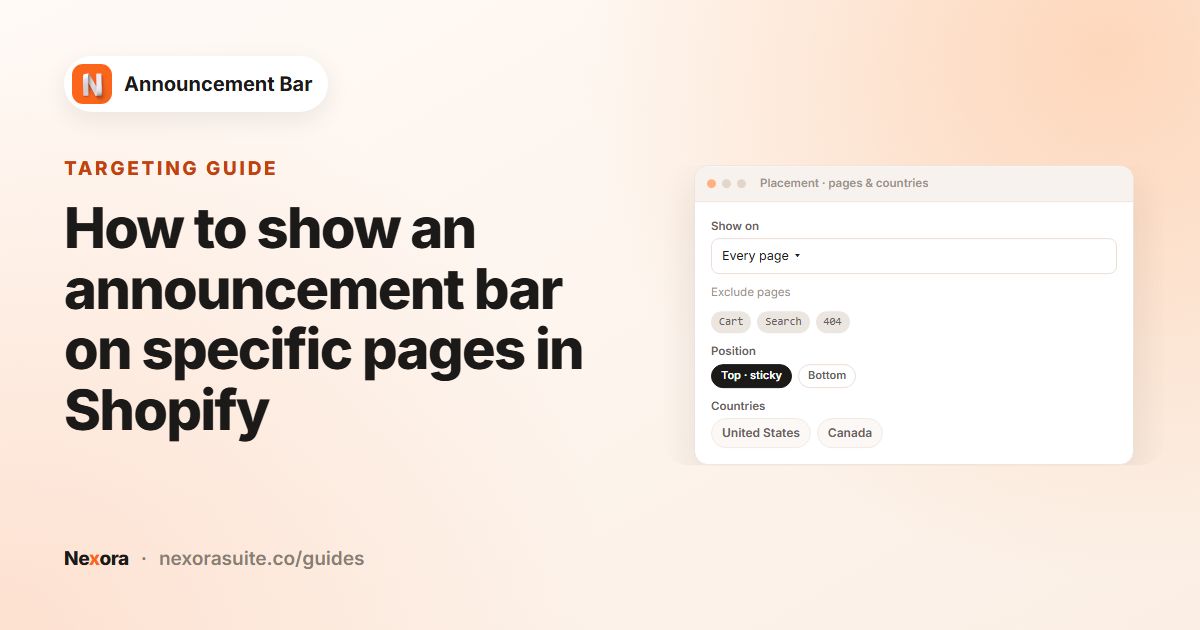
Open the bar and go to the Placement tab.
- Choose Specific countries
Under Geolocation targeting, select Specific countries.
- Pick countries
Click Select countries to open Country selection. Search the list of 249 countries, tick the ones you want and click Select.
- Review the tags
Each chosen country appears as a tag. Remove a country with the remove button on its tag.
- Save and publish
Click Save, or Publish for a new bar.
How country bars and All world bars work together
| Setting | Who sees the bar |
|---|---|
| All world | Visitors from every country that doesn't have a country-specific bar |
| Specific countries | Only visitors from the countries you selected |
The key rule: a country-specific bar replaces the All world bar in its countries. If Bar A targets the United Kingdom and Bar B is All world, UK visitors see only Bar A and everyone else sees Bar B.
To show an All world bar in a targeted country as well, duplicate it with Duplicate in the bar list and set the copy to Specific countries with that country.
Country targeting works together with page targeting. A visitor sees a bar only when both the page and the country match.
Example: shipping messages for three regions
| Bar | Geolocation targeting | Title |
|---|---|---|
| Home market | Specific countries: United States | "Free shipping on US orders over $50" |
| Canada | Specific countries: Canada | "Free shipping to Canada over $75" |
| Rest of world | All world | "We ship worldwide. Duties calculated at checkout." |
US and Canadian visitors each see their own bar; everyone else sees the rest-of-world bar. If you want a sitewide sale bar for everyone on top of these, create the sale bar on All world and a duplicate targeting United States and Canada, because the country bars would otherwise replace it there.
Once they've run for a while, the Per announcement table in Analytics shows impressions and clicks for each regional bar.
Tips and common mistakes
- My All world bar disappeared in one country: a country-specific bar targets that country. Duplicate the All world bar and target the copy there too.
- Testing from abroad: you'll see the bar for the country you're in. A VPN set to another country is a simple way to check other regions.
- Pair with translations: country and language are separate. A bar for Canada can have a French translation for shoppers browsing in French. See translating your bar.
- Keep country lists tidy: for a bar covering many countries, it can be simpler to target the few exceptions and leave the main message on All world.
- Name bars clearly: an Announcement name such as
Shipping - Canadamakes the bar list and the Per announcement analytics table easy to read when you have several regional bars. - Keep regional bars in step: when a campaign changes, update every country version. Duplicate a fresh bar rather than editing many by hand if the design changes too.
Combine country and page targeting for precise messages. For example, a bar for Australia on All product pages only, saying "Ships to Australia in 7 to 10 days", answers the delivery question right where shoppers decide to buy.
Frequently asked questions
How does the app know the visitor's country?
From the visitor's IP address when the page loads. If that lookup isn't available, it uses the country selected on your storefront.
Do I need Shopify Markets?
No. Country targeting works whether or not you use Shopify Markets.
How many countries can I choose from?
The Country selection list has 249 countries, and one bar can target as many as you need.
Why don't visitors in a targeted country see my All world bar?
A country-specific bar replaces the All world bar in its countries. Duplicate the All world bar and target the copy to those countries to show both.
Does country targeting change prices or currency?
No. It only decides who sees the bar. Prices, currencies and shipping are managed in Shopify.