Why target pages
A message that's relevant on one page can be noise on another. A note about sizing belongs on clothing product pages, not on your blog. A collection-wide sale is most useful on that collection and its products. Targeting keeps each bar where it helps and keeps the rest of the store clean.
- A "Pre-order: ships in March" notice on a few specific products.
- "Buy 2, get 1 free" on every product in a promotion collection.
- A welcome code on the home page only.
- A sitewide sale bar that's hidden on the cart and search pages.
Your options on Shopify
A theme's built-in announcement bar usually lives in the header, which is shared by every page, so it generally shows everywhere or nowhere. Showing different header content per page normally means creating alternate templates or editing theme code. Shopify explains templates in Customizing themes.
An app can decide where each bar appears without touching your templates, and lets you run several bars, each with its own pages.
| Approach | Effort | Flexibility |
|---|---|---|
| Theme announcement bar | Low | Usually the same bar on every page |
| Alternate templates or code edits | High, often needs a developer | Anything, but must be kept up to date as products and themes change |
| Nexora Announcement Bar placement | Low, chosen per bar in the app | Page types, chosen products or collections, URL and keyword exclusions |
Step by step: choose the pages
- Open the Placement tab
Open your bar and click Continue to Placement, or select the Placement tab.
- Pick a page option
Under Select pages to display the bar, choose one of the options in the table below.
- Select products or collections
For the specific options, click Select Products or Select Collections and choose items with Shopify's picker.
- Add exclusions (Every page only)
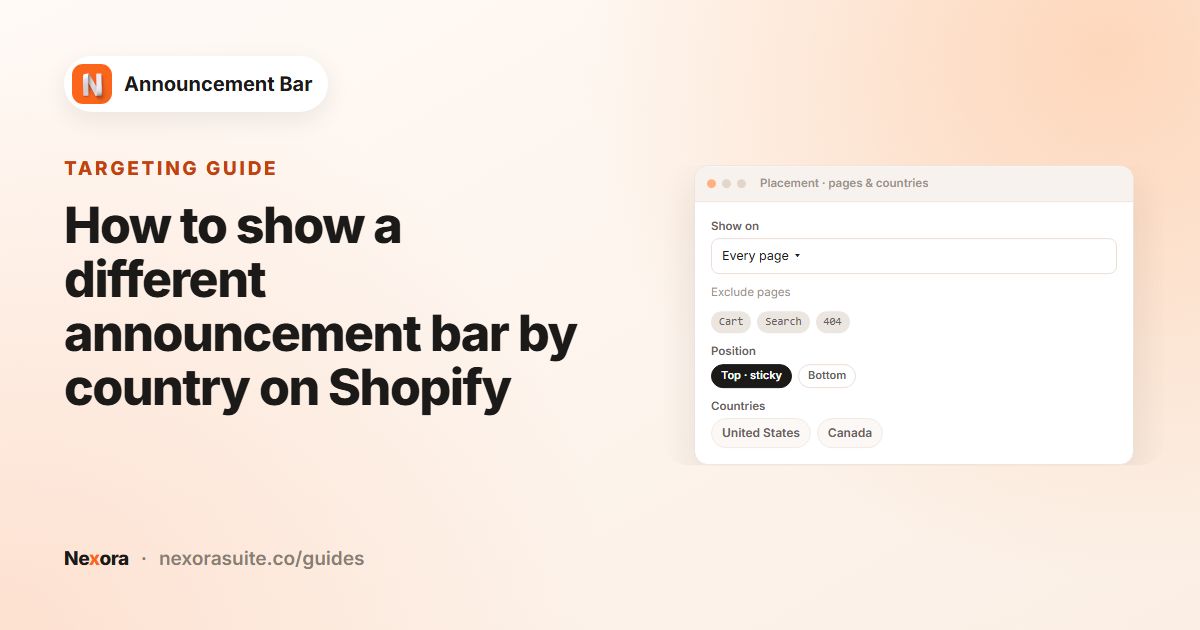
With Every page selected, click Exclude specific pages, tick page types and add URLs or keywords, then click Apply.
- Save and test
Click Save, then visit a page that should show the bar and one that shouldn't.
Page options and exclusions
| Option | Where the bar shows |
|---|---|
| Every page | Every storefront page, apart from any exclusions |
| Home page only | Only the home page |
| All product pages | Every product page |
| All products in specific collections | Product pages for products in the collections you pick |
| Specific product pages | Only the products you pick |
| All collection pages | The collections list and every collection page |
| Specific collection pages | Only the collection pages you pick |
| Custom position | Inside a theme section, wherever you place the Announcement bar (custom) block |
Exclude specific pages
- Page types: Home, Collections, All product pages, Blogs, Blog posts, Cart, Search, 404.
- Specific URLs: one path per line, such as
/pages/contact. Any page whose address starts with that path is excluded. - Pages that contain specific keywords in URL: one keyword per line, such as
sale. Upper and lower case are treated the same.
Exclusions are only available with Every page. To show a bar on a smaller set of pages, choose the matching option instead of excluding everything else.
Example: one bar per part of the store
| Bar | Placement | Message |
|---|---|---|
| Sitewide | Every page, excluding Cart and Search | "Free shipping on orders over $50" |
| Outerwear sale | All products in specific collections: Outerwear | "20% off all coats this week" |
| Pre-order notice | Specific product pages: the two pre-order products | "Pre-order: ships the week of March 10" |
| Welcome offer | Home page only | "New here? 10% off with WELCOME10" |
On an Outerwear product page, a shopper would see the sitewide bar and the outerwear bar stacked together. That's expected: bars live in the same position stack in the order you created them.
Covering a collection and its products
Each bar has one page option, so a single bar can't target the Outerwear collection page and the Outerwear product pages at the same time. Create the bar with Specific collection pages, then use Duplicate in the bar list and set the copy to All products in specific collections with the same collection. Publish both. A product that belongs to several collections shows the bar if any of them is selected.
If the bar shows on the wrong pages
- Enter paths, not full addresses: Specific URLs is checked against the page path, so
https://yourstore.com/pages/contactnever matches. Enter/pages/contact. - Paths are case-sensitive:
/Pages/Contactwon't match/pages/contact. Shopify URLs are lowercase, so type them that way. Keywords ignore case. - Filters and sorting don't matter: anything after
?in the address, such as a sort order or a variant, isn't part of the match, so excluding a collection path also covers its filtered views. - Translated URLs: if your store serves a language from a folder such as
/fr, the French contact page is/fr/pages/contact, which/pages/contactdoesn't match. Add that path on its own line too, or use a keyword such ascontact. - A single regular page: there's no option for one page such as
/pages/faq. Use Every page with exclusions, or choose Custom position and add the Announcement bar (custom) block to a template that only that page uses.
Tips and common mistakes
- Specific URLs match the start of the address:
/collections/salealso excludes/collections/sale-shoes. Use a more precise path if needed. - Keywords match anywhere in the address:
giftexcludes/products/gift-cardand/collections/gifts. - Country rules apply too: a page match is not enough if the bar targets Specific countries and the visitor is elsewhere. See targeting by country.
- Bar inside a page: for a message in the middle of a product page, use Custom position and the Announcement bar (custom) block. Copy the bar's Announcement ID into the block.
- Check the app embed: page targeting only works when the Announcement Bar app embed is on.
Frequently asked questions
Can I show a bar only on the home page?
Yes. Choose Home page only under Select pages to display the bar.
Can I hide the bar on the cart page?
Yes. Choose Every page, click Exclude specific pages and tick Cart.
Can I show a bar on all products in one collection?
Yes. Choose All products in specific collections and select the collection with Select Collections.
Can I exclude pages by URL?
Yes. Under Exclude specific pages, add paths in Specific URLs or words in Pages that contain specific keywords in URL, one per line.
Why do two bars show on some pages?
When more than one bar matches a page in the same position, they stack. Adjust each bar's placement if you want only one.
Can one bar show on a collection page and on its products?
Not with one page option. Duplicate the bar and give one copy Specific collection pages and the other All products in specific collections.
Why doesn't my URL exclusion work?
Check that you entered a lowercase path such as /pages/contact, not a full address. On translated pages, add the language path too, such as /fr/pages/contact.