What an announcement bar is and why stores use one
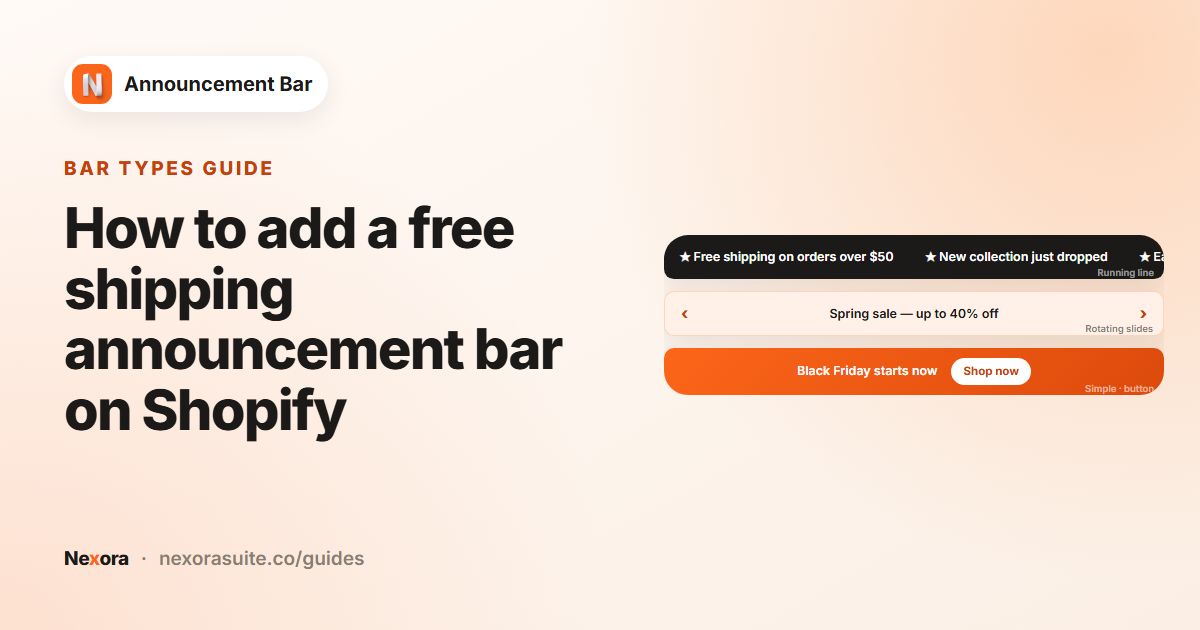
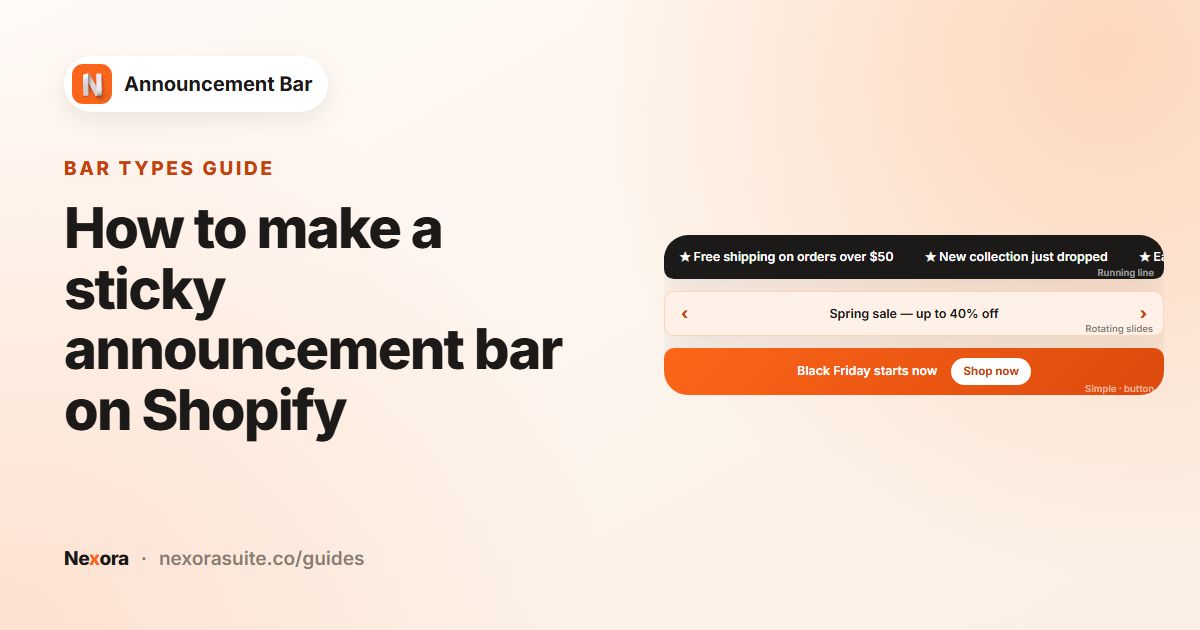
An announcement bar is a thin strip of text at the very top (or bottom) of your store. It is the first thing many shoppers read, so it is a good place for one short, useful message: a sale, a delivery note, a returns policy, or a change to opening hours.
- Promotions: "20% off everything this weekend" with a link to the sale collection.
- Shipping information: "Free shipping on orders over $50" or "Order by Dec 18 for Christmas delivery".
- Store notices: holiday closures, slower dispatch times or a new returns window.
- Discount codes: a code shoppers can copy with one click instead of hunting for it in an email.
Keep it short. A bar is read in a second or two, so one clear message with an optional link usually works better than a long sentence.
Your options on Shopify
Many Shopify themes, including Shopify's free themes such as Dawn, include an announcement bar section in the header that you edit in the theme editor. Shopify explains how to work with sections in Customizing themes. What it can do depends on your theme.
| Option | What you get | Limits |
|---|---|---|
| Your theme's announcement bar | Text and a link in the header, edited in the theme editor. Some themes can rotate several messages. | Features vary by theme. Usually no scheduling, country targeting, copyable coupon codes or click analytics. |
| Editing theme code | Anything a developer can build. | Needs a developer, and changes can be lost when you switch or update themes. |
| An announcement bar app | Bars you manage from one place, with targeting, scheduling and analytics. | One more app to install. Nexora Announcement Bar is free. |
If your theme's built-in bar already does what you need, you may not need an app at all. An app helps when you want several bars, different messages on different pages or countries, scheduled campaigns, or numbers on how many shoppers click.
Step by step: add a bar with Nexora Announcement Bar
- Install the app
Install Nexora Announcement Bar from the Shopify App Store and open it from Apps in your admin.
- Turn on the app embed
On the dashboard, in the Help center card under Activate app embed, click Enable on theme and choose your live theme. In the theme editor, switch on Announcement Bar and click Save.
- Create a bar
Open Announcement bar in the app menu and click New announcement. Keep Simple announcement under Announcement type.
- Write the message
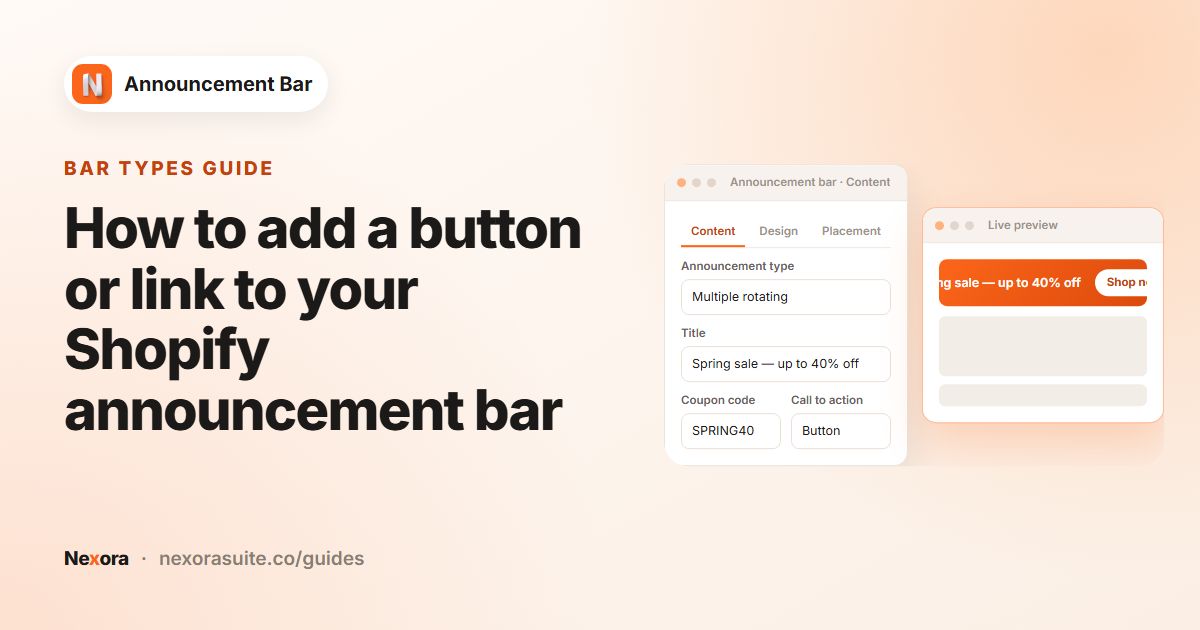
Enter an Announcement name (only you see it) and a Title, the text shoppers read. Both are required. Add a Subheading if you want a second line.
- Add a link (optional)
In Call to action, choose Button and fill in Button text and Link, or choose Make entire bar clickable.
- Style it
Click Continue to Design. Choose Top page or Bottom page under Positioning, then pick a Template. Adjust colours and fonts while watching the Live preview.
- Choose where it shows
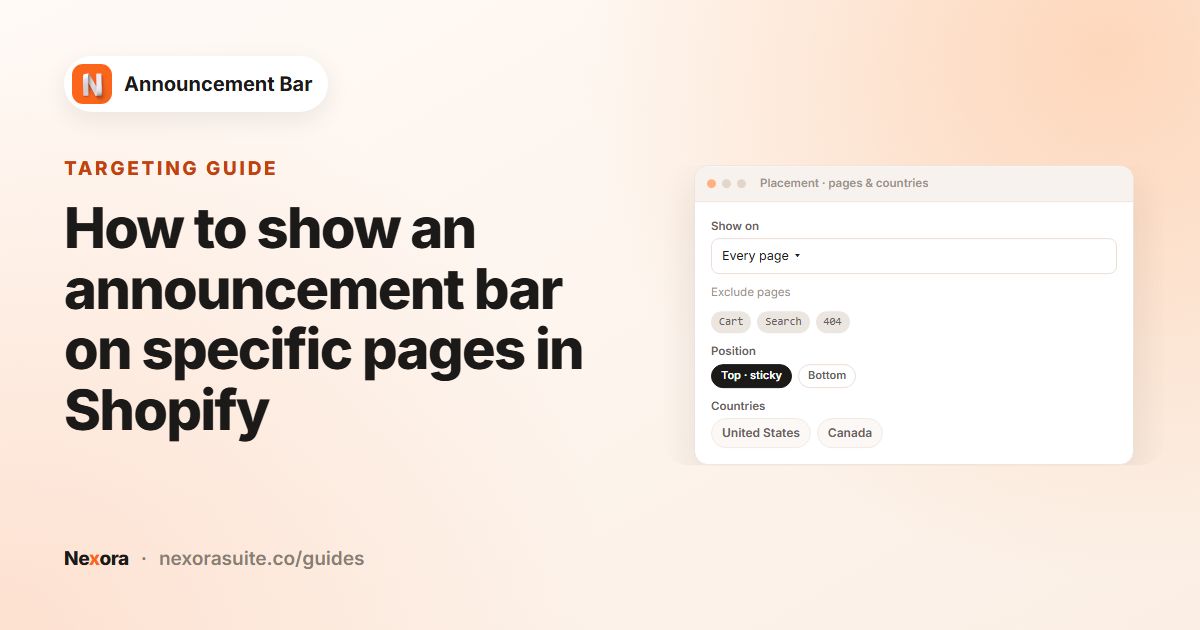
Click Continue to Placement. Keep Every page, or pick specific pages. Leave Geolocation targeting on All world for now.
- Publish
Click Publish in the page header. The status badge changes to Active. Open your storefront in a new tab to check it.
The settings you'll use first
| Setting | Where | Good starting value |
|---|---|---|
| Announcement type | Content tab | Simple announcement for one message |
| Title | Content tab | One short sentence, under about 60 characters (the limit is 150) |
| Call to action | Content tab | Button with a link to the page the message is about |
| Show close icon (X) — visitors can dismiss the bar | Content tab | On, so shoppers can hide the bar. It stays hidden for 7 days in that browser. |
| Position | Design tab | Top page |
| Template | Design tab | Any of the 20 templates, or Custom to keep your own colours |
| Select pages to display the bar | Placement tab | Every page |
Example: a simple returns notice
Say you want every shopper to know about free returns. A setup could look like this:
- Announcement name:
Free returns notice - Title: "Free 30-day returns on every order"
- Call to action: Button, Button text "Learn more", Link
/pages/returns - Design: Top page, the Minimal template, Use your theme fonts
- Placement: Every page, with Cart excluded under Exclude specific pages if you want the cart page kept clean
After a week or two, open Analytics to see how many shoppers saw the bar (Impressions) and clicked the button (Clicks).
Tips and common mistakes
- The bar doesn't show: check that the bar is Active and that the Announcement Bar app embed is on in your live theme. Both are needed.
- You closed it while testing: a dismissed bar stays hidden in your browser for 7 days. Use a private window to see it again.
- Theme fonts look different in the preview: the in-app preview can't load theme fonts. Check the storefront after publishing.
- Changed themes? Turn the app embed on in the new theme too. Your bars are kept.
- Too many bars at once: several live bars in the same position stack on top of each other. One or two is usually enough.
For a full walkthrough of every screen, see the app documentation or the step-by-step tutorial.
Frequently asked questions
Does Shopify have a built-in announcement bar?
Many themes, including Shopify's free themes, include an announcement bar section in the header that you edit in the theme editor. What it can do depends on the theme.
Is Nexora Announcement Bar free?
Yes. The app is completely free, with no paid plans or usage limits.
Do I need to edit theme code?
No. You turn on the Announcement Bar app embed in the theme editor and manage everything else inside the app.
Can I have more than one bar?
Yes, as many as you need. Bars that are live in the same position stack on top of each other.
Why is my published bar not visible?
Usually the app embed is off, the page doesn't match the bar's Placement, or you closed the bar in that browser. See the FAQ for more checks.