
Before you start
- Install Nexora Announcement Bar from the Shopify App Store. It's free.
- Decide on your message and, if needed, a link such as a collection page.
- If you want to show a coupon, create the discount first in Shopify Discounts. The app displays the code but doesn't create it.
- To show translated text, the languages must already be published in your store.
Step 1: Turn on the app embed
- Open the app
Go to the app's dashboard from Apps in your Shopify admin.
- Click Enable on theme
In Help center, under Activate app embed, click Enable on theme and choose your live theme.
- Save the theme
In the theme editor, switch on Announcement Bar and click Save.
Without the app embed, no bars show on your storefront, even published ones.
Step 2: Create your first bar
- Start a new bar
Open Announcement bar from the app menu and click New announcement.
- Pick a type
Under Announcement type, keep Simple announcement for your first bar.
- Write the message
Enter an Announcement name for your own reference, such as "Spring sale", and a Title such as "Spring sale: 20% off everything". Add a Subheading or Coupon code if you want them.
- Add a call to action
In Call to action, choose Button, enter Button text such as "Shop now" and a Link such as
/collections/all. - Allow closing (optional)
Tick Show close icon (X) — visitors can dismiss the bar if shoppers should be able to hide it.
- Save
Click Save in the save bar at the top of the admin.
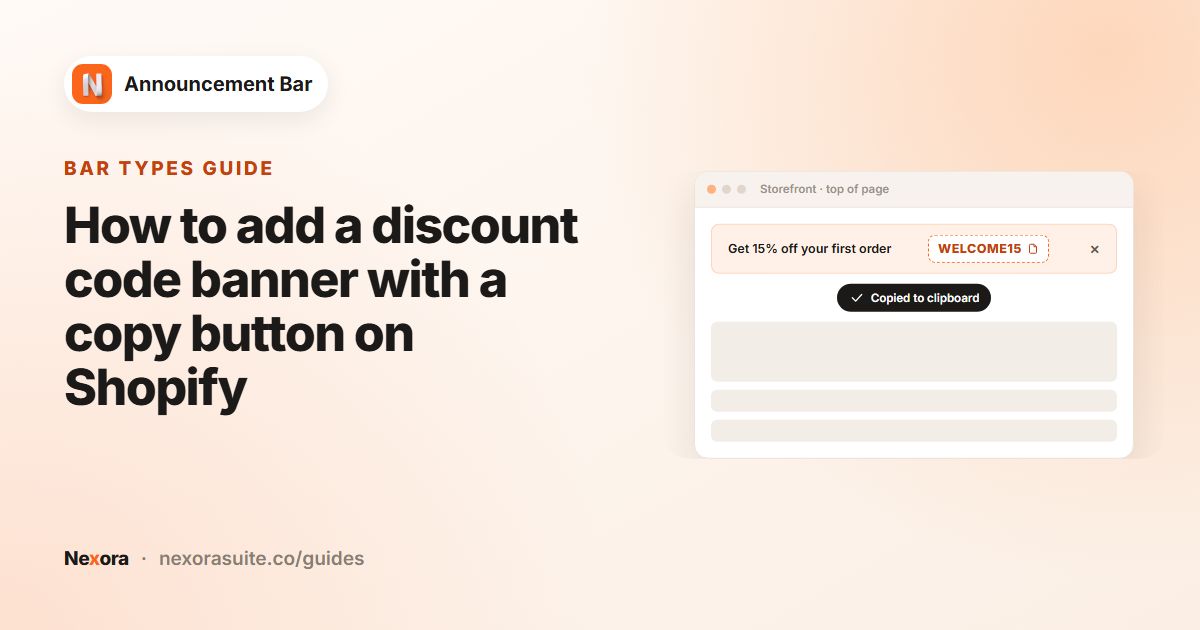 Related guideHow to add a discount code banner with a copy button on Shopify→
Step 3: Style and place the bar
- Open Design
Click Continue to Design.
- Set the position
Under Positioning, choose Top page or Bottom page. Tick Sticky bar for a top bar that stays visible while shoppers scroll.
- Pick a look
Choose a Template, then fine-tune the Card background, Typography and Button colours. Check the Live preview as you go.
- Open Placement
Click Continue to Placement and keep Every page, or choose the pages you want.
- Choose countries (optional)
Under Geolocation targeting, keep All world or pick Specific countries.
Step 4: Publish and check your storefront
- Publish
Click Publish in the page header. The status badge changes to Active, or Scheduled if you set a future start date.
- Visit your store
Open your storefront in a new tab and go to a page that matches your placement. The bar should appear.
- Check the numbers
After a while, open Analytics to see impressions and clicks.
If you closed the bar while testing, it stays hidden in your browser for 7 days. Use a private browsing window to see it again.
Recipe: A sticky free-shipping message with a coupon
- Create a Simple bar
Set the Title to something like "Free shipping on orders over $50" and add a Coupon code such as
FREESHIP, created first in Shopify Discounts. - Add an icon
Click Select Icon and choose a shipping icon from the Ecommerce category.
- Make it sticky
On Design, choose Top page and tick Sticky bar.
- Publish
Shoppers can copy the code with one click. Copies are counted as Clicks in Analytics.
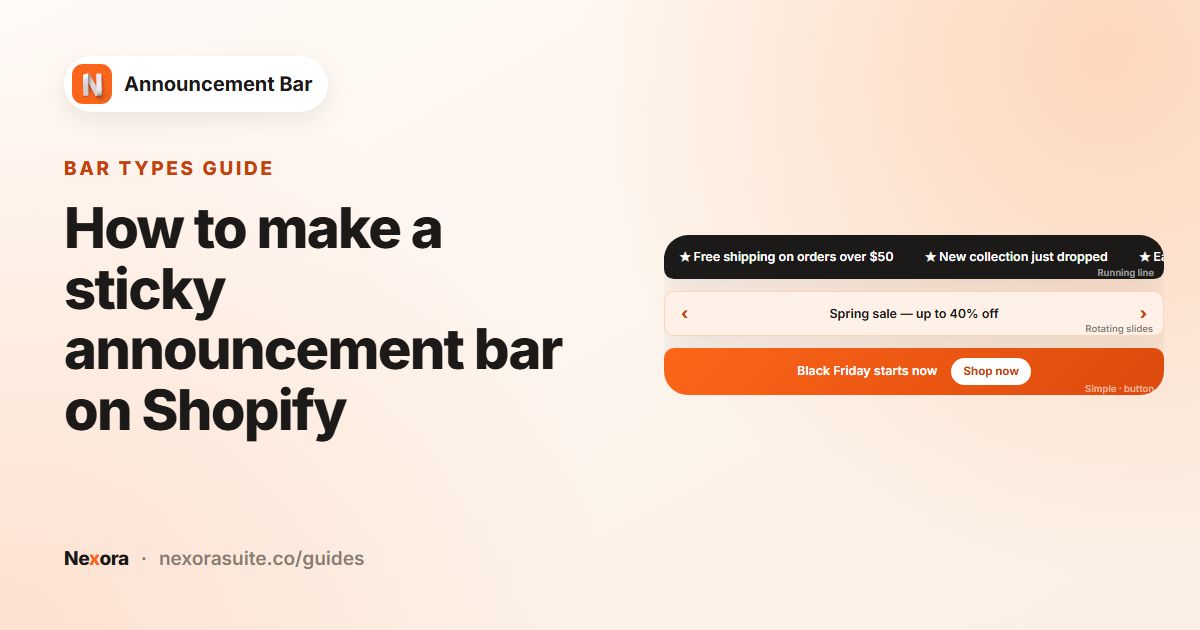 Related guideHow to make a sticky announcement bar on Shopify→
Recipe: A scheduled weekend sale with rotating messages
- Choose Multiple rotating
Under Announcement type, pick Multiple rotating announcements.
- Add slides
Fill in Announcement #1, then click + Add announcement for more slides, such as one for the sale, one for free shipping and one for new arrivals. Give each its own Call to action.
- Set the timing
In Animation, set Display duration (for example 5s) and Transition direction.
- Schedule it
In Scheduling, set Starts and Ends to Specific date with your sale dates.
- Publish ahead of time
Click Publish. The bar shows as Scheduled, goes live at the start time and expires on its own after the end time, within about 5 minutes either way.
 Related guideHow to set up a Black Friday announcement bar on Shopify→
Recipe: Different messages by country and language
- Create a general bar
Make a bar for everyone and leave Geolocation targeting on All world.
- Create a country bar
Use Duplicate in the bar list, edit the copy's message (for example, local delivery times), and set Specific countries to the country you want.
- Add translations
On either bar, click Add translation, choose a language and fill in Title, Subheading and Button text.
- Publish both
Visitors from the chosen country see the country bar instead of the general one. Everyone else sees the general bar, in their language when you've added a translation.
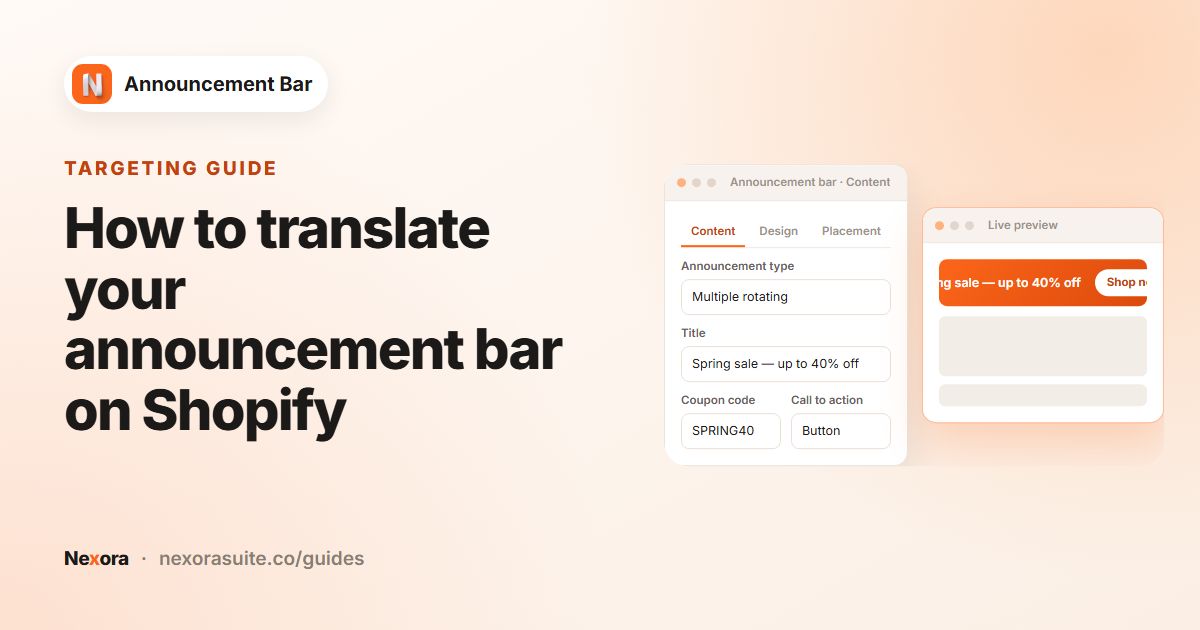 Related guideHow to translate your announcement bar on Shopify→
Recipe: Show a bar inside a page section
- Set Custom position
On the Placement tab, select Custom position and publish the bar.
- Add the block
Click Reposition with app block to open the theme editor with the Announcement bar (custom) block, then drag it where you want it.
- Connect the bar
Paste the bar's Announcement ID into the block setting and save the theme.
Until an ID is entered, the block shows a grey placeholder in the theme editor so you can find it.
 Related guideHow to add a free shipping announcement bar on Shopify→