Why a free shipping message belongs in the bar
Shipping costs are one of the things shoppers want to know before they start filling a cart. If you offer free shipping, or free shipping above a certain order value, saying so at the top of every page answers that question early instead of at checkout.
This guide covers a plain text bar: a clear, static message that is the same for every shopper. It doesn't calculate anything from the cart, so the wording needs to match the rule you've actually set up in Shopify.
- "Free shipping on all orders"
- "Free shipping on orders over $50"
- "Free UK delivery over £40 | Free returns"
- "Free shipping this weekend with code FREESHIP"
First, set up free shipping in Shopify
The announcement bar only displays your message. The free shipping itself is set up in Shopify, usually in one of two ways:
| Shopify option | How it works | Good for |
|---|---|---|
| A free shipping rate | In Settings > Shipping and delivery, add a rate with a price of 0, optionally with a minimum order price condition. | Always-on free shipping, or free shipping above an order value |
| A free shipping discount | In Discounts, create a free shipping discount, as an automatic discount or a code. See Shopify discounts. | Time-limited offers or offers for a code |
Check that the threshold, countries and dates in your Shopify settings match the words in your bar. A bar that promises free shipping the checkout doesn't give is worse than no bar. Shopify's shipping documentation covers rates and zones.
Step by step: a free shipping bar with Nexora Announcement Bar
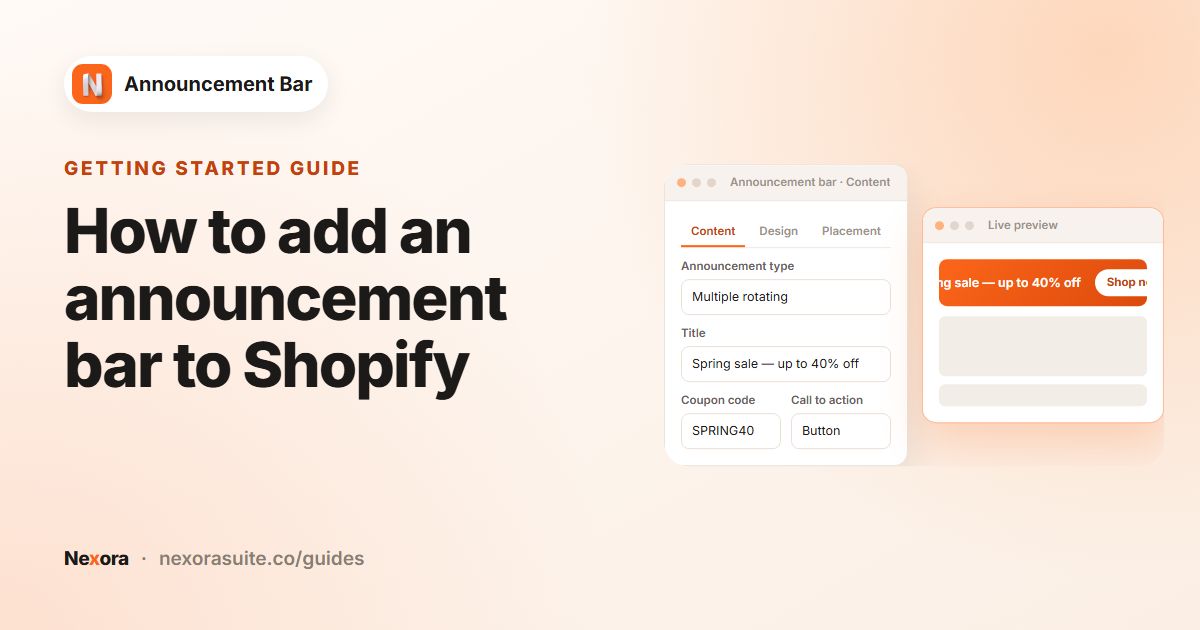
- Turn on the app embed
If you haven't yet, click Enable on theme on the dashboard, switch on Announcement Bar in the theme editor and click Save.
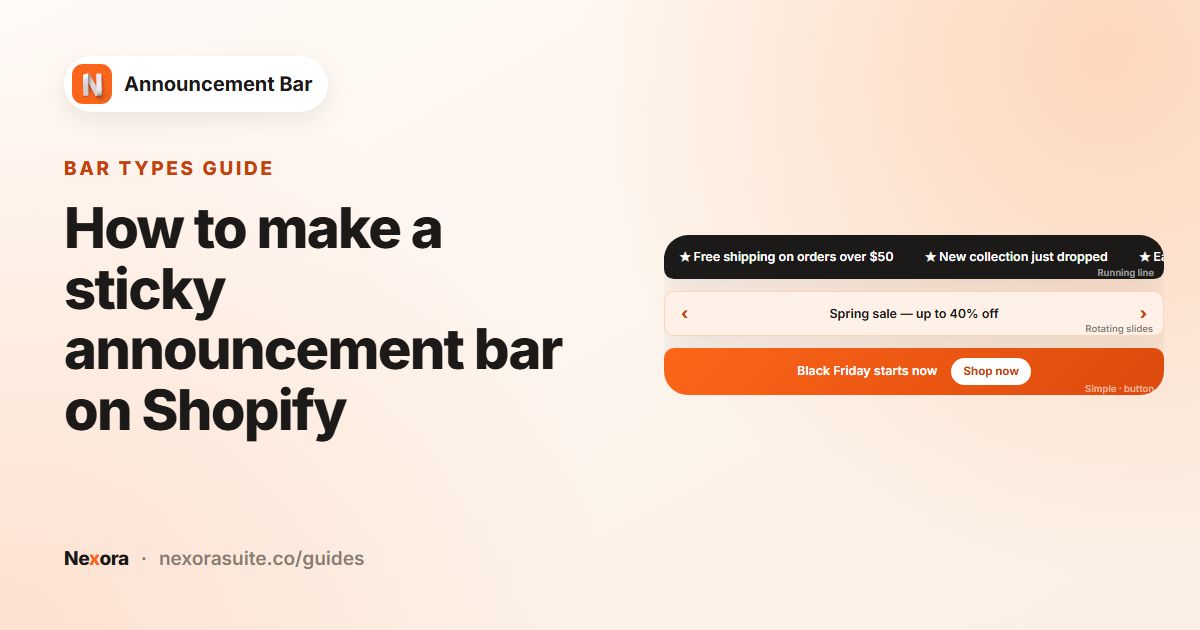
- Create a Simple bar
Go to Announcement bar, click New announcement and keep Simple announcement.
- Write the message
Set Announcement name to something like
Free shippingand Title to "Free shipping on orders over $50". Use Subheading for a short extra line such as "Delivered in 2 to 4 business days". - Add a shipping icon
Click Select Icon and pick a delivery icon from the Ecommerce category, or click Upload Icon to use your own SVG or PNG (up to 2 MB).
- Link to details
In Call to action, choose Button with Button text "Details" and Link
/policies/shipping-policy, or choose Make entire bar clickable. - Style and position
On Design, choose Top page and tick Sticky bar if you want the message visible while shoppers scroll. Pick a Template that fits your brand.
- Publish
Click Publish and check the storefront.
Recommended settings
| Setting | Suggested value | Why |
|---|---|---|
| Announcement type | Simple announcement | One fixed message is easiest to read. Use Multiple rotating announcements if you want to alternate it with other messages. |
| Title | "Free shipping on orders over $50" | State the condition plainly. |
| Icon | A truck or box from Ecommerce | Makes the message recognisable at a glance. |
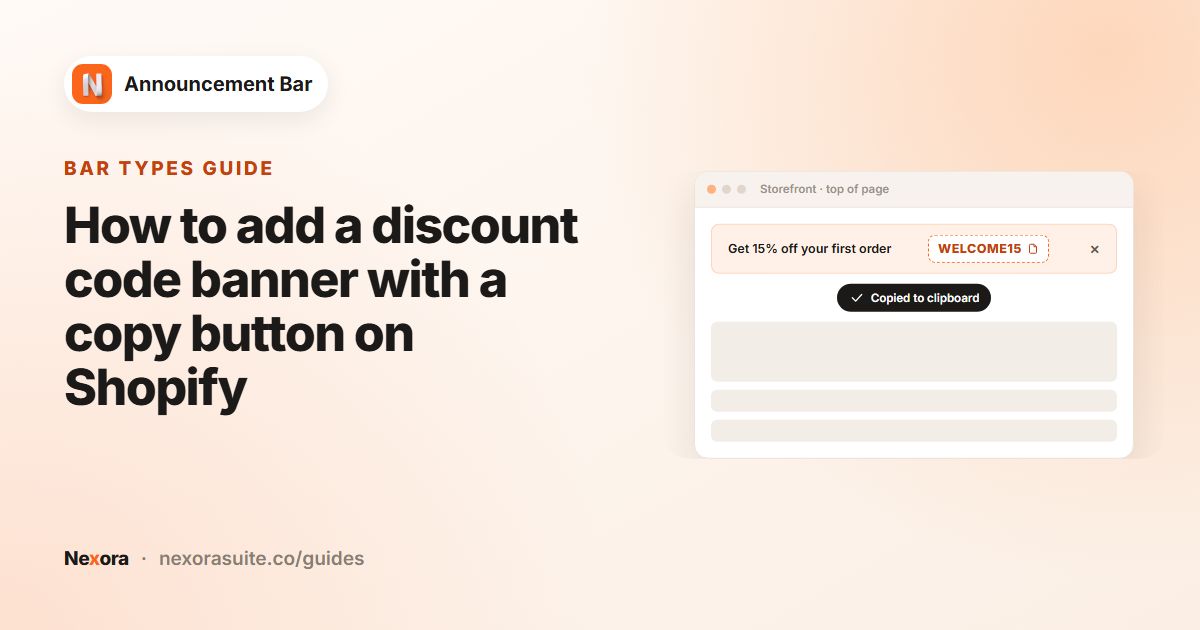
| Coupon code | Only if the offer needs a code | Shoppers can copy it with one click on Simple and rotating bars. |
| Sticky bar | On | Keeps the message in view while browsing. |
| Geolocation targeting | Specific countries if the offer is regional | Avoids promising free shipping to countries that don't get it. |
Example: different free shipping thresholds by country
Suppose you offer free shipping over $50 in the United States and over £40 in the United Kingdom, and no free shipping elsewhere.
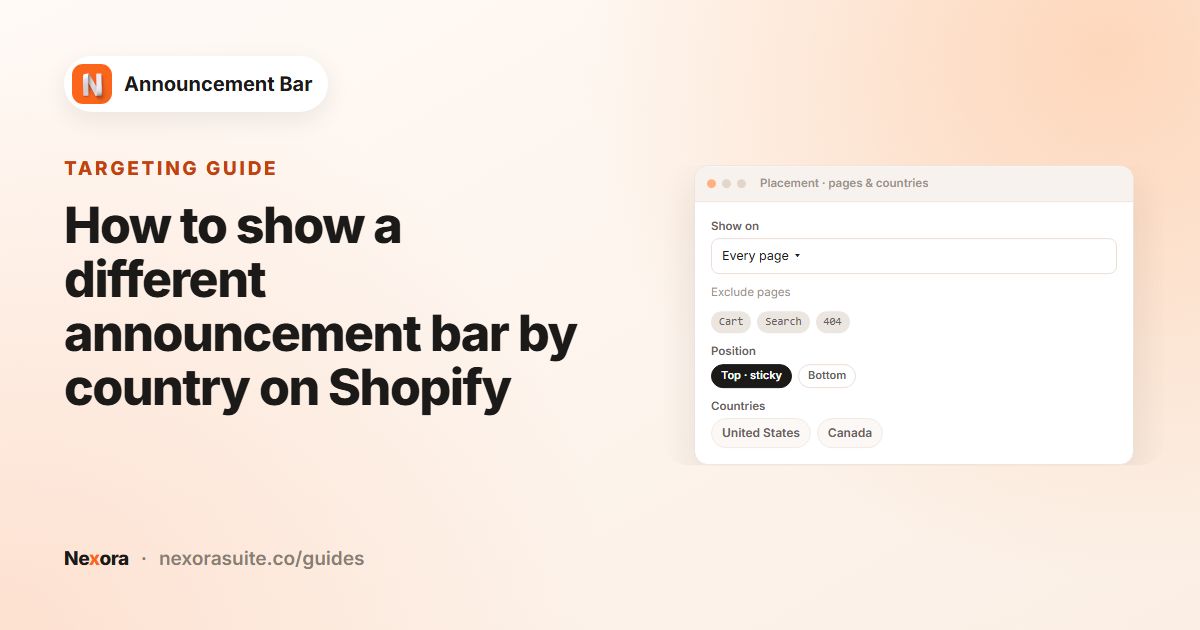
- US bar
Title "Free US shipping on orders over $50". On Placement, set Geolocation targeting to Specific countries and select United States.
- UK bar
Use Duplicate in the bar list. Change the copy's Title to "Free UK delivery on orders over £40" and target United Kingdom.
- Everyone else
Optionally create a third bar on All world with a general message such as "We ship worldwide". Country-specific bars replace it in their countries.
The visitor's country is detected from their IP address, so this works whether or not you use Shopify Markets. See announcement bar by country for details.
Tips and common mistakes
- Keep the wording exact. If the rule is "over $50 before tax", don't shorten it to "free shipping".
- Mention exclusions briefly in the Subheading, for example "Excludes oversized items".
- End time-limited offers on time. Use Scheduling with an Ends date so the bar comes down with the discount.
- Don't stack too many bars. If you also run a sale bar, consider one rotating bar with both messages instead of two stacked bars.
- Watch the numbers. In Analytics, Clicks shows how many shoppers opened your shipping details.
Frequently asked questions
Does the bar give free shipping automatically?
No. The bar only shows your message. Set up free shipping in Shopify first, with a shipping rate or a free shipping discount.
Does the bar change based on what's in the cart?
No. It shows the same text to everyone who matches its placement and country settings, so word it as a general rule such as "Free shipping on orders over $50".
Can I show a different threshold in each country?
Yes. Create one bar per country with Specific countries under Geolocation targeting. Duplicate makes this quick.
Can I add a delivery icon?
Yes, on Simple and rotating bars. Use Select Icon for the built-in icons or Upload Icon for your own.
Is the app free?
Yes, Nexora Announcement Bar is completely free.