Why translate the bar
If your store is available in several languages, an announcement in only one of them stands out for the wrong reason. A shopper browsing in German who sees an English sale message at the top of a German page may not understand the offer, or may wonder whether it applies to them.
Translating the bar keeps the experience consistent: the same campaign, in the language the shopper chose.
With Nexora Announcement Bar, translations live inside each bar. You don't create a separate bar per language: one bar holds the original text plus a translation for each language, and shares one design, one schedule and one set of placement rules. When the sale ends, the bar comes down in every language at once.
- One place to edit a campaign, in all languages.
- Analytics for the bar cover every language together.
- Empty fields fall back to the original, so a half-finished translation still shows something sensible.
How languages work on Shopify
Shopify lets you add and publish additional languages for your online store, and shoppers switch between them with a language selector or a language-specific URL such as /fr. See Shopify's guide to languages.
Theme text, including a theme's own announcement bar, is usually translated with a translation app such as Shopify's Translate & Adapt. Bars from Nexora Announcement Bar are managed in the app, so their translations are added in the app's Translations card.
The Select language list only shows languages that are published in your store. Publish a language in Shopify first if it's missing.
Step by step: add a translation
- Publish the language
In Shopify, make sure the language is added and published for your online store.
- Open the bar
In Announcement bar, open the bar and stay on the Content tab.
- Add a translation
In the Translations card, click Add translation and choose the language under Select language.
- Fill in the fields
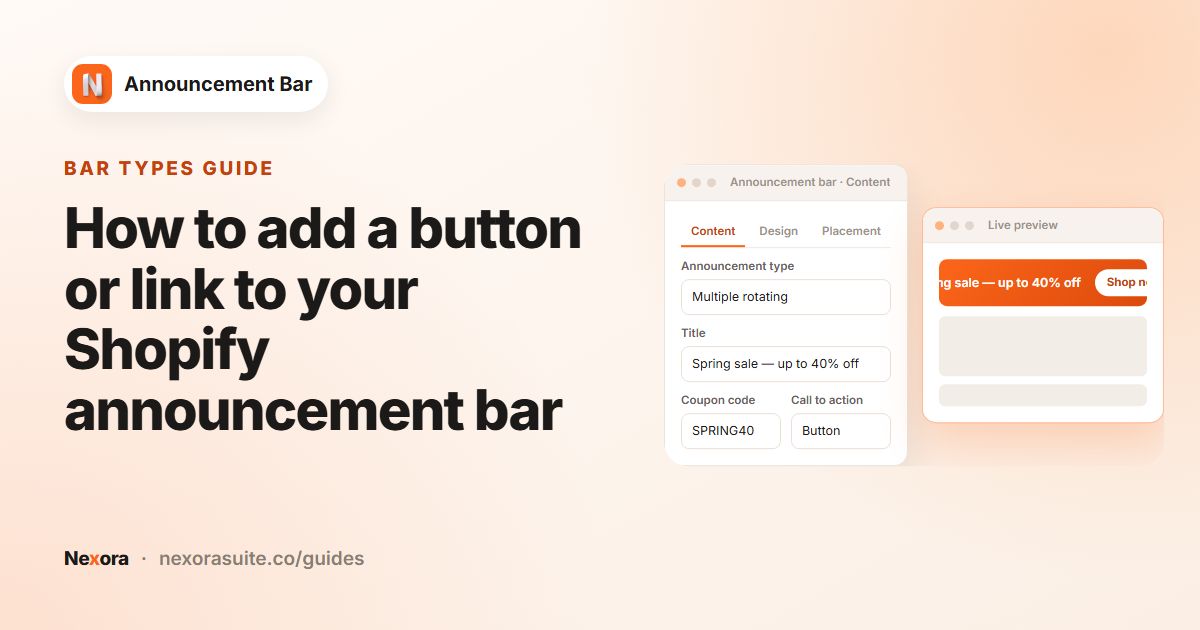
Enter the translated Title, Subheading and Button text. For rotating bars, fill these in for each slide. Leave Link empty to use the default link, or enter a language-specific page.
- Confirm
Click Confirm translations. The language appears in the list, where you can Edit or Delete it later.
- Save and check
Click Save, then switch your storefront to that language and look at the bar.
What can and can't be translated
| Field | Translatable | Notes |
|---|---|---|
| Title | Yes | Per slide on rotating bars |
| Subheading | Yes | Per slide on rotating bars |
| Button text | Yes | Per slide on rotating bars |
| Link | Yes | Leave empty to keep the default link |
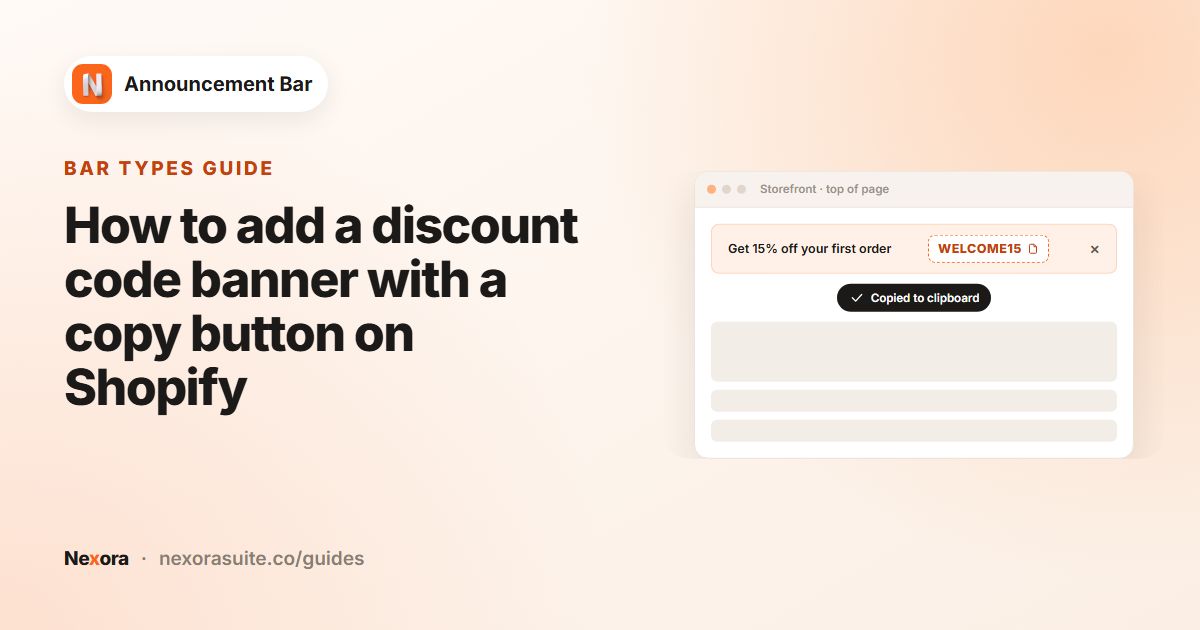
| Coupon code | No | The same code shows in every language |
| Design, placement, schedule | No | Shared by all languages |
The bar uses the translation that matches the language the shopper is browsing in. Any field you leave empty falls back to your original text, so a missing translation never shows a blank bar.
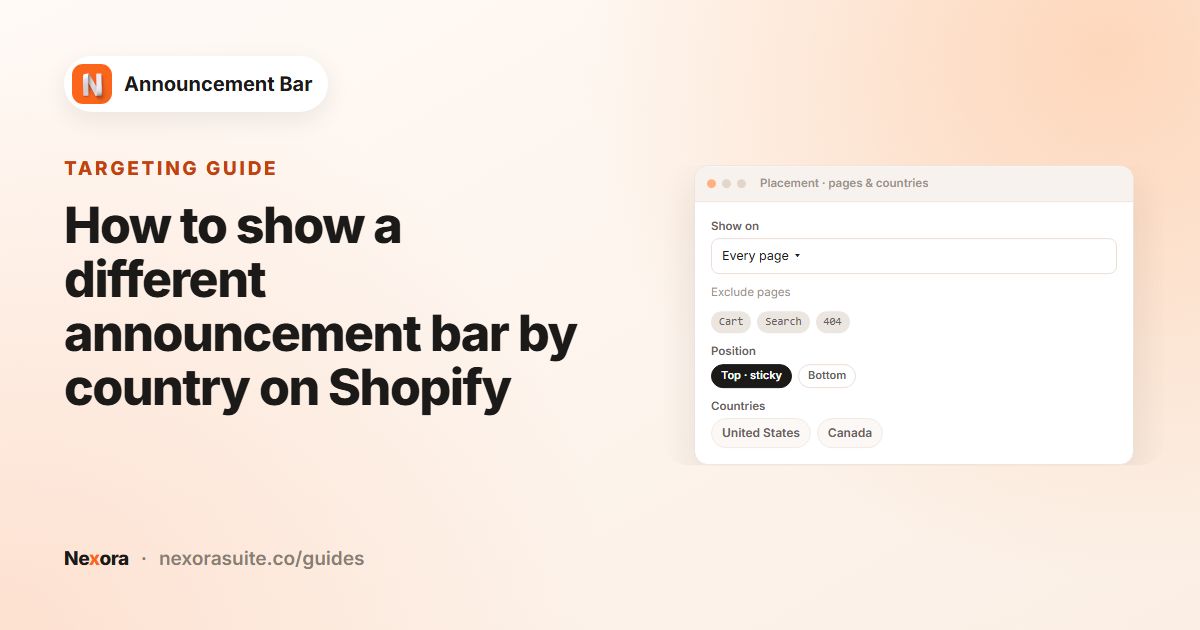
Coupon codes aren't translatable. If you want a different code per language, write the code into the translated Title text instead, or run separate bars by country with Geolocation targeting.
Linking to the right language
Shopify typically serves each additional language from its own folder, such as /fr for French. A link like /collections/sale has no folder, so a French shopper who clicks it may land on the page in your primary language. Enter the language path in the translation's Link to keep them in their language.
| Language | Default link | Translated Link |
|---|---|---|
| English (primary) | /collections/sale | Not needed |
| French | /collections/sale | /fr/collections/sale |
| German | /collections/sale | /de/collections/sale |
Open a page in each language on your storefront and copy the address from the browser. The folder depends on how your store's languages and domains are set up.
Example: a sale bar in English and French
| Field | Original (English) | French translation |
|---|---|---|
| Title | "Winter sale: 25% off everything" | "Soldes d'hiver : -25 % sur tout" |
| Subheading | "Ends Sunday" | "Jusqu'à dimanche" |
| Button text | "Shop now" | "Découvrir" |
| Link | /collections/sale | Left empty (uses /collections/sale) |
| Coupon code | WINTER25 | Not translated, WINTER25 shown |
Shoppers browsing the French version of the store see the French text and the same code. Everyone else sees English.
A rotating bar in English and German
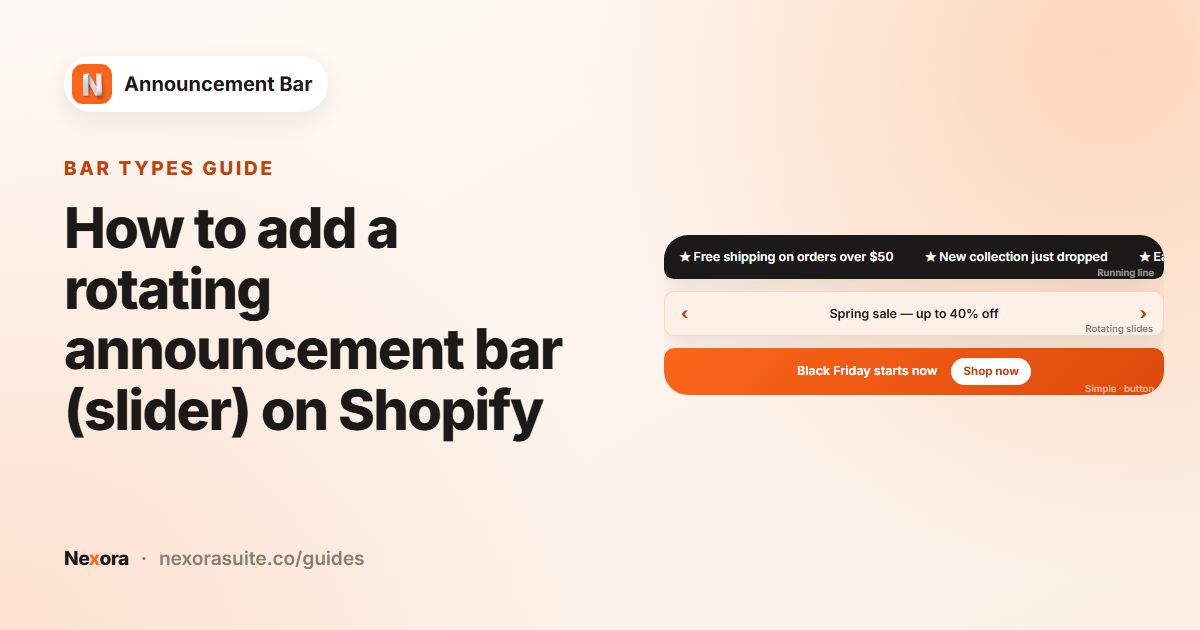
On a Multiple rotating announcements bar, the translation window lists every slide, and each slide is translated on its own:
- Slide 1 Title: "Free shipping over $50" becomes "Kostenloser Versand ab 50 $".
- Slide 2 Title: "New arrivals every Friday" becomes "Jeden Freitag neue Artikel".
- Slide 2 Button text: "See what's new" becomes "Neuheiten ansehen", with Link
/de/collections/new.
If you leave a slide's fields empty, that slide shows in English to German shoppers while the other slides show in German.
If the translation doesn't show as expected
- The language marked (Primary): you don't need a translation for your primary language, because the original text already covers it. If you add one, it replaces your original text for shoppers browsing in that language.
- Add translation is greyed out: every language in the list already has a translation on this bar, and the card says All available shop languages already have translations. Use Edit on the existing one.
- Picked the wrong language: the language of an existing translation can't be changed. Delete it and add a new one.
- Exclusions on translated pages: Specific URLs matches the start of the path, so
/pages/contactdoesn't exclude/fr/pages/contact. Add the translated path on its own line, or use a keyword.
Tips and common mistakes
- Language missing from the list? It isn't published in your store yet.
- Check text length: translations are often longer than English. Look at the storefront in each language to make sure the bar still reads well.
- Running line bars scroll only the title and coupon code, so the Title translation is what matters there.
- Language is not country: a French translation shows to anyone browsing in French, wherever they are. To change the message by location, use country targeting.
- Update translations with the original: when you change the main text for a new campaign, edit each translation too, or shoppers in other languages will see the old wording.
Frequently asked questions
Which languages can I translate into?
Any language that is published in your Shopify store. Only published languages appear under Select language.
Can I translate the coupon code?
No. The coupon code is the same in every language. Translations cover Title, Subheading, Button text and Link.
What if I leave a translated field empty?
That field falls back to your original text.
How does the bar know which language to show?
It uses the language the shopper is browsing your store in.
Can each language link to a different page?
Yes. Enter a Link in the translation. Leave it empty to use the default link.
Do I need a translation for my main language?
No. The original text is used for your primary language. A translation for it would replace that text.
Why does a translated link open the page in my primary language?
A path without a language folder, such as /collections/sale, may open the primary-language page. Enter the language path, such as /fr/collections/sale, in that translation's Link.