Why use a rotating bar
Most stores have more than one thing worth saying: a sale, free shipping, a new collection, a returns promise. Stacking several bars pushes your page content down. A rotating bar shows one message at a time in a single strip, so you can share several without taking more space.
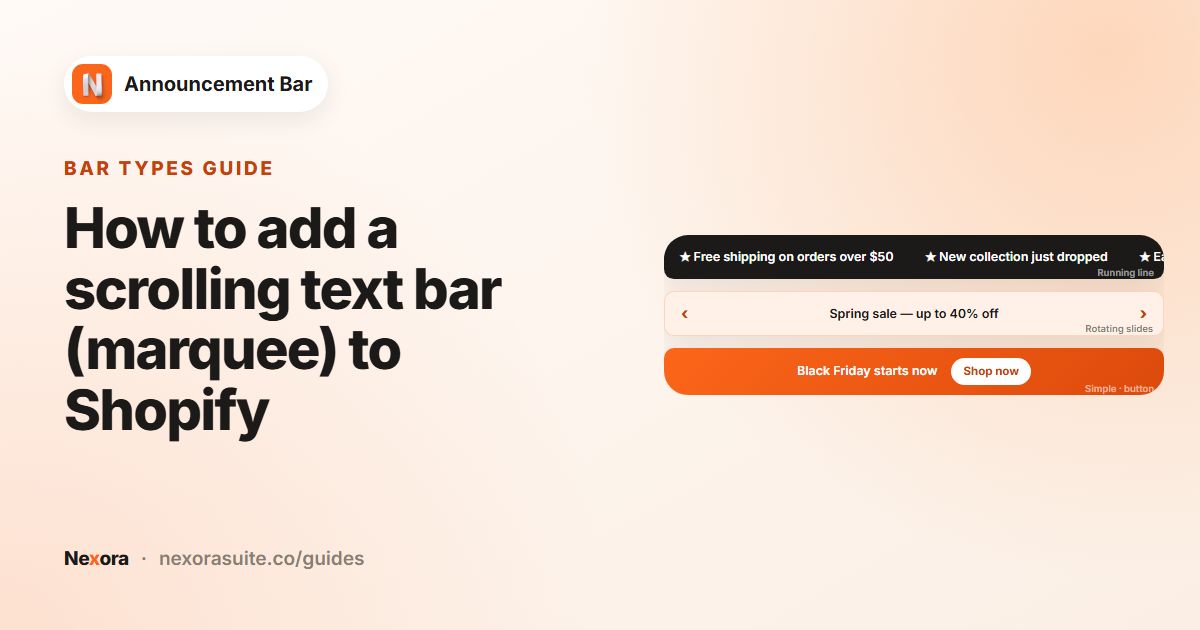
Each slide is complete on its own, with its own text, link and coupon. That makes a rotating bar different from a scrolling marquee, where one line of text moves continuously.
| Bar type | Best for |
|---|---|
| Simple announcement | One important message |
| Running line announcement | A short slogan or list of perks that scrolls |
| Multiple rotating announcements | Two to ten separate messages, each with its own link |
Your options on Shopify
Some themes, including recent versions of Shopify's Dawn theme, let you add several announcements to the header's announcement bar and rotate them automatically. Look in the theme editor under the header area. See Customizing themes.
Theme rotation is usually limited to text and a link per message. An app helps if you want per-slide coupon codes with a copy button, icons, buttons, navigation arrows, scheduling, country targeting or click numbers per bar.
Step by step: build a rotating bar
- Create a bar
Go to Announcement bar, click New announcement and choose Multiple rotating announcements under Announcement type.
- Fill in the first slide
In Announcement #1, enter a Title and optionally a Subheading, Coupon code and Icon. Choose the slide's Call to action: No call to action, Button or Make entire bar clickable.
- Add more slides
Click + Add announcement for each extra message, up to 10. Reorder them with the ↑ and ↓ buttons, and use Collapse to keep the list tidy.
- Set the timing
In Animation, set Display duration (how long each slide stays, 1 to 15 seconds) and Transition direction: Horizontal or Vertical.
- Allow closing (optional)
In the Close icon card, tick Show close icon (X) — visitors can dismiss the bar.
- Style the arrows
On Design, with Horizontal transition, the Navigation arrows card sets arrow Size, Color, Position and Alignment.
- Publish
Pick pages on Placement and click Publish.
Rotating bar settings
| Setting | Options | Suggested value |
|---|---|---|
| Slides | 1 to 10, added with + Add announcement | 3 or 4 is easy to follow |
| Display duration | 1 to 15 seconds | 4 to 6 seconds, enough to read a short line |
| Transition direction | Horizontal (slides in from the side) or Vertical (slides in from below) | Horizontal if you want arrows |
| Arrow Position | Sides (back on left, next on right), Both on the left, Both on the right | Sides |
| Arrow Alignment | Next to text or Against card edges | Next to text on wide screens |
| Per-slide Call to action | No call to action, Button, Make entire bar clickable | A link on every slide that has an offer |
Rotating bars pause while a shopper hovers over them, so they have time to read or click, and start again when the pointer moves away.
If you switch a bar with several slides to another type, only the first slide is kept. The app asks you to confirm first.
Example: a three-slide store bar
| Slide | Title | Extras |
|---|---|---|
| 1 | "Summer sale: up to 40% off" | Button "Shop sale" to /collections/sale |
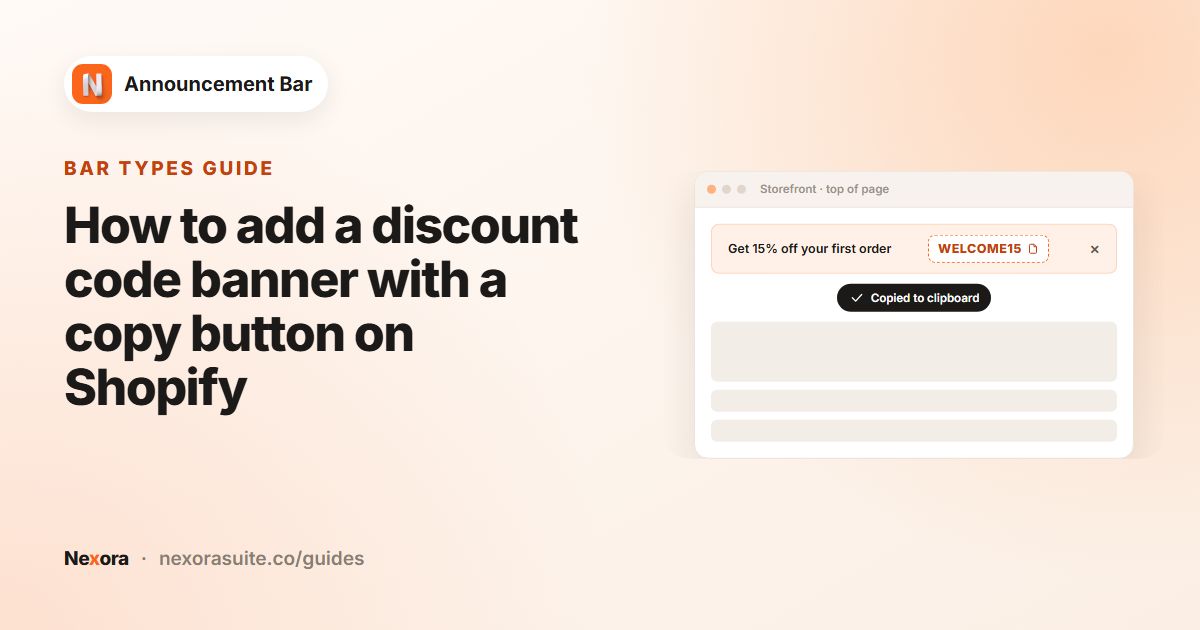
| 2 | "Get 10% off your first order" | Coupon code WELCOME10 (created in Shopify Discounts), copy button shown automatically |
| 3 | "Free shipping on orders over $50" | Truck icon from Ecommerce, Make entire bar clickable to /policies/shipping-policy |
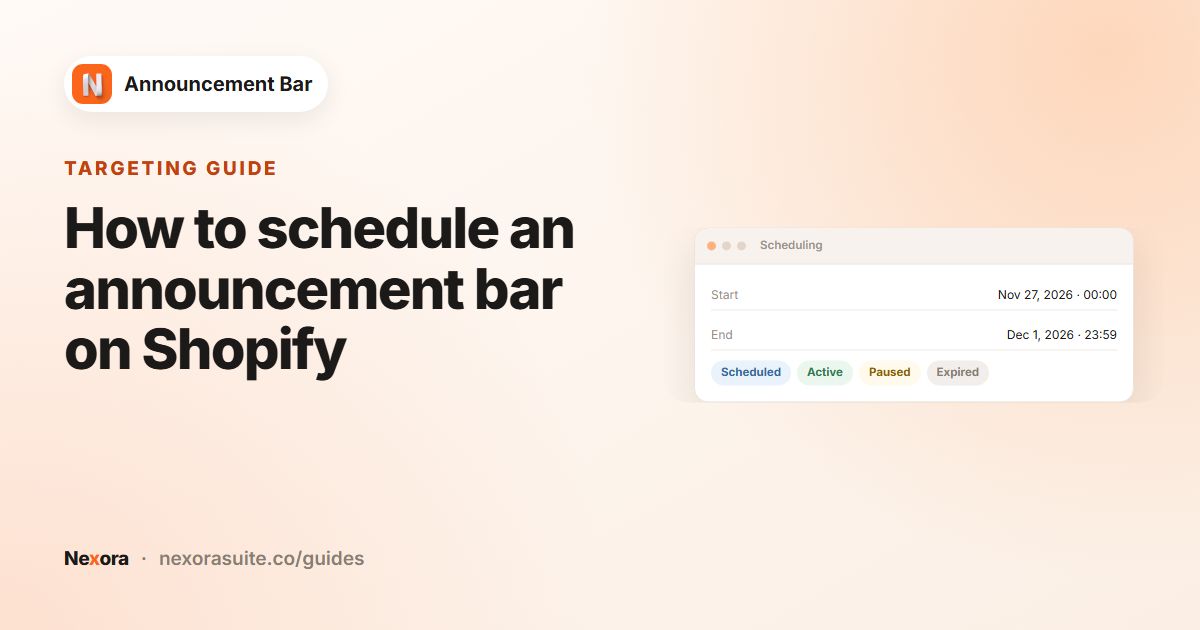
Set Display duration to 5 seconds and Transition direction to Horizontal. If the sale has an end date, add it under Scheduling so the whole bar comes down on time, then swap in a new bar for the next campaign.
Tips and common mistakes
- Put the most important slide first. A shopper who only glances at the bar may see just the first one or two.
- Keep slides similar in length so each one is readable in the same display time.
- Too short a duration makes slides hard to read. Under 3 seconds is usually too fast.
- Translations work per slide. When you add a translation, you fill in Title, Subheading and Button text for each slide.
- Measure with Analytics. Clicks include button clicks, clickable-bar clicks and coupon copies across the bar's slides.
- Retire old slides. When an offer ends, delete its slide with Delete (a bar always keeps at least one) rather than leaving outdated messages in rotation.
Want each message on its own schedule? Scheduling applies to the whole bar, so give time-limited offers their own bar with its own dates, and keep evergreen messages in a separate rotating bar.
Frequently asked questions
How many messages can a rotating bar have?
Up to 10 slides per bar.
Can each slide have its own link and coupon?
Yes. Every slide has its own Title, Subheading, Coupon code, Icon and Call to action.
Can shoppers move between slides themselves?
Yes, with Horizontal transition the bar shows navigation arrows. You can style them in the Navigation arrows card on the Design tab.
Does the bar stop rotating when someone hovers over it?
Yes. It pauses on hover and continues when the pointer moves away.
What's the difference between rotating and running line?
Rotating shows separate slides one at a time. Running line announcement scrolls one line of text continuously, as plain text without icons or a copy button.