What a scrolling marquee bar is
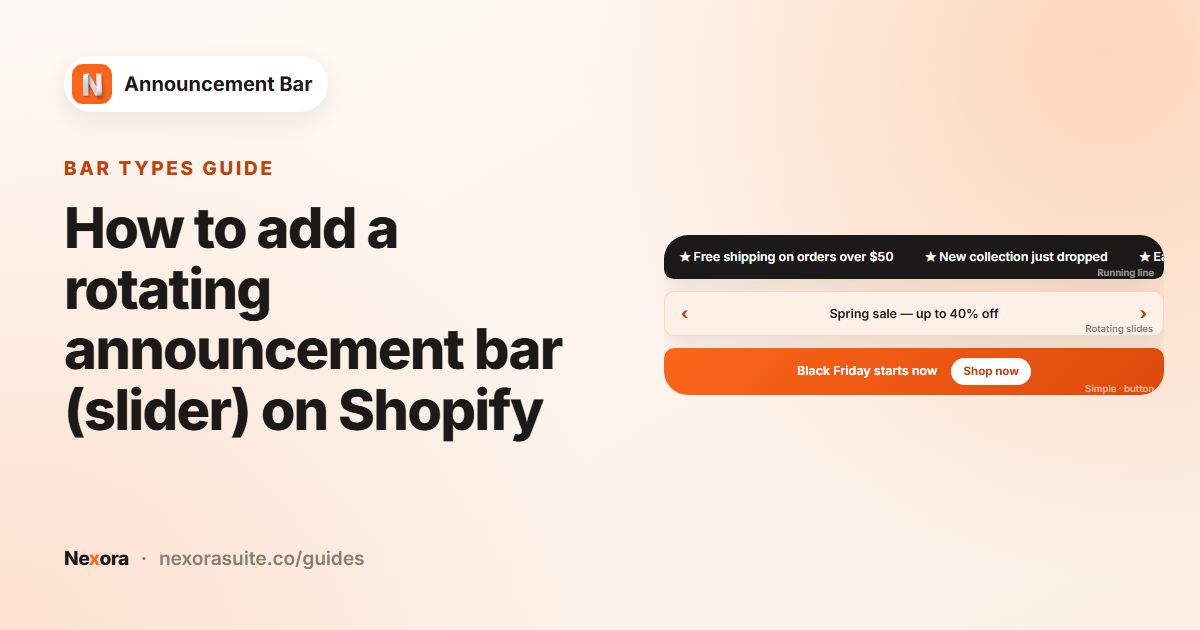
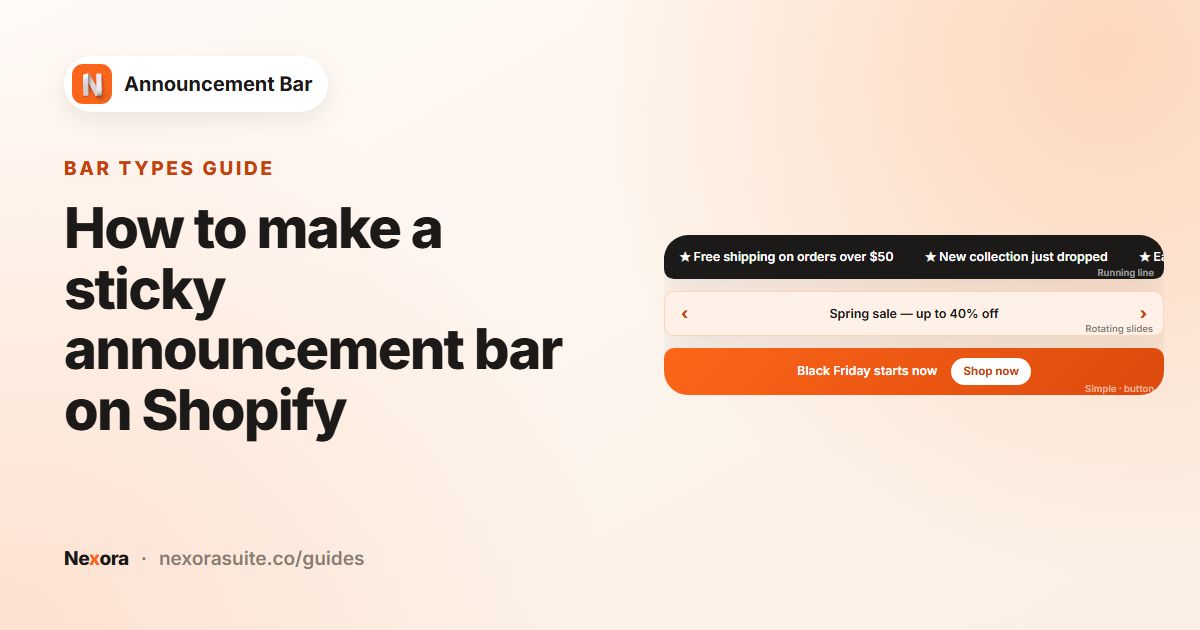
A marquee bar moves a line of text continuously across the top or bottom of your store, repeating it so the strip is always full. It catches the eye more than static text and suits short, punchy phrases: a brand slogan, a list of perks or a sale headline.
- "Free shipping over $50 · Free returns · Made in Portugal"
- "NEW DROP: The Summer Edit is live"
- "Spring sale 25% off with code SPRING25"
Because the text moves, it is harder to read long sentences. Keep each phrase to a few words and use separators such as · or | between ideas.
Your options on Shopify
Some Shopify themes include a scrolling text or marquee section you can add in the theme editor, while others only offer a static or rotating announcement bar. Check your theme's sections first; Shopify's Customizing themes explains how to add and edit them.
| Option | What you get | Limits |
|---|---|---|
| A theme marquee section | Scrolling text inside your page layout | Only in some themes. Usually no page or country targeting, scheduling or analytics. |
| Custom code | Any animation a developer builds | Needs a developer and maintenance across theme updates. |
| Nexora Announcement Bar | A Running line announcement at the top or bottom, or inside a section with Custom position | Shows the title and coupon code as plain text only (see below). |
Step by step: create a running line bar
- Start a bar
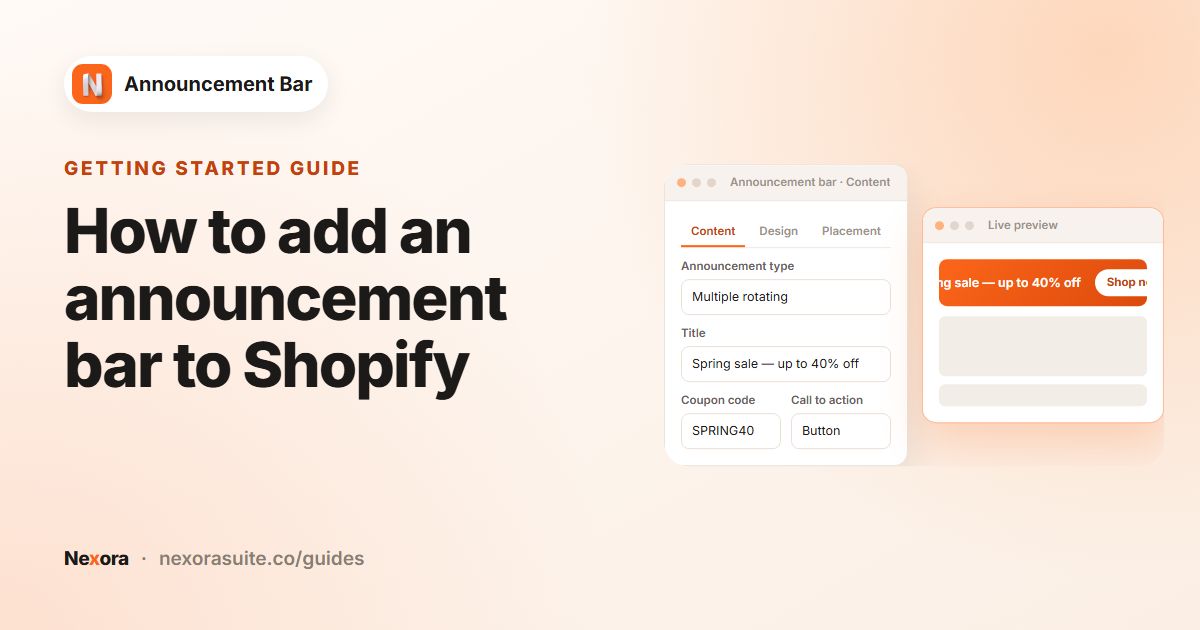
Go to Announcement bar and click New announcement. Make sure the Announcement Bar app embed is on in your theme.
- Choose Running line
Under Announcement type, select Running line announcement.
- Write the text
Enter an Announcement name and a Title, for example "Free shipping over $50 · Free returns · New arrivals every Friday". Add a Coupon code if you want one to scroll with it.
- Set the animation
In the Animation card, set Animation speed from 1 (slowest) to 10 (fastest) and Animation direction to Left or Right.
- Add a call to action (optional)
Choose Button with Button text and Link, or Make entire bar clickable. Tick Show close icon (X) — visitors can dismiss the bar if shoppers should be able to hide it.
- Style it
Click Continue to Design. Choose a Position, a Template, and set Title spacing in the Card settings to control the gap between repeating titles.
- Publish
Choose pages on Placement, then click Publish.
Running line settings
| Setting | Where | What it does | Suggested value |
|---|---|---|---|
| Animation speed | Content tab, Animation | How fast the text moves, 1 to 10 | 3 to 5 for easy reading |
| Animation direction | Content tab, Animation | Left or Right | Left (text travels from right to left) is the most familiar |
| Title spacing | Design tab, Card | Gap between each repeat of the title | Enough space that repeats don't run together |
| Title size and color | Design tab, Typography | Text size, colour and bold | Bold, slightly larger than body text |
| Call to action | Content tab | No call to action, Button or Make entire bar clickable | Clickable bar if the whole message points to one page |
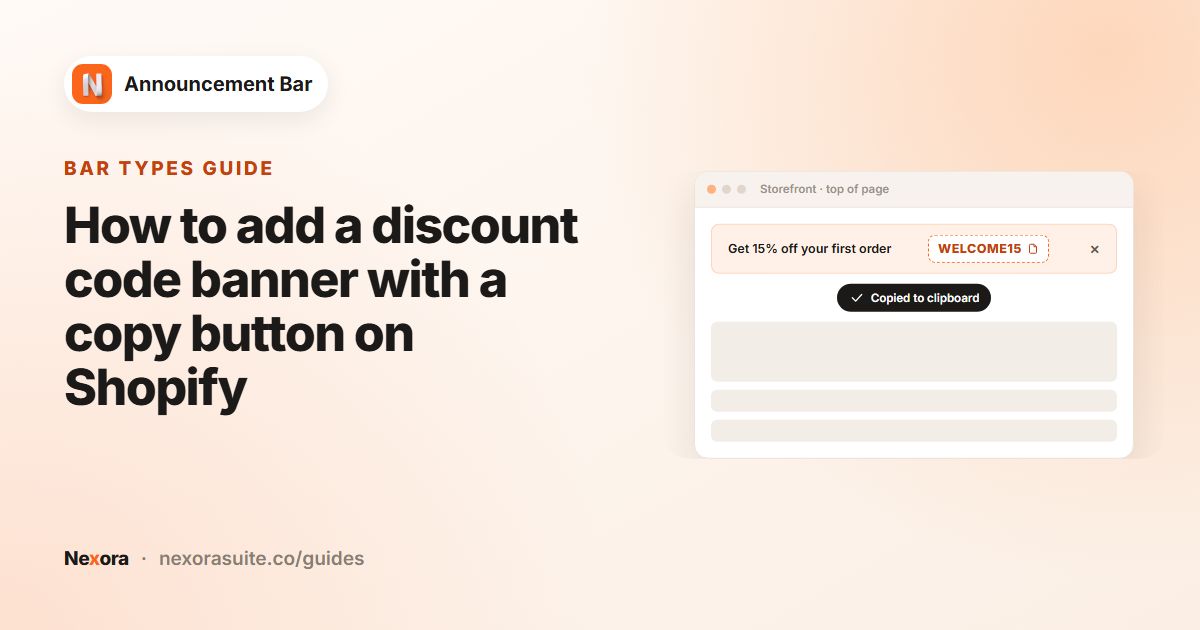
Running line bars show only the Title and the Coupon code, as plain scrolling text. They don't show a Subheading, an icon or a copy button for the code. If shoppers need to copy a code with one click, use a Simple announcement or Multiple rotating announcements instead.
Example: a brand perks marquee
- Announcement type: Running line announcement
- Title: "Free shipping over $50 · 30-day returns · Plastic-free packaging"
- Animation speed: 4, Animation direction: Left
- Call to action: Make entire bar clickable, Link
/pages/about - Design: Top page, Sticky bar on, the Black Yellow template, title bold
- Placement: Every page
After it has run for a while, check Analytics. A low CTR on a perks marquee is normal, since most shoppers read it rather than click; the more useful number may be Dismissals, which tells you if shoppers find it distracting.
Tips and common mistakes
- Too fast: high speeds look busy and are hard to read. Start around the middle and adjust while watching the Live preview.
- Too long: a marquee isn't the place for full sentences with conditions. Put details on the linked page.
- Expecting a copy button: running line bars show the code as text. Switch to a Simple bar for a copyable code. See discount code bar.
- Need separate messages instead? Use a rotating bar, which shows one message at a time.
- Want it lower on the page? Choose Custom position on Placement and add the Announcement bar (custom) block to any section.
Frequently asked questions
Can I control how fast the text scrolls?
Yes. Animation speed goes from 1 (slowest) to 10 (fastest).
Can the text scroll from left to right?
Yes. Set Animation direction to Right.
Why can't I add an icon or subheading to my scrolling bar?
Running line bars scroll the title and coupon code as plain text only. Use a Simple or rotating bar if you need an icon, subheading or copy button.
Can a scrolling bar have a button?
Yes. Running line bars support Button or Make entire bar clickable under Call to action.
Can I place the marquee in the middle of a page?
Yes. Choose Custom position, then add the Announcement bar (custom) theme block where you want it and paste the bar's Announcement ID.