

How Section Cloud works
Section Cloud is a library of ready-made theme sections and page templates for Shopify. When you install a section, the app adds it to the theme you choose as a native theme section. From then on you add it to pages, edit its content and arrange it in the Shopify theme editor, exactly like the sections that came with your theme.
- Sections — 300+ sections across 50+ categories, such as heroes, testimonials, FAQs, comparison tables, featured collections and footers. 50+ of them are free.
- Page templates — complete pages built from several sections. Installing one creates a new page in your store with the sections already arranged.
- App embed — a small set of shared settings (fonts, text size, page width and section spacing) that apply to Section Cloud sections across your store.
Section Cloud works with Online Store 2.0 themes, the themes that let you add and reorder sections on any page in the theme editor.
The app menu has five pages: Home, Sections, Templates, My library and Pricing.
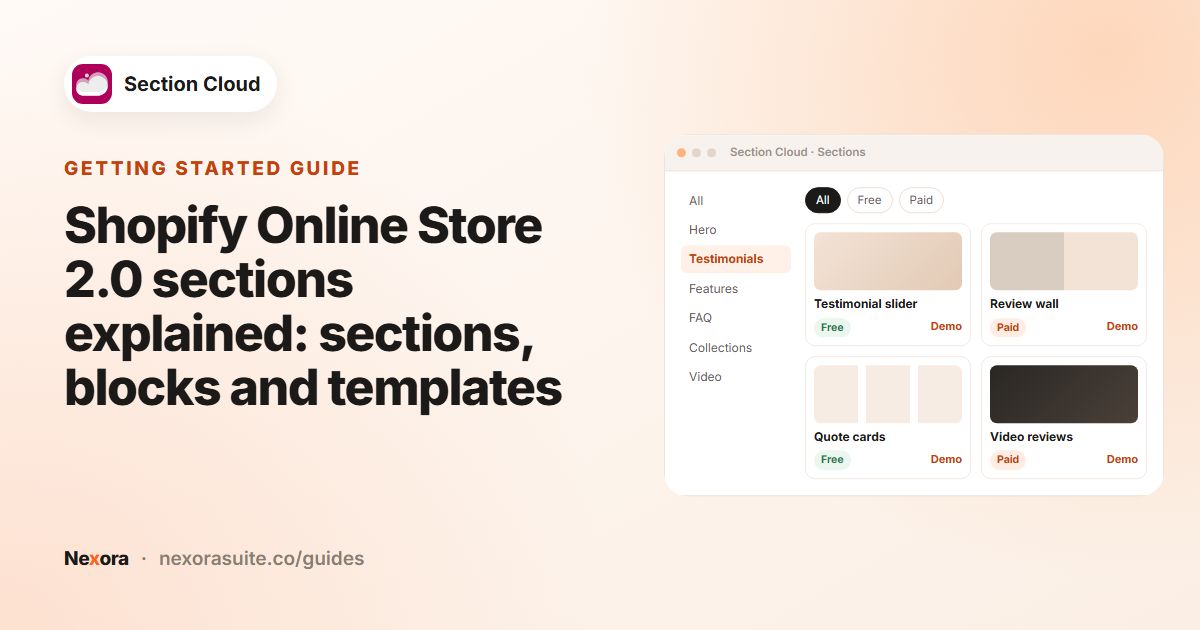 Related guideShopify Online Store 2.0 sections explained: sections, blocks and templates→
Home
Home is the first screen you see when you open the app. It has a few shortcuts to help you get started.
| Area | What it does |
|---|---|
| Explore all sections | Opens the Sections library. |
| Activate app embed | Click Enable on theme and pick a theme. The theme editor opens on the App embeds panel with Section Cloud ready to switch on. |
| Live support | Click Chat with us to open live chat with our team. |
| Your sections | A short list of sections you have installed, with Install and Delete buttons. |
| Review card | Lets you leave a review on the Shopify App Store if the app has been useful. |
Browsing the Sections library
Open Sections from the app menu to browse everything in the library.
| Control | What it does |
|---|---|
| Categories sidebar | Shows only sections of one type (for example Hero, Testimonial or FAQs). The number next to a category is how many sections it contains. Click the active category again, or All categories, to clear the filter. |
| Search box | Type in Search your section... to find sections by name. |
| All / Free / Paid chips | Filter by price. Each chip shows how many sections match. |
| Result count | Shows how many sections match your current filters. |
| Pagination | Move between pages of results. |
Section cards
Each card shows a preview image and the section name. The badge in the corner tells you its status:
| Badge | Meaning |
|---|---|
| Free | Free to install on any plan. |
Price (for example $5) | A paid section you have not bought yet. Buy it once, or unlock it with the Advanced plan. |
| Purchased | A paid section you already own, or any paid section while you are on the Advanced plan. |
Click the preview image (marked DEMO) to open a live demo of the section in a new tab. The button on the card reads Install for sections you can use, or Purchase for paid sections you have not unlocked yet.
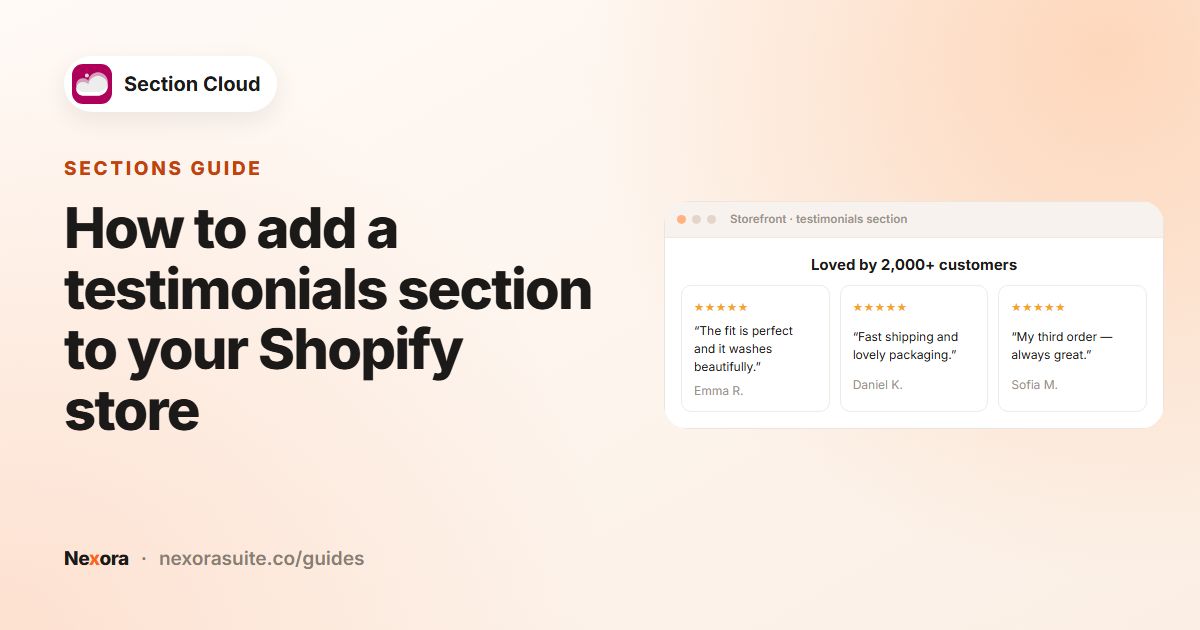 Related guideHow to add a testimonials section to your Shopify store→
Installing a section
- Click Install
On a free or unlocked section, click Install. The Choose theme window opens.
- Choose a theme
Pick the theme to add the section to. Your live theme is marked (publish); your other (unpublished) themes are listed too. Then click Install.
- Open the theme editor
When the success message appears, click Customize to open that theme in the theme editor.
- Add the section to a page
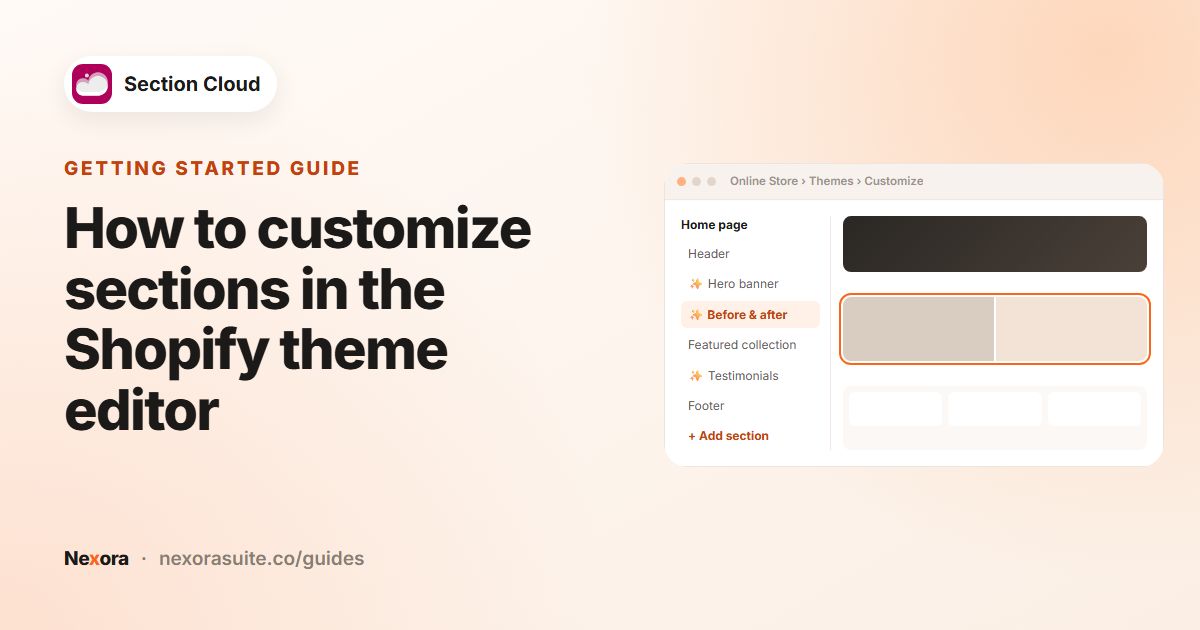
In the theme editor, go to the page you want, click Add section, and choose the section by name. Most Section Cloud section names start with a ✨ sparkle so they are easy to spot.
- Edit and save
Change the text, images, colors and other settings in the section's panel, then click Save in the theme editor.
Not sure about a section? Install it on an unpublished copy of your theme first. Nothing changes on your live store until you publish that theme.
Installing a section only adds it to your theme's list of available sections. It does not appear on any page until you add it in the theme editor.
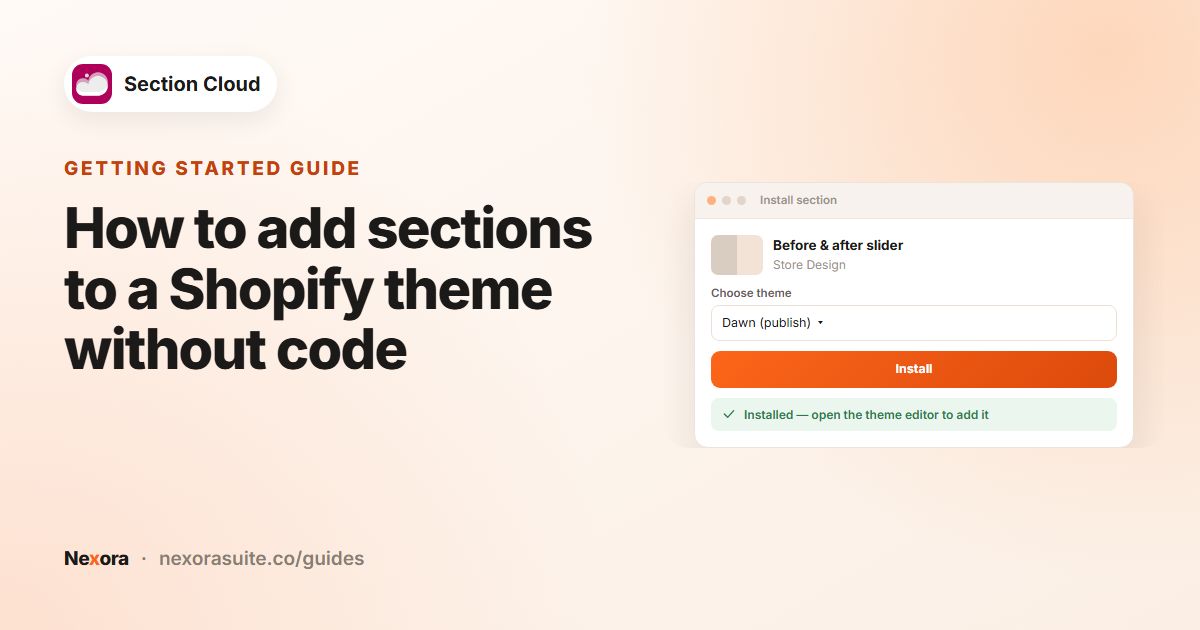 Related guideHow to add sections to a Shopify theme without code→
Buying paid sections
On the Free plan you can buy any paid section individually with a one-time payment. Once bought, it is yours to install whenever you like — there is no subscription.
- Click Purchase
On a paid section card, click Purchase.
- Choose how to unlock it
A window titled Get more value with Advanced compares a One-time purchase of this section with the Advanced plan. Click Buy for $… to buy only this section, or Try Advanced free to see the plans. Click Don't show this again to skip this window for the rest of your session.
- Approve the charge
Shopify shows its standard charge approval page. Approve it to complete the purchase. The charge appears on your Shopify bill.
- Install it
You return to My library with the Purchased list open and the message Section has been purchased. Click Install next to the section and choose a theme.
On the Advanced plan, every paid section is unlocked, so you will see Install instead of Purchase on all cards.
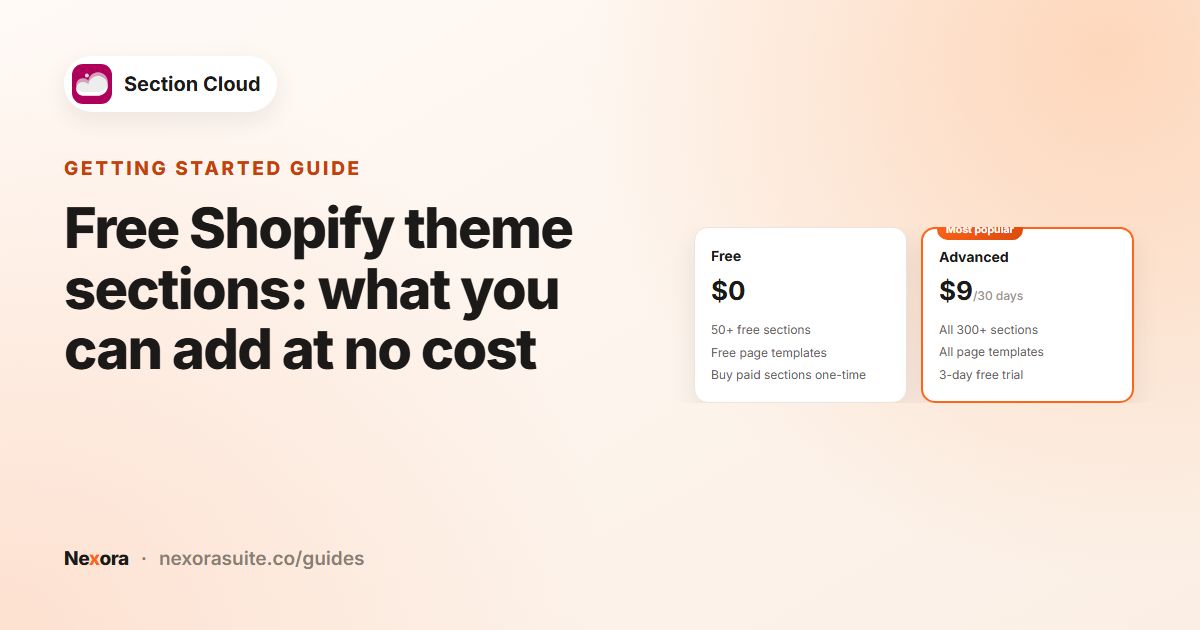 Related guideFree Shopify theme sections: what you can add at no cost→
Page templates
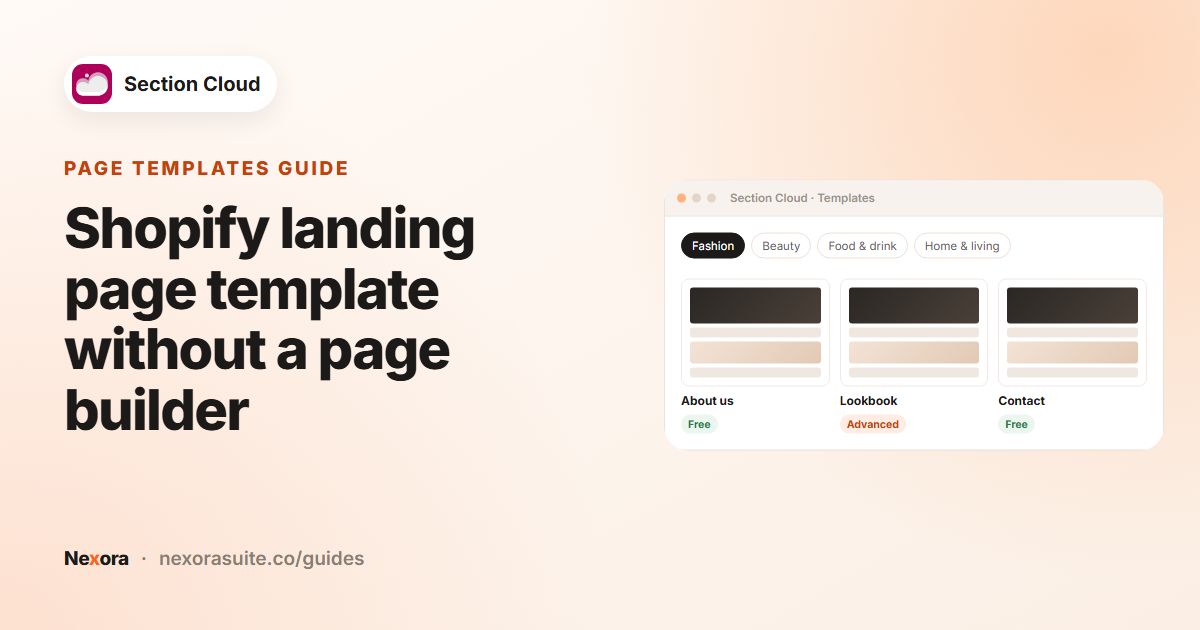
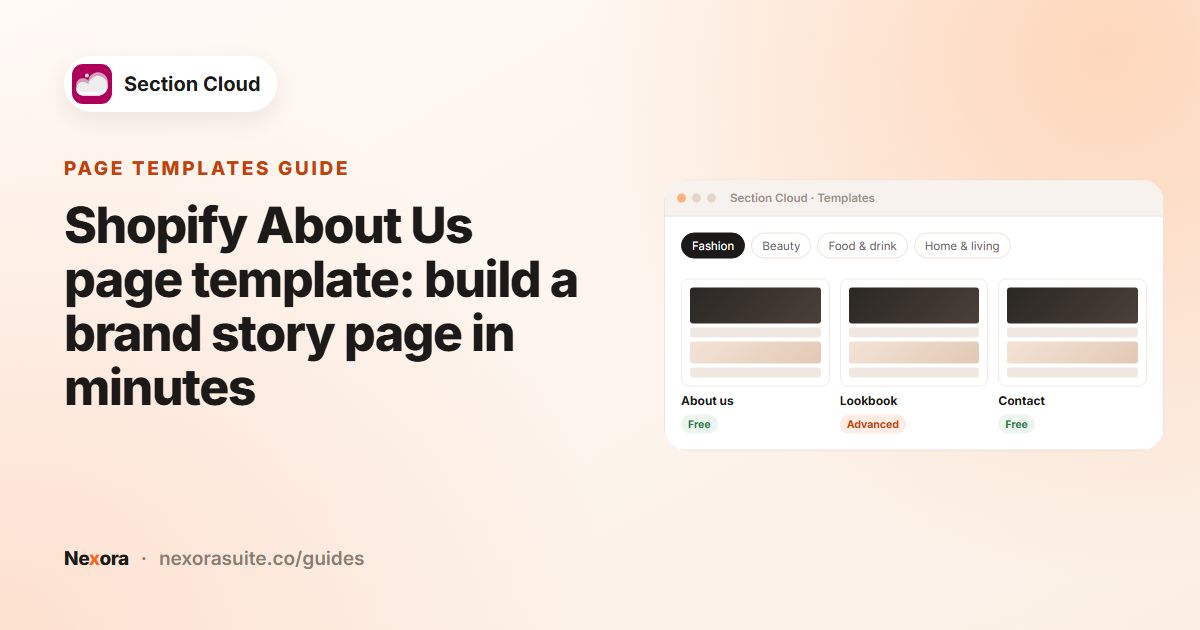
Open Templates to browse complete page designs. A template is a full page — for example a homepage-style landing page, About, Contact, FAQ or Lookbook page — made from several Section Cloud sections that are already arranged and styled together.
| Control | What it does |
|---|---|
| Categories sidebar | Filter templates by industry, such as Fashion, Shoes, Beauty, Food & drink, Electronics, and Home & living. |
| Search box | Type in Search your template... to find templates by name. |
| All / Free / Advanced chips | Filter by plan. Free templates can be installed on any plan; Advanced templates need the Advanced plan. |
| Card badges | Each card shows its plan (Free or Advanced) and how many sections it contains. |
| DEMO | Click the preview image to open a live demo of the template in a new tab. |
Installing a template
- Click Install
On a template card, click Install. If the template is Advanced and you are on the Free plan, the button reads Unlock with Advanced and takes you to Pricing.
- Choose a theme
In the Install window, choose the theme to install it on and click Install.
- View your new page
The app adds the template's sections to your theme and creates a new page at
/pages/sco-<template-name>. Click View page to open it on your storefront.
A template creates a new, separate page. It does not replace your store's homepage or change any existing page. To show it to customers, link to the new page from your navigation menu or from another page.
Templates are not sold individually. Installing a template also adds every section it uses to your library, so you can reuse those sections on other pages.
 Related guideShopify landing page template without a page builder→
My library
My library lists everything you have installed or bought. It has two tabs, each showing a count.
Sections tab
Use the Installed and Purchased toggles at the top of the tab to switch lists. The Price column shows Free, the price you paid, or Subscription when you are on the Advanced plan.
| Button | What it does |
|---|---|
| Install | Install the section on a theme — useful for adding it to another theme, or reinstalling it. |
| Delete | (Installed list only) Choose a theme and remove the section's file from it. If the section is placed on a page in that theme, remove it from the page in the theme editor first. |
Sections you have bought stay in the Purchased list, so you can install them again at any time.
Templates tab
Lists the templates you have installed and the date you installed each one.
| Button | What it does |
|---|---|
| Customize | Opens the theme editor on the template's page, so you can change its text, images and layout. |
| View page | Opens the page on your storefront. If the template is on an unpublished theme, the page opens in preview for that theme. |
| Delete | Removes the page and its template from the theme. The sections it used stay in your theme, because other pages may use them. |
 Related guideShopify About Us page template: build a brand story page in minutes→
App embed settings (fonts and layout)
The Section Cloud app embed holds a few shared style settings that apply to all Section Cloud sections in a theme. Turn it on from Home → Enable on theme, or in the theme editor under App embeds (the embed is called Sections Cloud). Changes are saved per theme.
| Setting | What it does |
|---|---|
| Use custom font | When on, Section Cloud sections use the fonts you pick below instead of their default fonts. Heading scale and body scale still work when it is off. |
| Heading font | Font for headings in Section Cloud sections (chosen from Shopify's font library). |
| Heading scale | Makes headings larger or smaller, from 50% to 150% (default 100%). |
| Body font | Font for body text in Section Cloud sections. |
| Body scale | Makes body text larger or smaller, from 50% to 150% (default 100%). |
| Page width | Maximum content width of Section Cloud sections, from 1000px to 1600px (default 1200px). |
| Space between sections | Vertical space between Section Cloud sections, from 0px to 100px (default 0px). |
Turn on the app embed on every theme where you install sections, so your font and layout choices are applied.
These settings only affect Section Cloud sections. Your theme's own sections keep the fonts and spacing from your theme settings.
 Related guideHow to customize sections in the Shopify theme editor→
Plans and billing
Open Pricing to see the plans and switch between Monthly and Annual (save 2 months) billing.
| Plan | Price | What you get |
|---|---|---|
| Free | $0 | 50+ free sections, free page templates, and the option to buy paid sections individually with a one-time payment. |
| Advanced | $9 / 30 days or $90 / year | All 300+ sections, all page templates, and new sections and templates as they launch. Includes a 3-day free trial. |
- To start the trial, click Start 3-day free trial on the Advanced plan and approve the subscription on Shopify's approval page.
- To cancel or downgrade, click Select on the Free plan and confirm with Downgrade. Cancelling during the trial means you are not charged.
- All charges — subscriptions and one-time section purchases — are billed through Shopify and appear on your Shopify invoice, in US dollars.
After downgrading to Free, you can no longer install paid sections or Advanced templates you have not bought individually.
 Related guideShopify page builder alternative: native theme sections vs page-builder apps→
Getting help
We are happy to help with installing, placing or styling sections.
- Live chat — click Chat with us on the app's Home page, or use the chat bubble inside the app.
- Email — write to [email protected].
To help us answer quickly, tell us the section or template name, the theme you installed it on, and the page where you see the problem.