What a testimonials section does
A testimonials section shows short quotes from real customers on a page of your store: what they bought, what they liked and who they are. Shoppers who have never heard of your brand look for signs that other people have ordered and been happy, and a few honest quotes near the place they decide often answer that question faster than any product copy.
Typical places to use one:
- Home page, below the hero, to set trust early for first-time visitors.
- Product pages, near the description, with quotes about that product.
- Landing pages for a campaign, where visitors arrive cold from an ad.
- About page, next to your story, so the brand and the people it serves sit together.
Only publish quotes your customers actually gave you, with their permission, and keep their wording. Do not invent reviews or edit them to say more than the customer said.
Your options on Shopify
Whether you already have a testimonial section depends on your theme. Some themes include one; others only offer a general multi-column section that you can bend into a row of quotes. Shopify's theme editor lets you add, reorder and hide any section your theme provides (see Sections and blocks).
| Option | Good for | Things to know |
|---|---|---|
| Your theme's own testimonial or multicolumn section | A simple row of quotes | Layouts and star ratings vary by theme; some themes have none. |
| A product reviews app | Collecting and showing reviews automatically | Reviews are gathered from buyers; you manage them in the app. |
| A testimonial section from Section Cloud | Hand-picked quotes in a designed layout | You type each quote yourself; it does not import reviews from other apps. |
A testimonial section and a reviews app can live side by side: the reviews app collects feedback on product pages, and a testimonial section shows a few chosen quotes on the home or landing page.
Testimonial styles in the library
The Testimonial category in Section Cloud holds many designs. They fall into a few families, so pick the one that matches how much space you have and how many quotes you want to show:
- Grids and cards — several quotes side by side, each with stars, the quote and the customer's name or job title.
- Sliders — one or a few quotes at a time with arrows or dots, with settings such as Slides to show, Slides to show - mobile and Autoplay delay.
- Scrolling rows — quotes that move across the page in a continuous line, with Speed and Reverse scrolling direction settings.
- Quotes with products — layouts where each testimonial block has a Product picker, so the quote links to the item the customer bought.
- Quotes with photos — blocks with an author image or a custom image, and in some layouts a Use verified icon option for verified buyers.
Add a testimonial section with Section Cloud
- Find a layout
Open Sections in the app and click the Testimonial category in the Categories sidebar, or type "testimonial" in Search your section.... Use the Free chip to see the ones you can install on the Free plan.
- Preview it
Click a card's preview image (marked DEMO) to see the layout live, including how it slides or scrolls on mobile.
- Install it on a theme
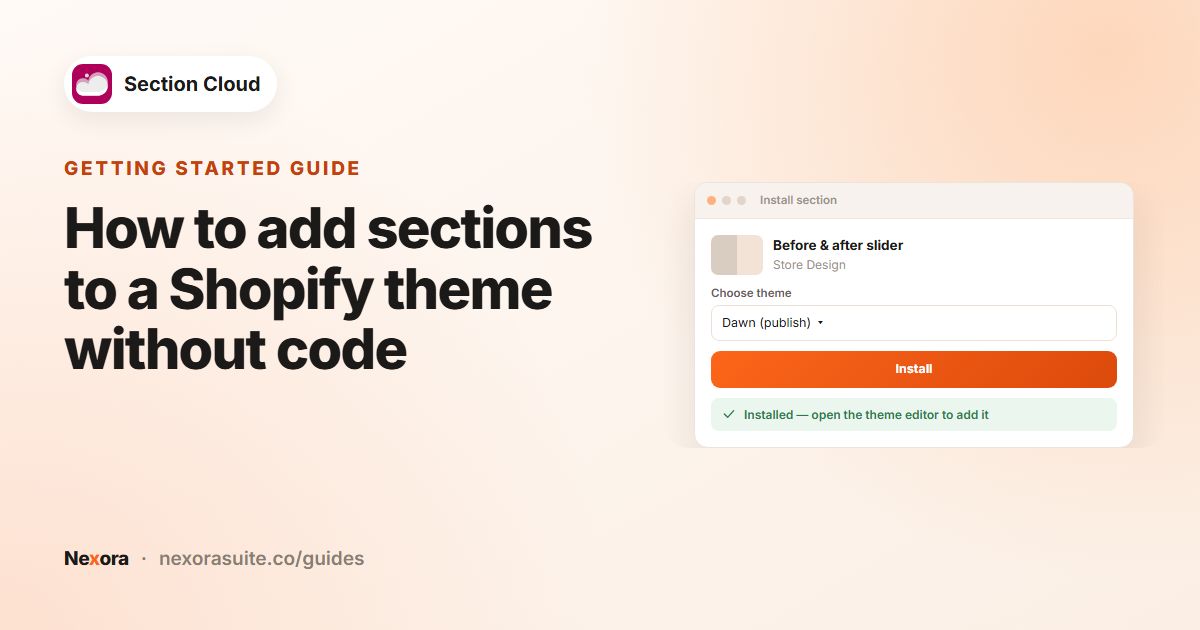
Click Install, choose a theme in Choose theme (your live theme is marked (publish)), and click Install. For a paid section, click Purchase first.
- Add it to a page
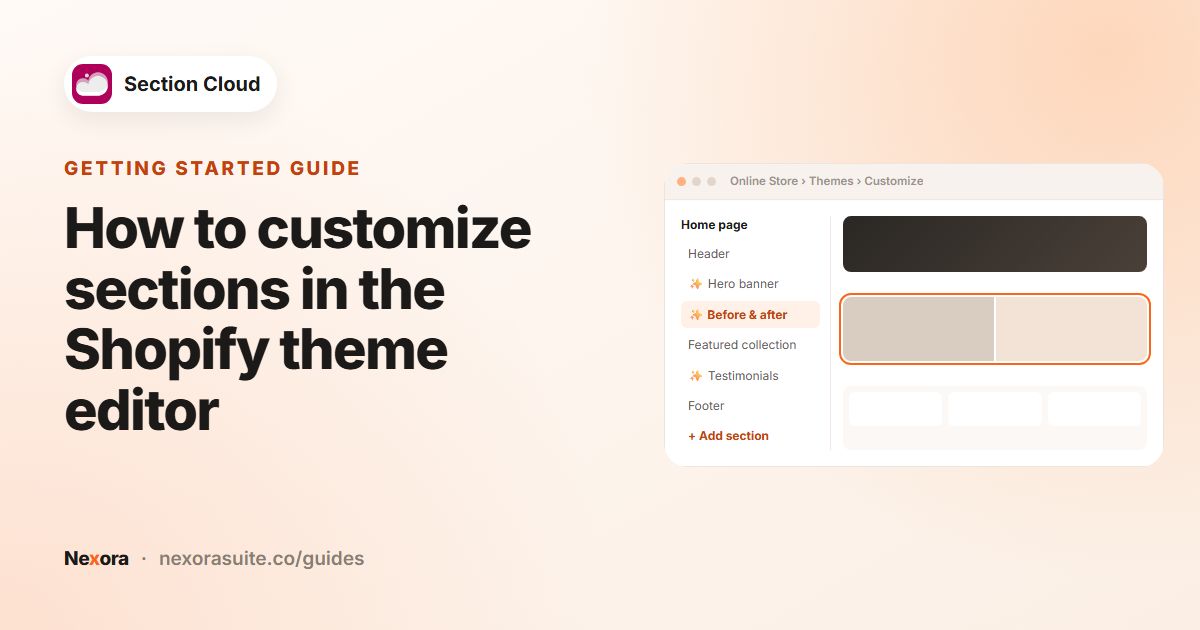
Click Customize in the success message. In the theme editor, open the page, click Add section and pick the section — its name starts with ✨ Testimonial in most cases.
- Replace the sample quotes
Click each testimonial block and enter your customer's quote, name and star count. Delete blocks you don't need or click Add block for more.
- Save
Click Save, then check the page on a phone.
Try the section on an unpublished copy of your theme first (Duplicating themes). Nothing changes on your live store until you publish it.
Settings you will see in the theme editor
Exact fields differ by layout, but these are the ones you will meet most often in testimonial sections:
| Setting | Where | What it does |
|---|---|---|
| Heading | Section | Title above the quotes, for example "What our customers say". |
| Stars count / Star rating | Each block | How many stars to show for that quote. |
| Stars icon | Section or block | Swap the default star for your own icon image. |
| Author, Job title, author's image | Each block | Who said it. Use first name and city if the customer prefers. |
| Product | Each block (some layouts) | Links the quote to the product it is about. |
| Slides to show, Autoplay delay | Section (sliders) | How many quotes are visible and how fast they change. |
| Show on desktop / Show on mobile | Section or block | Hide an element on one screen size. |
| Colors, padding, margin | Section | Background, text and star colors, and spacing around the section. |
Example: a home page trust strip
A skincare store wants a row of quotes right under its hero. It installs a grid-style testimonial layout and fills it like this:
- Heading: "From our customers"
- Block 1: 5 stars, a two-sentence quote from a customer email, "Anna, Leeds", linked to the night cream product.
- Block 2: 5 stars, a quote from a post-purchase survey, "Marcus, Bristol".
- Block 3: 4 stars, an honest quote that mentions one small drawback — a mix of ratings tends to read as more believable than a wall of perfect scores.
On mobile the grid stacks, so the store keeps each quote under about 40 words. The same section is then added to the night cream product page with three quotes about that product only.
Tips and common mistakes
- Lead with specifics. "Arrived in two days and the fit was right first time" says more than "Great!"
- Keep three to six quotes visible. More than that and visitors stop reading.
- Match quotes to the page: product-specific quotes on product pages, brand-level quotes on the home page.
- If you use autoplay on a slider, give people enough time to read each slide.
- Use the Sections Cloud app embed to match the section's fonts to your theme (see the docs).
- Update quotes every few months so the section does not look abandoned.
Frequently asked questions
Does the testimonial section pull reviews from my reviews app automatically?
No. You type each quote into a block in the theme editor. If you use a reviews app, pick your best customer reviews and copy them in, with permission.
Can I show a different set of quotes on each page?
Yes. Add the same section to several pages; each placement has its own blocks and content.
Are there free testimonial sections?
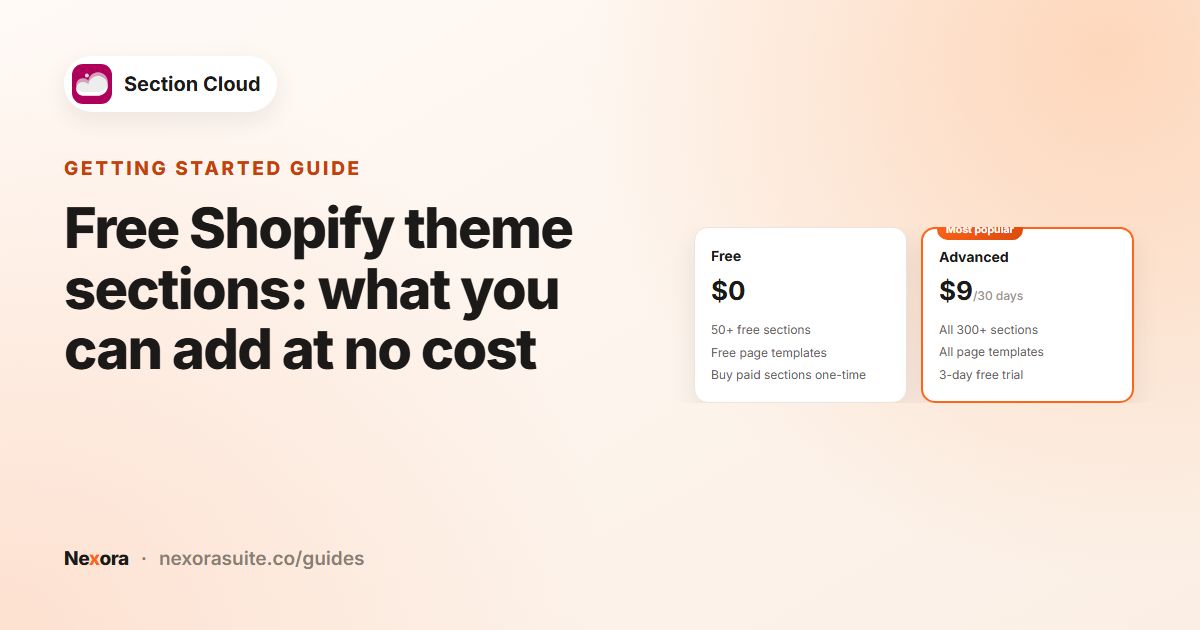
Yes, some testimonial layouts are free. Click the Free chip in Sections to see them. Paid layouts can be bought once or unlocked with the Advanced plan.
How do I make the slider stop moving?
In slider layouts, look for the autoplay settings in the section panel and turn autoplay off or increase the delay.
What happens to my testimonials if I uninstall the app?
The section files stay in your theme, so the quotes keep showing, but the app embed's font and layout styling is removed, so they may look slightly different.