What adding a section actually means
A Shopify theme is built from sections: full-width pieces of a page such as a hero banner, a featured collection, a testimonial slider or an FAQ. In an Online Store 2.0 theme you can add, remove and reorder sections on most pages from the theme editor, without touching code.
The catch is that you can only add the sections your theme already contains. If your theme has no comparison table, before/after slider or store-locations section, the Add section list simply won't offer one. To get a new kind of section you need a new section file in the theme. Traditionally that meant a developer writing Liquid code; a section app installs that file for you.
Shopify explains how sections and blocks work in its Help Center: Sections and blocks. Each template can hold up to 25 sections.
Your options on Shopify
| Option | What you get | Good to know |
|---|---|---|
| Your theme's own sections | Everything your theme ships with, added via Add section | Free and native, but limited to what the theme designer included. |
| Hire a developer | A section written specifically for your theme | Fully tailored, but costs time and money, and later edits may need the developer again. |
| Install sections from an app | Ready-made sections added to your theme as native section files | No code. You still edit everything in the normal theme editor. |
| Page-builder app | A separate editor for building whole pages | Flexible, but you work outside the theme editor. See page builder alternatives. |
If you are happy with your theme overall and just need a few extra building blocks, installing native sections is usually the lightest option: the new sections appear in the same Add section list as your theme's own.
Step by step: add a section with Section Cloud
- Back up your theme (recommended)
In Shopify admin go to Online Store → Themes, click … on your live theme and choose Duplicate. You can install sections on the copy and publish it when you are happy. See Duplicating themes.
- Turn on the app embed
Open Section Cloud. On Home, under Activate app embed, click Enable on theme and pick your theme. Make sure Sections Cloud is switched on in App embeds, then click Save.
- Find a section
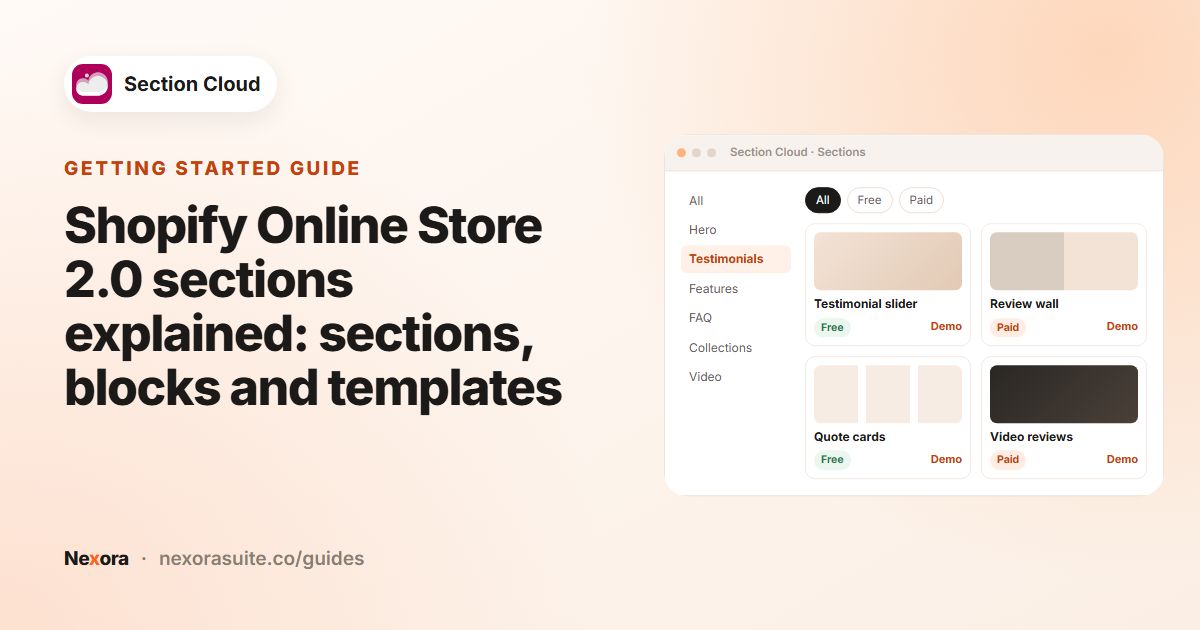
Open Sections. Pick a category in the Categories sidebar, type in Search your section..., or click the Free chip. Click a card's preview image (marked DEMO) to see a live demo first.
- Install it
Click Install. In Choose theme, pick the theme (your live theme is marked (publish)) and click Install.
- Open the theme editor
When the success message appears, click Customize.
- Add it to a page
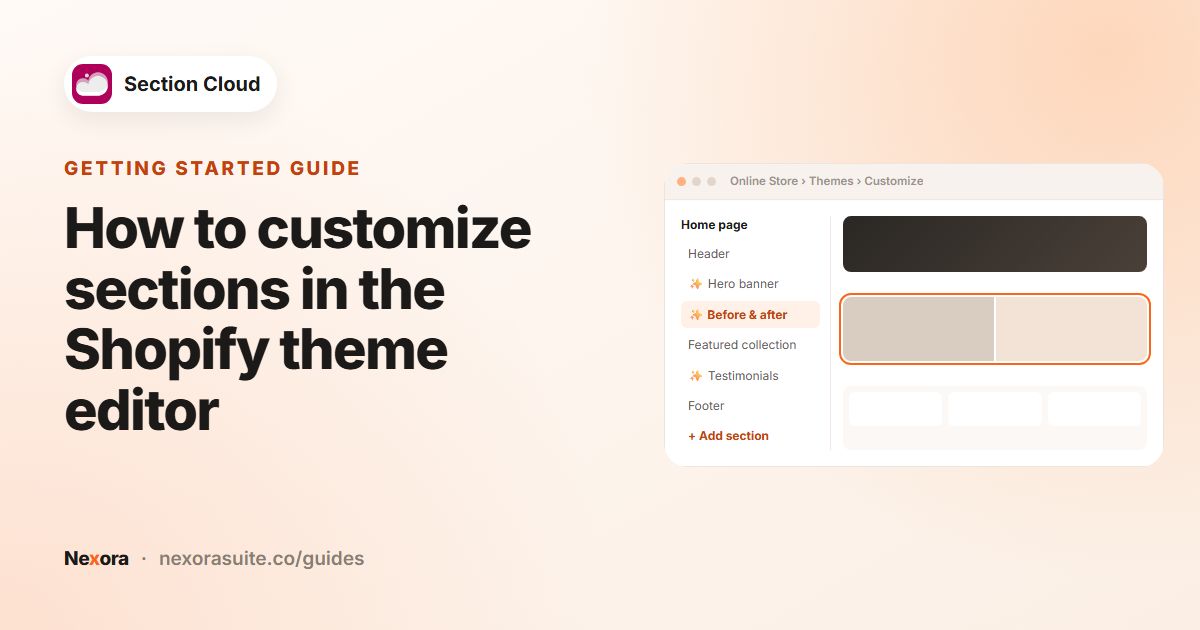
Use the page selector at the top of the theme editor to open the page you want, click Add section, and choose the section by name. Most Section Cloud names start with a ✨ sparkle.
- Edit and save
Replace the sample text and images, adjust colors and layout, drag the section into position in the sidebar, and click Save.
Installing only adds the section to your theme's list of available sections. Nothing shows on your store until you add it to a page in the theme editor and save.
Where you can place sections
| Page in the theme editor | Typical sections to add |
|---|---|
| Home page | Hero banner, featured collection, testimonials, logo cloud, newsletter |
| Product pages | FAQ, comparison table, before/after images, guarantee |
| Collection pages | Banner above the grid, FAQ or text block below it |
| Pages (About, Contact, etc.) | Image with text, timeline, team members, contact form, map |
Once a section is installed in a theme, you can add it to as many pages as you like, each copy with its own content.
Example: adding a testimonials section to the homepage
- In Sections, click the testimonial category and open a few demos.
- Install your favourite on a duplicate of your live theme.
- Click Customize, stay on Home page, click Add section and choose the ✨ testimonial section.
- Replace the sample quotes with real customer reviews, set the background color to match your brand, and drag the section below your featured collection.
- Preview on desktop and mobile, click Save, then publish the duplicate theme when you're ready.
For more ideas, see testimonials sections and FAQ sections.
Tips and common mistakes
- Not seeing your section? Check you installed it on the same theme you are editing. The theme name shows at the top of the theme editor.
- Switched themes? Sections live inside one theme. Reinstall them on the new theme from My library → Sections.
- Fonts look off? Open the Sections Cloud app embed and turn on Use custom font to match your theme's fonts. See customizing sections.
- Vintage theme? Older themes only allow sections on the homepage. Sections need an Online Store 2.0 theme.
- Removing a section later: remove it from pages in the theme editor first, then delete it in My library.
Frequently asked questions
Do I need to know how to code to add a section?
No. Section Cloud installs the section file into your theme for you; you then add and edit it in the theme editor like any built-in section.
Why can't I find the section after installing it?
Installing doesn't place it on a page. Open the theme editor on the same theme, click Add section, and look for the name, which usually starts with ✨.
Can I add sections to product and collection pages?
Yes, on an Online Store 2.0 theme you can add sections to most templates, including product, collection and custom pages.
Will adding a section change my live store straight away?
Only if you install on your live theme and save the change in the theme editor. Installing on a duplicate theme keeps your live store unchanged until you publish it.
Is there a limit to how many sections I can add?
Shopify allows up to 25 sections per template. Within that, you can reuse an installed section as often as you like.