The three layers: templates, sections and blocks
| Layer | What it is | Example | Where you edit it |
|---|---|---|---|
| Template | The layout for one type of page: which sections it uses and in what order | Home page, Default product, a custom page template | Page selector at the top of the theme editor |
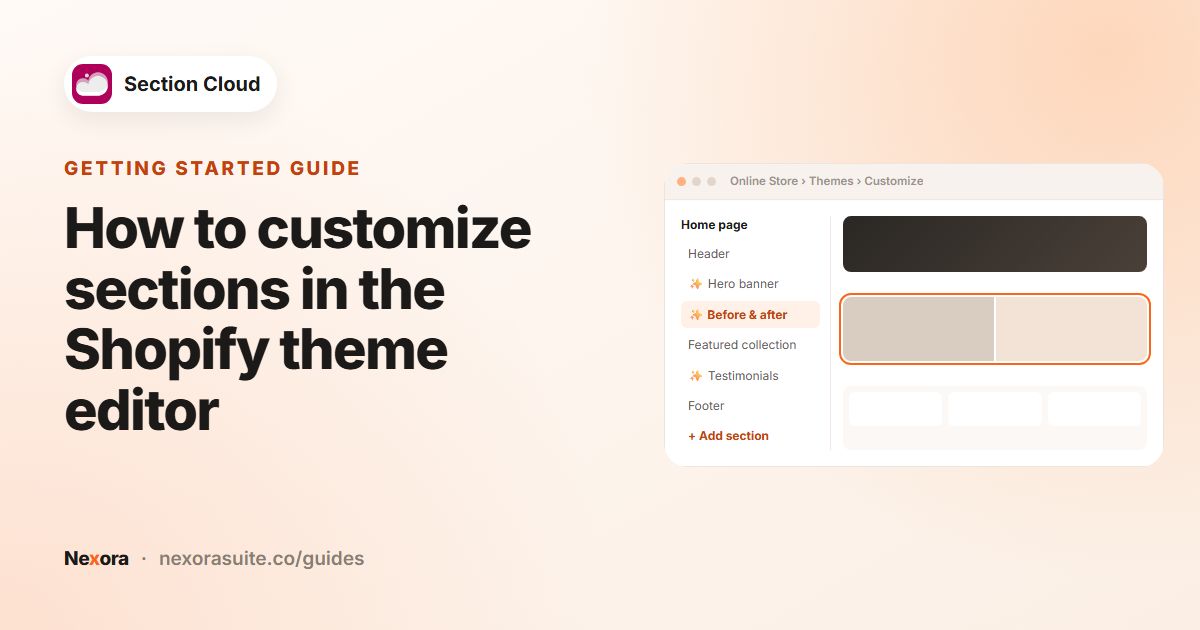
| Section | A full-width, reusable building block with its own settings | Hero banner, featured collection, FAQ | Click it in the editor sidebar |
| Block | A repeatable item inside a section | A slide, a question, a testimonial, a product | Expand the section in the sidebar |
Think of a template as the page's recipe, sections as its ingredients, and blocks as the individual pieces inside each ingredient. Shopify documents the details in Sections and blocks.
Shopify's current limits: up to 25 sections per template and up to 1250 blocks across all sections in a template.
What changed with Online Store 2.0 and JSON templates
In older (vintage) themes, only the homepage was built from sections you could rearrange. Other pages were fixed Liquid templates, so adding something to a product page meant editing code.
Online Store 2.0 themes use JSON templates. A JSON template is a small file that lists sections and their settings, for example templates/product.json or templates/page.contact.json. The theme editor reads and writes these files, which is why you can add sections to product, collection, blog and custom pages without code.
- Sections everywhere — add and reorder sections on most page types, not only the homepage.
- Multiple templates per page type — for example a second product template for bundles, or a special page template for your About page. See Templates.
- App blocks and app embeds — apps can add features to the theme without editing theme code. See Apps in themes.
Where app-installed sections live
Apps extend themes in different ways. Section Cloud uses two:
| Part | Where it lives | What it does |
|---|---|---|
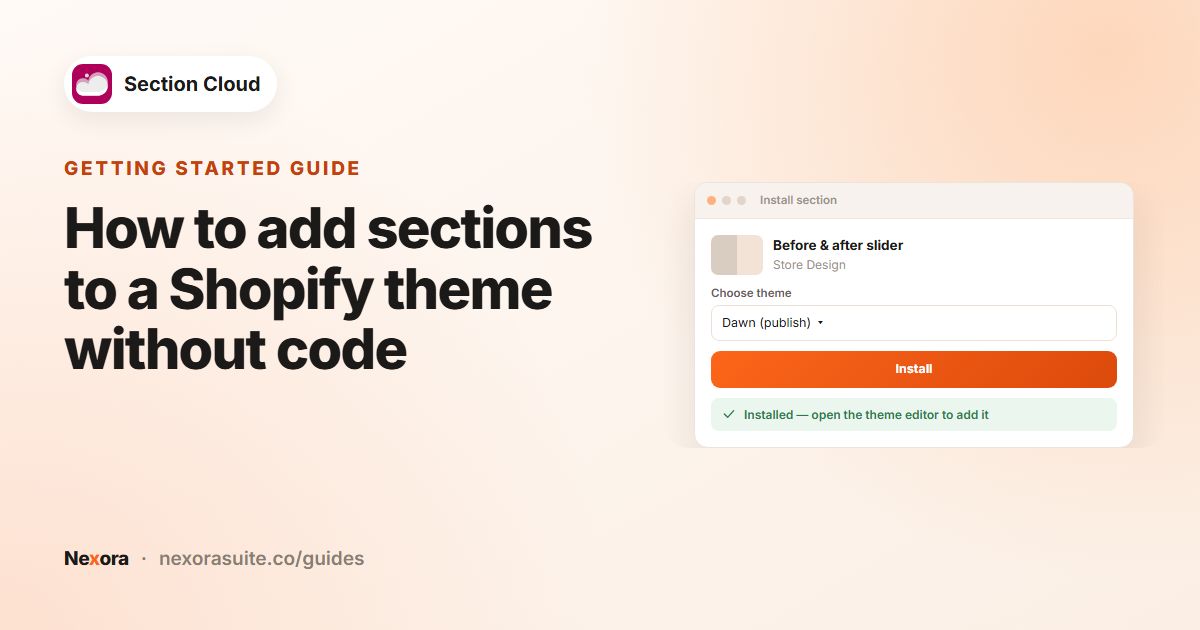
| Section files | Your theme's sections folder, as files named sco-<section>.liquid | Each installed section becomes a native theme section that appears in Add section. |
| Page template files | Your theme's templates folder, as page.sco-<template>.json | Created when you install a page template; a new page uses it. |
| App embed | App embeds in the theme editor, called Sections Cloud | Shared fonts, heading and body scale, page width and spacing for Section Cloud sections. |
Because the sections are real theme files, they belong to one theme. If you install on a duplicate theme, your live theme is unchanged; if you change themes, reinstall the sections from My library.
If you uninstall the app, the section files stay in your theme so pages keep showing, but the app embed's styling (custom fonts and layout settings) is removed, so sections may look slightly different.
How a page template fits in
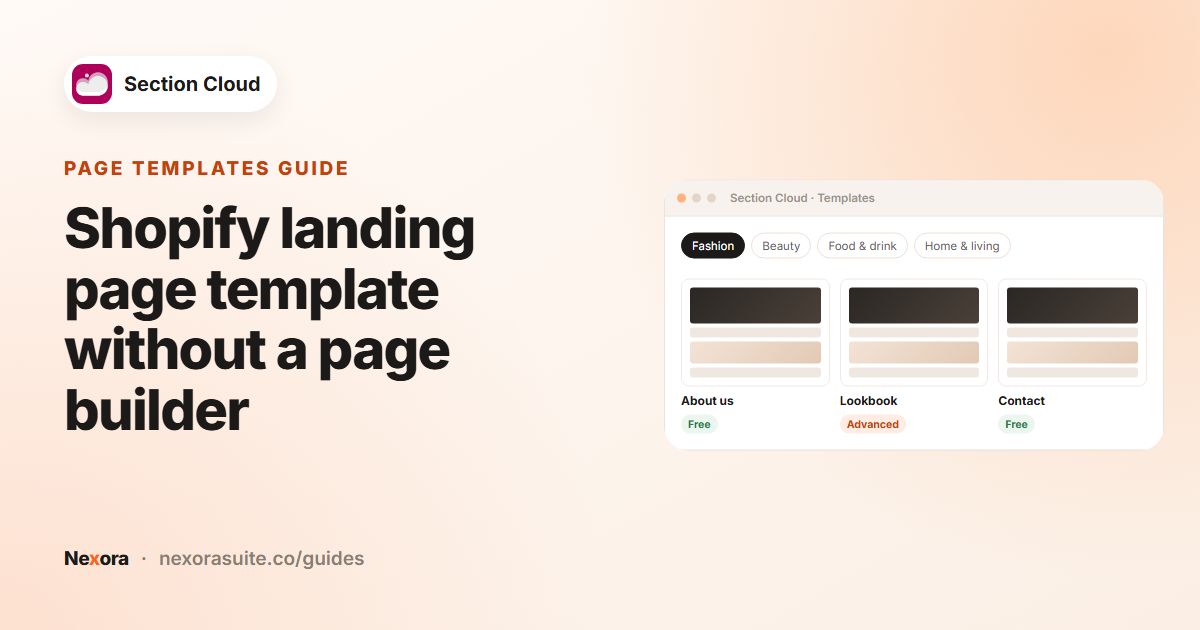
A Section Cloud page template is a ready-made JSON template plus the sections it uses. When you install one, the app writes the section files and the template file to the theme you choose, then creates a new Online Store page at /pages/sco-<template-name> assigned to that template.
- It never replaces your homepage or changes existing pages.
- You edit the new page in the theme editor like any other template: My library → Templates → Customize.
- The sections it installs can be reused on other pages, for example your real homepage.
How to check if your theme supports sections everywhere
- Open the theme editor
Go to Online Store → Themes and click Customize on your theme.
- Switch to a product page
Use the page selector at the top and choose a product template.
- Look for Add section
If you can click Add section in the template area of the product page, your theme uses JSON templates (Online Store 2.0). If you can only add sections on the homepage, it's a vintage theme.
Current versions of Shopify's free themes, such as Dawn, are Online Store 2.0 themes. If you're on an older paid theme, check with its developer whether an Online Store 2.0 version is available. Section Cloud sections need an Online Store 2.0 theme.
Common misunderstandings
- "I installed a section, so it's on my store." Installing adds it to the theme; you still need to add it to a template and save.
- "Editing a section on one page changes it everywhere." Not for template sections: each placement has its own settings. Header and footer sections are shared across pages.
- "A new page template will replace my homepage." It creates a separate page you link to from your menu.
- "Blocks and sections are the same." Blocks live inside a section; you can't drag a block out into another section.
Frequently asked questions
What is the difference between a section and a block?
A section is a full-width part of a page with its own settings. Blocks are the repeatable items inside it, such as slides or FAQ questions.
What is a JSON template in Shopify?
It's a file that lists which sections a page type uses, in what order, with their settings. The theme editor edits it for you.
Where do Section Cloud sections get installed?
Into the theme you choose, as section files starting with sco-. They then appear under Add section in the theme editor.
Do app sections work on vintage themes?
Section Cloud needs an Online Store 2.0 theme, where you can add sections to any page in the theme editor.
Do I lose my sections if I switch themes?
Sections belong to one theme. Reinstall them on the new theme from My library, then add them to pages again.