What a landing page is, and why build it natively
A landing page is a focused page you send a specific audience to: a sale, a new collection launch, an ad campaign or an influencer link. Unlike your homepage, it has one goal, so it usually has one main message, one main offer and one clear button.
Building it from native theme sections means the page is part of your theme. It uses your header, footer, cart and fonts, it is edited in the same theme editor as the rest of your store, and there's no separate editor to learn.
Your options
| Option | How it works | Trade-off |
|---|---|---|
| Theme editor + your theme's sections | Create a new page template in the theme editor, add sections, assign it to a page | Free and native, limited to your theme's sections |
| Theme editor + installed sections | Same, but with extra sections such as countdown timers or comparison tables added from an app | Still native; you build the layout yourself |
| Install a ready-made page template | A complete multi-section page created for you as a new page | Fastest start; you swap in your content |
| Page-builder app | Drag-and-drop editor outside the theme editor | Very flexible, but a separate tool. See page builder alternatives. |
Shopify explains custom page templates in Templates.
Step by step: create a landing page from a template
- Pick a template
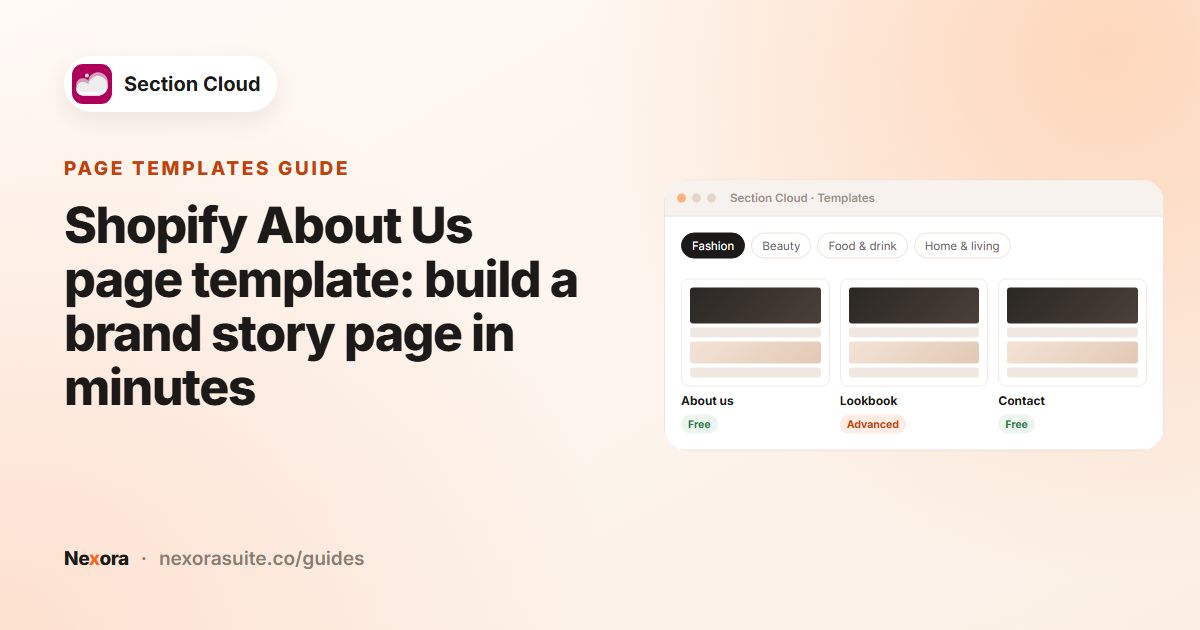
Open Templates. Filter by industry in the Categories sidebar, or search in Search your template... for words like "home", "sale" or "offers". Homepage-style templates work well as campaign landing pages.
- Preview it
Click the preview image (marked DEMO). Check the card's plan badge (Free or Advanced) and section count.
- Install on a theme
Click Install, choose a theme and click Install. The app adds the sections and template to that theme and creates a new page at
/pages/sco-<template-name>. - Customize
In My library → Templates, click Customize. Replace the hero image and headline with your campaign message, point buttons to the right collection, and remove sections you don't need.
- Rename the page
In Online Store → Pages, open the new page and give it a clear title, for example "Summer Sale".
- Share the URL
Click View page, copy the URL and use it in your ads, emails or social bio. Add it to your menu only if it should be visible to everyone.
The template creates a new page and does not replace your homepage. If you want the same look on your real homepage, add the template's sections to Home page in the theme editor; they're already installed in your theme.
A landing page structure that works
| Order | Section | Purpose |
|---|---|---|
| 1 | Hero | Headline, offer and one main button |
| 2 | Featured collection | The products in the campaign |
| 3 | Countdown timer | The sale's real end date (only for genuine deadlines) |
| 4 | Comparison table or features | Why this product or bundle |
| 5 | Testimonials | Real customer quotes |
| 6 | FAQ | Shipping, returns and sizing questions |
| 7 | Newsletter or second call to action | Catch visitors who aren't ready to buy |
Editing the key landing page sections
Settings differ between sections, but these are the ones you'll change on most landing pages. Click a section in the theme editor sidebar to see them.
Hero
Write your offer in Heading and Description, and point Button 1 label and Button 1 link at the campaign collection. Upload Image (desktop) and a separate Image (mobile), set the Image focal point so faces or products aren't cropped, and raise Overlay opacity if white text is hard to read. Some heroes also take a Background video URL or an uploaded video.
Countdown with discount tiers
Type the End date as YYYY-MM-DD HH:MM, for example 2026-11-28 23:59. Each Discount tier block has a Discount amount, a Condition (for example On orders over $200), a Discount code and Highlight this tier. Shoppers click a tier to copy its code, so create the same codes in Discounts in your Shopify admin first.
Products and newsletter
In product sliders built from Product blocks, pick each campaign product in its block and set the Link of the View all label to the full sale collection. In a newsletter section, edit Heading, Input placeholder, Button label and Success message; sign-ups are added to Customers in your Shopify admin with the tag newsletter.
Example: a Black Friday landing page
- Install a sale-style or homepage-style template on a duplicate of your live theme in early November.
- Hero: "Black Friday: 25% off everything" with a Shop the sale button.
- Countdown timer: set to the real end of your sale.
- Featured collection: your sale collection.
- FAQ: delivery cut-off dates and return window.
- Use the ✨Template Styles section to switch the page's color schemes to your sale colors in one place.
- Publish the theme the day the campaign starts and send your email with the page URL.
Second example: a product launch page without a deadline
- Hero: "Meet the Trail Pack" with a background video and one Pre-order now button.
- Image with text: three photos of the pack in use, with a short paragraph on what is new.
- Comparison table: the new pack against last year's model.
- Testimonials: quotes from early testers.
- FAQ and newsletter: shipping dates, plus a sign-up for launch news.
There's no countdown here on purpose: a timer only belongs on the page when there is a real end date.
See also countdown sections and hero banners.
Tips and common mistakes
- One goal per page. Remove sections that send visitors elsewhere.
- Check mobile first. Visitors from social and email links often arrive on phones; use each section's mobile image and size settings.
- Remember Shopify's limit of 25 sections per template.
- Match your brand with the Sections Cloud app embed (fonts, scale, page width, spacing).
- Clean up after the campaign: delete the template in My library or unlink the page from menus.
Troubleshooting
- The countdown shows all zeros. The End date is in the past or not in the
YYYY-MM-DD HH:MMformat. The timer counts down in each visitor's own time zone. - A copied code doesn't work at checkout. The tier only copies the text; the code must exist and be active in Discounts.
- The page looks different from the demo. Check the ✨Template Styles section at the top of the page if it has one, and whether a section has Use this section's own colors ticked.
- A product slider shows sample products. Blocks without a chosen product show placeholder names and prices; pick a product in each block.
Frequently asked questions
Can I build a Shopify landing page without a page builder?
Yes. On an Online Store 2.0 theme you can build one from native sections in the theme editor, or install a ready-made template that creates the page for you.
Will the landing page template become my homepage?
No. It's a new page at /pages/sco-<template-name>. You can add its sections to your homepage separately if you like.
Can I have several landing pages?
Yes. Each template you install creates its own page, and you can reuse installed sections on other page templates you create in the theme editor.
Can I remove sections from the template?
Yes. In the theme editor, hide or remove any section and add others with Add section.
What happens to the page if I delete the template?
Delete in My library removes the page and its template. The sections stay in your theme.
Where do newsletter sign-ups from the landing page go?
To Customers in your Shopify admin, tagged newsletter, like your theme's own newsletter form.