What a hero banner is for
The hero is the first thing visitors see. In a few seconds it should tell them what you sell and where to click next. A good hero is less about decoration and more about clarity: one message, one main action, and an image that shows the product or the result.
- Home page — introduce the brand and send people to a best-selling collection.
- Landing pages — match the message of the ad that brought the visitor.
- Collection or seasonal pages — set the mood for a new range.
Options on Shopify
Shopify's free themes usually include image banner and slideshow sections, which are a solid starting point. Section Cloud adds more hero designs when you want a specific layout, such as a split hero with text on one side, a video background, a rating line under the headline or small feature badges.
| Hero style | Description | Good for |
|---|---|---|
| Full-width image | One image behind the heading and buttons, with an Overlay to keep text readable | Strong lifestyle photography |
| Split hero | Image on one side, text on the other; Image placement sets which side | Products that need a few words of explanation |
| Video hero | A Video from Shopify or video link plays behind or beside the text | Products that are best seen in motion |
| Hero with extras | Rating blocks, feature lists, badges or cards under the heading | Adding trust signals above the fold |
| Slider hero | Several slides with autoplay and transition settings | Several campaigns at once |
Set up a hero banner step by step
- Pick your message
Write one headline (under about eight words), one supporting line, and one button label such as "Shop bestsellers".
- Choose a hero layout
In the app, open Sections and pick the Hero category (or banners), or search "hero". Preview each with the DEMO link.
- Install it
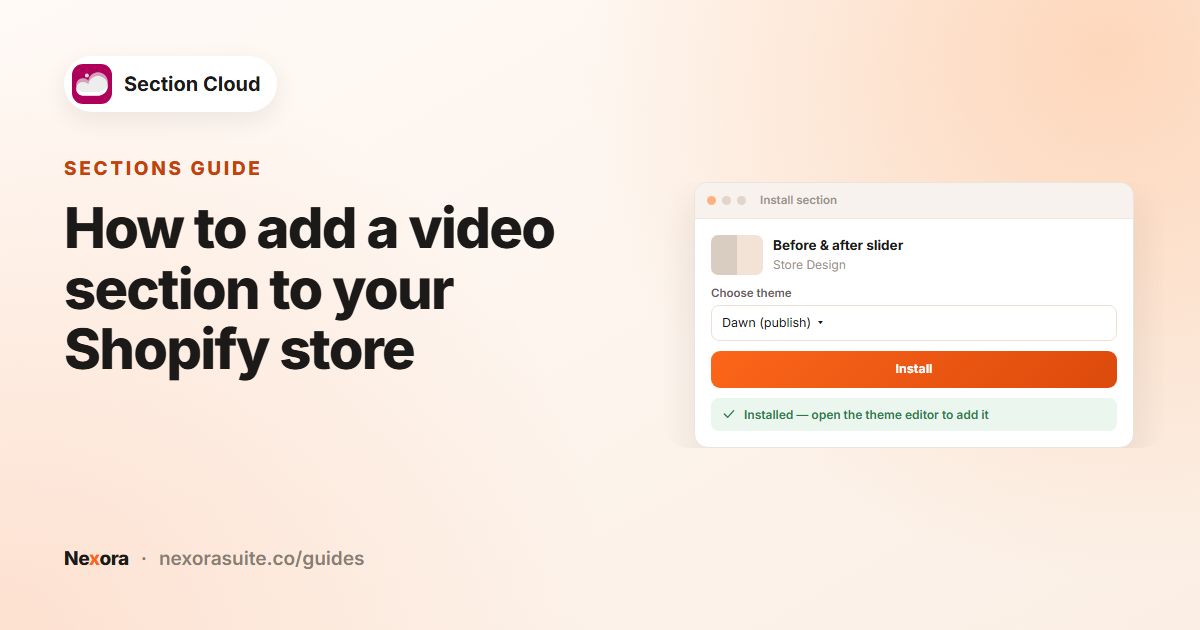
Click Install or Purchase, choose the theme, click Install, then Customize.
- Place it at the top
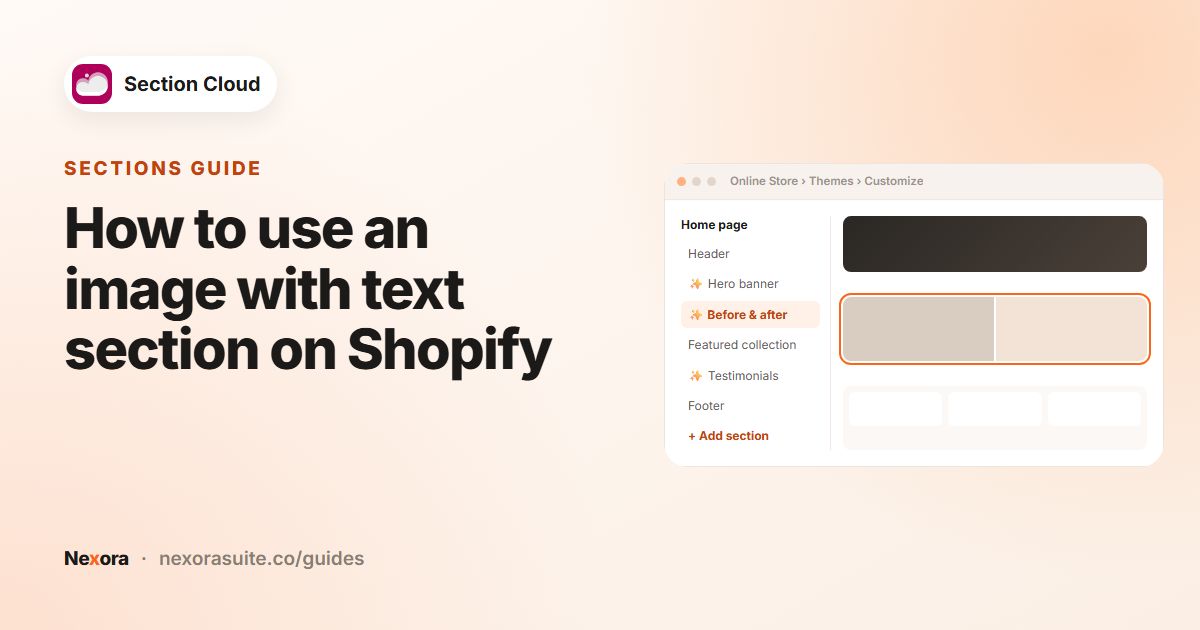
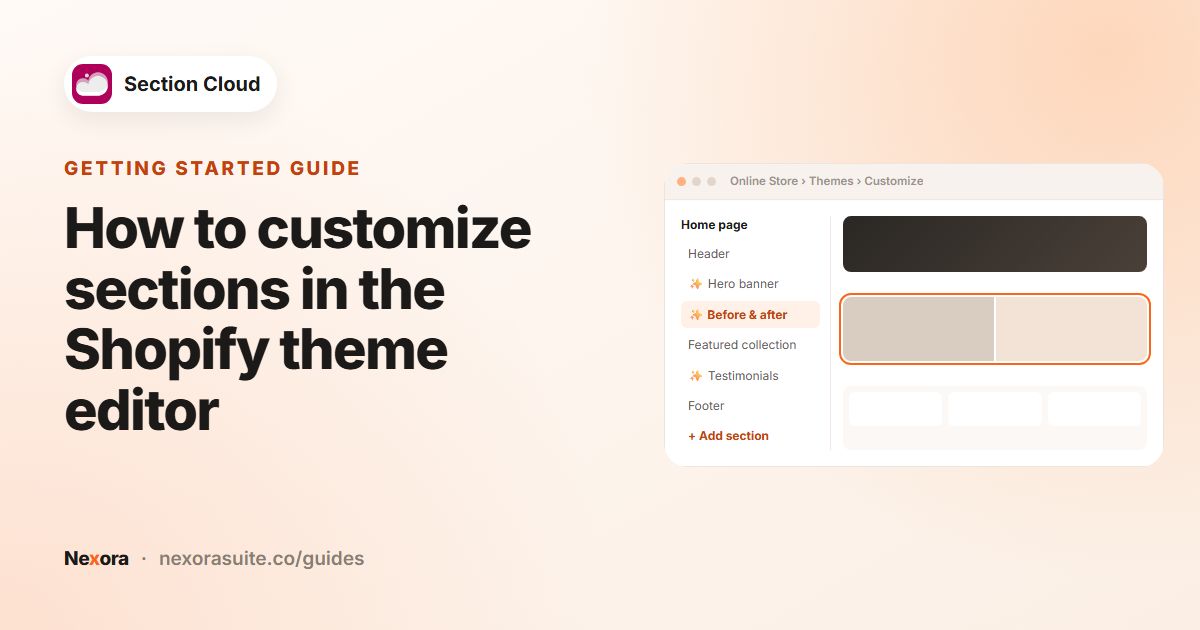
In the theme editor, click Add section, choose the hero, and drag it to the top of the page. Hide the old banner if you are replacing it.
- Upload images
Set the Image, and an Image - mobile if the layout offers one, cropped for a tall phone screen.
- Set height and overlay
Choose Height (for example Full screen, Fixed height or Auto) and adjust Overlay until the text is easy to read.
- Add text and buttons
Edit the heading, text and button blocks, link the button, then click Save.
Hero settings at a glance
| Setting | What it does |
|---|---|
| Image / Image - mobile | Background or side image, with a separate crop for phones. |
| Video from Shopify / Video embed from URL | Video instead of an image, in video layouts. |
| Height, Fixed height, Fixed height - mobile | How tall the hero is on each device. |
| Overlay (strength and color) | Darkens or tints the image behind text. |
| Vertical align / Vertical align - mobile | Places the text at the top, center or bottom. |
| Image placement | In split layouts, image left or right; on mobile, image or text on top. |
| Heading, Text and Button blocks | The message and the call to action, with Button style. |
| Autoplay delay, Transition speed | In slider heroes, how quickly slides change. |
Example: a homewares hero
- Layout: split hero, image on the right on desktop and on top on mobile.
- Heading: "Linen bedding, washed for softness".
- Text: "Free delivery on orders over $80" (use your real offer).
- Primary button: "Shop bedding" → the bedding collection. Secondary button: "Find your size" → the size guide page.
- Image - mobile: a tighter crop of the same bed so the product stays visible.
The previous slideshow with four slides is hidden; the store finds one clear message easier to keep up to date.
Tips and common mistakes
- One message beats four rotating ones. If you use a slider, keep it to two or three slides.
- Always set a mobile image when the layout allows it; desktop crops often cut off the product on phones.
- Make the button say where it goes ("Shop bedding"), not just "Learn more".
- Keep text off busy parts of the image, or raise the overlay.
- Compress large images before uploading.
- Match fonts to your theme with the Sections Cloud app embed (docs).
Frequently asked questions
What size should a Shopify hero image be?
It depends on the layout and height you choose. Use a wide, high-quality image for desktop and, where the section allows, a separate taller image for mobile, then preview both.
Can I use a video as my hero?
Yes. Some hero and video banner sections accept a Video from Shopify or a video link.
Will installing a hero replace my current banner?
No. Installing adds the section to your theme. You add it to the page in the theme editor and can hide or remove the old banner yourself.
Can I use a hero on pages other than the home page?
Yes. Add it to any page, collection or landing page template in the theme editor.
Are there homepage templates with a hero already set up?
Yes. The Templates page has homepage-style templates. Installing one creates a new page, and its sections become available to add to your real home page.