What a video section can do for a store
Video shows what photos can't: how a fabric moves, how a gadget folds, how a serum feels, how big a bag really is. Short clips also let your customers' own videos — shared with permission — do some of the explaining.
- Brand story at the top of the home page, as a looping background video behind a headline.
- How-to clips next to a product's benefits, using a video-with-text layout.
- Social-style clips in a horizontal slider, similar to the short videos customers already watch.
- Shoppable videos, where a product is attached to each clip.
Options on Shopify
Most Online Store 2.0 themes include a basic video section that plays a YouTube or Vimeo link or a video uploaded to Shopify. That covers a single embedded video well. Merchants look for more when they want several clips in a row, text beside the video, a background video behind a headline, or a product attached to a clip.
You can upload video files in Content → Files in your Shopify admin; Shopify lists the supported formats and size limits in Files.
| Section Cloud type | What it looks like | Typical settings |
|---|---|---|
| Video banner | Full-width video behind a heading and buttons | Shopify-hosted video or YouTube URL, height, overlay, first and second button |
| Video with text | Video on one side, heading, text and button on the other | Media Position - Desktop, Media Position - Mobile, autoplay, loop, controls |
| Video slider / video socials | A row of short vertical clips that slides | Slides per view, aspect ratio, play and mute buttons |
| Shoppable video | Clips with a product attached | Product per clip, variants, add-to-cart options |
| Video grid and columns | Several videos or images in columns or a slider | Cards per row, layout (Columns / Slider) |
Add a video section step by step
- Prepare the video
Trim it to the useful part, and upload it to Content → Files, or have its YouTube/Vimeo link ready. For background banners, use a short clip with no important sound.
- Choose a layout
In the app, open Sections and pick a video category (for example video banners, video with text or video sliders) or search "video". Watch each DEMO.
- Install it
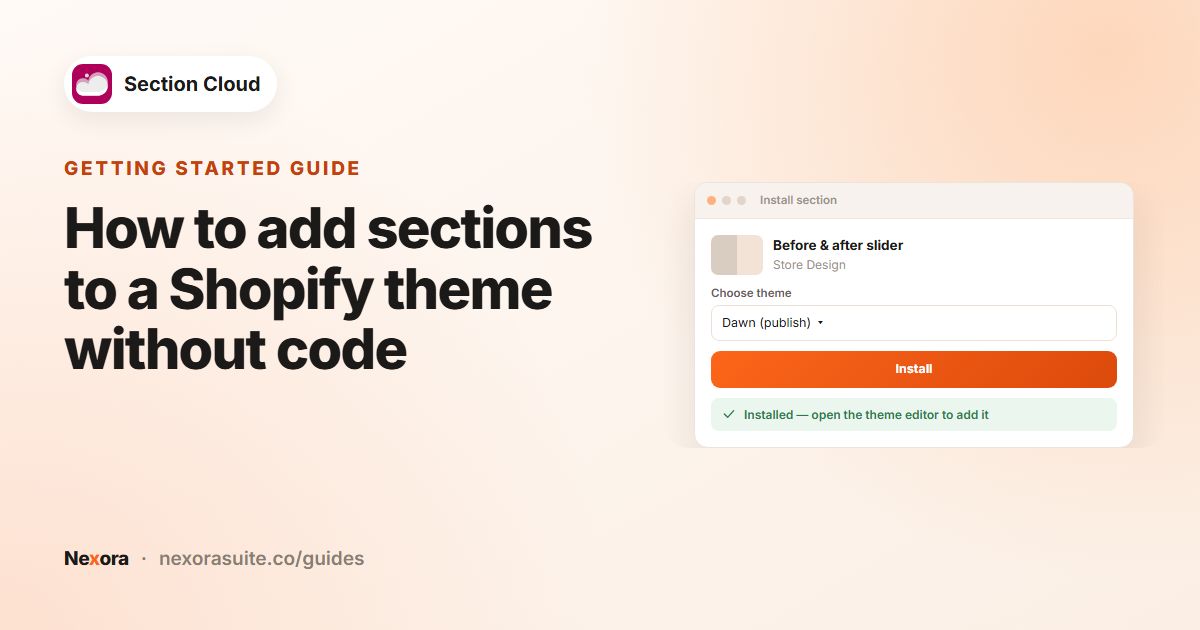
Click Install, choose the theme, and click Install. Click Customize when it's done.
- Add it to a page
In the theme editor, click Add section and choose the video section.
- Select your video
In the section or its video blocks, choose Video from Shopify or paste the link into the video URL field. Add a cover or poster image where offered.
- Set playback and save
Choose autoplay, loop and controls options, check the mobile aspect ratio, and click Save.
Video settings you will commonly see
| Setting | What it does |
|---|---|
| Video from Shopify / video URL | The video source: an uploaded file, or a YouTube/Vimeo link. |
| Cover image / Video Poster | Image shown before the video plays. |
| Autoplay Video, Loop Video | Start automatically and repeat. Browsers usually only autoplay muted video. |
| Use controls / Show Controls on Video | Shows play, pause and volume controls. |
| Video ratio / aspect ratio (desktop and mobile) | For example 16:9 for landscape clips or portrait for social clips. |
| Height and overlay | In banners, how tall the video is and how dark the overlay is behind text. |
| Slides per view | In sliders, how many clips are visible at once on desktop and mobile. |
If text sits on top of a video, raise the overlay until the text is easy to read on the brightest frame of the clip.
Example: a home page video setup
- Top of the home page: a video banner with an 8-second muted loop of the product in use, heading "Made to be worn every day", and a "Shop new arrivals" button.
- Further down: a video-with-text section showing a 40-second how-to with controls on and autoplay off, so people choose to watch it.
- Near the footer: a video slider with five short vertical clips filmed by the team, in portrait aspect ratio.
Three video sections on one page is the practical maximum — the store keeps only one autoplaying.
Tips and common mistakes
- Keep background clips short and silent; people scroll past long intros.
- Always set a poster or cover image so something useful shows while the video loads.
- Don't put essential information only in the video — repeat it in text.
- Use portrait clips in sliders and landscape clips in banners; mismatched ratios get cropped.
- Only use customer videos you have permission to publish.
- Check the page on mobile data; very large files load slowly.
Frequently asked questions
Can I use a YouTube video?
Yes. Most Section Cloud video sections accept a video link as well as a video uploaded to Shopify. Look for the video URL field in the section or block settings.
Why doesn't my video autoplay with sound?
Browsers generally only allow muted videos to autoplay. Use autoplay for silent background clips and turn on controls for videos with sound.
Where do I upload a video file?
In your Shopify admin under Content → Files, then pick it in the section with Video from Shopify.
Can I attach products to videos?
Yes, with a shoppable video section, where each clip has a Product setting.
Can I hide a video on mobile?
Many video sections have Show on desktop and Show on mobile options, or separate mobile settings for size and position.