When a countdown section makes sense
A countdown is useful when there is a real deadline the shopper should know about: a sale that ends on Sunday, a product drop on Friday at 9am, a holiday shipping cut-off, a pre-order window. Showing the time left helps customers plan instead of missing out.
- Seasonal sales, such as a Black Friday or summer sale with a fixed end.
- Product launches, counting down to the moment a product becomes available.
- Shipping cut-offs, for example the last day to order for delivery before a holiday.
- Events, such as a pop-up shop or a live stream.
Use countdowns for genuine deadlines. A timer that restarts or a sale that never really ends can mislead customers and may break consumer protection rules where you sell.
Options on Shopify
Shopify's free themes don't usually include a countdown timer section, so merchants use an app or a section. Keep in mind that a countdown section only displays time — the discount, price change or product release is set up separately in Shopify (see Discounts), and you should schedule or end it to match the timer.
Section Cloud's Countdown timer category includes several designs:
- Banner countdowns — a heading, the timer and a button on a colored or gradient background.
- Countdown with image — the timer beside an image, with image position settings for desktop and mobile.
- Countdown with discount tiers — a layout with Discount tier blocks (amount, condition and discount code), for "spend more, save more" offers you have already set up as Shopify discounts.
- Compact strips — slimmer timers that sit between other sections.
Set up a countdown step by step
- Create the offer first
Set up the discount or product launch in Shopify, with the same end date and time you plan to show.
- Find a countdown layout
In the app, open Sections, choose the Countdown timer category, and open each DEMO to see how it looks.
- Install it
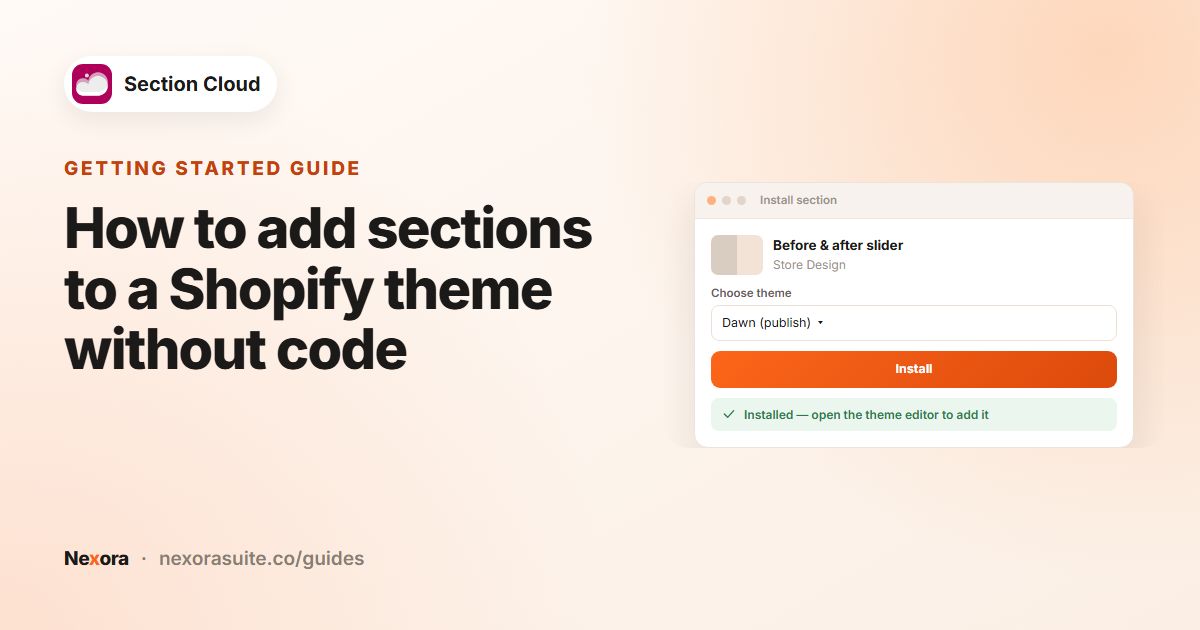
Click Install (or Purchase), choose your theme, click Install, then Customize.
- Add it to the page
In the theme editor, click Add section and pick the countdown section. On the home page, place it near the top during the sale.
- Set the end date and time
Fill in End date and End time (or a combined End date & time field) in exactly the format shown under the field, for example
YYYY-MM-DDandHH:MM:SS. - Add text, labels and button
Write a heading, set the Days label, Hours label, Minutes label and Seconds label, and add a Button label and Button link to the sale collection.
- Save and check
Click Save, then check the timer on your storefront.
The help text under the date setting says which time zone that layout uses (for example your store's local time or the visitor's browser). Read it before you enter the time.
Countdown settings
| Setting | What it does |
|---|---|
| End date, End time / End date & time | When the timer reaches zero. |
| Timer Mode | In the layout that offers it: count down to a fixed date and time, or for a set duration from when the page loads. |
| Days label, Hours label, Minutes label, Seconds label | The words under each number — useful for other languages. |
| Show days | Hide the days unit for short countdowns. |
| Hide timer when finished | Removes the timer after the deadline (in layouts that offer it). |
| Heading, Highlighted words | The message, with selected words styled in an accent color. |
| Button label, Button link, Button style | Where the countdown sends shoppers. Leave the label blank to hide the button in some layouts. |
| Discount tier block | Amount, condition and discount code for each tier, in the tiers layout. |
Example: a weekend sale banner
- Discount set up in Shopify: 20% off the summer collection, ending Sunday 23:59.
- Countdown heading: "Summer sale ends Sunday", with "20% off" as Highlighted words.
- End date
2026-08-30, End time23:59:00(example values). - Button: "Shop the sale" linking to the summer collection.
- Hide timer when finished turned on, and a reminder in the calendar to remove the section on Monday.
Tips and common mistakes
- Double-check the time zone and the date format before publishing.
- Remove or replace the section after the deadline so the page doesn't show zeros for weeks.
- Keep the message short: what the offer is, when it ends, and one button.
- Avoid stacking several timers on one page.
- Check that the discount actually ends when the timer does.
Frequently asked questions
Does the countdown section create a discount?
No. It only displays the time left. Create the discount in your Shopify admin and make it end at the same time.
Which time zone does the timer use?
It depends on the layout; the help text under the end date or time setting tells you. Read it before entering your deadline.
What happens when the timer reaches zero?
In layouts with Hide timer when finished, the timer disappears. Otherwise it stops at zero, so remove the section after the sale.
Can I show the timer in another language?
Yes. Change the Days label, Hours label, Minutes label and Seconds label fields and the heading.
Can I place a countdown on a product page?
Yes. Add it to the product template in the theme editor. It will show on all products using that template.