Why featured collections matter
Most visitors land on your home page, not a collection page. A featured collection puts products right there, so they can start browsing without opening a menu. It is also how you push a specific range: new arrivals, best sellers, the sale or a seasonal edit.
- New arrivals near the top of the home page.
- Best sellers to give first-time visitors a safe starting point.
- Sale products during a promotion, with sale badges.
- Related range on a landing page or product page, such as accessories.
Options on Shopify
Shopify's free themes include a featured collection section, and products appear automatically from the collection you choose (see Collections). Section Cloud layouts are useful when you want a different look or extra features:
| Layout family | What it adds |
|---|---|
| Product grids | Products in rows, with Show compare-at price and discount badges |
| Product sliders | Slides per view, Autoplay, Show arrows and mobile slide settings |
| Grid with a banner | A promo image or banner next to the products |
| Hand-picked products | Product blocks with your own Badge text, instead of a whole collection |
| Quick view / quick add | A Show quick view icon option, or Show Quick add on hover in a layout that adds single-variant products straight to the cart |
| Collection tabs | Several collections in tabs, in the separate Collection tabs category |
In the quick add layout, products with several variants show a "choose options" link to the product page instead of adding directly.
Collection or hand-picked products?
A Collection setting is the low-maintenance choice: when you add a product to the collection, or the collection is automated by tags or sales, the section updates on its own. Hand-picked Product blocks give you exact control and your own badge text such as "New" or "Staff pick", but you have to update them yourself. Many stores use a collection for "New arrivals" and hand-picked products for a small "Staff picks" row.
Add a featured collection step by step
- Set up the collection
In Shopify, make sure the collection exists and is sorted the way you want (for example best selling or newest).
- Find a layout
In the app, open Sections and choose the Featured collection category. Use Free / Paid and open each DEMO.
- Install it
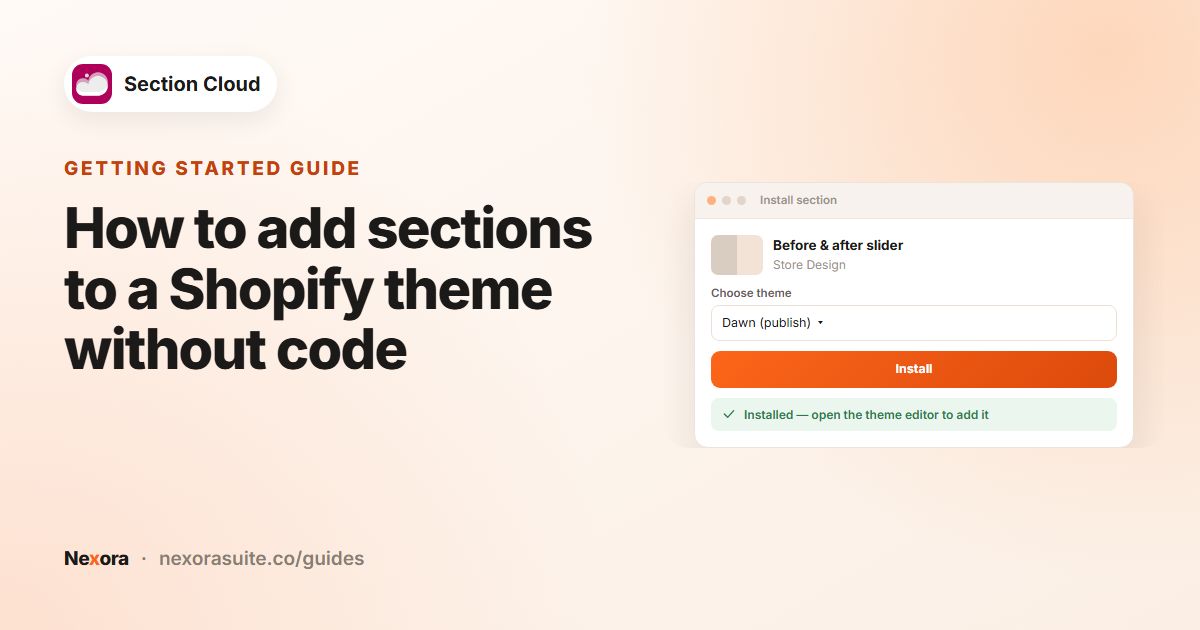
Click Install or Purchase, choose your theme, click Install, then Customize.
- Add it to the page
In the theme editor, click Add section and pick the section, usually named ✨ Featured collection.
- Choose the collection
In the section settings, pick the Collection and set Products to show.
- Style and save
Turn on compare-at prices or discount badges, set the button label (for example "View all"), and click Save.
Featured collection settings
| Setting | What it does |
|---|---|
| Collection | Which collection's products appear. |
| Products to show | How many products are shown. |
| Show compare-at price | Shows the original price next to the sale price. |
| Show discount badge / Show a discount badge on products on sale | Labels products that are on sale. |
| Show quick view icon, Show Quick add on hover | Faster browsing or adding, in layouts that offer them. |
| Slides per view, Autoplay, Show arrows | Slider behavior, with separate mobile settings. |
| Aspect ratio / Aspect ratio - mobile | Shape of the product images. |
| Button label, Button style, Use 'Shop all' link | A link to the full collection. |
Example: a home page product layout
- Under the hero: "New this week" — a product slider using the New arrivals collection, 8 products, arrows on desktop.
- Mid-page: "Best sellers" — a 4-column grid with Show compare-at price on, and a "Shop all best sellers" button.
- During a sale: a grid with a banner image linking to the sale collection, with discount badges on.
Because the products come from collections, the store updates the home page simply by updating the collections, not the sections.
Tips and common mistakes
- Sort the collection deliberately — the first products get the most attention.
- Use 4 to 8 products; more turns the home page into a catalog.
- Use product images with consistent backgrounds and the same aspect ratio.
- Give each featured collection a clear heading so visitors know why these products are together.
- Check that sold-out products don't fill the first row.
- Don't show the same collection twice on one page; give each featured collection a different job.
- Preview the slider on mobile and make sure it is obvious that the row can be swiped.
Frequently asked questions
Do products update automatically?
Yes. Layouts that use a Collection setting show that collection's products, so changes to the collection appear in the section.
Can I choose individual products instead of a collection?
Yes, in layouts that use Product blocks, where you pick each product and can add a badge.
Can shoppers add to cart from the section?
One layout offers Show Quick add on hover for single-variant products; others link to the product page or offer a quick view icon.
Can I show several collections in tabs?
Yes. Look in the Collection tabs category for sections that show several collections in tabs.
Are there free featured collection sections?
Some are free. Click the Free chip in the Featured collection category to see them.