What shop the look and hotspots do
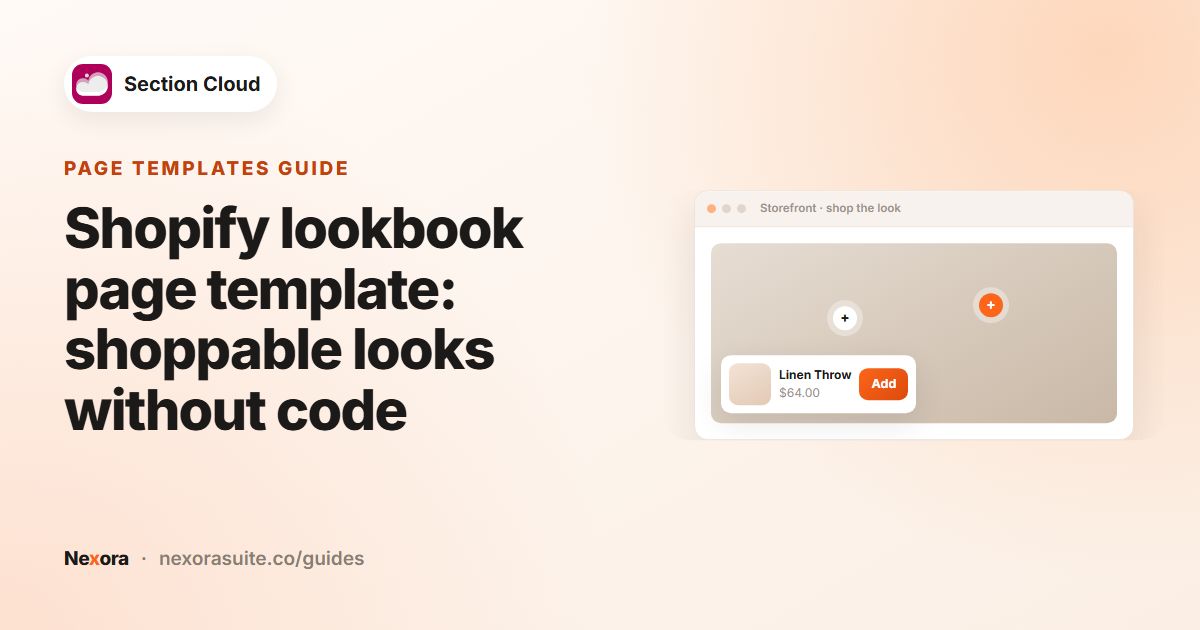
Customers often see a product in context — a styled outfit, a furnished room, a desk setup — and want "that lamp" or "those shoes". A hotspot image connects each item in the photo to its product page, so the photo and the product are one tap apart.
- Fashion: a full outfit with dots on the jacket, bag and shoes.
- Home and furniture: a styled living room with the sofa, rug and lamp tagged.
- Beauty: a shelf of products in a routine, each dot naming the step.
- Electronics and accessories: a workspace with the keyboard, stand and cables tagged.
Options on Shopify
Some themes include a shoppable image or "shop the look" section, but many — especially free themes — do not. Without one, merchants usually post the photo and list product links under it. A hotspot section keeps the products on top of the image where the shopper is already looking.
In Section Cloud you will find two related groups: Hotspots sections and Shop the look sections.
| Type | How it works | Good for |
|---|---|---|
| Image with product hotspots | Dots on a photo; each opens the product's title, price and a link | A single strong lifestyle photo |
| Hotspots with text | The image sits beside a heading, text and button; Image placement sets left or right | Explaining a collection or a room |
| Content hotspots | Some layouts let a hotspot show a title, image, text or video instead of a product | Explaining features or steps on an image |
| Shop the look with product list | The photo plus a list of the products in it, with an optional button showing the combined price | Outfits and room sets |
Hotspots link shoppers to product pages. They do not add items to the cart by themselves. In the product-list layout, the main button is a label and link you choose (for example to a bundle or collection), and it can show the total price of the listed products.
Set up a shoppable image step by step
- Pick a clear photo
Choose an image where each product is clearly visible and not too small. Leave space around the items so dots don't overlap.
- Find a layout
In Sections, open the Hotspots category, or search "shop the look". Open the DEMO image to see how the dots behave on desktop and mobile.
- Install it
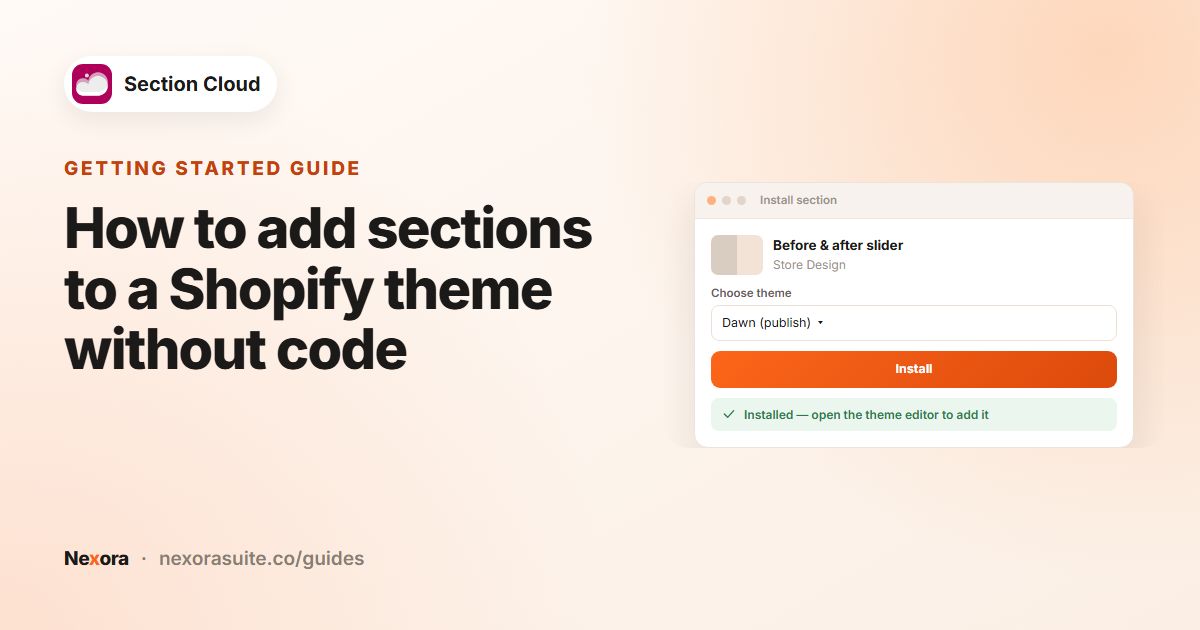
Click Install (or Purchase), choose your theme, click Install, then Customize.
- Add the section
In the theme editor, click Add section on the page and choose the section (for example ✨ Hotspots).
- Upload the image
Set the main Image. Some layouts also have Image - Mobile for a differently cropped photo on phones.
- Add a hotspot per product
Add a hotspot block, choose the Product, then set the vertical and horizontal position (separate values for mobile in most layouts).
- Check and save
Preview desktop and mobile in the theme editor, nudge any dot that is off target, then click Save.
Hotspot settings to know
| Setting | Where | What it does |
|---|---|---|
| Image / Image - Mobile | Section | The photo, with an optional mobile version. |
| Product | Hotspot block | The product the dot links to. |
| Vertical / horizontal position (desktop and mobile) | Hotspot block | Where the dot sits on the image, as a position across and down. |
| Custom product title, description, image, link | Hotspot block (some layouts) | Override what the popup shows. |
| Use Hotspot Animation / Hotspot animation | Section | Makes dots pulse so people notice them. |
| Show compare-at price | Section | Shows the original price next to a sale price. |
| Image placement | Section (layouts with text) | Puts the image left or right of the text. |
| Show total price on button | Section (shop the look list) | Adds the combined price of the listed products to the button label. |
Example: a living room look
A furniture store uses a shop-the-look layout on a collection page:
- Main image: a living room with a sofa, a side table, a floor lamp and a rug.
- Four product blocks, each with its Product chosen and its dot placed on the item.
- Heading "Get the look", and a button "Shop the living room" linking to the collection, with Show total price on button on.
Because the mobile crop cuts off the lamp, the store uploads a portrait Image - Mobile and adjusts the mobile positions for each dot.
Tips and common mistakes
- Use three to six dots. More than that clutters the image.
- Always recheck dot positions on mobile — the image crop often changes.
- Make sure every tagged product is in stock; replace a sold-out item rather than leaving a dead end.
- Pair the image with a short heading so people know the dots are tappable.
- For a whole lookbook, consider a lookbook page template and then fine-tune each section (lookbook guide).
Frequently asked questions
Can customers add to cart straight from a hotspot?
Hotspot sections link to the product page, where customers choose a variant and add to cart. The shop-the-look list layout has a button whose link you set.
Why are my dots in the wrong place on mobile?
The image is cropped differently on phones. Use the mobile position settings in each hotspot block, or upload a separate mobile image if the layout has one.
Can a hotspot show text instead of a product?
Some hotspot layouts let a hotspot show a title, image, text or video. Check the block settings or the Demo of each layout.
How many products can I tag?
Each product is a block, so you can add several. For clarity, keep it to the main items in the photo.
Do I need a special theme?
You need an Online Store 2.0 theme, where sections can be added to any page in the theme editor.