What a lookbook page is for
A lookbook shows your products the way customers will wear or use them: styled outfits, rooms, or seasonal campaigns. It is more editorial than a collection page, with large photos, short captions and room to tell a story.
The best lookbooks are also shoppable: shoppers can tap a product in the photo and go straight to it, instead of hunting for it in your catalogue.
- Large campaign images, often in a collage or slideshow
- Short statements or captions between images
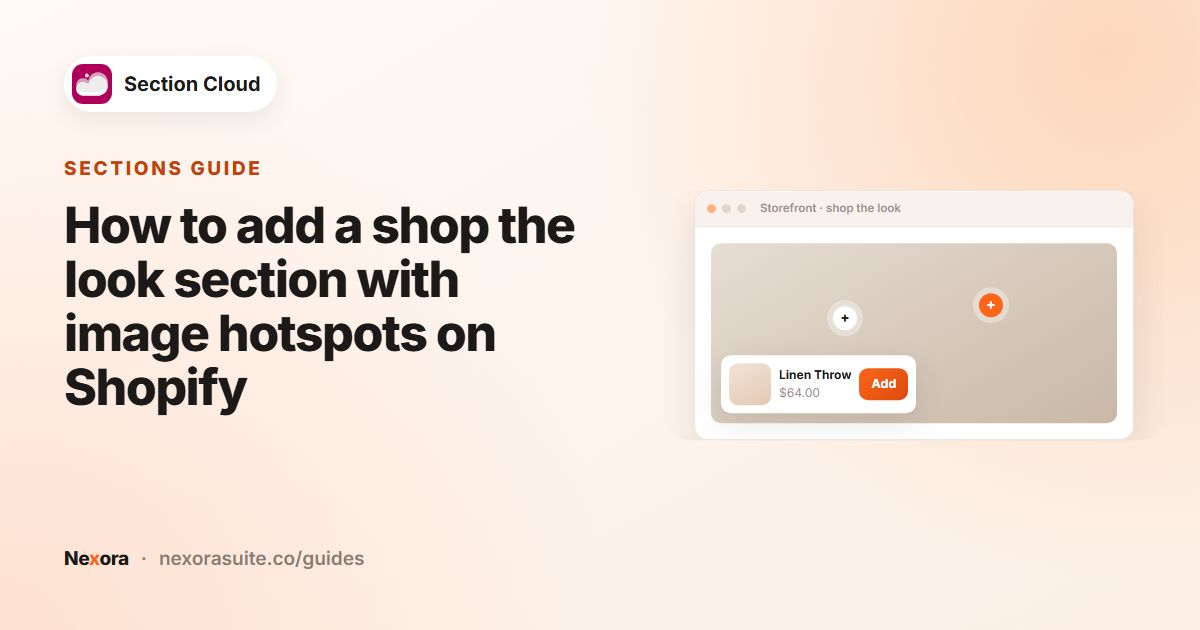
- Shop-the-look sections that pin products onto a photo
- A featured collection with every item from the campaign
- An Instagram feed or a link to the full collection at the end
Options on Shopify
| Approach | What you get | Limitation |
|---|---|---|
| A standard page with images | Photos and text in the rich text editor | Not shoppable; layout is usually a single column |
| A custom page template from your theme's sections | Image banners, collages and featured collections your theme offers | Many themes don't include a shop-the-look or hotspot section |
| Install a lookbook template | A complete editorial page with shoppable sections, created as a new page | You still need your own photos |
Step by step: install a lookbook template
- Find a lookbook
Open Templates and type "lookbook" in Search your template.... You can also pick your industry in the Categories sidebar first.
- Preview it
Click the preview image (marked DEMO) to see how the looks and hotspots behave. Check the Free or Advanced badge and the section count.
- Install
Click Install, choose a theme and click Install. The app adds the template's sections and creates a new page at
/pages/sco-<template-name>. - Open it in the theme editor
Go to My library → Templates and click Customize.
- Replace the images
Upload your campaign photos to the collage, slideshow and shop-the-look sections. Use similar image shapes so the layout keeps its rhythm.
- Tag your products
In each shop-the-look section, open the product blocks, pick a product for each, and position its hotspot on the photo.
- Rename and link
Rename the page in Online Store → Pages (for example "Summer Lookbook") and add it to your menu in Online Store → Navigation.
Setting up shop-the-look hotspots
Settings differ between sections. In a typical Section Cloud shop-the-look section you'll find:
| Setting | What it does |
|---|---|
| Main image | The styled photo the hotspots sit on |
| Image position (desktop) | Puts the photo on the left or right of the product list |
| Image ratio | Square, Portrait, Tall or Extra tall, with a separate mobile ratio |
| Show hotspots | Shows or hides the dots on the photo |
| Product block → Product | The product shown for that hotspot |
| Product block → Hotspot left / Hotspot top | Where the dot sits on the photo, horizontally and vertically |
| Product block → Variant label | Optional text such as a color or size shown with the product |
Set the hotspot position with the theme editor preview open, then check it in mobile view too, since the photo may crop differently on small screens.
The other lookbook sections and how to edit them
Around the shop-the-look sections, a lookbook template usually uses some of these. Click each one in the theme editor sidebar to edit it.
| Section | Key settings |
|---|---|
| Image collage | A Statement line above the photos, Column widths (desktop) (Equal, Editorial or Editorial reversed), and Image blocks, each with an Image ratio, Title, Description, Image link and Column (desktop). Parallax on scroll (desktop) moves the columns gently as shoppers scroll. |
| Paired-image slideshow | Each Slide block holds a First frame image and a Second frame image. Frames on mobile shows the first frame only or both; Change images automatically and Time on each pair of images control the pace. |
| Text block | Text, Text alignment and an optional Button label and Button link, for short statements between looks. |
| Photo feed with tagged products | You upload each Photo block yourself, with a Photo description, a Tagged product and a Second tagged product. It does not pull posts from Instagram; Follow link label and Follow link point to your profile. |
| Product slider | One Product block per item, plus a View all link to the full collection. |
Many of these sections pick their colors from the ✨Template Styles section through Color scheme. Tick Use this section's own colors in a section when one look needs a different background.
Example: a summer swim lookbook
- Opening statement: "Summer 26: made for long days by the water."
- Collage: three beach photos with short captions.
- Shop the look: a model in a swimsuit and shirt, with two hotspots linked to both products.
- Slideshow: four more looks from the shoot.
- Featured collection: the full summer collection, so shoppers can see everything in one grid.
Second example: a home decor room lookbook
- Text block: "The Autumn Living Room" with a Shop the collection button.
- Shop the look: a wide room photo with four hotspots for the sofa, cushions, lamp and rug, each with a Variant label such as
Colour: Rust. - Image collage with Editorial column widths: close-ups of fabrics, each with an Image link to its product.
- Photo feed: customer room photos you have permission to use, each tagged with the product shown.
For more ways to use hotspots outside the lookbook, see shop-the-look hotspots.
Tips and common mistakes
- Use your own photography. Template images are placeholders.
- Link every visible product. A hotspot with the wrong product is worse than none.
- Keep captions short; the photos should do the work.
- Update the page each season instead of creating a new one, or install another lookbook template for a second campaign.
- Use the ✨Template Styles section to change the page's color schemes and button style in one place.
Troubleshooting
- The main button doesn't add anything to the cart. In the shop-the-look section the button (labelled
Add all to Cartby default) is a link to Button link, or to all products if that is empty. Rename it, for exampleShop the look, and link it to the campaign collection. Show total price on button adds up the linked products' prices. - A product shows a sample name and price. That block has no product chosen yet, so its fallback text is shown. Pick a Product and the real title, price and image appear.
- A hotspot doesn't highlight the right product. Hotspots follow the order of the product blocks. Hovering or tapping a dot highlights the matching item in the list, so check the block order and its Hotspot left / Hotspot top values.
Frequently asked questions
Is the lookbook page shoppable?
Yes, if it includes shop-the-look sections. Link each product block to a product and shoppers can go straight to it.
Will a lookbook template change my homepage?
No. It creates a new page at /pages/sco-<template-name>. Your homepage stays as it is.
Can I add more looks to the page?
Yes. Click Add section in the theme editor and add another shop-the-look or collage section; they're already installed in your theme.
Can I use the shop-the-look section on my homepage?
Yes. Sections installed with a template can be added to any page in that theme.
Does the photo feed section connect to my Instagram account?
No. You upload each photo yourself and can tag up to two products per photo. Add a follow link to send shoppers to your profile.
Are lookbook templates free?
It depends on the template. Each card shows Free or Advanced; Advanced templates need the Advanced plan.