Why an FAQ section is worth adding
Most pre-sale emails ask the same few things: how long shipping takes, how returns work, what size to pick, whether a product is safe for sensitive skin. An FAQ section answers them on the page where the doubt appears, in a compact accordion that only expands the answer the shopper wants.
- A full FAQ page linked from your footer, with questions grouped by topic.
- A short block of three to five questions on a product page, about that product.
- A shipping and returns FAQ near the bottom of your home page or cart-related pages.
- Campaign questions on a landing page, such as how a pre-order or bundle works.
Options on Shopify
Many Shopify themes, including Shopify's free themes, include a collapsible content (accordion) section you can use for FAQs. It is a good starting point for a short list. Where merchants often want more is in structure and design: grouping questions by category, placing an image next to the questions, or controlling which answer is open when the page loads.
| Need | Theme's collapsible content | Section Cloud FAQ layouts |
|---|---|---|
| Simple list of questions | Usually yes | Yes |
| Questions grouped under titles | Depends on theme | Yes, in layouts with Group title or Category blocks |
| Image or media beside the FAQ | Depends on theme | Yes, in media layouts with a Layout setting |
| Open the first question by default | Depends on theme | Yes, in layouts with that option |
You can read more about working with sections in Shopify's Sections and blocks guide.
FAQ layouts in the library
The FAQs category contains several designs. Broadly:
- Classic accordions — a heading and a list of question/answer blocks, with color settings for Question and Answer text and a choice of expand/collapse sign (for example Bracket, Plus or Right arrow).
- Grouped FAQs — Group title blocks split questions into topics such as Shipping, Returns and Products, with an option to open the first question of each group.
- FAQ with a category menu — category links beside the questions that stay in view as the visitor scrolls, and on mobile can become scrollable chips (Categories on mobile).
- FAQ with media — an image next to the questions, with Layout options such as Media - FAQ or FAQ - media.
Add an FAQ section step by step
- Write your questions first
List the questions customers really ask — check your inbox and chat history. Keep answers to two or three sentences.
- Choose a layout
In the app, open Sections, click the FAQs category, and preview layouts with the DEMO image. A long FAQ page suits a grouped layout; a product page suits a short classic accordion.
- Install it
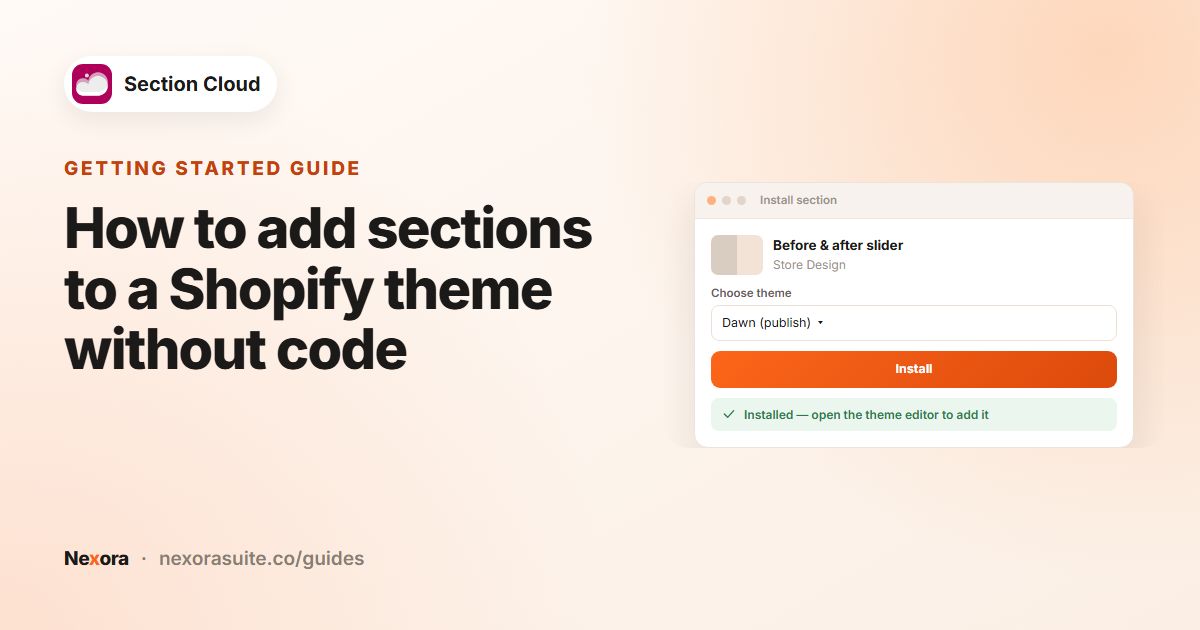
Click Install, choose your theme, and click Install again. Then click Customize.
- Add it to the page
In the theme editor, open the page (for an FAQ page, open your page template), click Add section and pick the section, usually named ✨ FAQs.
- Add your questions
Click each question block and fill in Question and Answer. Use Add block for more questions, or add a group title block to start a new topic.
- Set behavior and save
Turn on the first-question-open option if your layout has it, adjust colors, then click Save.
Want a whole FAQ page at once? Open Templates in the app; FAQ page templates create a new page with the sections already arranged.
Common FAQ settings
| Setting | What it does |
|---|---|
| Heading | Title above the accordion, for example "Shipping & returns". |
| Question / Answer (block) | The text of each item. |
| Expand/collapse sign | Icon used to open and close answers, in layouts that offer it. |
| Open first collapsible row | Shows the first answer when the page loads, so visitors see that the rows open. |
| Group title / Category (block) | Starts a new topic in grouped layouts. |
| Space between panels, Space between groups | Vertical spacing between items and topics. |
| Question / Answer colors, divider and icon colors | Text and line colors to match your brand. |
Example: a grouped FAQ page
A shoe store builds a standalone FAQ page with a grouped layout:
- Group "Sizing": "Do your shoes run true to size?", "What if I am between sizes?"
- Group "Delivery": "How long does delivery take?", "Do you ship internationally?"
- Group "Returns": "How do I return a pair?", "Who pays for return shipping?"
It turns on the option to open the first question of each group and links the page from the footer menu (Menus and links). On product pages it adds a short classic accordion with only the two sizing questions.
Tips and common mistakes
- Phrase questions the way customers do, not in internal jargon.
- Put the most-asked question first.
- Keep answers consistent with your policy pages; if a policy changes, update both.
- Don't hide essential information (like extra fees) only inside an accordion — state it on the product or checkout-related pages too.
- Use links in answers to point to your full shipping or returns policy where helpful.
Frequently asked questions
Can I have different FAQs on different products?
If all products share one product template, the section shows the same questions on each. Create separate product templates for product groups that need different questions.
How many questions can I add?
You add each question as a block, so you can add as many as the theme editor allows for that section. For readability, group long lists by topic.
Can I open one answer by default?
Yes, in layouts that include an option such as Open first collapsible row or opening the first question of each group.
Is there a ready-made FAQ page?
Yes. The Templates page in the app includes FAQ page templates that create a new page with the sections already in place.
Do I need to know code to edit the questions?
No. You type the questions and answers in the theme editor and click Save.