Why before and after comparisons work
Some products are easiest to understand by their result: a cleaning spray, a hair treatment, a phone screen protector, a furniture restoration kit, a photo editing preset. A before and after slider lets the shopper control the comparison — they drag the handle and see the difference for themselves, which tends to feel more convincing than two photos side by side.
- Beauty and skincare — the same area of skin before and after a routine.
- Home and cleaning — a stained surface and the same surface after cleaning.
- Services and restoration — a room, a car or a pair of shoes before and after.
- Digital products — an original photo next to the edited version.
Use real, unretouched results that a typical customer could expect, and add a short disclaimer if results vary. Misleading before/after images can break advertising rules in many countries.
Options on Shopify
Most themes do not include a draggable before/after section, so merchants usually either place two images side by side with an image section, or add a dedicated section. Two static images work, but the visitor has to compare them by eye; a slider puts the two images in exactly the same frame.
Section Cloud's Before/After category includes several designs, from a single full-width comparison to layouts that combine the slider with text, a button, customer quotes or a product.
| Layout family | What it looks like | Good for |
|---|---|---|
| Single comparison | One large image pair with a drag handle and labels | Home page or landing page hero area |
| Comparison with text | Slider on one side, heading, paragraph and button on the other | Explaining a product next to its result |
| Cards or slides | Several before/after pairs, each with a customer name or product | Showing a range of results |
| With testimonial | Before/after media plus a quote, stars and author | Results backed by the customer's own words |
Set it up step by step
- Prepare two matching photos
Shoot both from the same angle, distance and lighting, and crop them to the same size. Mismatched framing makes the slider jump.
- Find a before/after section
In the app, open Sections and pick the Before/After category in the sidebar, or search "before". Check the Free / Paid chips.
- Install it
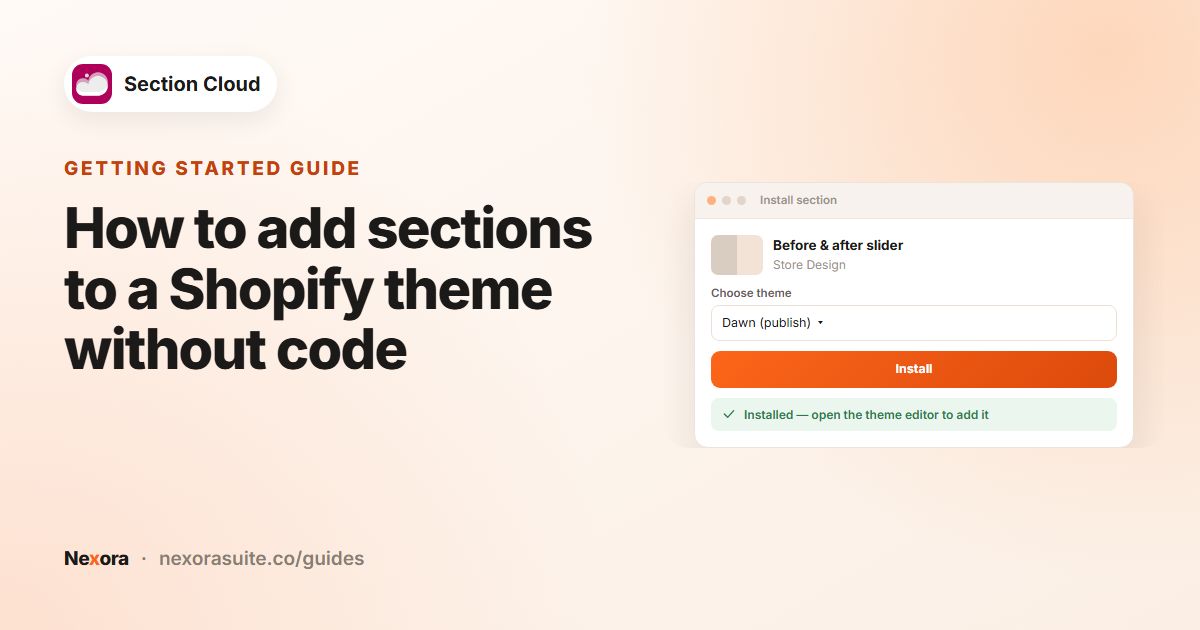
Click Install (or Purchase for a paid section), choose your theme in Choose theme, and click Install.
- Add it to a page
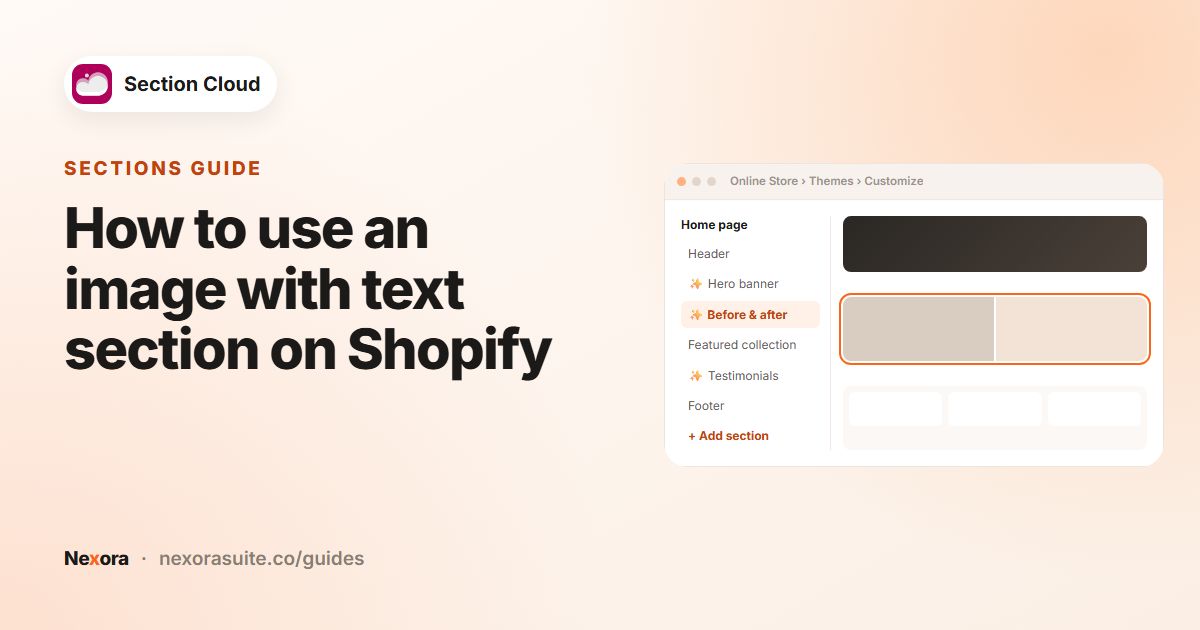
Click Customize. In the theme editor, go to the page, click Add section and choose the section, which is usually named ✨ Before/After image.
- Upload the images
Click the image block and set the Before image and After image. Add Before label and After label text if the layout has them.
- Adjust and save
Set the aspect ratio and height, then click Save and test dragging the handle on your phone.
Settings to look for
Not every layout has every option, but these are common in the before/after sections' schemas:
| Setting | What it does |
|---|---|
| Before image / After image | The two photos being compared. |
| Before label / After label | Short captions shown on each side, for example "Week 1" and "Week 8". |
| Drag Initial Position | Where the handle starts, so visitors see part of both images at first (in layouts that offer it). |
| Aspect ratio / Aspect ratio - mobile | Portrait, Square, Landscape or Original, set separately for mobile. |
| Desktop / mobile height | A fixed height for the comparison in some layouts. |
| Heading, text and Button | Content around the slider, with a link to the product. |
| Testimonial, Author, Disclaimer | In card layouts, add the customer's words and a note such as "Results vary". |
Example: a cleaning product page
A store selling a grout cleaner adds a "comparison with text" layout to its product template:
- Before image: a dirty tile corner. After image: the same corner after one application, same camera position.
- Before label: "Before"; After label: "After 10 minutes".
- Heading: "One application, no scrubbing"; a short paragraph explaining how to use it.
- Button: "Shop the cleaner", linking to the product.
The store sets the aspect ratio to Square on mobile so the comparison stays large on small screens.
Tips and common mistakes
- Line the photos up. The more identical the framing, the more the slider feels like magic and the less like a trick.
- Keep labels short so they don't cover the part of the image that changes.
- Start the handle near the middle so people notice it can be dragged.
- Compress large photos before uploading; very big images slow the page down.
- Add a one-line disclaimer when results depend on the person or the situation.
- Test on a phone: dragging should work with a thumb without scrolling the page sideways.
Frequently asked questions
Do my before and after images need to be the same size?
Ideally yes. Use the same crop and dimensions so both images line up exactly when the visitor drags the handle.
Can I show several before/after comparisons in one section?
Yes. Card and slide layouts let you add several pairs as blocks, each with its own labels or customer name.
Can I put the slider on a product page?
Yes. Open a product template in the theme editor and add the section there. It then shows on every product that uses that template.
Does it work on mobile?
Yes. The sections include mobile settings such as Aspect ratio - mobile. Check the page on your own phone after saving.
Is there a free before/after section?
Use the Free chip in the Before/After category to see which layouts are free on your plan. Others can be bought once or unlocked with Advanced.