

Getting started
What does Section Cloud do?
It gives you a library of 300+ ready-made theme sections and full page templates. You install them into your theme, then add and edit them in the Shopify theme editor like any other section.
Do I need to know how to code?
No. You install sections with a click and edit their text, images and colors in the theme editor.
Which themes are supported?
Online Store 2.0 themes — themes that let you add sections to any page in the theme editor. You can install on your live theme or on any unpublished theme.
Can I see a section before installing it?
Yes. Click the preview image (marked DEMO) on any section or template card to open a live demo in a new tab.
Do I need to turn on the app embed?
We recommend it. The Sections Cloud app embed applies your font, text size, page width and spacing settings to Section Cloud sections. Turn it on from Home → Enable on theme.
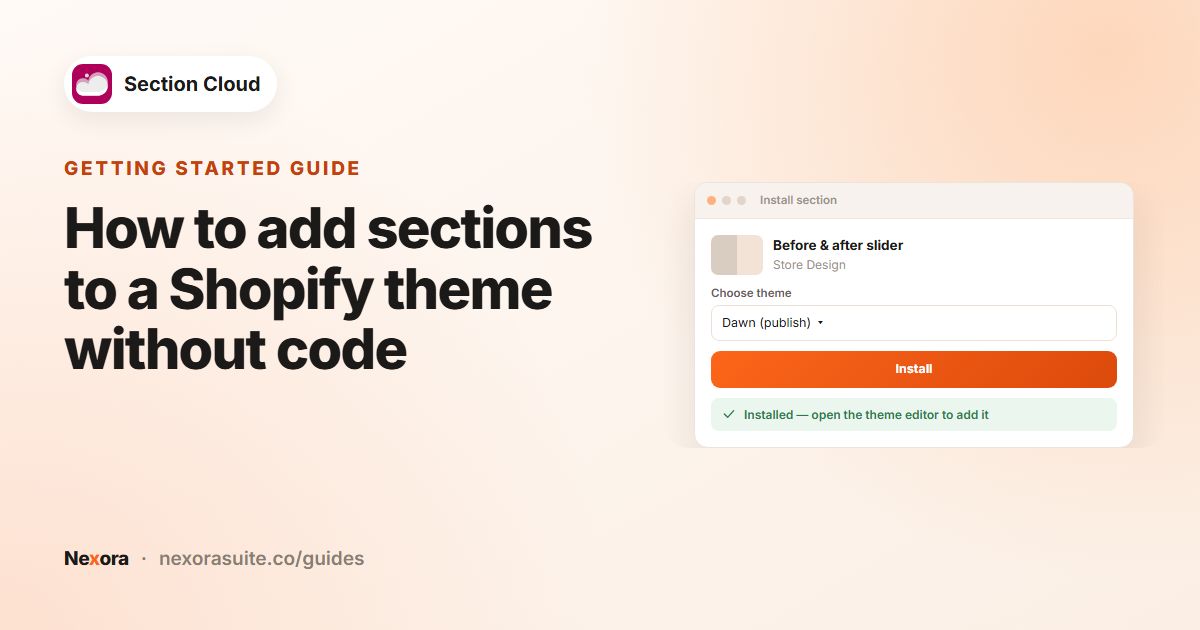 Related guideHow to add sections to a Shopify theme without code→
Sections
I installed a section but don't see it on my store. Why?
Installing adds the section to your theme, but it is not on any page yet. Open the theme editor, go to the page you want, click Add section, choose it, and click Save.
How do I find my section in the theme editor?
Click Add section and look for its name. Most Section Cloud section names start with a ✨ sparkle.
Can I use a section on more than one page?
Yes. Once installed in a theme, you can add the same section to as many pages as you like, each with its own content.
Can I install a section on several themes?
Yes. Click Install again in My library and choose another theme.
How do I remove a section?
First remove it from any pages in the theme editor. Then go to My library → Sections → Installed, click Delete and choose the theme.
Will a theme update remove my sections?
Sections are installed into a specific theme. If you switch to a new theme or a fresh copy of your theme, install the sections again on that theme from My library.
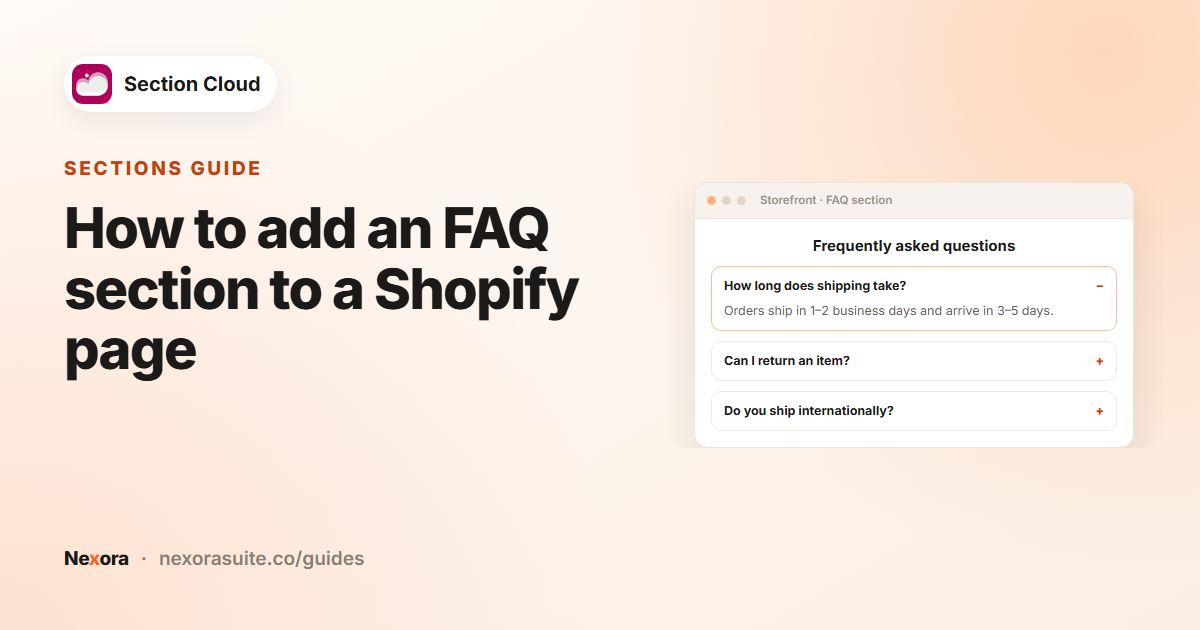 Related guideHow to add an FAQ section to a Shopify page→
Page templates
What happens when I install a template?
The app adds the template's sections to the theme you choose and creates a new page at /pages/sco-<template-name> with those sections already arranged.
Will a template replace my homepage?
No. A template always creates a new, separate page. Your homepage and existing pages are not changed.
How do I edit a template page?
Go to My library → Templates and click Customize. The theme editor opens on that page so you can change its content.
What does deleting a template do?
Delete removes the page and its template from the theme. The sections it used stay in your theme, since other pages may use them.
Can I buy a template on its own?
No. Templates are not sold individually. Free templates work on any plan, and Advanced templates need the Advanced plan.
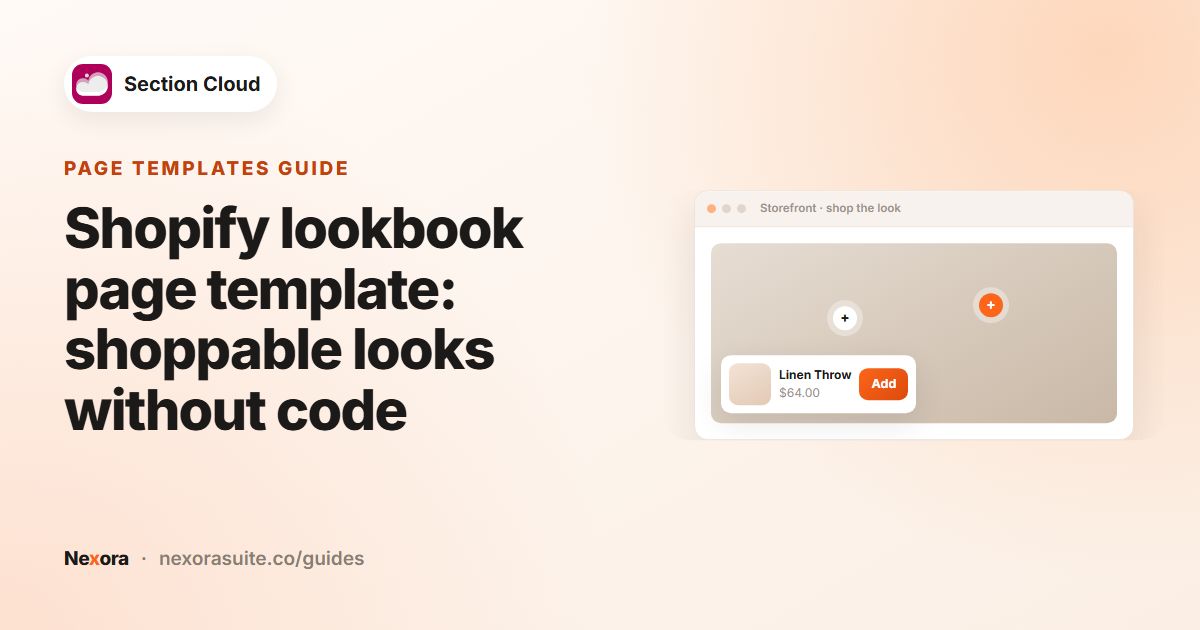 Related guideShopify lookbook page template: shoppable looks without code→
Pricing & billing
Is Section Cloud free?
Yes, there is a Free plan with 50+ free sections and free page templates. You can also buy paid sections one at a time with a one-time payment.
What does the Advanced plan include?
All 300+ sections, all page templates, and new sections and templates as they launch, for $9 / 30 days or $90 / year.
Is there a free trial?
Yes. The Advanced plan has a 3-day free trial. If you cancel during the trial, you are not charged.
How do I cancel or downgrade?
Open Pricing, click Select on the Free plan and confirm with Downgrade. You can change plans at any time.
Do I keep sections I bought individually?
Yes. One-time purchases stay in My library → Purchased, and you can install them again whenever you need.
How am I billed?
All charges go through Shopify and appear on your Shopify invoice. One-time section purchases are charged once; the Advanced plan renews every 30 days or every year.
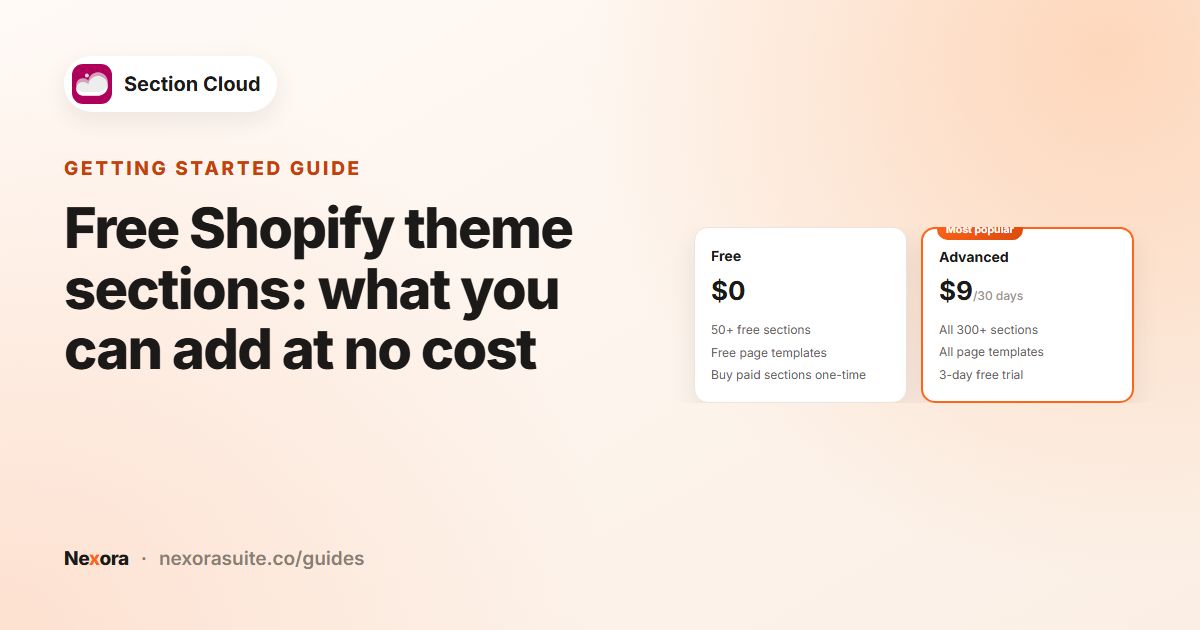 Related guideFree Shopify theme sections: what you can add at no cost→
Troubleshooting & uninstalling
Fonts or width look different from my theme. What can I do?
Open the Sections Cloud app embed in the theme editor. Turn on Use custom font to pick fonts, and adjust Heading scale, Body scale, Page width and Space between sections.
View page shows a page that looks unstyled or empty.
Make sure you are viewing the theme you installed the template on. For an unpublished theme, View page opens it in preview for that theme. If it still looks wrong, contact us.
What happens if I uninstall the app?
Section files stay in your theme, so pages using them keep showing. However, the app embed's styling (custom fonts and layout settings) is removed, so sections may look slightly different. We recommend removing sections you no longer need from pages before uninstalling.
How do I contact support?
Use live chat inside the app (Chat with us on Home) or email [email protected].
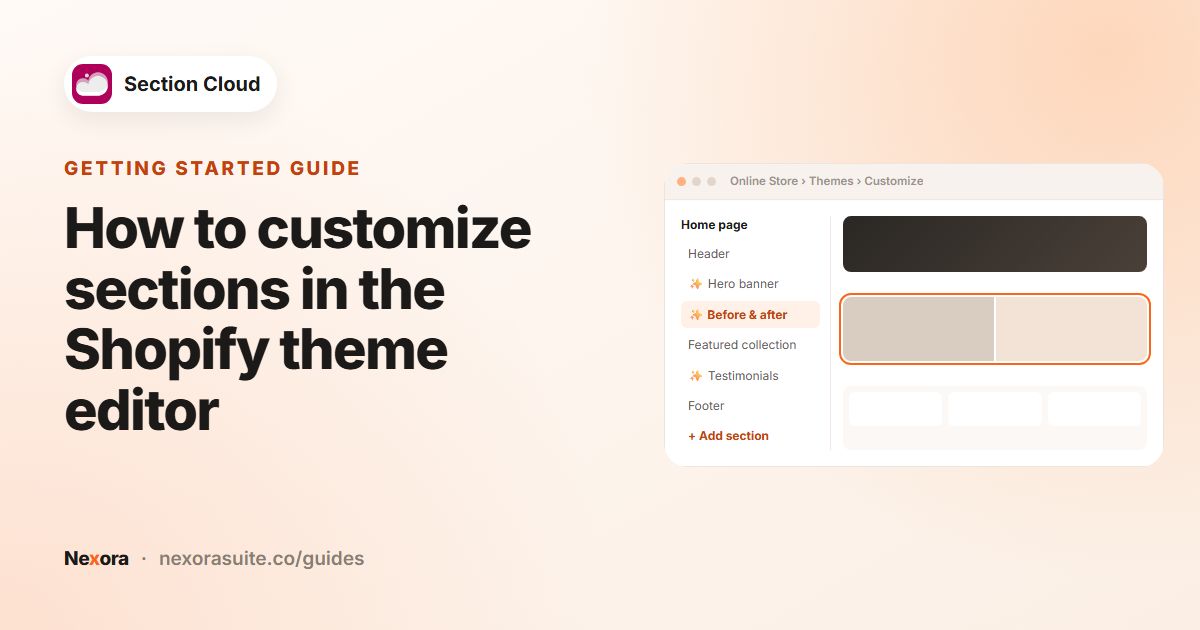 Related guideHow to customize sections in the Shopify theme editor→