
Overview and app embed
The app has two main tools. Preorder campaigns let customers buy products before they are in stock, with optional discounts, deposits and expected ship dates. Back in Stock campaigns add a Notify me when available button to sold-out products and email subscribers when inventory returns. Both work through one theme app embed, so you do not need to edit theme code.
Navigation
| Menu item | What you do there |
|---|---|
| Home | Turn on the app embed, open live chat, and see your 7 most recent Preorder and Back in Stock campaigns. |
| Preorder | Create, edit and delete preorder campaigns. |
| Preorder analytics | Revenue, top products and the conversion funnel for your preorders. |
| Back in Stock | Create back in stock campaigns. The Subscribers button opens the list of everyone waiting for a restock. |
| Mixed Cart | Decide what happens when a cart contains both in-stock and preorder items. |
| Settings | Email sending, sender name, currency display and theme compatibility. |
| Document | Built-in help pages inside the app. |
Turn on the app embed
- Open Home
In the Activate app embed card, click Enable on theme and choose the theme you want to use.
- Switch on the embed
The Shopify theme editor opens on the App embeds panel. Make sure the embed named Preorder is turned on.
- Save the theme
Click Save in the theme editor. This single embed powers preorder buttons, badges, dynamic messages, the Notify me button and popup, and Mixed Cart.
Every editor has a live preview on the right, so you can check your changes before saving. Unsaved changes show the Shopify save bar at the top. Use Save or Discard.
Need help? Click Chat with us on Home to open live chat, or email [email protected].
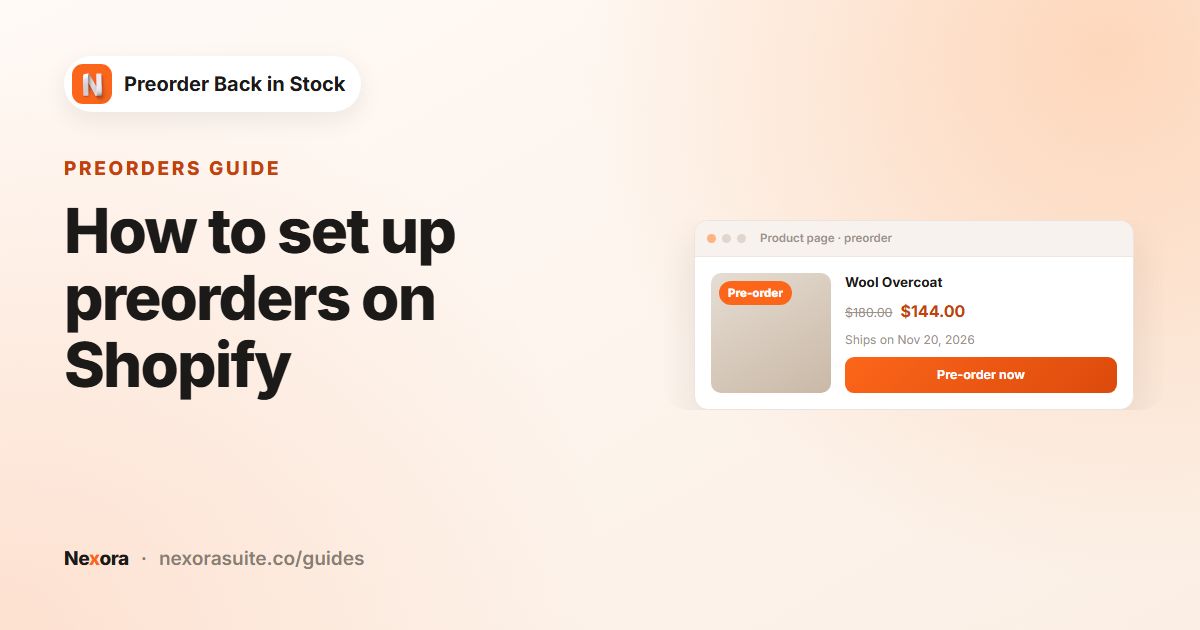 Related guideHow to set up preorders on Shopify→
Preorder: Content tab
Go to Preorder and click Create campaign. The editor has five tabs: Content, Design, Preorder products, Customer emails and Messages. The Content tab sets what customers see and how preorders behave.
| Setting | What it does |
|---|---|
| Campaign title + Active/Inactive switch | Internal name, visible only to you. The switch turns the campaign on or off on your storefront. |
| Scheduling | Tick Set start date and/or Set end date to choose a date and time (in 30-minute steps). Leave both off to start as soon as the campaign is active, with no end. The end must be after the start and in the future. |
| Button settings | Button text (required, default "Preorder") replaces Add to cart. Preorder message is a short line under the button, such as "Ships as soon as possible". |
| Show preorder badge | Shows a badge such as "Preorder" on the product image, on the product page and in product lists. Badge text is required when this is on. |
| Discount | No discount, Percentage (%), Fixed amount ($) or Override price ($). Override price charges exactly the amount you enter in place of the regular price. |
| Note | A Label note and Value note pair (for example "Note: Preorder") shown in the cart, at checkout and in transactional emails. Fill in both fields, or leave both empty. |
| Payment | Full payment or Partial payment (deposit + balance later). See the next section. |
| Set fulfillment status for orders with preorder items | Unfulfilled or Scheduled. See the next section. |
| Order tags / Customer tags | Tags (up to 40 characters each) added to orders that contain preorder items and to the customers who placed them. |
| Translations | Click Add translations, pick one of your store's published languages, and translate the button text, message, badge text and note. Click a language chip to edit or delete it. |
| Advanced settings | Use Shopify selling plan (purchase option). See the next section. |
Preorder discounts are applied through Shopify selling plans, so leave Use Shopify selling plan (purchase option) on (it is on by default) if you use a discount.
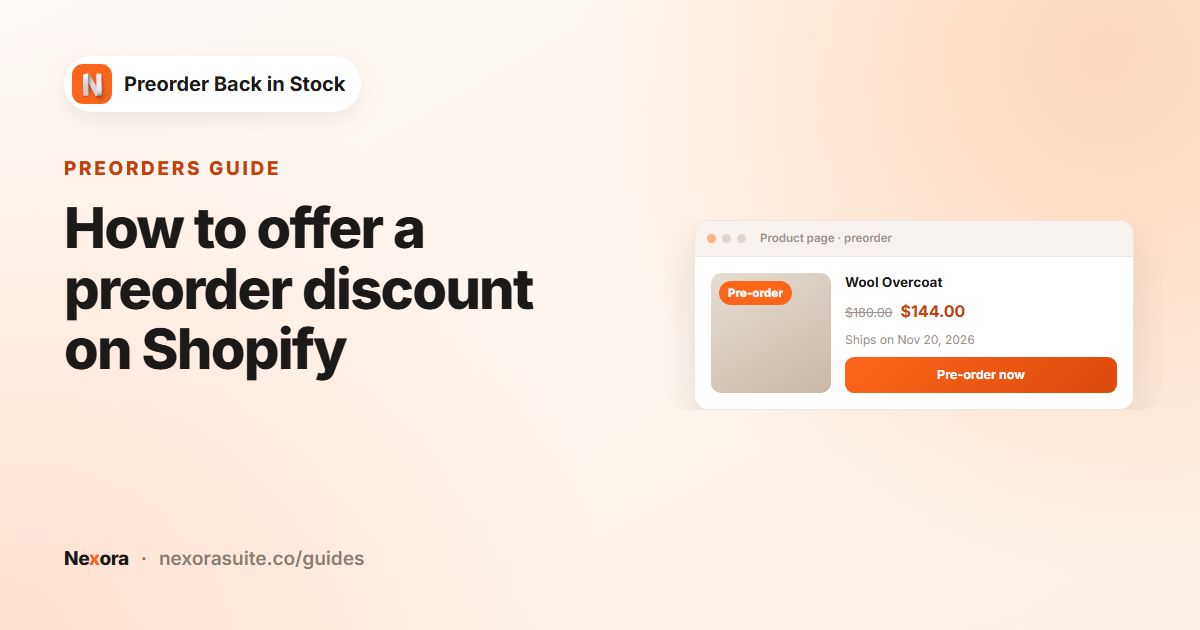 Related guideHow to offer a preorder discount on Shopify→
Preorder: payment, ship dates, tags and selling plans
Full or partial payment
With Full payment, customers pay the whole price at checkout. Full payment text is required and appears in the cart, at checkout and in emails.
With Partial payment (deposit + balance later), customers pay a deposit at checkout and Shopify charges the balance automatically later.
| Field | What it does |
|---|---|
| Deposit percentage | The share of the order total charged at checkout, from 1 to 99%. |
| Charge balance after (days) | Shopify charges the remaining balance this many days after checkout (at least 1). |
| Button text | A short label for this option, shown in the cart, at checkout and in emails. |
| Payment description | Shown under the preorder button. Tokens: {payment} = deposit amount, {remaining} = balance, {date} = the date the balance is charged. |
Partial payment needs selling plans and Shopify Payments. Manual and third-party gateways cannot split one order into deferred charges. If selling plans are off, the Payment card shows an Enable Selling plans button.
Selling plan sync
When you save a campaign that uses selling plans, the app attaches the campaign's variants to the selling plan in the background, so saving finishes straight away. A banner at the top of the editor shows Selling Plan sync queued, in progress or failed. For All products and Specific collections, up to 10,000 variants are attached. Products you add later are picked up by an automatic hourly re-sync, or when you save the campaign again. If a sync fails, save again to retry, or switch to Full payment.
Expected ship date
- Unfulfilled: orders follow your normal Shopify fulfillment.
- Scheduled: use the clock icon for a number of days after checkout, or the calendar icon for a fixed due date. A fixed date also tags the order
preorder-ship:YYYY-MM-DD. The ship date fills the{ship_date}token in customer emails and controls when the reminder email is sent.
Automatic tags
Every order with a preorder item is tagged preorder, together with your own Order tags. Your Customer tags are added to the customer. If Mixed Cart is set to ship separately, the order is also tagged preorder-ship-separately.
Use Shopify selling plan (purchase option)
This option is on by default. With it on, you can use partial payments, preorder discounts and scheduled fulfillment, but checkout supports only Shopify Payments. With it off, other payment methods work, but partial payments and preorder discounts are not available. A confirmation dialog appears before you turn it off.
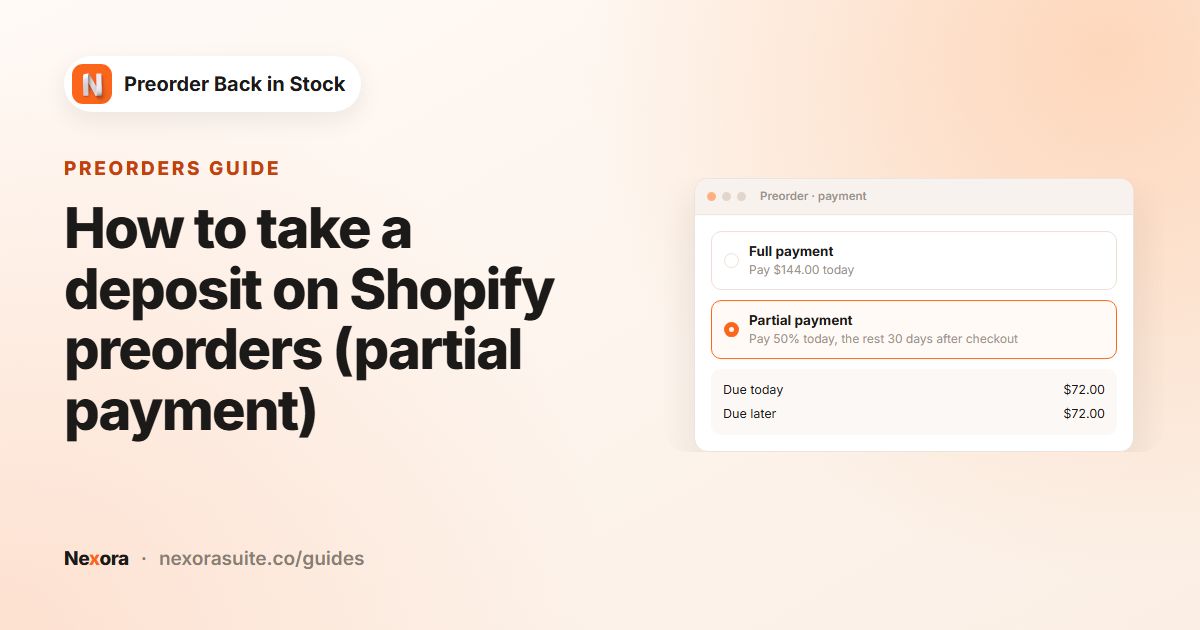 Related guideHow to take a deposit on Shopify preorders (partial payment)→
Preorder: Design tab
| Card | Options |
|---|---|
| Preorder button | Default makes the button look like your theme's Add to cart button. Custom unlocks Button background (Single color or Gradient with an angle), border Size (px) and Color, Corner radius (px), Button text size, color and bold, and spacing (Inside top/bottom, Outside top/bottom). |
| Badge | Background color, Text color, and Position on image: Top left, Top right, Bottom left or Bottom right. |
| Typography | Font (your theme font or a web-safe font) and the Preorder message size, color and bold. Theme fonts do not show in the preview, but they do on your store. |
| Show on product cards | Shows the preorder campaign on product cards on the home, collection and search pages. See the options below. |
Show on product cards
- Show preorder badge on card image
- Show price strike-through with preorder discount
- Replace Add to cart button with Preorder button: single-variant cards only. On multi-variant cards, the theme's quick-add modal opens.
- Inject Preorder UI into quick-add modal: shows the badge, price strike-through and Preorder button when the theme's quick-add modal opens.
Product cards use the same badge text and colors as the product page. If cards are not detected on a custom theme, see Theme compatibility (advanced) in Settings.
Preorder: Preorder products tab
Show preorder button
| Condition | Behaviour |
|---|---|
| When product is out of stock | The Preorder button shows at 0 inventory and switches back to Add to cart once inventory is above 0. "Continue selling when out of stock" must be on. |
| Always | Preorder replaces Add to cart at any stock level. For out-of-stock products, "Continue selling when out of stock" must be on. |
| When product is in stock | Preorder replaces Add to cart while the product is in stock. "Continue selling when out of stock" must be off. |
Limit inventory for all products caps how many units can be preordered. Enter a number, such as 50, and the app stores it as a negative stock level (−50), so inventory can drop to −50 before preorders stop. When the limit is reached, "Continue selling" is switched off in both Automatic and Manual mode.
Continue selling when out of stock
- Automatic (Recommended): the app turns on Shopify's "Continue selling" setting for campaign products at 0 inventory or below while the campaign is published. If you changed the setting in Shopify yourself, resync it here.
- Manual: you manage the setting in Shopify. If some products don't match the campaign, a banner offers one-click Turn ON "Continue selling", Turn OFF "Continue selling" or Turn ON/OFF "Continue selling" accordingly. Turn the setting off when the campaign is unpublished to avoid overselling.
Apply this campaign to
| Mode | How it works |
|---|---|
| Specific products | Use Add specific products (pick products and variants, or pick by collection) or Add all products. The table shows each variant's continue selling status, inventory, inventory limit and price, with search, pagination, a storefront link and remove options. |
| All products | Every product in your store, including products you add later. There is no list to manage. |
| Specific collections | Click Pick collections. Every product in those collections is included. |
In All products and Specific collections mode, with an inventory limit on, the Inventory limit overrides card lets you click Add variant override and set a different limit for individual variants. Variants without an override use the campaign limit.
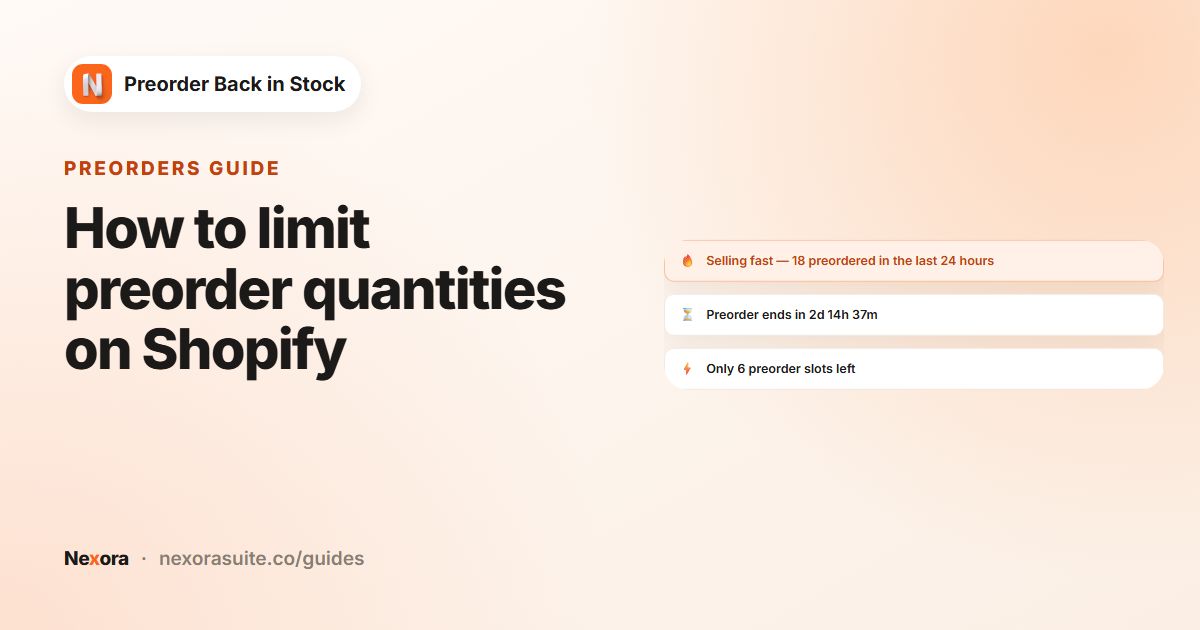 Related guideHow to limit preorder quantities on Shopify→
Preorder: Customer emails and Messages tabs
Customer emails
Four emails follow the customer through their preorder. Each can be turned on or off with Enabled, and each has Subject, Body, Button text (leave it blank to hide the button) and Button URL. A live email preview appears on the right.
| When it is sent | |
|---|---|
| Confirmation | Right after a customer places a preorder. |
| Reminder before ship | A set number of days before the expected ship date. Days before ship date can be 1 to 90 (default 7). It needs a Scheduled ship date. |
| Shipped | When the order is marked as fulfilled in Shopify. |
| Cancelled | When the order is cancelled in Shopify. |
Tokens: {customer_first_name}, {customer_name}, {product_title}, {ship_date}, {order_number}, {order_link}, {shop_name}, {shop_url}. The reminder also supports {days_until_ship}, and the shipped email supports {tracking_url}.
- Add / edit translations: translate the subject, body and button text for each published language. The customer's language is picked automatically from the order.
- Send test: sends the email to any address with sample data, so you can see what customers will receive.
Messages (dynamic messages)
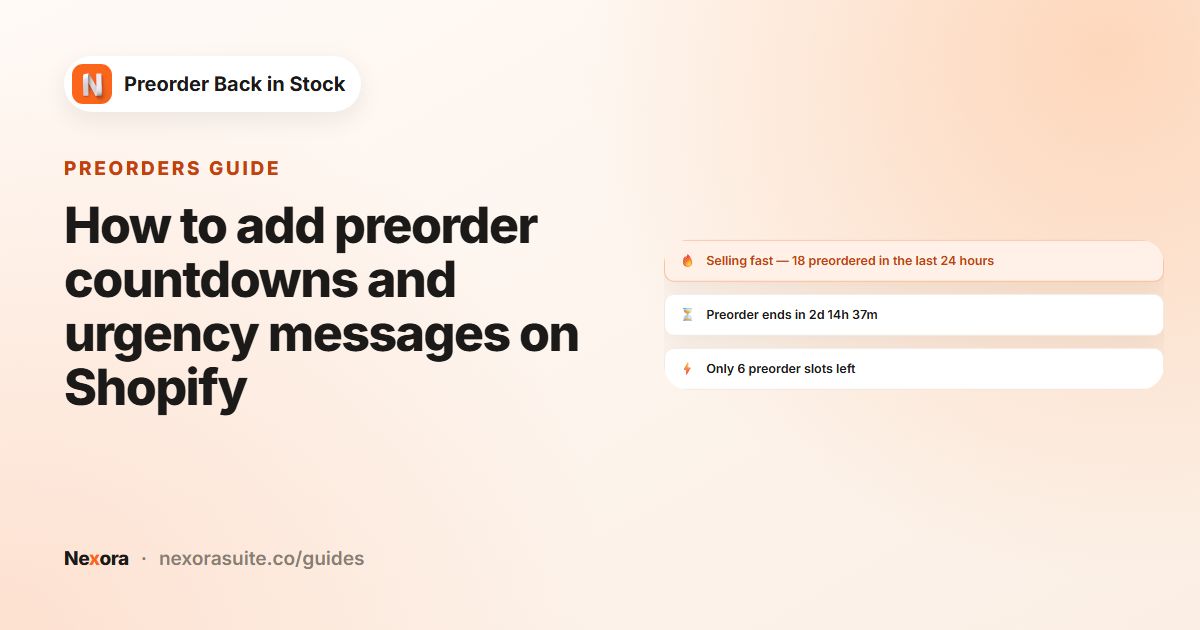
Turn on Dynamic messages to show one short urgency message above the Preorder button. When several messages qualify, the highest one in Priority order wins. Drag the rows to reorder them.
| Message | Shows when |
|---|---|
| Last chance | Hours left are under Show when hours left <, or slots left are under or slots left <. |
| Selling fast | The number of orders within Window (hours) is at least Orders within window ≥. |
| Only X slots left | Remaining preorder slots are at or below Show when slots ≤. Items already in the customer's cart are counted. |
| Preorder ends in | The campaign has an end date (shows a countdown). |
| X people preordered | The preorder count is at least Show when count ≥. |
Each message has Enabled, Text (use {time} for the countdown and {n} for the number), Emoji, Color, Font size (px) and bold. Timer format ({time}) offers Compact — 2d 5h 30m, Digital — 02:05:30:12 or Words — 2 days, 5 hours….
 Related guideHow to add preorder countdowns and urgency messages on Shopify→
Preorder analytics
Preorder analytics shows how your preorder campaigns perform over a date range you choose. Click Refresh to load the latest numbers.
- Summary cards: Net revenue, Preorders, Avg order value and Refund rate, each compared with the previous period.
- Conversion funnel: Product views → Preorder clicks → Orders placed, with the rate at each step.
- Top products by net revenue and Revenue by campaign: units, gross revenue, refunded and net revenue (10 per page).
- Daily revenue chart (hover over it to see daily values).
Back in Stock: General, Button and Popup tabs
Go to Back in Stock and click Create campaign. The editor has five tabs: General, Button, Popup, Email and Products.
General
| Setting | What it does |
|---|---|
| Title + Active/Inactive | Internal name and on/off switch for the campaign. |
| Once inventory is above or equal to | Restock emails go out automatically to all subscribers of a variant when its inventory reaches this number. |
| Re-subscribe cooldown (days) | Default 30. If a variant sells out again, customers who were already notified are re-subscribed automatically, but only after this many days, which avoids spam during quick sell-out and restock cycles. Set 0 to turn off auto re-subscribe. |
| Auto-remove after (days) | Default 180. Subscribers inactive for longer are deleted, which keeps your list clean. Set 0 to keep them forever (not recommended). |
Button
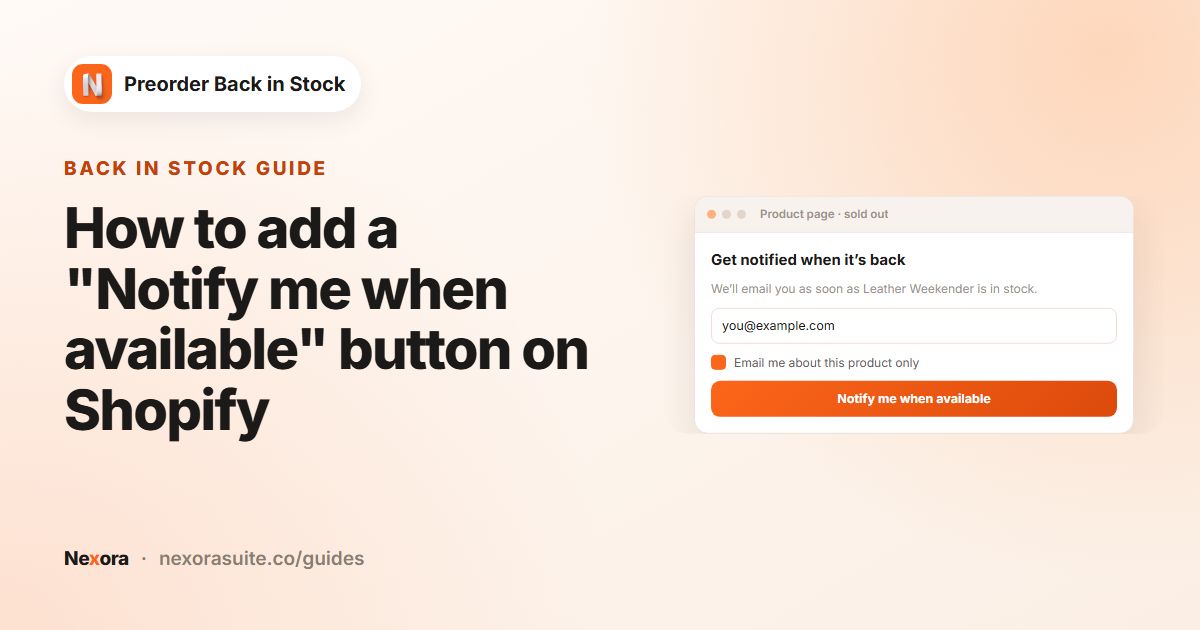
Set the Button text (default "Notify me when available"). Default style copies your theme's Add to cart button. Custom unlocks background (single color or gradient), border, Corner radius (px), text style, font and spacing. You can translate the button text into your published languages.
Popup
- Font, Header, Description (use
{product}to show the selected product and variant) and Disclaimer, each with its own size, color and bold. - Form settings: Email field placeholder, Email field error (shown for an invalid or empty email) and Text alignment (Left, Center or Right).
- Success message: Header, Message, Text alignment, and Show success icon (green checkmark).
- Form: background, corner radius, padding, input field background, border, text style and close button color.
- Button: submit button text, background, corner radius and text style.
- Translations for every popup text.
 Related guideHow to add a "Notify me when available" button on Shopify→
Back in Stock: Email and Products tabs
Base content
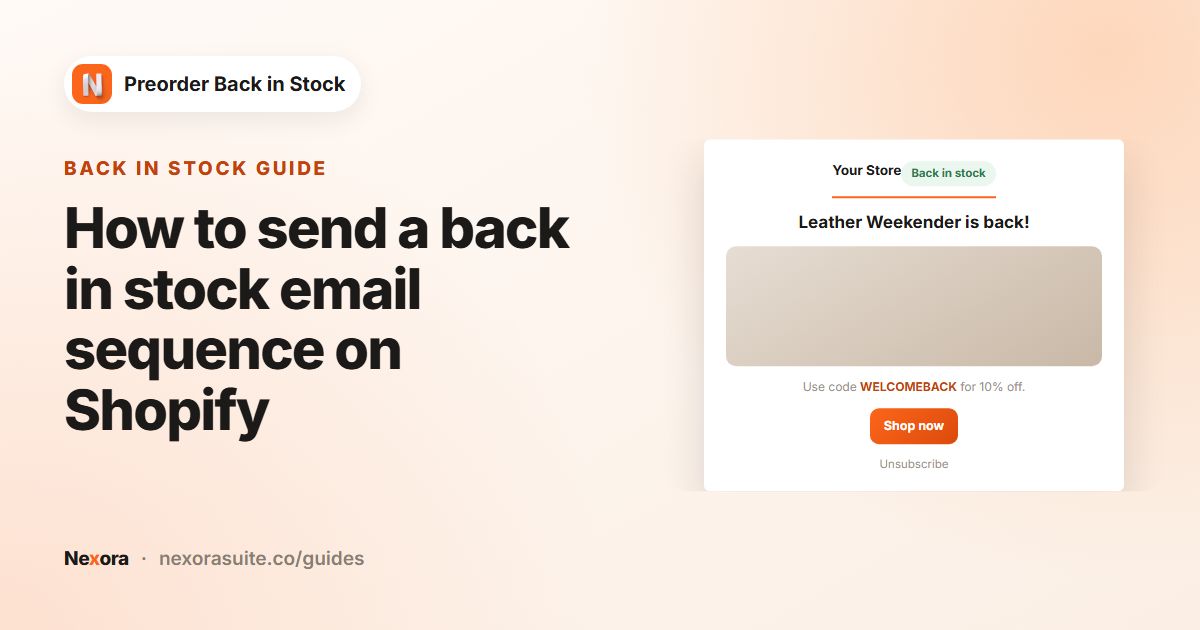
This is the single restock email that is sent straight away when the email sequence is off. Fields: Subject (use {product}), Store name, Subheading, Description, Button text, Take customer to (Checkout or Product page), an optional Discount code, and Footer text (use {storeName}). Every email includes an unsubscribe link.
Email sequence
Turn on Email sequence to send up to 10 steps after a restock. Each step has Enabled, Delay (hours after restock) and its own content. Leave a field blank to use the Base content text. Collapse steps, or move them with the up and down arrows. The sequence stops for a subscriber as soon as they buy the product.
Stop sequence after (days) (default 90) is a safety cap. Any step still waiting when this window closes is cancelled, so a late reminder is never sent weeks after the restock.
Design, GDPR, translations and test
- Design: font, logo (PNG, JPEG or SVG up to 2MB, with width), and styles for store name, subheading, description, product name, price, button and footer.
- GDPR Compliance: require double opt-in. Customers get a confirmation email first (it must include
{product}and{link}) and are subscribed only after they click the link. You can also set the Confirmation success message. - Translations: translate the base content, every sequence step and the GDPR texts.
- Test email: Send test email delivers the rendered email to your inbox.
Products
- Show 'Notify me when available' button on: All products, Specific collections or Specific products. In the first two modes, new products are included automatically.
- If a product is in preorder and back in stock campaigns: Show Notify me and preorder buttons together, Show only preorder or Show only Notify me.
 Related guideHow to send a back in stock email sequence on Shopify→
Back in Stock: Subscribers page
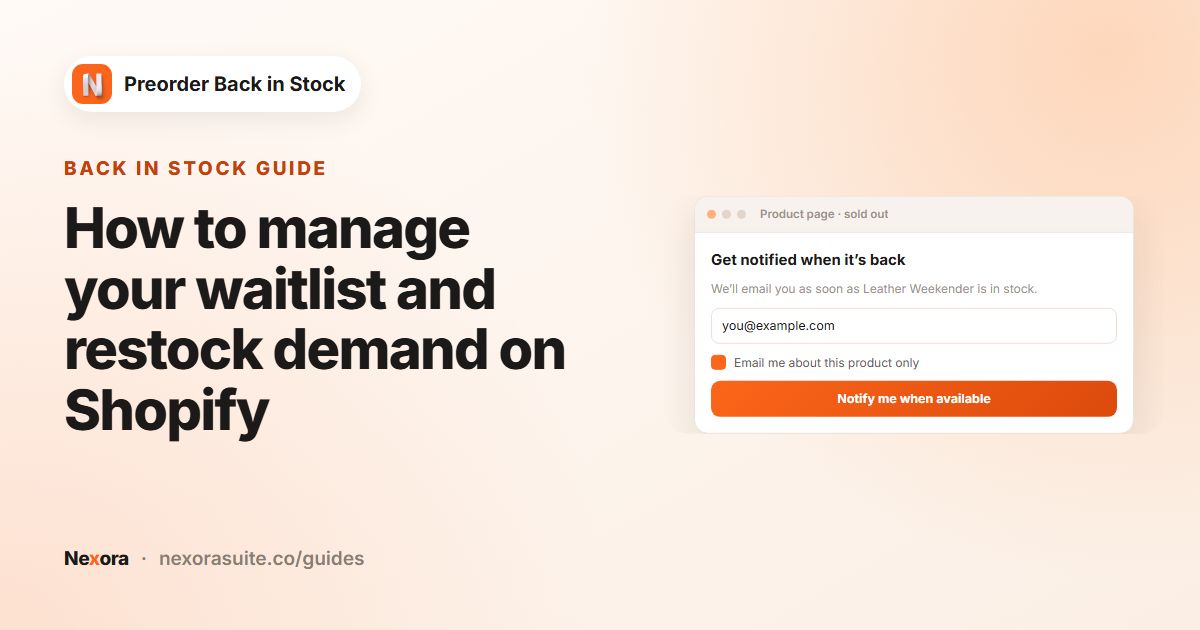
On the Back in Stock list, click Subscribers to see everyone waiting for a restock across all campaigns. The date range (last 30 days by default) applies to the whole page.
- Stat cards: Demand waiting, Notified, Recovered revenue (purchases by notified subscribers) and Conversion rate (notified → purchased).
- A High demand — consider restocking banner appears when 5 or more customers have waited 7 days or more for the same product.
- Funnel: PDP views → Notify-me clicks → Submitted → Confirmed → Notified → Purchased, plus Daily new subscribers and Top demand (live waitlist).
- Two views: By subscriber and By product (waiting, notified, stock, value waiting, last subscribed).
- Search by email or product, and filter by Status (Unconfirmed, Waiting, Notified, Unsubscribed), Campaign and Product.
| Action | What it does |
|---|---|
| Resend notification / Mark as notified / Unsubscribe / Delete | Available for one row or as bulk actions on selected rows. |
| View details | Opens a panel with the subscriber's product, dates, recovered amount, activity timeline and your private notes. |
| View in Shopify | Opens the matching customer search in Shopify admin. |
| Notify now… | Pick a campaign and click Run notify. The app re-checks current inventory and notifies confirmed subscribers whose variant has reached the campaign threshold. Use this as a safety net. |
| Export | Full data (CSV), or Marketing list (CSV), which leaves out unsubscribed customers. |
 Related guideHow to manage your waitlist and restock demand on Shopify→
Mixed Cart
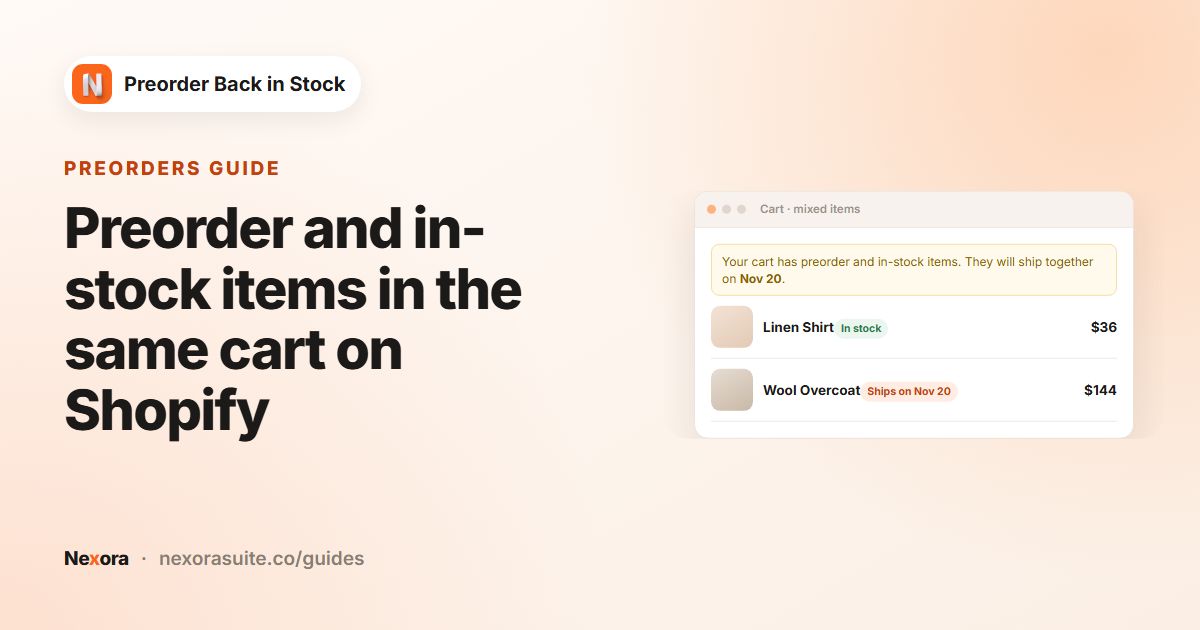
Turn on Enable mixed cart to control what happens when a cart contains both in-stock and preorder items. A live preview shows the result.
| Mode | What the customer sees |
|---|---|
| Allow — show a warning banner, ship together | A banner says the order contains preorder items. Ship-together text can show the latest preorder ship date with {date}. |
| Allow — ship separately (in-stock ships now, preorder ships later) | A banner explains the split shipment (Ship-separately text). The order is tagged preorder-ship-separately. |
| Block — ask the customer to clear the cart first | A modal stops the add to cart. The customer can choose Clear cart & add or Keep my cart. |
- Warning banner (Allow modes): Banner text (required), colors, corner radius, font size, and Auto-dismiss banner with Dismiss after (seconds).
- Block modal (Block mode): Title (required), Body, both button labels, and colors, sizes and corner radius.
- Cart line badges: In-stock label, Preorder label, their colors, the Ships-on label (
{date}= that line's ship date) and Badge font size (px).
 Related guidePreorder and in-stock items in the same cart on Shopify→
Settings
Email sending
By default, emails go out through the app's built-in sender, which includes 100 emails per shop per month. The Shared email service usage card shows this month's count. When you reach the limit, a warning appears, but sending is not blocked. Default sender name sets the "From" name for the built-in sender. The store name set in a Back in Stock campaign takes priority over it.
To send from your own account, turn on Mail SMTP & API and pick a Provider. The app sets no limit on emails sent this way.
| Provider | What you enter |
|---|---|
| SendGrid, Brevo (formerly Sendinblue), EmailOctopus | API Key |
| Mailgun | API Key, Domain and Region (US or EU) |
| Generic SMTP (Gmail, Outlook, etc.) | SMTP host, Port, Encryption (STARTTLS on 587 or SSL/TLS on 465), Username and Password. For Gmail, use an App Password. |
Enter a Sender email and Sender name, click Send verification email, then click the link in that inbox. Until the sender is verified, emails use the built-in sender. Test connection checks your setup.
Currency display
Show currency codes: when it's off, preorder prices use your store's currency format. When it's on, prices include the code (for example 45.00 USD). Decimals and separators always follow your Shopify settings.
Theme compatibility (advanced)
Only use this if the app cannot detect your theme's elements. You can enter CSS selectors for the Product card (wrapper, image, price, Add to cart button), the Quick-add modal (container, form, button, price, image) and the Product page (PDP) (form, button, price, image), for example .card__media img. If you're unsure, contact support. Click Save settings to save everything on this page.