
Before you start
- Install the app from the Shopify App Store. It is free.
- Decide which products to preorder and which to offer back in stock alerts for.
- If you want deposits (partial payment), make sure your store uses Shopify Payments.
- Optional: have API keys for SendGrid, Mailgun, Brevo, EmailOctopus or an SMTP account ready if you expect to send more than 100 emails a month.
Getting started
- Enable the app embed
On Home, click Enable on theme and choose your theme. In the theme editor, make sure the Preorder app embed is on, then click Save.
- Create a preorder campaign
Go to Preorder → Create campaign. Enter a Campaign title, check that the switch shows Active, and adjust the Button text and Preorder message.
- Set payment and ship date
Leave Full payment selected for now. Under fulfillment status, choose Scheduled and enter the days after checkout, or a due date, so customers and reminder emails get a ship date.
- Style the button
On the Design tab, keep Default to match your theme, or choose Custom. You can also turn on Show on product cards.
- Choose products
On Preorder products, keep When product is out of stock and Automatic continue selling. Under Apply this campaign to, choose your products or collections.
- Review customer emails
On Customer emails, check the four emails and use Send test to see one in your inbox. Then click Save.
- Create a back in stock campaign
Go to Back in Stock → Create campaign. On General, set Once inventory is above or equal to (for example 1). Adjust the Button, Popup and Email tabs, choose products on Products, and click Save.
- Check your storefront
Open a sold-out product included in the campaigns. You should see the Preorder button, or the Notify me when available button, depending on your settings. Submit a test email in the popup, and it will appear on the Subscribers page.
If a button does not show, first check that the app embed is on and saved, the campaign is Active, and its schedule has started.
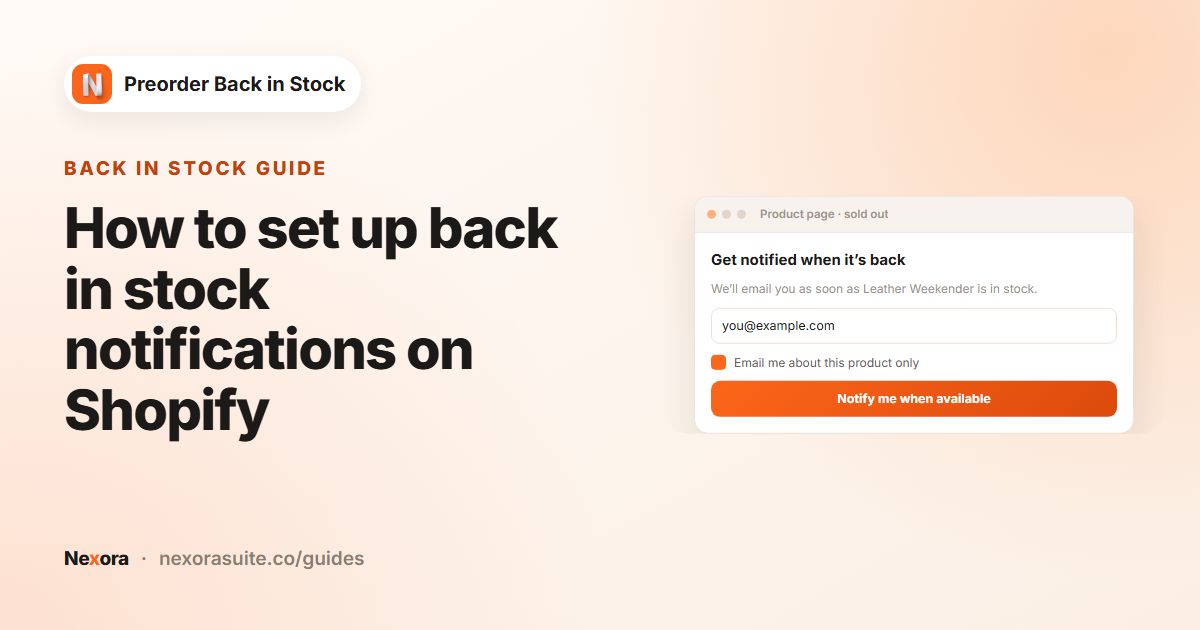 Related guideHow to set up back in stock notifications on Shopify→
Recipe: take a deposit now, charge the rest later
- Choose partial payment
In Content → Payment, select Partial payment (deposit + balance later). If prompted, click Enable Selling plans.
- Set the terms
Enter a Deposit percentage (for example 30) and Charge balance after (days) (for example 30).
- Explain it to customers
Edit Payment description, for example: Pay
{payment}now and{remaining}will be charged on{date}. - Save and wait for sync
Click Save. Wait until the selling plan sync banner disappears, then test a checkout.
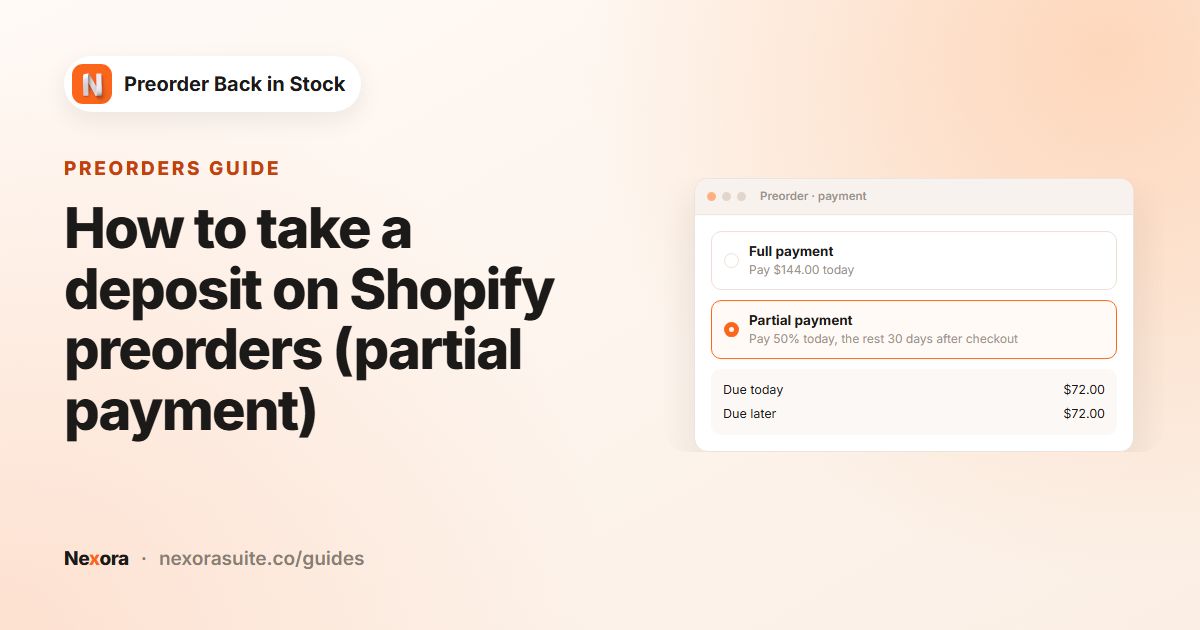 Related guideHow to take a deposit on Shopify preorders (partial payment)→
Recipe: a limited preorder drop with a countdown
- Schedule it
In Scheduling, set a start and end date.
- Cap the quantity
On Preorder products, tick Limit inventory for all products and enter how many units can be preordered (for example 100).
- Add urgency
On Messages, turn on Dynamic messages, enable Preorder ends in and Only X slots left, and pick a Timer format ({time}). Drag them into the order you want.
- Offer an early-bird price
Optionally set a Percentage (%) discount, and on Design turn on Show price strike-through with preorder discount for product cards.
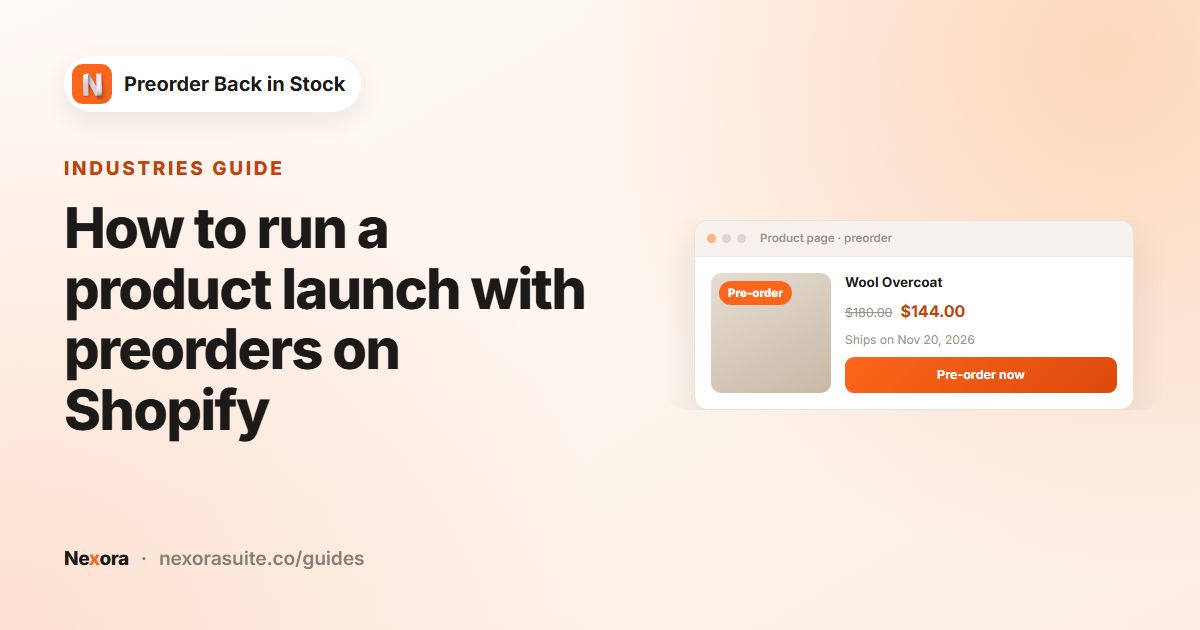 Related guideHow to run a product launch with preorders on Shopify→
Recipe: double opt-in and a restock follow-up
- Require confirmation
On the Back in Stock Email tab, turn on the GDPR Compliance option and check the confirmation email text. It must include
{product}and{link}. - Send people straight to checkout
In Base content, set Take customer to to Checkout.
- Add a follow-up
Turn on Email sequence. Keep step 1 as the instant email, then click Add step and set a Delay (hours after restock) such as 24, with a reminder message or a Discount code.
- Let it run
Customers who buy are removed from the sequence automatically. Track results on the Subscribers page.
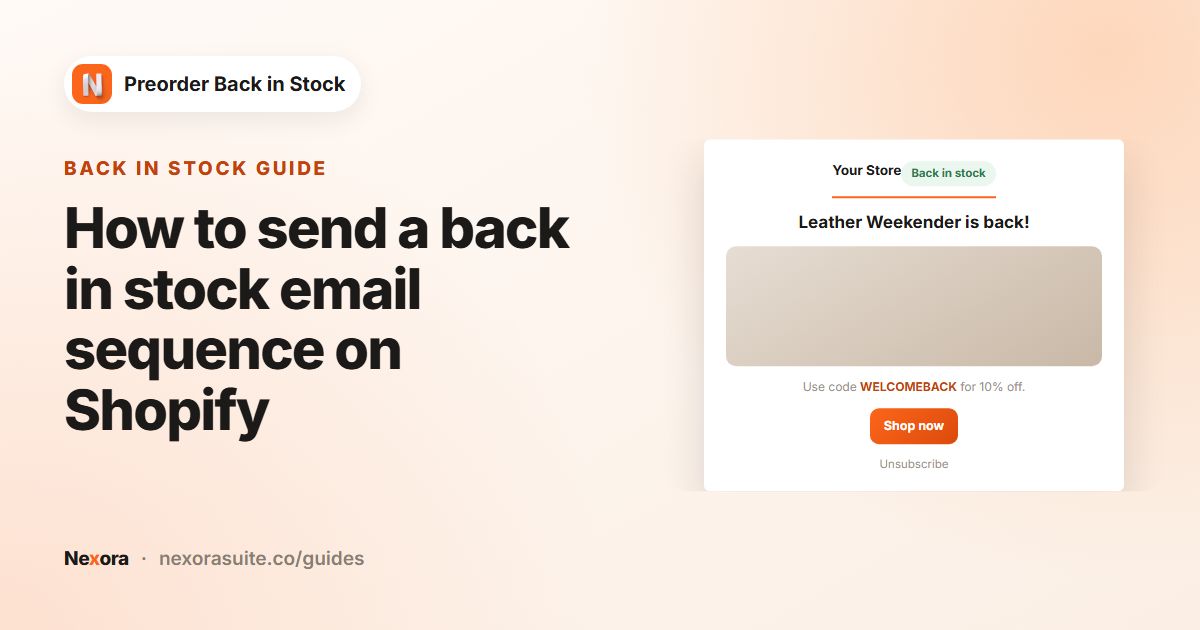 Related guideHow to send a back in stock email sequence on Shopify→
Recipe: send emails from your own domain
- Open Settings
Turn on Mail SMTP & API and choose your Provider.
- Enter credentials
Fill in the API key or SMTP details, plus Sender email and Sender name.
- Verify and test
Click Send verification email, open the link in that inbox, then click Test connection and Save settings.
Until the sender shows Verified, emails still go out through the built-in sender.