Why back in stock alerts are worth setting up
A sold-out product page is a dead end. The shopper wanted the item, but there's nothing to do except leave. A back in stock signup turns that visit into a contact: the shopper leaves an email address and you tell them the moment the item is back.
These are some of the most relevant emails a store can send, because the customer asked for this specific product. The signup list also tells you which sold-out products people actually want, which helps when you decide what to reorder.
Your options on Shopify
Shopify's admin doesn't include a built-in Notify me signup for sold-out products. Most themes simply show a disabled Sold out button. Stores usually add a signup through an app or through their email marketing platform's forms.
| Option | What you get | Trade-offs |
|---|---|---|
| Theme sold-out button | A disabled button | No way for the shopper to ask to be told |
| Generic newsletter form | An email address | Not linked to the product or variant, and no automatic restock email |
| A back in stock app | Per-variant signups and automatic restock emails | Another app to set up and check |
Alerts depend on Shopify's inventory count, so the products need inventory tracking turned on. See Shopify's guide to setting up inventory tracking.
Step by step: create a back in stock campaign
- Turn on the app embed
On Home, click Enable on theme, make sure the Preorder embed is on, and save. The same embed powers the Notify me button and popup.
- Create a campaign
Go to Back in Stock → Create campaign. On General, give it a Title and set it Active.
- Set the trigger
Enter Once inventory is above or equal to, for example
1. When a variant's inventory reaches this number, every subscriber for that variant is emailed. - Style the button
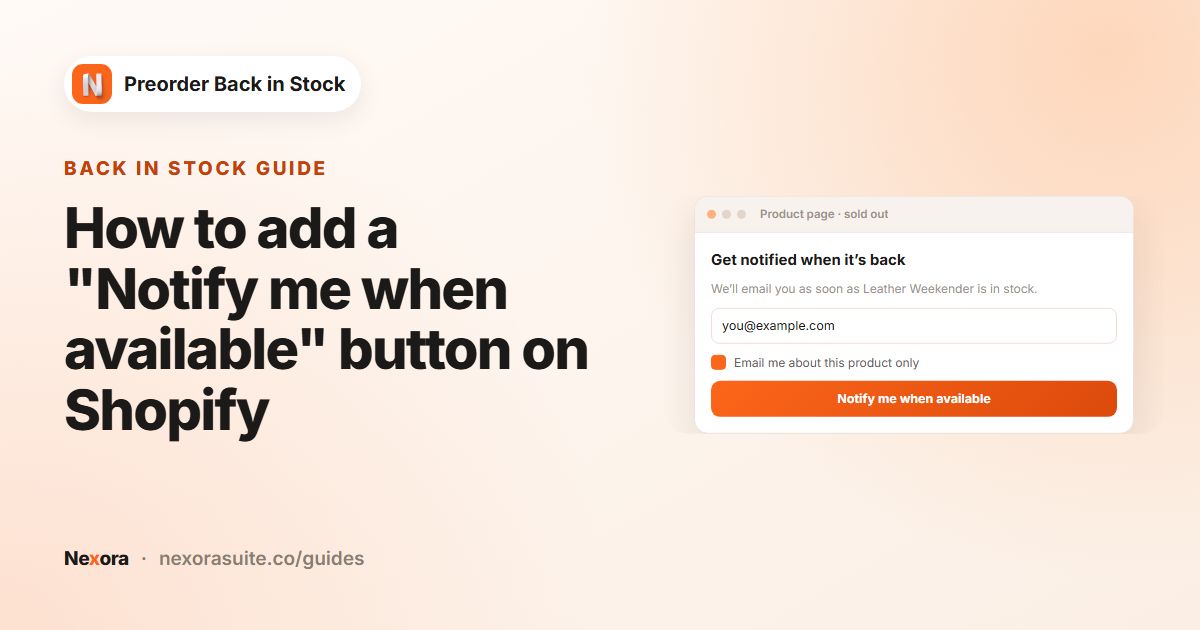
On Button, keep Button text
Notify me when available. Default copies your theme's Add to cart style, or choose Custom. - Edit the popup
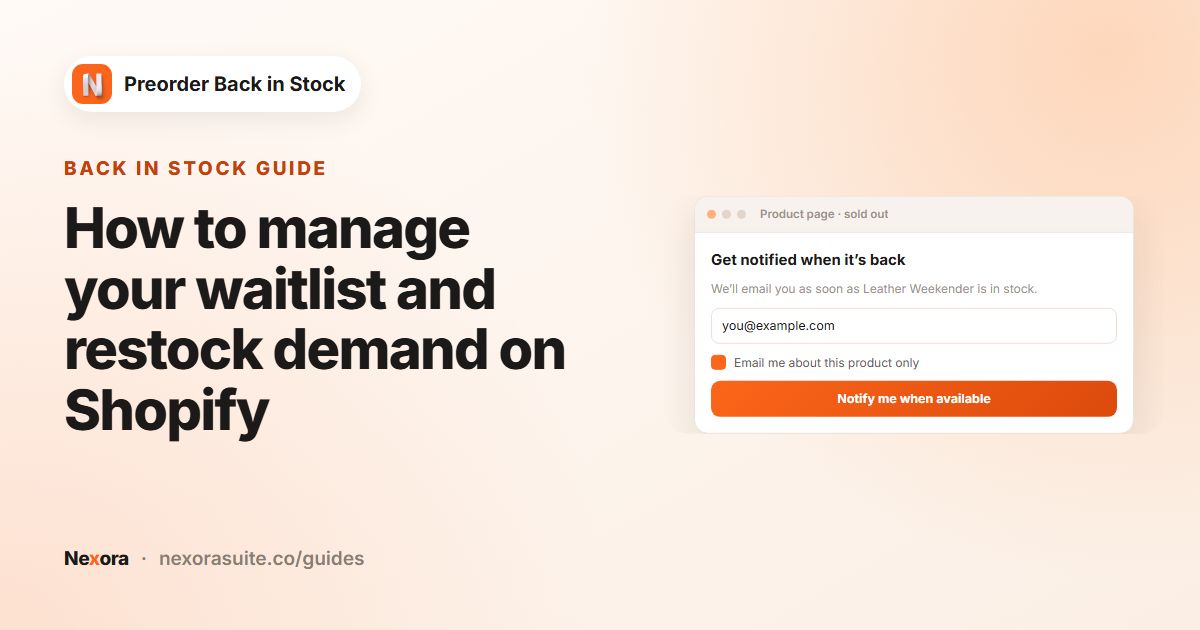
On Popup, set the Header, Description (use
{product}for the product and variant), Disclaimer and the Success message. - Write the restock email
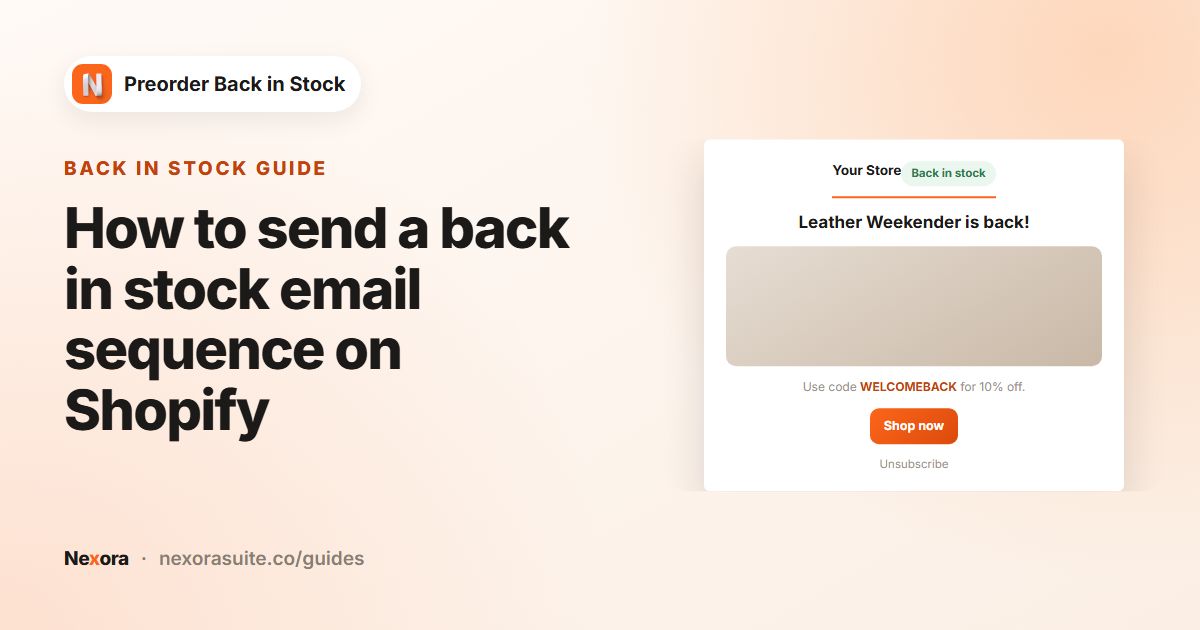
On Email, edit the Base content: Subject (use
{product}), Description, Button text and Take customer to (Checkout or Product page). Click Send test email. - Choose products and save
On Products, choose All products, Specific collections or Specific products, then click Save.
Key settings on the General tab
| Setting | Default | What it does |
|---|---|---|
| Once inventory is above or equal to | 1 | The stock level that triggers restock emails for a variant |
| Re-subscribe cooldown (days) | 30 | If a variant sells out again, already-notified customers are re-subscribed automatically once this many days have passed. 0 turns this off |
| Auto-remove after (days) | 180 | Inactive subscribers older than this are deleted. 0 keeps them forever (not recommended) |
If you restock in small amounts, a threshold above 1 can help. With 40 people waiting for a variant and only 2 units arriving, a threshold of 5 avoids emailing 40 people about 2 items.
Products in a preorder campaign too
Under If a product is in preorder and back in stock campaigns on the Products tab, choose Show Notify me and preorder buttons together, Show only preorder or Show only Notify me.
Example: a skincare store with frequent sell-outs
A skincare brand restocks its best-selling serum every few weeks, and it often sells out within days. It wants every sold-out product to collect emails, without spamming customers through quick cycles.
- Show 'Notify me when available' button on: All products, so new products are covered automatically
- Once inventory is above or equal to:
10 - Re-subscribe cooldown (days):
30, the default - Popup → Description:
Want to know when {product} is back? We'll send one email. - Base content → Take customer to: Checkout, Discount code left empty
- GDPR Compliance: double opt-in on, because the brand sells in the EU
When 50 serums arrive, inventory crosses 10 and every confirmed subscriber gets the email. When the serum sells out again, customers who were notified are re-subscribed automatically, as long as at least 30 days have passed since their notification. Anyone notified more recently isn't re-added, which avoids emailing the same people twice in a short sell-out and restock cycle.
Tips and common mistakes
- The button doesn't show: check the app embed is on, the campaign is Active, and the product is in the campaign's product selection.
- Emails don't go out: inventory must reach Once inventory is above or equal to. As a safety net, use Notify now… on the Subscribers page.
- Email volume: the built-in sender includes 100 emails per month. For bigger lists, connect your own provider under Settings → Mail SMTP & API.
- Send people somewhere useful: Checkout is the shortest path to a purchase; Product lets them pick another variant.
- Test first: subscribe with your own email on a sold-out product, then check the Subscribers page.
For follow-up emails after the first alert, see restock email sequences. For the full screen reference, see the app documentation.
Frequently asked questions
When are back in stock emails sent?
Automatically, when a variant's inventory reaches Once inventory is above or equal to. You can also trigger a check with Notify now… on the Subscribers page.
What if a product sells out again after the alert?
Customers who were notified are re-subscribed automatically once the Re-subscribe cooldown (days) has passed (30 by default). Set it to 0 to turn this off.
Does it work per variant?
Yes. Customers subscribe to the variant they selected, and the email goes out when that variant is back.
How many emails can I send for free?
The app is free. The built-in sender includes 100 emails per month; when you reach it you see a warning, but sending isn't blocked. With your own provider, the app sets no limit.
Can I translate the button and popup?
Yes. The button text, every popup text and the email content can be translated into your store's published languages.