What the button does
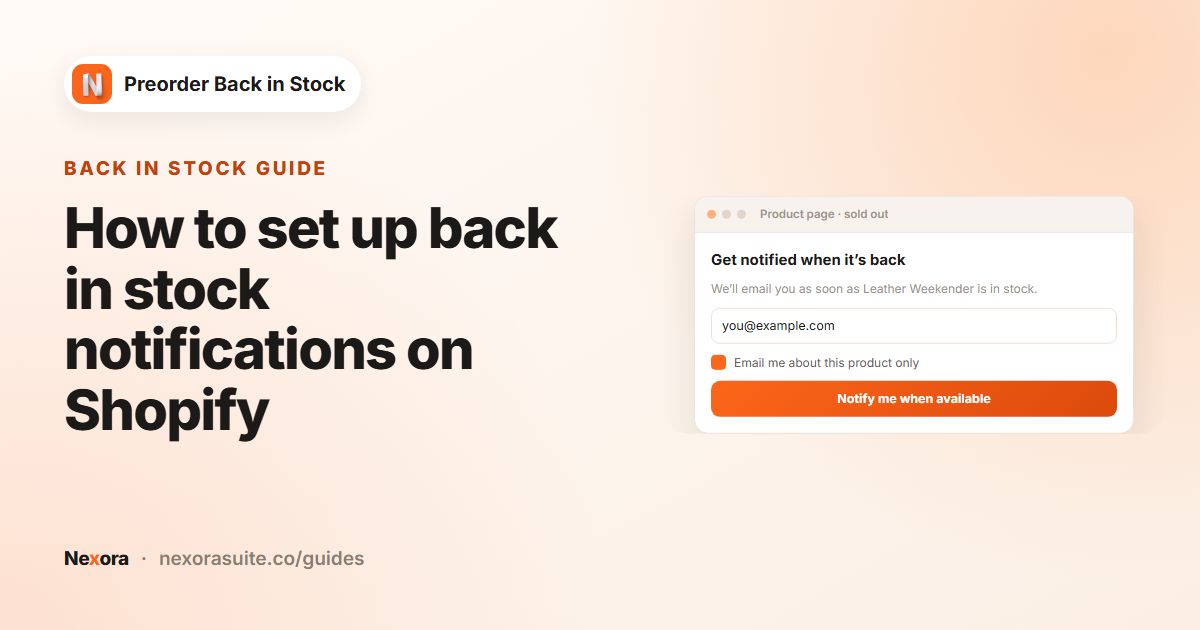
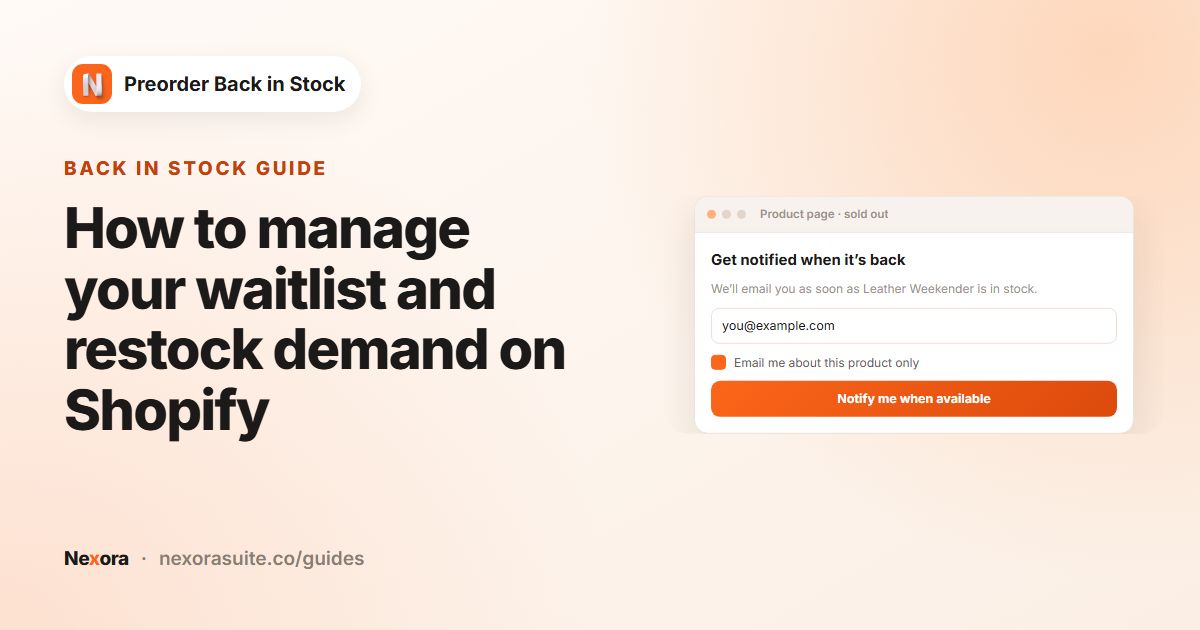
When a shopper picks a sold-out variant, most themes grey out the buy button. A Notify me button gives them something to do instead: they click it, a small popup asks for their email, and they are told when that exact variant is back.
The button only helps if it is easy to see and the popup is quick to fill in. One field, a clear promise ("we'll email you once") and a visible confirmation are usually enough.
Your options on Shopify
Shopify themes show a Sold out state for variants with no stock, unless the variant uses Continue selling. Shopify doesn't add a Notify me button by itself. You can add a contact or newsletter form to a theme section, but it won't know which product or variant the shopper wanted, and nothing emails them when stock returns.
| Option | Knows the variant | Emails on restock |
|---|---|---|
| Theme Sold out button | No | No |
| Contact or newsletter form | No | No, you would send emails by hand |
| Notify me button from an app | Yes | Yes, automatically |
Step by step: add the button and popup
- Turn on the app embed
On Home, click Enable on theme, check that the Preorder embed is on in App embeds, and click Save. No theme code is needed.
- Create a campaign
Go to Back in Stock → Create campaign and set it Active on the General tab.
- Set the button
On Button, edit Button text (default
Notify me when available). Choose Default to copy your theme's Add to cart style, or Custom for your own background, border, Corner radius (px), text style and spacing. - Edit the popup
On Popup, write the Header, Description (use
{product}) and Disclaimer. Under Form settings, set the Email field placeholder and Email field error. - Write the success message
Set the Success message header and message, and keep Show success icon (green checkmark) on so shoppers see it worked.
- Choose products
On Products, pick where the button shows: All products, Specific collections or Specific products.
- Save and test
Click Save, open a sold-out variant on your store, and submit your own email.
Button and popup settings
| Setting | Default | Tip |
|---|---|---|
| Button text | Notify me when available | Keep it about the product, not a newsletter |
| Button style | Default | Matches your theme. Custom allows a single colour or gradient |
| Popup Header | Notify me | Short and plain |
| Popup Description | Would you like us to let you know when the {product} becomes available? | {product} shows the selected product and variant |
| Popup Disclaimer | We'll only notify you when the product becomes available. | A short promise builds trust |
| Email field placeholder | E-mail | Or [email protected] |
| Text alignment | Center | Left, Center or Right |
| Success message | Thank you! / We'll notify you once the product becomes available. | Keep the green checkmark on |
The popup's Form and Button sections control the background, corner radius, padding, input field style, close button colour and the submit button. Every button and popup text can be translated into your store's published languages from the Translations cards.
When a product also has a preorder campaign
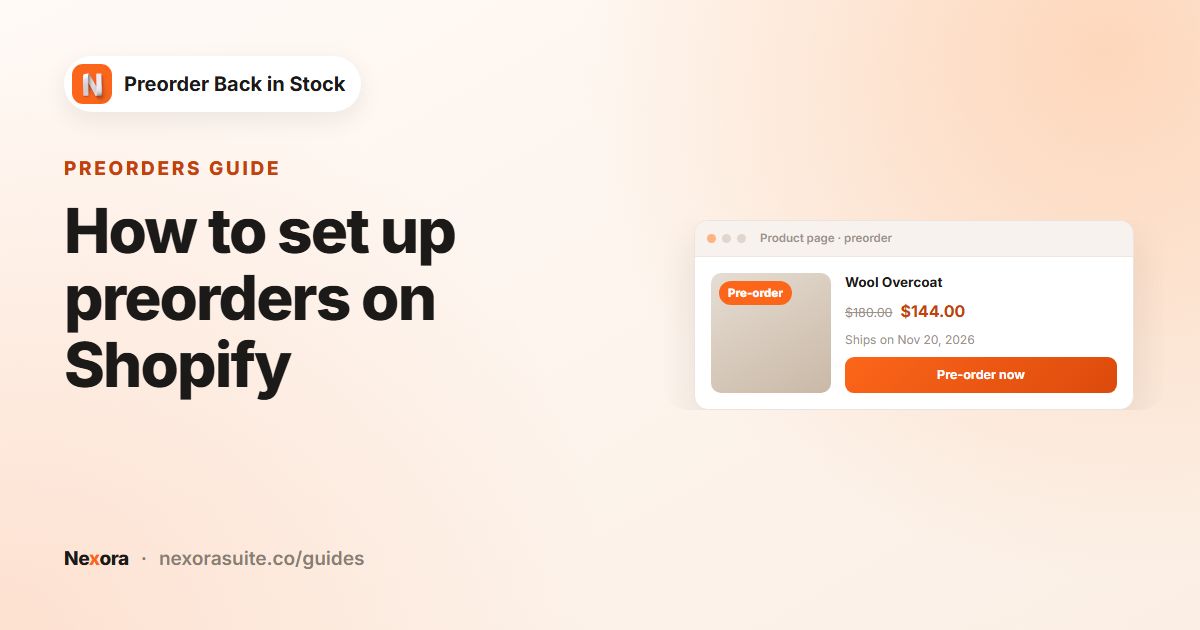
A sold-out product can be in a preorder campaign and a back in stock campaign at the same time. On the back in stock Products tab, If a product is in preorder and back in stock campaigns decides what shoppers see.
| Option | Shopper sees | Use when |
|---|---|---|
| Show Notify me and preorder buttons together | Both buttons | Some shoppers want to buy now, others just want to know |
| Show only preorder | The Preorder button | You'd rather take the order now |
| Show only Notify me | The Notify me button | The restock date is uncertain, so you don't want to take payment |
Example: a sneaker store with many sizes
A sneaker store often has a few sizes sold out while others are in stock. It wants the button only on sold-out sizes, in the store's own style.
- Button text:
Email me when my size is back - Style: Custom, black background, Corner radius (px)
4to match the store's square buttons - Description:
We'll email you once {product} is back. One email, no newsletter. - Email field placeholder:
[email protected] - Show 'Notify me when available' button on: All products
A shopper choosing size 10 sees the normal Add to cart if it's in stock. Switching to a sold-out size 11 shows the Notify me button, and the popup names Size 11 through {product}.
Tips and common mistakes
- Button missing: check the app embed is saved, the campaign is Active, and the product is covered on Products.
- Too much text: a long popup gets fewer signups. One sentence for the description is plenty.
- Custom themes: if the app can't find your product form, add selectors under Settings → Theme compatibility (advanced) or contact support.
- Consent: if you sell to the EU or UK, consider turning on double opt-in under GDPR Compliance on the Email tab.
- Check mobile: open a sold-out product on your phone to make sure the button and popup fit.
Next, set up what happens after signup: back in stock notifications and restock email sequences.
Frequently asked questions
Do I need to edit theme code to add the button?
No. The Preorder app embed adds the Notify me button and popup. Turn it on from Home and save in the theme editor.
Does the button show on in-stock variants?
No. It shows on sold-out variants of products in the campaign. In-stock variants keep your normal Add to cart button.
Can the button match my theme?
Yes. Default copies your theme's Add to cart button. Custom lets you set colours, border, corner radius, text and spacing.
Can I show both Notify me and Preorder?
Yes. Choose Show Notify me and preorder buttons together on the Products tab, or show only one of them.
Where do I see who signed up?
On the Back in Stock list, click Subscribers to see everyone waiting, by subscriber or by product.