What a preorder is and when it helps
A preorder lets a customer buy a product before you have it on the shelf. You take the order now and ship when stock arrives. It is useful for new launches, made-to-order items, seasonal restocks and products stuck with a supplier, because you keep the sale instead of showing a dead Sold out button.
A good preorder is clear about three things: that the item is not in stock yet, roughly when it will ship, and how much the customer pays today. Most customer complaints about preorders come from one of those being vague, so this guide covers each of them.
- Launches: sell a new product before the first batch arrives, and use the order count to size your next production run.
- Restocks with a known date: keep a best-seller buyable while the next shipment is on its way.
- Made to order: take orders for items you only produce once they are paid for.
Your options on Shopify
Shopify gives you the building blocks, but not a full preorder flow. The Continue selling when out of stock setting on a product or variant lets customers buy at 0 inventory or below. It only works when Inventory tracked is on, and Shopify notes that it doesn't apply to POS orders. See Shopify's guide to selling when out of stock.
On its own, that setting keeps the normal Add to cart button, so customers may not realise they are ordering something that hasn't arrived. For proper pre-order purchase options, such as a deposit with the balance charged later, Shopify asks you to use a pre-order app, and notes that pre-orders are currently only available to stores using Shopify Payments or PayPal Express.
| Option | What you get | Limits |
|---|---|---|
| Continue selling only | Orders at 0 stock | Button still says Add to cart, no ship date, no deposit, no preorder emails |
| Edit theme code | Custom button text and messages | Needs a developer and maintenance when you change themes |
| A preorder app | Preorder button, badge, ship date, deposits, emails | Partial payment depends on Shopify's payment requirements |
Step by step with Nexora Preorder Back in Stock
- Install and turn on the app embed
Install Nexora Preorder Back in Stock. On Home, click Enable on theme in the Activate app embed card, make sure the Preorder embed is on in the theme editor, and click Save.
- Create a campaign
Go to Preorder and click Create campaign. Enter a Campaign title (only you see it) and check that the switch shows Active.
- Write the button and message
Under Button settings, keep Button text as
Preorderor change it to something likePre-order now. Use Preorder message for a short line under the button, for exampleShips in early November. - Choose how customers pay
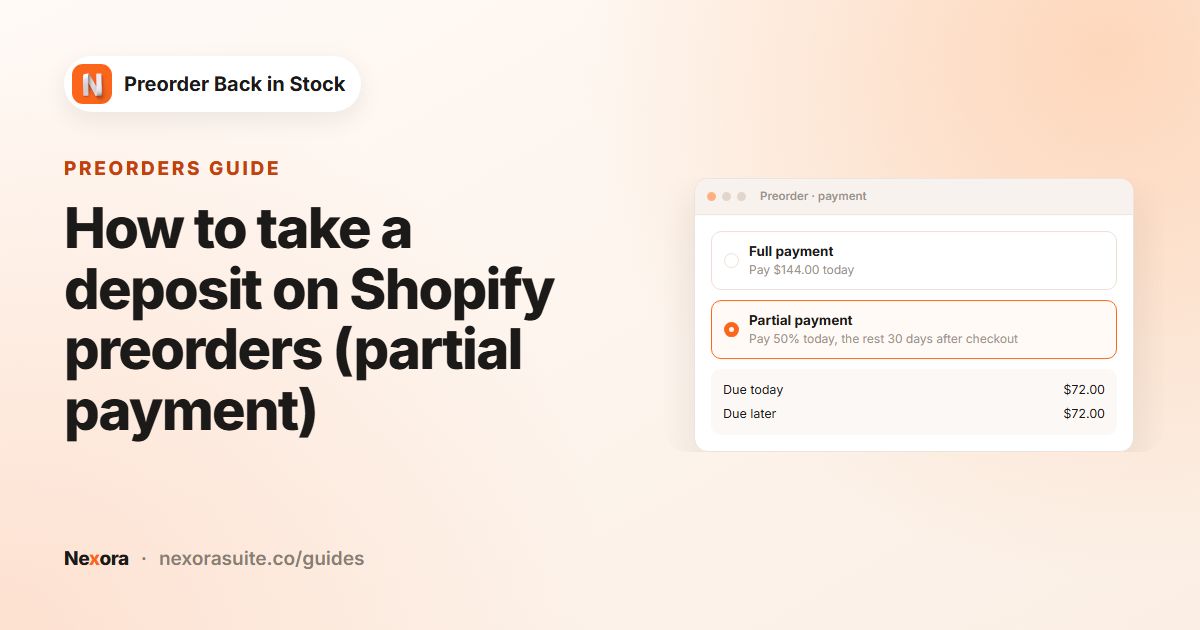
Under Payment, keep Full payment for the simplest setup, or choose Partial payment (deposit + balance later) to take a deposit. Optionally add a Discount for early buyers.
- Set a ship date
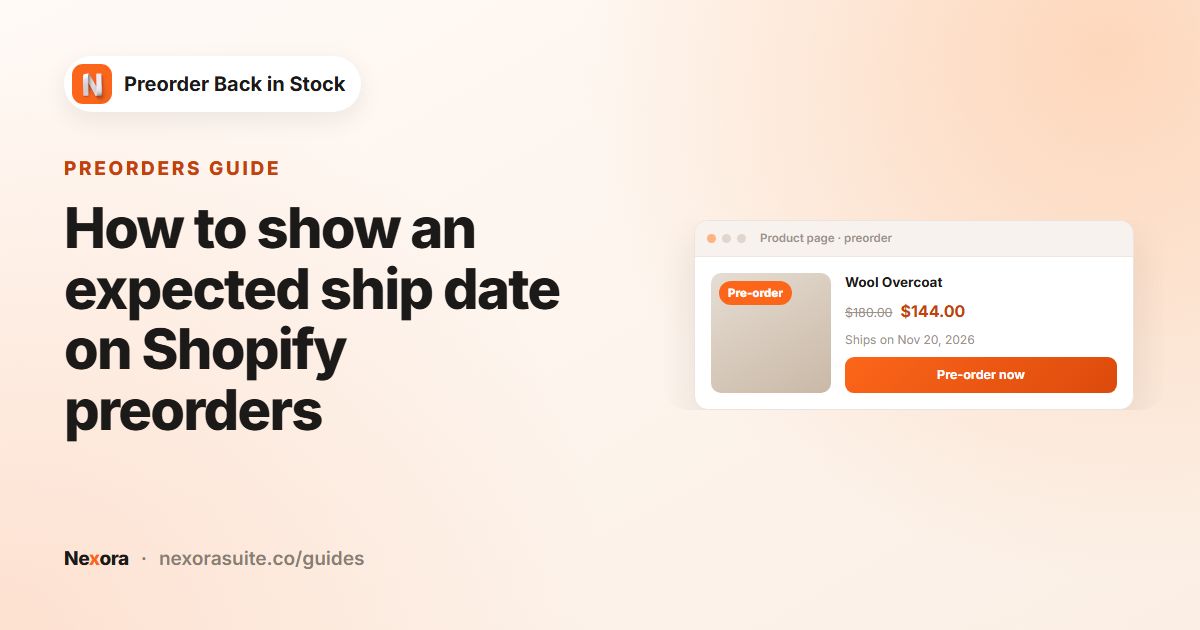
Under Set fulfillment status for orders with preorder items, choose Scheduled and enter either a number of days after checkout or a fixed due date.
- Pick the products
On the Preorder products tab, keep When product is out of stock and the Automatic continue selling mode. Under Apply this campaign to, choose Specific products, All products or Specific collections.
- Check the emails and save
On Customer emails, review Confirmation, Reminder before ship, Shipped and Cancelled, use Send test, then click Save.
In Automatic mode the app turns on Shopify's "Continue selling" setting for campaign products at 0 inventory or below while the campaign is published, so you don't have to change each product by hand.
The settings that matter most
| Setting | Where | Example value |
|---|---|---|
| Button text | Content → Button settings | Pre-order now |
| Preorder message | Content → Button settings | Ships in early November |
| Show preorder badge | Content | On, Badge text Pre-order |
| Scheduling | Content | Optional start and end date, in 30-minute steps |
| Payment | Content | Full payment, or a deposit of 1–99% |
| Set fulfillment status for orders with preorder items | Content | Scheduled, 30 days after checkout |
| Show preorder button | Preorder products | When product is out of stock |
| Continue selling when out of stock | Preorder products | Automatic (Recommended) |
| Apply this campaign to | Preorder products | Specific collections → Coming soon |
The Show preorder button choice decides when the button appears. When product is out of stock is the usual choice: Preorder shows at 0 inventory and switches back to Add to cart once stock is above 0. Always shows Preorder at any stock level, and When product is in stock shows it only while the product has stock, which suits items you sell ahead of a fixed release.
Preorder discounts, partial payments and scheduled fulfillment use Shopify selling plans, so leave Use Shopify selling plan (purchase option) on under Advanced settings. With it on, checkout supports Shopify Payments only.
Example: a jacket that sells out before the next batch
A small outerwear brand sells out of its wool coat in October. The next batch is due in about four weeks. The setup below keeps the product page selling and tells customers exactly what to expect.
- Campaign title:
Wool coat – batch 2 - Button text:
Pre-order now, Preorder message:Ships around Nov 20 - Show preorder badge on, Badge text
Pre-order, Position on image Top left - Payment: Full payment
- Scheduled fulfillment with a fixed due date, which also tags orders
preorder-ship:YYYY-MM-DD - Show preorder button: When product is out of stock, so sizes still in stock keep Add to cart
- Customer emails: Confirmation and Reminder before ship on, with Days before ship date set to 7
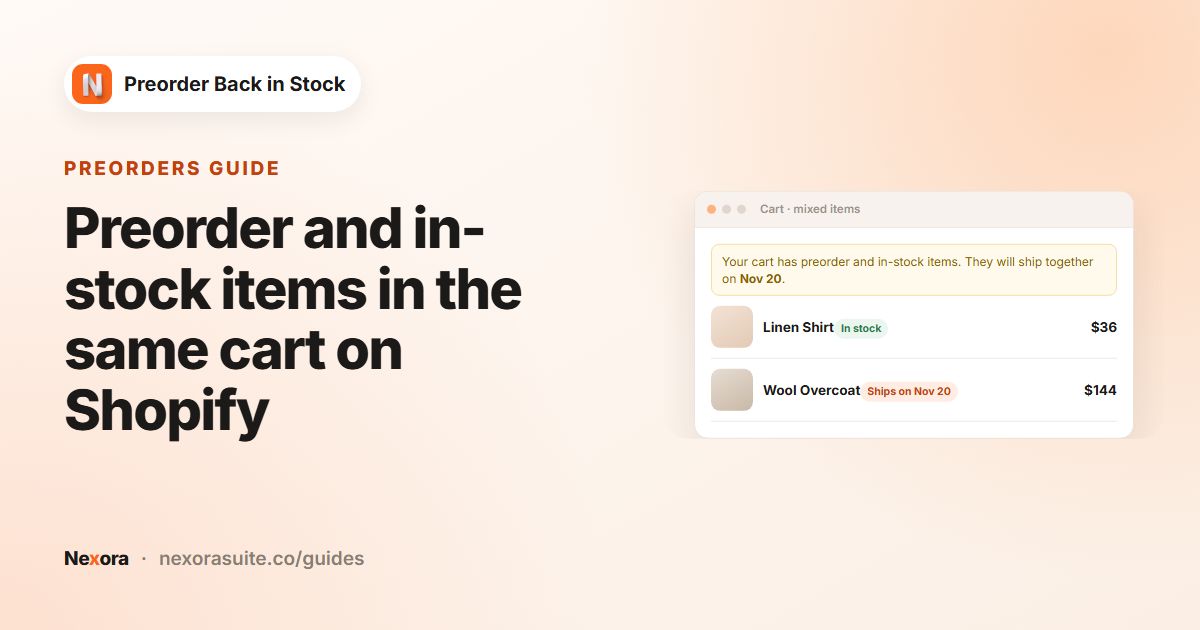
Because the button follows stock per variant, a customer who picks a size that is still in stock sees the normal Add to cart, while a sold-out size shows Pre-order now. If a customer adds both to the cart, the Mixed Cart page decides what happens next.
Tips and common mistakes
- The button doesn't show: check that the Preorder app embed is on and saved, the campaign is Active, and its schedule has started.
- Inventory tracking is off: Shopify's continue selling setting only applies to tracked products, so turn on Inventory tracked first.
- No ship date: even a rough date reduces "where is my order?" emails. Scheduled also drives the Reminder before ship email.
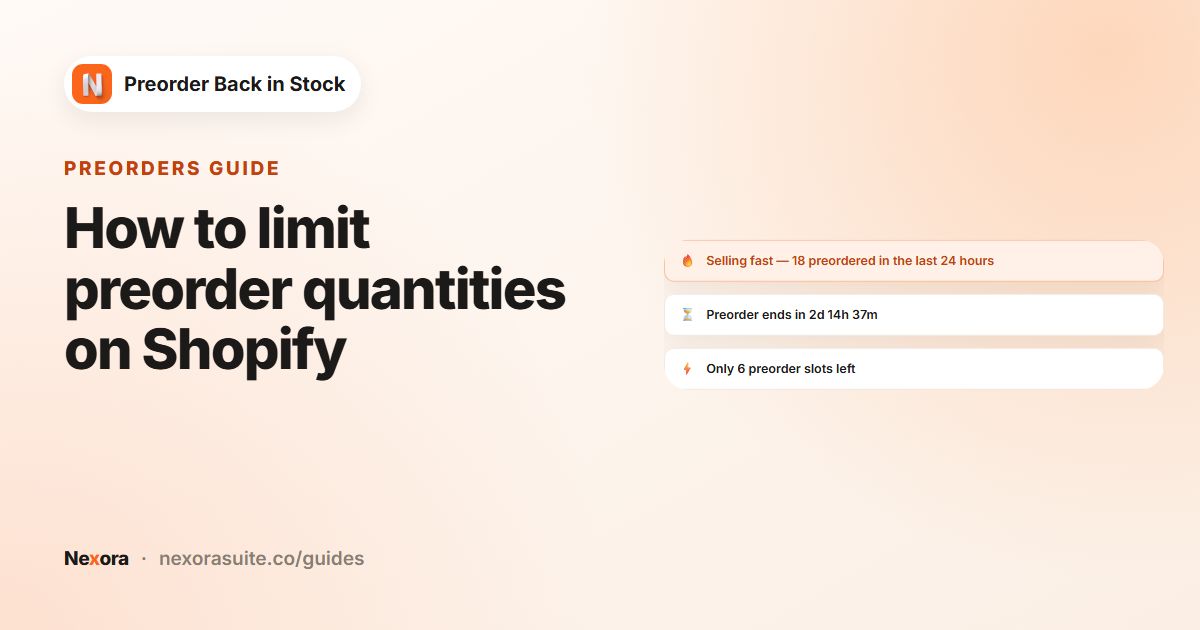
- Overselling a small batch: tick Limit inventory for all products to cap how many units can be preordered.
- Payment gateway surprises: if you use a deposit or discount, test a checkout with Shopify Payments before you announce the preorder.
Every order with a preorder item is tagged preorder, so you can filter them in Orders in Shopify admin. For screen-by-screen detail, see the app documentation or the setup tutorial.
Frequently asked questions
Do I need to edit my theme to add preorders?
No. The Preorder app embed adds the button, badge and messages to your theme. Turn it on from Home → Enable on theme and save in the theme editor.
Does Shopify have preorders built in?
Shopify has the Continue selling when out of stock setting, which lets customers buy at 0 stock. For a Preorder button, deposits and ship dates, Shopify points merchants to a pre-order app.
Can a product show Add to cart for some variants and Preorder for others?
Yes. With When product is out of stock, the button follows each variant's stock, so in-stock variants keep Add to cart.
Is the app free?
Yes, it is completely free. The built-in email sender includes 100 emails per month, and connecting your own email provider removes the app's limit.
How do I find preorder orders later?
Every order with a preorder item is tagged preorder, plus any Order tags you add, so you can filter by tag in Shopify admin.