Why cap preorders
Shopify's Continue selling when out of stock setting has no ceiling. Once it is on, a product can keep selling into negative inventory indefinitely. That is fine if you can make more at any time, but risky when your next shipment has a fixed size. If 120 people preorder and only 80 units arrive, 40 customers wait for a second batch or get a refund.
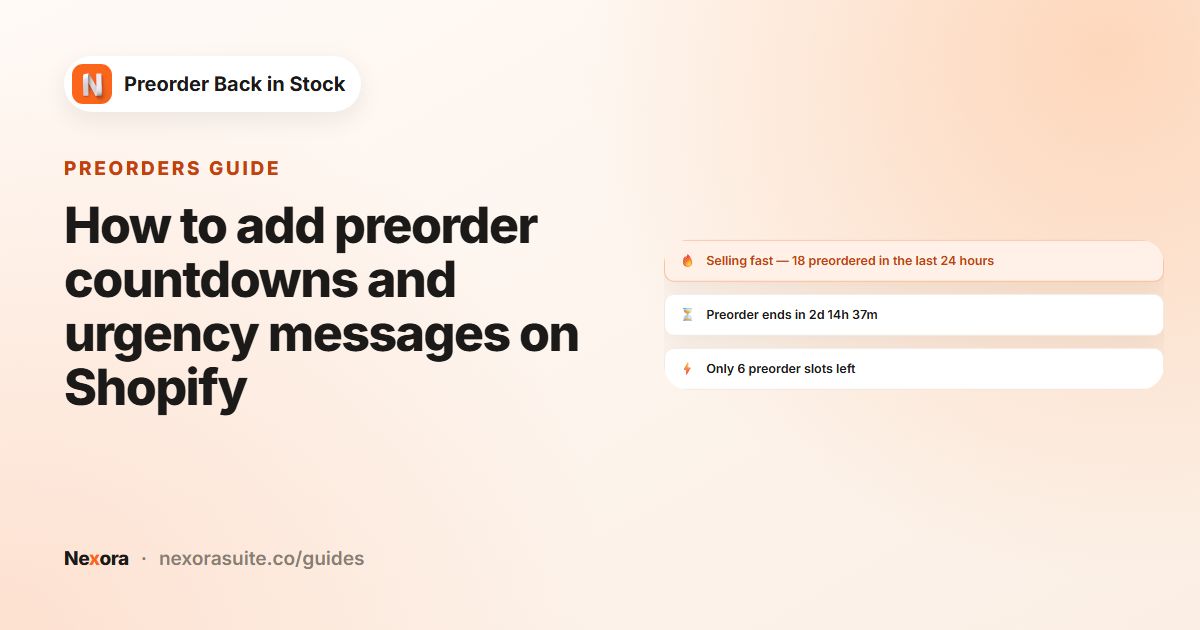
A preorder limit matches what you sell to what you will actually receive. It also gives you an honest scarcity message: "Only 6 preorder slots left" is true because there really are only six.
How Shopify handles out-of-stock selling
In Shopify, a product is out of stock when inventory is tracked and its level is 0 or below. With Continue selling when out of stock on, customers can keep buying and the inventory count goes negative. It applies to online orders, not to POS. See Shopify's guide to selling when out of stock.
Without an app, the only way to stop at a limit is to watch the inventory count and turn the setting off yourself at the right moment. A preorder limit does this automatically.
Step by step: set a preorder limit
- Open the products tab
Open your campaign under Preorder and go to the Preorder products tab.
- Use the out-of-stock condition
Under Show preorder button, select When product is out of stock. The Limit inventory for all products option appears under it.
- Enter the cap
Tick Limit inventory for all products and enter how many units can be preordered, for example
50. The app stores it as a negative stock level (−50), so inventory can drop to −50 before preorders stop. - Choose the continue selling mode
Under Continue selling when out of stock, pick Automatic (Recommended) or Manual. In both modes, Continue selling is switched off when the limit is reached.
- Set per-variant limits
With Specific products, each variant row in the product table has its own inventory limit field. With All products or Specific collections, use the Inventory limit overrides card and click Add variant override.
- Save
Click Save and check the product table for each variant's continue selling status, inventory and limit.
Automatic vs Manual continue selling
| Automatic (Recommended) | Manual | |
|---|---|---|
| Who changes Shopify's setting | The app, for campaign products at 0 inventory or below, while the campaign is published | You, in Shopify admin |
| When the limit is reached | Continue selling is switched off | Continue selling is switched off |
| When products don't match | Resync from the campaign if you changed the setting in Shopify yourself | A banner offers Turn ON "Continue selling", Turn OFF "Continue selling" or Turn ON/OFF "Continue selling" accordingly |
| When the campaign is unpublished | Managed for you | Turn the setting off yourself to avoid overselling |
Campaign limit and variant overrides
| Mode | How per-variant limits work |
|---|---|
| Specific products | Every variant row has an inventory limit. Leave the campaign value or type a different one for that variant. |
| All products / Specific collections | The Inventory limit overrides card lists only the variants you customise. Every other variant uses the campaign limit. Remove all clears the overrides. |
Example: a sneaker drop with limited sizes
A shoe store has a new colourway arriving in four weeks: 60 pairs in total, but only 6 in size 12 and 20 in size 9. The shoes sit in a Spring drop collection, so the campaign uses Specific collections and picks that collection.
- Show preorder button: When product is out of stock
- Limit inventory for all products:
10as the default per variant - Inventory limit overrides → Add variant override: size 12 →
6, size 9 →20 - Continue selling when out of stock: Automatic
- Messages: Only X slots left on with Show when slots ≤
5
When the twentieth pair of size 9 is preordered, its inventory reaches −20 and Continue selling turns off for that variant only. The other sizes keep taking preorders until they reach their own limits.
Tips and common mistakes
- Start from 0: the limit counts down from zero. If a variant still has stock, those units sell first as normal before preorders begin.
- Keep a small buffer: set the limit a little below your confirmed shipment to allow for damaged or short-shipped units.
- Manual mode needs attention: if you choose Manual, act on the mismatch banners and turn Continue selling off when you unpublish the campaign.
- Inventory tracking: limits rely on Shopify's inventory count, so Inventory tracked must be on for the products.
- Pair limits with an honest message: Only X slots left counts remaining preorder slots, including items already in the shopper's cart.
For the urgency messages, see preorder urgency messages.
Frequently asked questions
What happens when the limit is reached?
The app switches Shopify's Continue selling off for that variant, so it shows as sold out instead of taking more preorders. This happens in both Automatic and Manual mode.
Why is my limit shown as a negative number?
Preorders sell into negative inventory, so a limit of 50 is stored as −50. Preorders stop when inventory reaches that level.
Can each size or colour have a different limit?
Yes. In Specific products mode, set it on each variant row. In All products or Specific collections mode, use Add variant override.
Which continue selling mode should I pick?
Automatic suits most stores, because the app turns the setting on and off for you. Choose Manual if you want to control the setting in Shopify yourself.
Why can't I see the limit option?
Limit inventory for all products appears under When product is out of stock in Show preorder button.