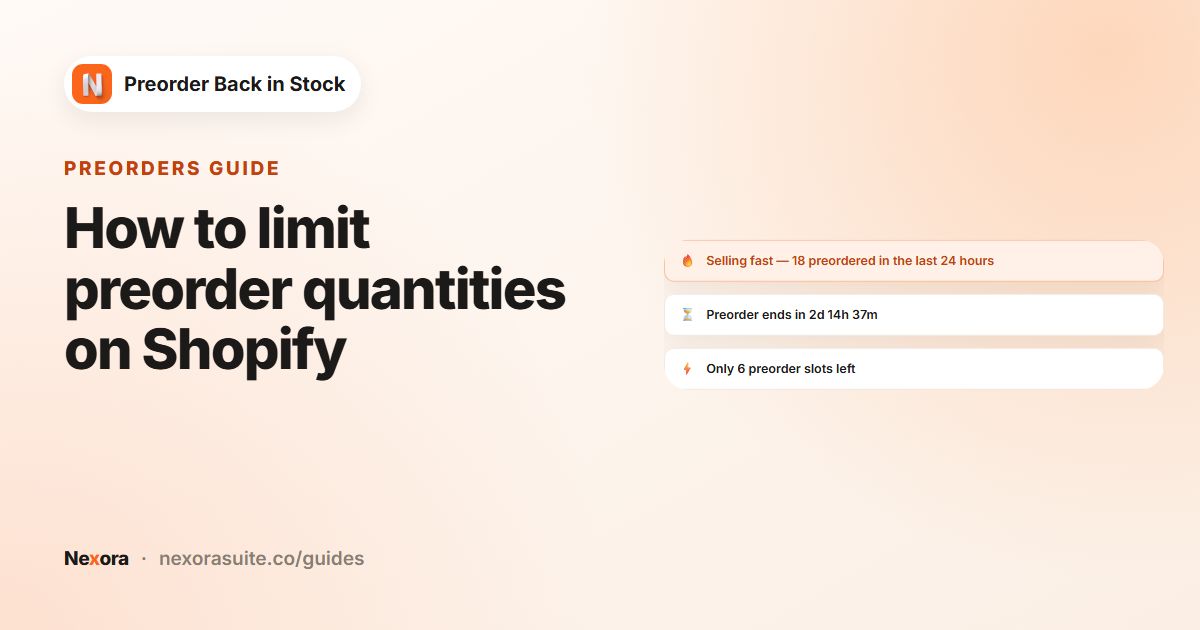
Urgency that helps rather than pressures
Preorders often have a real deadline or a real cap: the campaign ends on Friday, or only 100 units are coming. Telling shoppers that is useful. It saves them from coming back to a closed preorder. Made-up timers that reset on every visit do the opposite: shoppers notice, and some regions treat fake scarcity as a consumer-protection issue.
The messages in this guide are driven by your campaign: its end date, its inventory limit and its actual orders. If there is no end date, the countdown simply doesn't show.
Your options on Shopify
Shopify themes don't include a preorder countdown. Some themes have a general countdown or announcement block that you set by hand, which isn't connected to your preorder end date or order count. Stock-level messages in themes usually only work for positive inventory, not preorder slots.
| Option | Data source | Notes |
|---|---|---|
| Theme countdown or announcement block | A date you type in | Not linked to the campaign; easy to leave running after it ends |
| Theme inventory message | Positive stock | Doesn't count preorder slots below zero |
| Dynamic messages | The campaign's end date, limit and orders | One message at a time, chosen by priority |
Step by step: turn on dynamic messages
- Open the Messages tab
Go to Preorder, open the campaign and click the Messages tab.
- Turn them on
Turn on Dynamic messages. The preview on the right shows the messages that are enabled.
- Enable the messages you want
Each message has an Enabled checkbox. Turn off any that don't fit the campaign.
- Set thresholds
For example, Only X slots left with Show when slots ≤
10, or X people preordered with Show when count ≥20. - Write the text
Use
{time}for the countdown and{n}for a number, for exampleOnly {n} preorder slots left!. Pick an Emoji, Color and Font size (px). - Choose the priority
Under Priority order, drag the rows so the most important message is on top. Pick a Timer format ({time}) and save.
The five messages
| Message | Shows when | Default text |
|---|---|---|
| Last chance | Hours left are under Show when hours left <, or slots left are under or slots left < | Last chance to preorder! |
| Selling fast | Orders within Window (hours) are at least Orders within window ≥ | Selling fast! |
| Only X slots left | Remaining preorder slots are at or below Show when slots ≤ | Only {n} preorder slots left! |
| Preorder ends in | The campaign has an end date | Preorder ends in {time} |
| X people preordered | The preorder count is at least Show when count ≥ | {n} people have preordered this |
Timer format ({time}) controls how the countdown reads: Compact — 2d 5h 30m, Digital — 02:05:30:12 or Words — 2 days, 5 hours…. Only X slots left counts items already in the shopper's cart, so the number stays honest while they browse.
Slot-based messages need an inventory limit. Turn on Limit inventory for all products on the Preorder products tab, or there are no slots to count.
Example: a one-week preorder for a limited print run
An illustrator sells a limited art print: 150 copies, with preorders open for seven days. The goal is to show the deadline most of the week, then switch to scarcity or last-chance messages near the end.
- Scheduling: start Monday 09:00, end the following Monday 09:00
- Limit inventory for all products:
150 - Priority order: Last chance, Only X slots left, Preorder ends in, X people preordered
- Last chance: Show when hours left <
24, or slots left <5 - Only X slots left: Show when slots ≤
20 - X people preordered: enabled, Show when count ≥
25 - Timer format ({time}): Compact — 2d 5h 30m
Most of the week, shoppers see the countdown. If the run gets down to 20 copies, Only X slots left takes over, and on the final day Last chance shows instead.
Tips and common mistakes
- One message is enough: the storefront shows a single message, so put the most useful one first in Priority order.
- No end date, no countdown: Preorder ends in needs Set end date in Scheduling.
- Low thresholds look odd: X people preordered with a threshold of 1 reads strangely. Wait until the number means something.
- Selling fast needs volume: set Orders within window ≥ to a number that is genuinely fast for your store.
- Keep colours readable: a dark red or amber on white is easier to read than a bright red.
Slots come from your preorder limit. See limiting preorder quantities.
Frequently asked questions
Can I show more than one message at once?
No. One message shows at a time. When several qualify, the highest one in Priority order wins.
Are the numbers real?
Yes. Messages use the campaign's end date, inventory limit and orders. Only X slots left also counts items in the shopper's cart.
Why doesn't the countdown appear?
Preorder ends in only shows when the campaign has an end date. Tick Set end date under Scheduling.
Can I change the timer style?
Yes. Timer format ({time}) offers Compact, Digital and Words.
Can I add an emoji?
Yes. Each message has its own Emoji, Color, Font size (px) and bold option.