Why discount a preorder
A customer who preorders waits longer and takes a small risk. A modest discount is a simple way to say thank you for that, and it can help you gather enough orders to justify a production run. It also gives you a clear end point: the early-bird price stops when the preorder ends or stock arrives.
The key is to discount only the preorder. If you lower the product price itself, customers who buy in-stock variants get the same deal, and you have to remember to change the price back later.
Your options on Shopify
| Option | How it works | Trade-offs |
|---|---|---|
| Lower the price / compare-at price | Edit the product price | Applies to everyone, including in-stock buyers. You must reset it by hand |
| Discount codes or automatic discounts | A Shopify discount on the product or collection | Not tied to preorder status, and may combine with other discounts depending on your settings |
| Preorder campaign discount | A price adjustment on the preorder selling plan | Only applies to preorders. Needs selling plans, which means Shopify Payments at checkout |
Shopify's purchase options can carry their own pricing, such as a percentage off. A preorder app uses this so the price is only lower when the customer buys through the preorder option. See Shopify's overview of purchase options.
Step by step: add a preorder discount
- Open the campaign
Go to Preorder and open a campaign, or click Create campaign.
- Choose a discount type
On the Content tab, under Discount, pick Percentage (%), Fixed amount ($) or Override price ($). No discount is the default.
- Enter the value
For example
15for 15% off,20for 20 off each item, or99to sell at exactly 99 with Override price ($). - Keep selling plans on
Under Advanced settings, leave Use Shopify selling plan (purchase option) on. Preorder discounts are applied through selling plans.
- Show the saving on cards
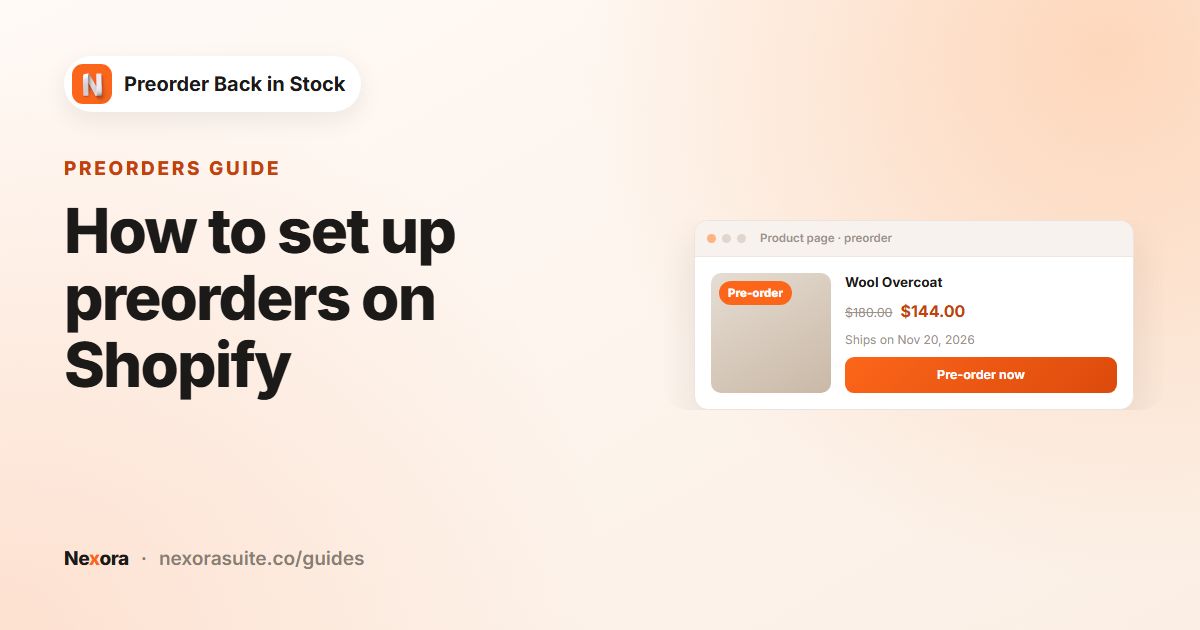
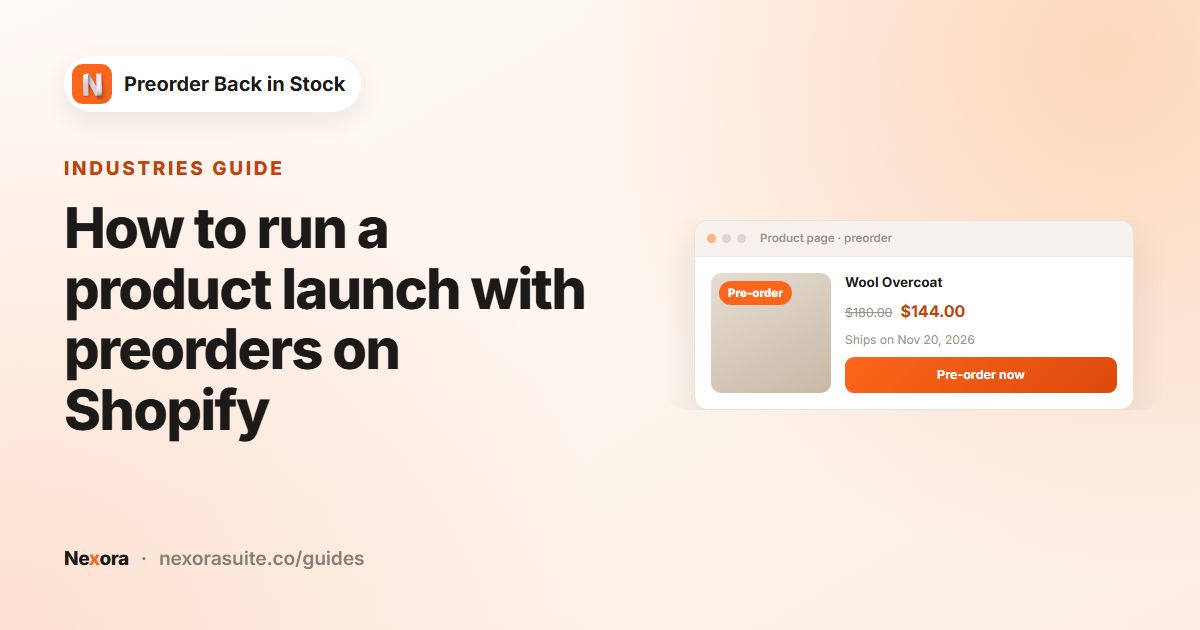
On the Design tab, turn on Show on product cards, then Show price strike-through with preorder discount.
- Save and test
Click Save, wait for the selling plan sync banner to clear, and add a preorder product to the cart to check the price.
Discount types compared
| Type | What the customer pays | Example on a 120 item |
|---|---|---|
| No discount | The regular price | 120 |
| Percentage (%) | The price minus a percentage | 15 → 102 |
| Fixed amount ($) | The price minus a fixed amount | 20 → 100 |
| Override price ($) | Exactly the amount you enter, in place of the regular price | 99 → 99 |
Percentage (%) works best when a campaign covers products at different prices, such as a whole collection. Fixed amount ($) reads well in marketing ("20 off when you preorder"). Override price ($) suits a single product with a launch price you want to state exactly.
Override price ($) sets the same price for every variant in the campaign. Use it for one product, or a group of products at the same price, not for a mixed collection.
Example: an early-bird price for a new backpack
A bag brand is launching a new backpack at 140. It wants the first buyers to get 15% off during a two-week preorder window, and the normal price to apply once stock lands.
- Scheduling: Set start date on launch day, Set end date two weeks later
- Discount: Percentage (%), value
15, so preorders cost 119 - Preorder message:
Early-bird price, ships in March - Show preorder badge on, Badge text
Early bird - Design → Show on product cards: Show preorder badge on card image and Show price strike-through with preorder discount on
- Messages: Preorder ends in enabled, so shoppers see the countdown to the end of the offer
When the end date passes, the Preorder button stops showing. The product's own price was never changed, so there are no price edits to undo. Place a quick test order after the end date to confirm everything looks as expected.
Tips and common mistakes
- Turning selling plans off: without Use Shopify selling plan (purchase option), preorder discounts are not available.
- Checkout payment methods: with selling plans on, checkout supports Shopify Payments only, so check this suits your store first.
- Stacking with discount codes: test a checkout with any active discount codes or automatic discounts to see how they combine with the preorder price.
- Too deep a discount: a preorder discount should reward patience, not undercut your launch. A small percentage is often enough.
- Forgetting the cards: if collection pages don't show the saving, turn on Show price strike-through with preorder discount. On custom themes, see Theme compatibility (advanced) in Settings.
Want to combine a discount with a deposit? See taking a deposit on preorders.
Frequently asked questions
Does the discount apply to in-stock purchases too?
No. It is attached to the preorder selling plan, so it only applies when the item is bought as a preorder.
Why must selling plans be on?
Preorder discounts are applied through Shopify selling plans. With Use Shopify selling plan (purchase option) off, the discount isn't available.
Can I show the original price crossed out?
Yes. Turn on Show price strike-through with preorder discount under Show on product cards on the Design tab.
Can different products in one campaign have different discounts?
A campaign has one discount. Create separate campaigns if you want different discounts for different products.
What does Override price do?
It charges exactly the amount you enter instead of the regular price, for every variant in the campaign.