What a launch preorder needs to do
A launch is different from an everyday preorder. The product is new, nobody has reviewed it, and you're often deciding how many to make based on early orders. A launch preorder has a few specific jobs:
- Measure demand before you commit: signups and early orders tell you how big the first production run should be.
- Create a clear moment: a launch date and an end date give people a reason to act, and give you a story to tell on social media and email.
- Protect you from overselling: the first batch has a fixed size, so the preorder needs a cap.
- Keep early buyers on side: they paid first and waited longest, so they deserve the clearest communication and, often, a better price.
Recommended setup
Run the launch in three phases. Each phase uses features you already have in the app, and the product's own price never needs to change.
| Phase | What shoppers see | App features | Example values |
|---|---|---|---|
| 1. Teaser (before launch) | Notify me when available on the product page | Back in Stock campaign, Popup, GDPR Compliance | Product published at 0 inventory |
| 2. Preorder window | Preorder button, early-bird price, countdown | Preorder campaign with Scheduling, Discount, Limit inventory for all products, Messages | 7 days, 10% off, 300 units |
| 3. Stock arrives | Add to cart for new buyers; shipping emails for preorder buyers | Shipped email, restock emails to remaining subscribers | Ship by the scheduled date |
Shopify notes that pre-orders require Shopify Payments or PayPal Express, and that selling at 0 stock depends on Continue selling when out of stock for tracked products. See Shopify's pre-orders overview. In this app, the early-bird discount, deposits and Scheduled ship dates use Shopify selling plans, which means checkout supports Shopify Payments only.
Steps
- Publish the product early
Add the product with inventory tracking on and 0 stock, so it can be found and shared before launch.
- Collect signups
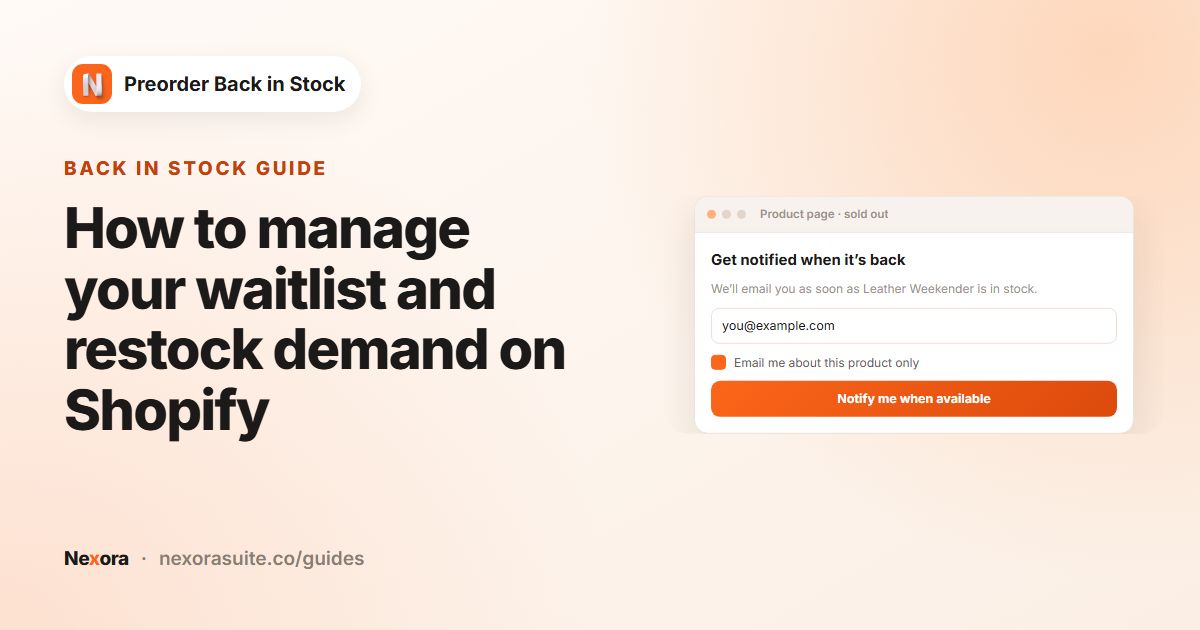
Create a Back in Stock campaign on Specific products. In the Popup Description, explain that you'll email when it launches. Turn on GDPR Compliance if you need double opt-in.
- Schedule the preorder
Create a Preorder campaign for the same product. Under Scheduling, tick Set start date (launch day) and Set end date (when the window closes).
- Add the early-bird terms
Set a Discount, for example Percentage (%)
10, and choose Full payment or Partial payment (deposit + balance later). - Cap the first batch
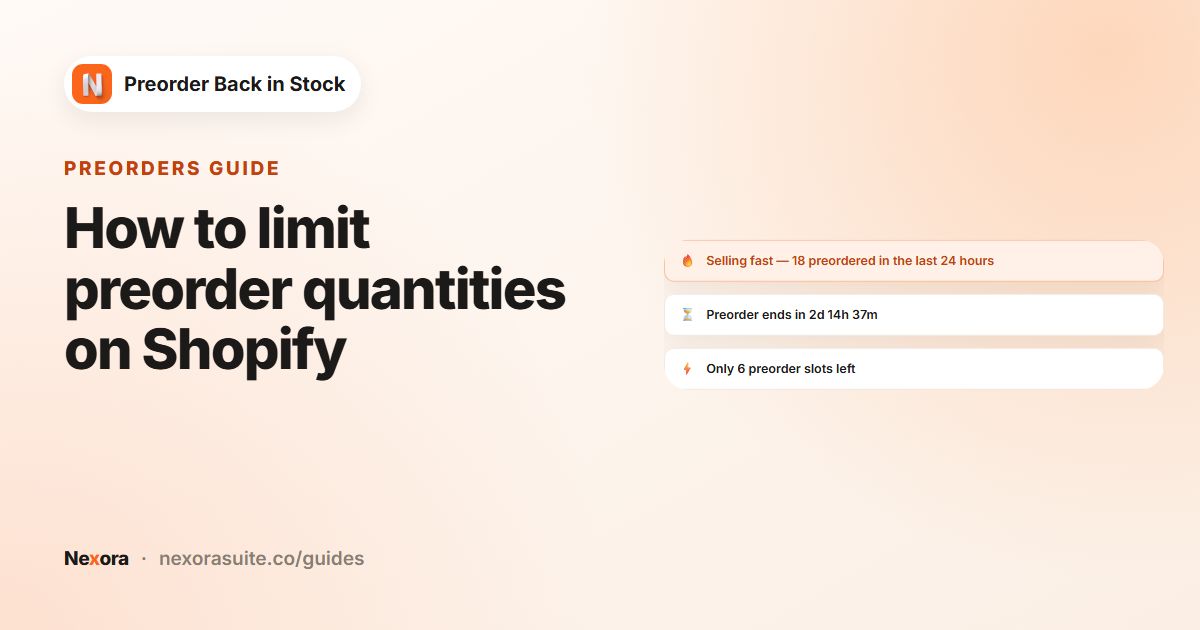
On Preorder products, keep When product is out of stock, tick Limit inventory for all products and enter your first-batch size.
- Set the ship date
Choose Scheduled with a fixed due date and turn on the Confirmation and Reminder before ship emails.
- Add urgency
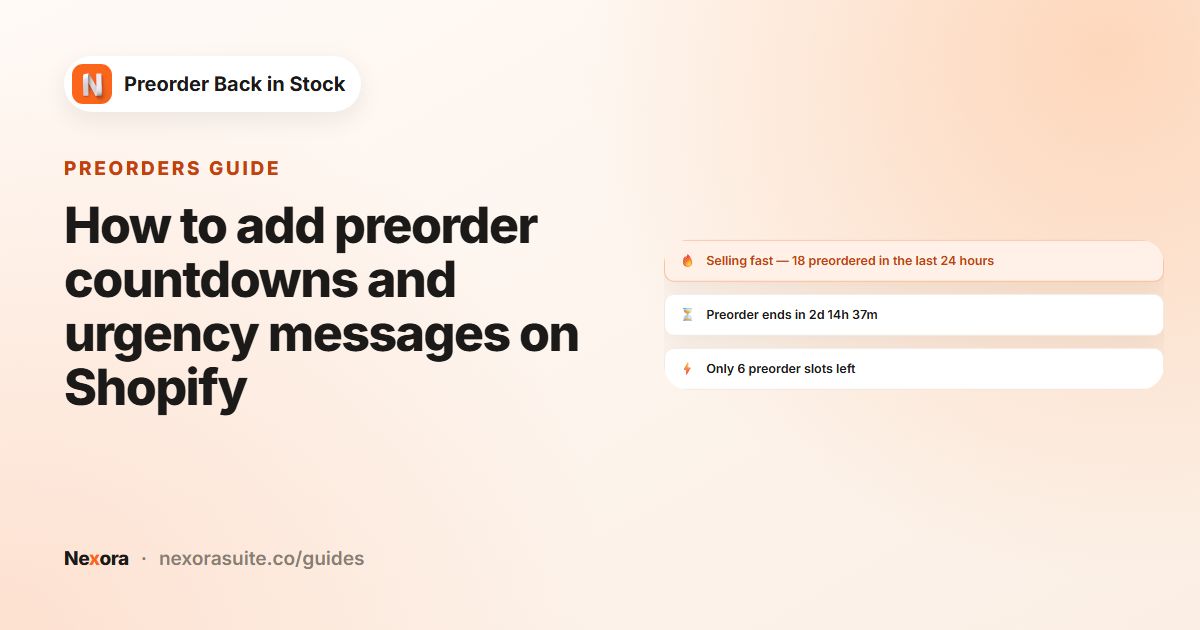
On Messages, turn on Dynamic messages with Preorder ends in and Only X slots left.
- Decide which button wins
On the back in stock campaign's Products tab, choose Show only preorder, so the Notify me button steps aside once preorders open.
Restock emails go out when inventory reaches Once inventory is above or equal to, not when the preorder opens. To tell signups that preorders are live, export Marketing list (CSV) from Subscribers and email them from your email platform, if they agreed to it.
Example: launching a new camping stove
An outdoor brand is launching a lightweight camping stove. The factory can deliver 300 units for the first batch, arriving around April 15. The brand wants to know whether to order a second batch before the first one even lands.
| Setting | Value |
|---|---|
| Back in Stock Popup → Description | Be first to hear when {product} launches. |
| Preorder Scheduling | Start March 1 09:00, end March 8 09:00 |
| Button text / Preorder message | Pre-order / Launch price, ships mid-April |
| Discount | Percentage (%) 10 |
| Payment | Partial payment (deposit + balance later), Deposit percentage 25, Charge balance after (days) 40 |
| Limit inventory for all products | 300 |
| Fulfillment | Scheduled, due date April 15 |
| Messages | Preorder ends in, then Only X slots left at ≤ 30 |
| Back in Stock Products | Show only preorder |
During the teaser, the Subscribers page shows how many people are waiting. On launch day the brand emails that list, the preorder sells 260 units in a week, and Preorder analytics shows the Conversion funnel from product views to orders. With 260 of 300 gone, the brand confirms a second batch.
When the 300 units arrive, inventory goes from −260 up to 40. Customers still on the back in stock list, such as people who signed up after the window closed, are then emailed automatically because inventory has reached the campaign threshold.
Signing up and preordering aren't linked, so a teaser subscriber who later preordered is still on the list. Before stock lands, use Mark as notified on the Subscribers page for anyone you know already ordered, or word the restock email so preorder customers can ignore it.
Launch tips
- Set the ship date with a margin: first production runs slip more often than repeat ones. Build in a week or two.
- Tag launch orders: add an Order tags value such as
launch-stoveso the whole first wave is easy to find in Shopify admin. - Tell deposit buyers about the second charge: mention
{remaining}and{date}in Payment description and in your Confirmation email. - Don't over-discount: a modest early-bird discount rewards early buyers without anchoring your regular price too low.
- Use the data: compare Preorder analytics with your signup count to estimate how well interest turns into orders for the next launch.
- Test before announcing: place a test preorder with Shopify Payments in test mode and check the order, tags and emails.
Go deeper on each part: preorder deposits, preorder limits and urgency messages.
Frequently asked questions
Can I collect interest before the preorder opens?
Yes. A Back in Stock campaign shows Notify me when available on the product while it has no stock, and the Subscribers page shows how many people are waiting.
Will Notify me subscribers be emailed when the preorder opens?
Not automatically. Restock emails are sent when inventory reaches the campaign threshold. Export Marketing list (CSV) to tell them about the launch from your email platform.
How do I stop Notify me showing once preorders start?
On the back in stock campaign's Products tab, choose Show only preorder.
Can the preorder open and close automatically?
Yes. Under Scheduling, set a start and end date and time. The campaign only shows between them.
How do I avoid selling more than my first batch?
Tick Limit inventory for all products and enter the batch size. Continue selling is switched off when it's reached.